CastleNet CBW500 Manuale utente

i
8
80
02
2.
.1
11
1g
g
W
Wi
ir
re
el
le
es
ss
s
C
Ca
ab
bl
l
e
e
R
Re
es
si
id
de
en
nt
ti
ia
al
l
G
Ga
at
te
ew
wa
a
y
y
CBW500/501
User’s Manual
For 1 Port and 4 Ports Model
m3

Federal Communication Commission Interference Statement
This equipment has been tested and found to comply with the limits for a Class B digital
device, pursuant to Part 15 of the FCC Rules. These limits are designed to provide
reasonable protection against harmful interference in a residential installation. This
equipment generates, uses and can radiate radio frequency energy and, if not installed
and used in accordance with the instructions, may cause harmful interference to radio
communications. However, there is no guarantee that interference will not occur in a
particular installation. If this equipment does cause harmful interference to radio or
television reception, which can be determined by turning the equipment off and on, the
user is encouraged to try to correct the interference by one of the following measures:
-Reorient or relocate the receiving antenna.
-Increase the separation between the equipment and receiver.
-Connect the equipment into an outlet on a circuit different from that to which the receiver
is connected.
-Consult the dealer or an experienced radio/TV technician for help.
FCC Caution: To assure continued compliance, (example -use only shielded interface
cables when connecting to computer or peripheral devices) any changes or modifications
not expressly approved by the party responsible for compliance could void the user's
authority to operate this equipment.
This device complies with Part 15 of the FCC Rules. Operation is subject to the following
two conditions:
(1) This device may not cause harmful interference, and
(2) This device must accept any interference received, including interference that may
cause undesired operation.
IMPORTANT NOTE:
This equipment complies with FCC radiation exposure limits set forth for an
uncontrolled environment. This equipment should be installed and operated
with minimum distance 20cm between the radiator & your body.
This transmitter must not be co-located or operating in conjunction with any
other antenna or transmitter.

Table of Contents
INTRODUCTION............................................................................................2
FEATURES ......................................................................................................2
PACKAGE CONTENTS................................................................................. 3
HARDWARE CONNECTION .......................................................................3
LED INDICATORS .........................................................................................2
Mode ..................................................................................................................2
GETTING STARTED .....................................................................................3
CONFIGURATION MENU..............................................................................4
7.1 STAT U S ..................................................................................................................4
7.1.1 Software ........................................................................................................4
7.1.2 Connection ....................................................................................................5
7.1.3 Security .........................................................................................................6
7.1.4 Diagnostics ...................................................................................................7
7.2 BASIC....................................................................................................................8
7.2.1 Setup..............................................................................................................8
7.2.2 DHCP............................................................................................................9
7.3 ADVANCED .........................................................................................................10
7.3.1 Options........................................................................................................10
7.3.2 IP Filtering..................................................................................................12
i

7.3.3 MAC Filtering.............................................................................................13
7.3.4 Port Filtering ..............................................................................................14
7.3.5 Forwarding .................................................................................................15
7.3.6 Port Triggers...............................................................................................16
7.3.7 DMZ Host....................................................................................................17
7.3.8 RIP Setup ....................................................................................................18
7.4 FIREWALL ...........................................................................................................19
7.4.1 ToD Filter ...................................................................................................19
7.4.2 Web Filter ...................................................................................................20
7.4.3 Local Log ....................................................................................................21
7.4.4 Remote Log .................................................................................................22
7.5 PARENTS CONTROL .............................................................................................23
7.5.1 Basic............................................................................................................23
7.6 WIRELESS ...........................................................................................................24
7.6.1 Basic............................................................................................................24
7.6.2 Security .......................................................................................................26
7.6.3 Access Control ............................................................................................29
7.6.4 Advanced.....................................................................................................30
TROUBLESHOOTING ..................................................................................33
Basic Connection .................................................................................................33
Browsing Configuration Utility ...........................................................................33
Connecting to the Internet ...................................................................................34
Wireless Network Connection ..............................................................................34
TECHNICAL SPECIFICATION...................................................................36
ii

Introduction
The CBW500 Wireless Cable Residential Gateway is a broadband gateway
product combining Ethernet network and wireless together. With IEEE 802.11g
standard wireless integration, this device not only allows you to take an
advantage of wired-free data transmission, but also allows you to have 4 of
10/100 Mbps Ethernet connections with auto-sensing switch Ethernet ports.
This combination of router and switch product eliminates the needs to buy an
additional hub or switch to serve your network, so users on either WLAN
(wireless LAN) or wired LAN can share files, other networking resource, and
even for a single account of Internet access by having this device connect to a
Cable modem.
The CBW500 allows up to 253 total (128 wireless) users to share a single
Cable connection. A high-speed routing engine and 54Mbps (802.11g
standard) wireless throughput easily handle large data transmission, including
those from multimedia applications.
802.11g also backward-compatible with 802.11b WLAN equipment, preserving
existing network investments.
The CBW500 can work as DHCP server to assigns an IP Address to every PC
on the LAN automatically and/or work as DHCP client to get an IP address
dynamically assigned by ISP. CBW500 Cable Residential Gateway is easy to
setup and maintain. All functions can be configured via web browsers such as
Internet Explorer.
Features
Enhance upstream performance, up to 30Mbps
DOCSIS 2.0 and CableHome 1.0 compliant
High speed wireless connection, up to 54Mbps
Ethernet (w/A-MDIX) or USB Interface for easy installation
QoS enhancement
MSO SNMP remote network management
Web Browser Management auto detect cable modem status
Field software upgradeable by MSO
Support up to 253 network clients
Provide MIBs DOCSIS1.0/1.1
2

Package Contents
1 x CBW500 Wireless Cable Residential Gateway with antennas
1 x Quick Installation Guide
1 x CD-ROM containing USB driver* and User’s Manual
1 x 12V DC/1A Power Adapter
1 x Ethernet cable
1 x USB cable (optional)
*USB interface depends on your model type, you may not have USB driver
contained in the CD-ROM.
Hardware Connection
1-PortModel (CBW501)
4-PortModel (CBW500)
Power: This port is for the 12V DC power supply connection.
Cable: Connect a DOCSIS 2.0/1.1/1.0 equivalent cable feed to the
F-connector on the back of the CBW500.
LAN: (1-Port Model) This LAN port is used to connect Ethernet device to the
LAN via Ethernet cable. You may use a HUB to extend the connections.
L1-L4: (4-Port Model) The four LAN ports are used to connect Ethernet
devices to the LAN via Ethernet cables.
Reset: Click RESET button to restart the system while press in and hold
RESET button for about three seconds to reset the CBW500 to the factory
default settings.
Antenna: These connection ports are reverse polarity.
3

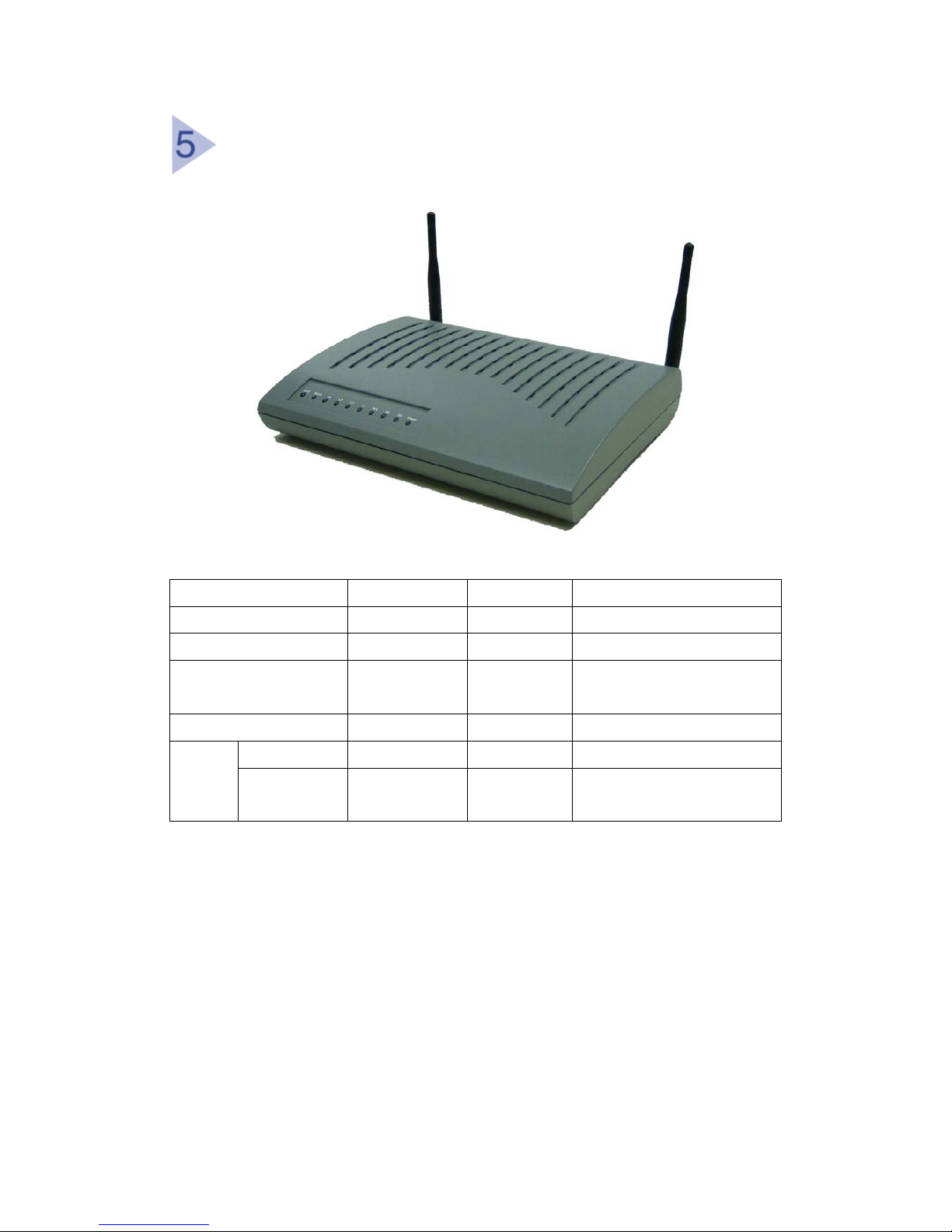
LED Indicators
LED Color Mode Status
Power Green On O.K.
Cable Green On Connected
WLAN Green On WLAN interface has data
transmitting
USB (optional) Green On Connected
Activity Green/Orange Blinking Data transmittingLAN
or
LAN1~4
10/100Linked Green/Orange On Green as 10Mbps
Orange as 100Mbps
2

Getting Started
Web Configuration
You can access the Configuration
Page by opening the web-browser
and typing in the IP Address of the
CBW500. The default IP Address of
the CBW500 is shown as right.
Leave the User name as blank and
the password as cable and then
press OK button. It is recommended
that you change the default
password for security purposes.
Please go to Status > Security to
change your password.
3

Configuration Menu
7.1 Status
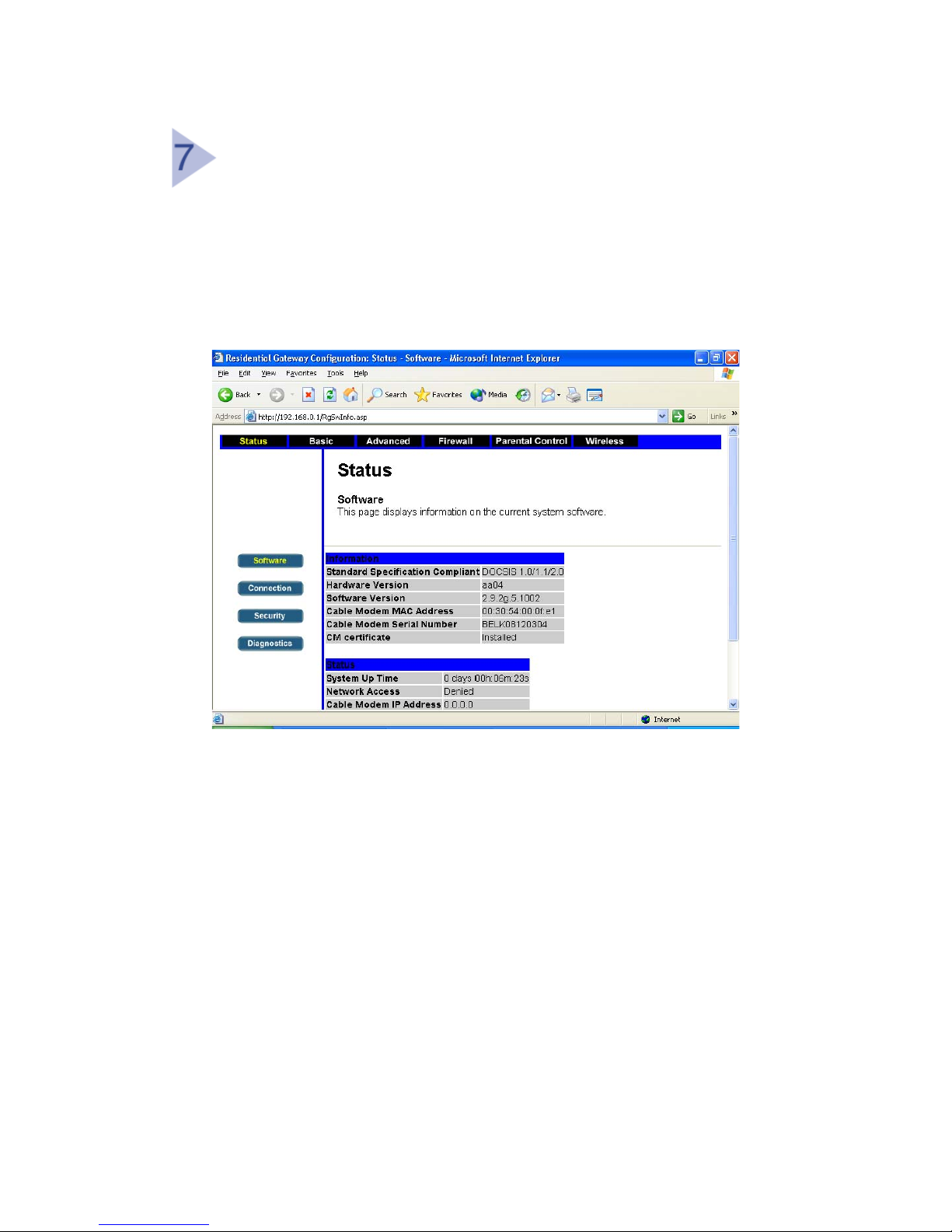
7.1.1 Software
This page displays information of current system software.
4

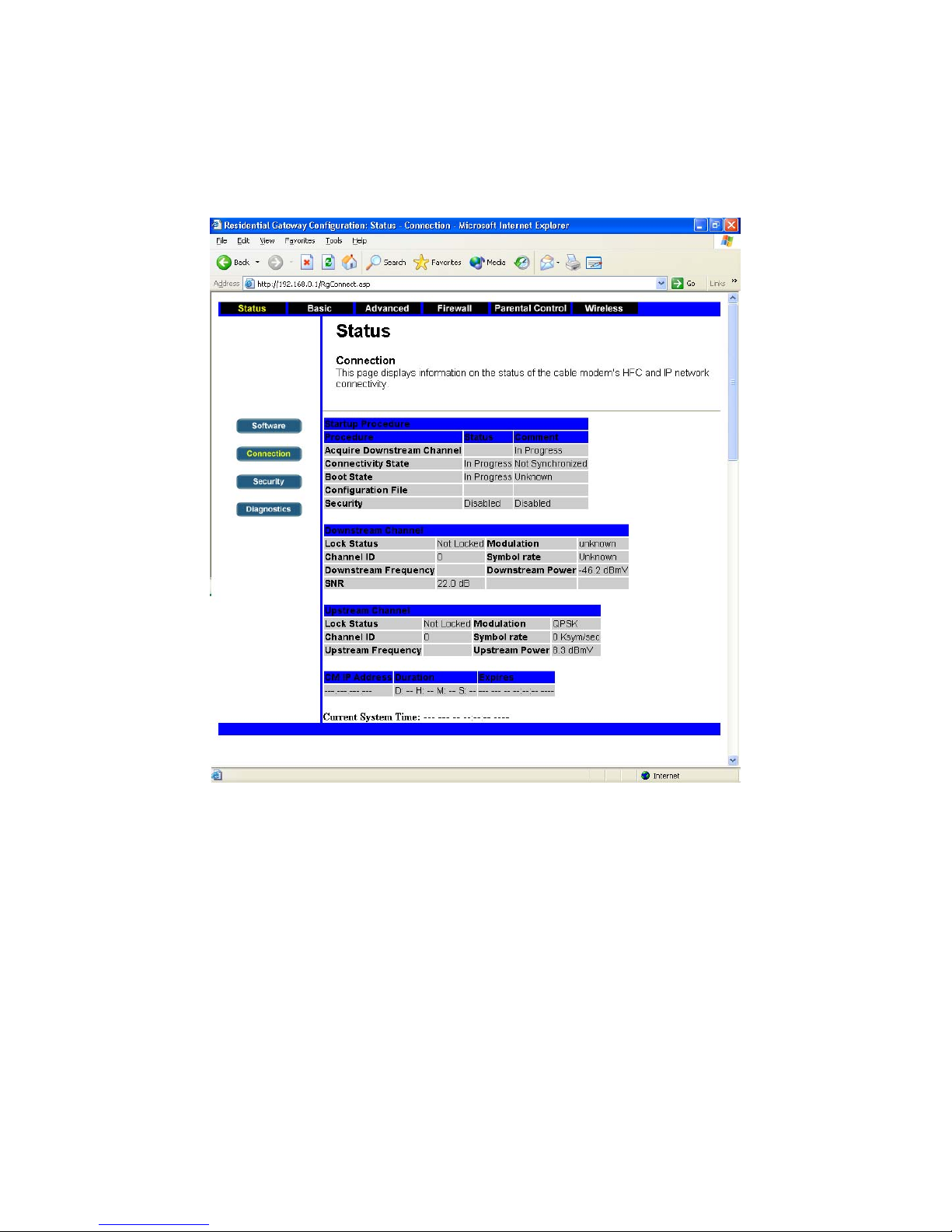
7.1.2 Connection
This page displays information of status of cable modem’s HCF and IP
network connectivity.
5
Questo manuale è adatto per i seguenti modelli
1
Indice
Altri manuali CastleNet Portale
Manuali Portale popolari di altre marche

LST
LST M500RFE-AS Manuale utente

Kinnex
Kinnex Media Gateway Manuale utente

2N Telekomunikace
2N Telekomunikace 2N StarGate Manuale utente

Mitsubishi Heavy Industries
Mitsubishi Heavy Industries Superlink SC-WBGW256 Manuale utente

ZyXEL Communications
ZyXEL Communications ZYWALL2 ET 2WE Manuale utente

Telsey
Telsey CPVA 500 - SIP Manuale utente