CBN XNET IGP1030 Manuale utente

Ver. 1.0
XNET
(IGP1030)
User Manual

XNET User Manual
2 / 53
Important Notices
The copyright of this manual is owned by CNB Technology Inc.
It is illegal to copy and distribute this manual without permission.
Damages caused by misuse and by use of parts not recommended
will not be applicable for support.
Contact the store or the manufacturer immediately if (you think)
there is any problem with the product.
Contact the store or the manufacturer before disassembling the
product for alteration or repair.
XNET is a trademark of CNB Technology Inc.
zThis product complies for CE (Europe) and FCC (USA) regulations
for industrial/home-use electrical device.
About this Manual
A compatibility and durability test ensures this product’s high performance.
This manual is for XNET Network product users only, and it describes operations related
to XNET Network products.
Please read this manual thoroughly paying attention to cautions and warnings before
using the product even if you have used similar products before.

XNET User Manual
3 / 53
Index
1. System Administration....................................................................................................4
1.1. Logging On.............................................................................................................................4
1.1.1. Using Internet Explorer ...............................................................................................................4
1.1.2. ID and Password.........................................................................................................................4
1.2. Configuring Camera ...............................................................................................................6
1.3. Web Viewer (Index.html) ........................................................................................................8
1.4. Status Window......................................................................................................................10
1.5. Configuring Users.................................................................................................................11
1.6. Setting Date &Time ..............................................................................................................13
1.7. Configuring Multi-Viewer ......................................................................................................15
1.8. Configuring PTZ ...................................................................................................................17
1.9. Maintaining Server Configurations .......................................................................................19
1.10. Generating Log Report.......................................................................................................21
1.11. Configuring Audio ...............................................................................................................23
1.12. Configuring Video...............................................................................................................25
1.13. Configuring RTP/RTSP ......................................................................................................27
1.14. Configuring Camera Condition ...........................................................................................29
1.15. Configuring the Network(TCP/IP) parameters....................................................................31
1.16. Configuring IP Filtering.......................................................................................................33
1.17. Configuring HTTP...............................................................................................................35
1.18. Configuring UPnP/DynDNS/Bonjour ..................................................................................37
1.19. Configuring CMS ................................................................................................................39
1.20. Configuring Event Type ......................................................................................................40
1.21. Configuring Sensor/Alarm ..................................................................................................42
1.22. SMTP Setup .......................................................................................................................44
1.23. Configuring FTP .................................................................................................................46
1.24. Configuring and operating Digital PTZ ...............................................................................48
1.25. Configuring and operating PTZ ..........................................................................................49
1.26. Configuring Motion Detection area.....................................................................................51
1.27. Configuring Multi View Option ............................................................................................53

XNET User Manual
4 / 53
1. System Administration
1
1.
.1
1.
.
L
Lo
og
gg
gi
in
ng
g
O
On
n
You can log on as an administrator using either Internet browser or ‘CMS’ software. (This manual will describe
about using Internet browser only.)
1
1.
.1
1.
.1
1.
.
U
Us
si
in
ng
g
I
In
nt
te
er
rn
ne
et
t
E
Ex
xp
pl
lo
or
re
er
r
Type the IP Address of the XNET product in the address bar and press enter.
e.g.) : http://192.168.123.100
If the HTTP port has been changed from the default value, enter the new port as shown below:
IP Address of the XNET: Port No.
e.g.) : http://192.168.123.100:8080
1
1.
.1
1.
.2
2.
.
I
ID
D
a
an
nd
d
P
Pa
as
ss
sw
wo
or
rd
d
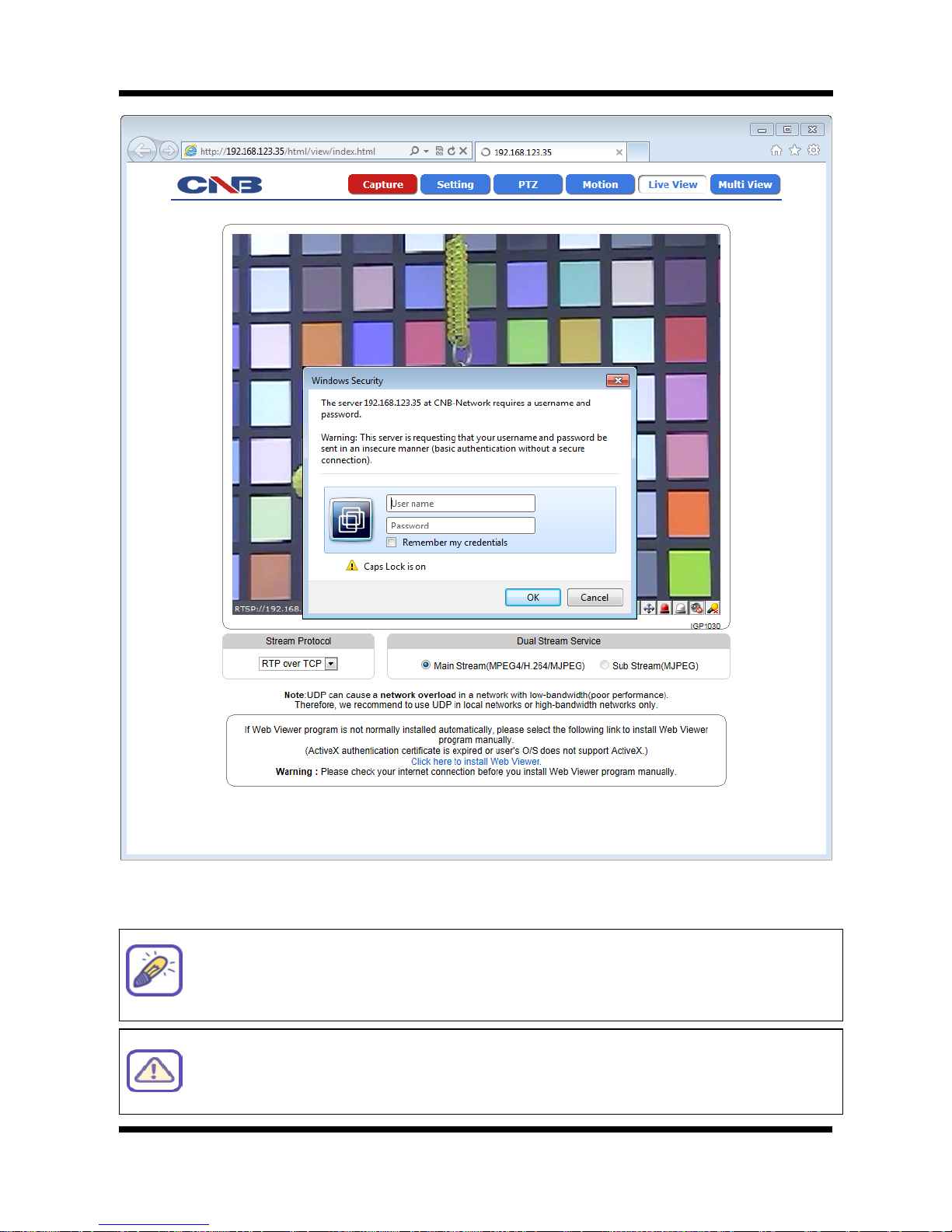
If you are logging in as an administrator, the Log-In box will appear as shown in figure 1-1. Basic Setup page
will appear when you enter id and password.

XNET User Manual
5 / 53
Figure 1-1 Log-in window
The default user name and password is “root” and “admin”respectively.
For security purpose, it is recommended to change the administrator’s id and
password from their default values. Please be careful not to forget them or expose
them to others. Please refer to [1.5] for detail.
If you forget the administrator’s password, “Factory Reset” is the only way to regain
access. However, since this will retrieve all default settings, you need to configure the
network settin
g
s usin
g
IP installer software a
g
ain.

XNET User Manual
6 / 53
1
1.
.2
2.
.
C
Co
on
nf
fi
ig
gu
ur
ri
in
ng
g
C
Ca
am
me
er
ra
a
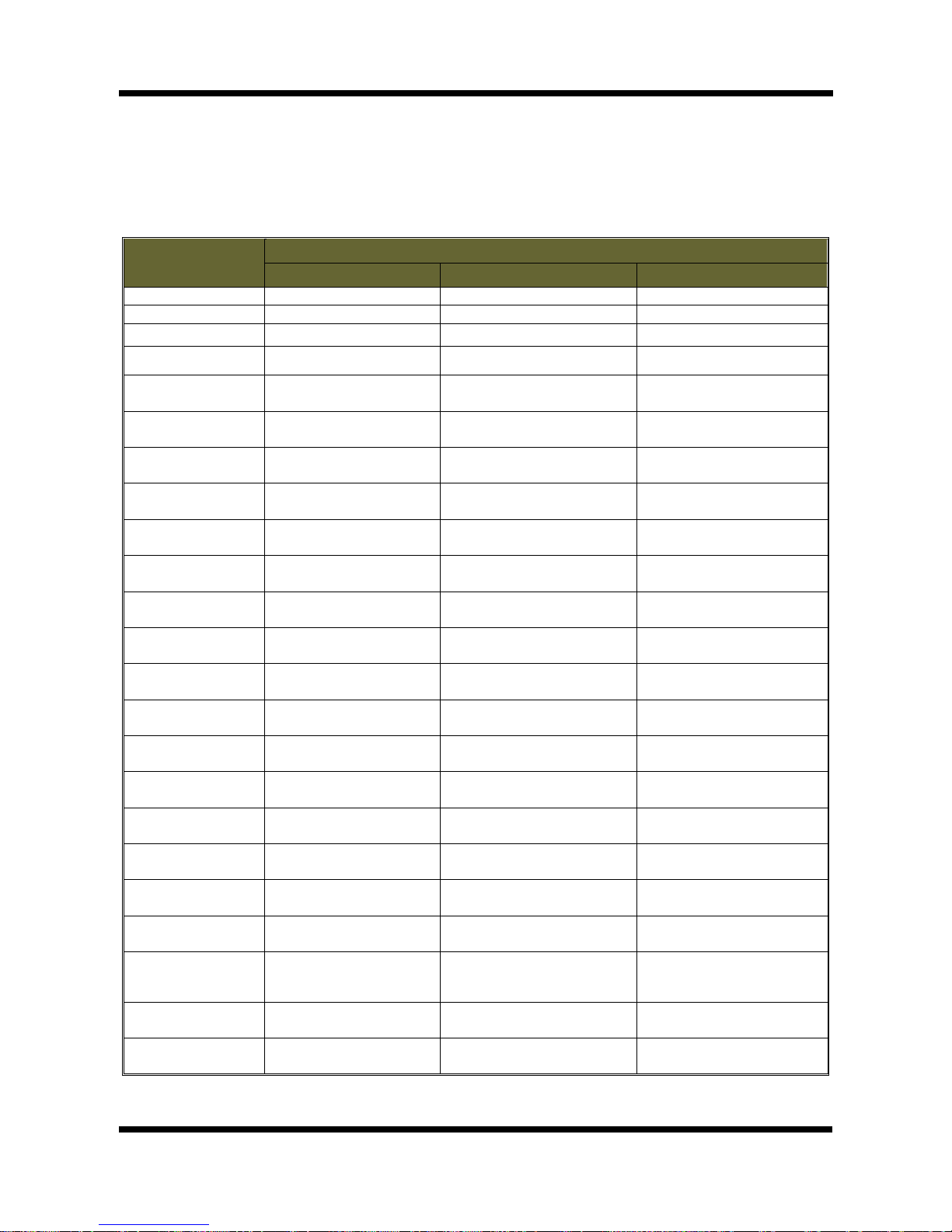
When you log in as an administrator, XNET’s Basic Setup page will appear as shown in Figure 1-2. Setup
pages for different features can be accessed from this page. Access to each feature are controlled by different
Figure 1-2 Basic Setup Page

XNET User Manual
7 / 53
Basic Setup Page can be accessed from Operator group level and up. If you want to access Administrator
level page in this user level, you need to log in as Administrator. Please refer to the following table for
access authority:
●Accessible
▬Not Accessible
Function Access
Administrator Operator Viewer
Index Page ●●●
Multi-Index Page ●●●
PTZ Page ●●▬
Motion Page ●●▬
Users
Setup Page ●▬▬
Date&Time
Setup Page ●●▬
Multi-Viewer
Setup Page ●▬▬
Maintain Server
Setup Page ●▬▬
System / Log
Setup Page ●▬▬
Audio
Setup Page ●●▬
Video
Setup Page ●●▬
Camera Condition
Setup Page ●●▬
TCP / IP
Setup Page ●▬▬
IP Filtering
Setup Page ●▬▬
SMTP
Setup Page ●▬▬
FTP
Setup Page ●▬▬
HTTP
Setup Page ●▬▬
UPnP / DynDNS
Setup Page ●▬▬
RTP
Setup Page ●▬▬
CMS
Setup Page ●▬▬
Event Type
Setup Page ●●▬
Sensor/Alarm
Setup Page ●●▬
PTZ Configuration
Setup Page ●●▬

XNET User Manual
8 / 53
1
1.
.3
3.
.
W
We
eb
b
V
Vi
ie
ew
we
er
r
(
(I
In
nd
de
ex
x.
.h
ht
tm
ml
l)
)
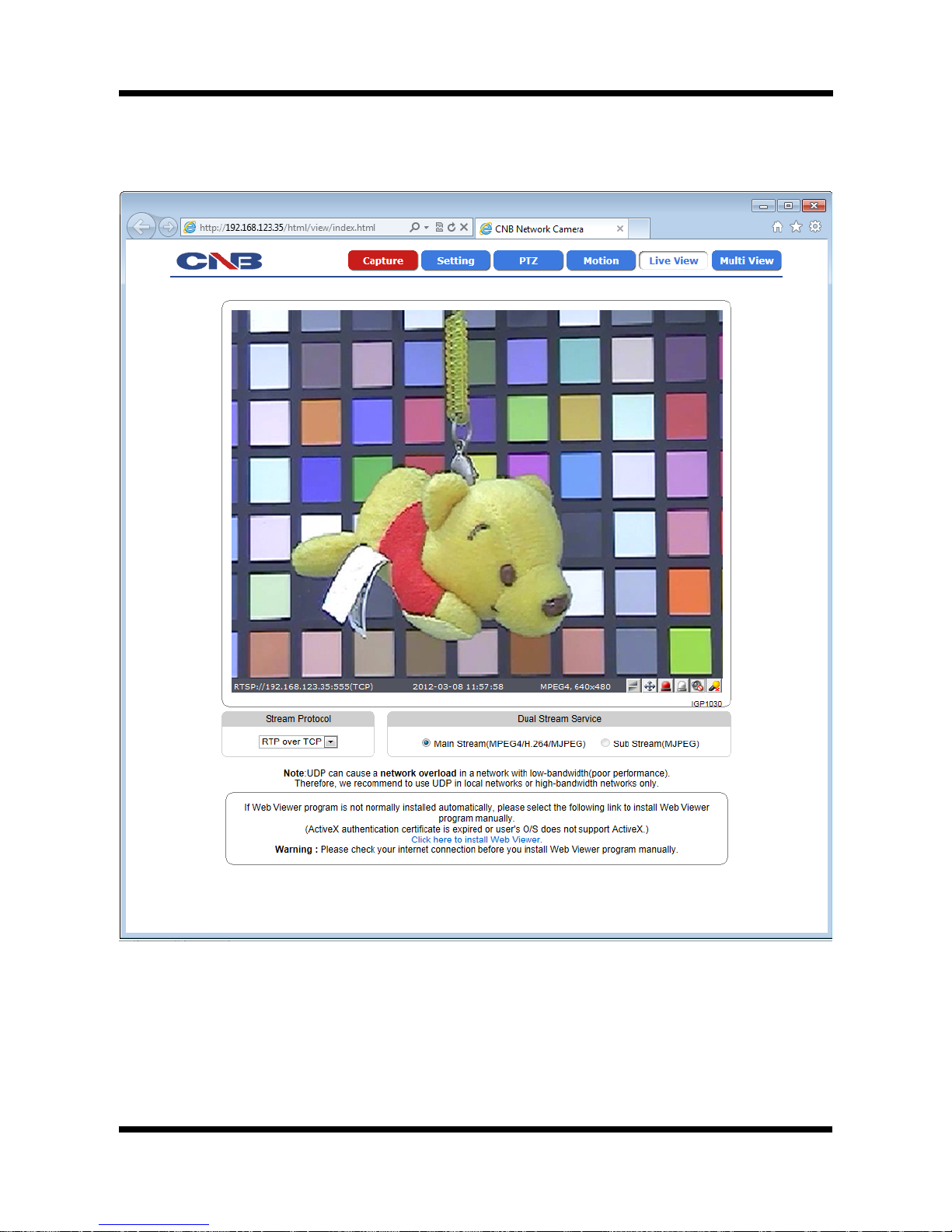
When you access an XNET product, Web Viewer page will appear automatically. Viewer area displays the
video output from the camera, and menu bar contains taps that lead to each feature setting page.
Figure 1-3 Web Viewer Page

XNET User Manual
9 / 53
ITEM DESCRIPTION
Capture -
Captures the still image and displays on a pop-up window.
[Save to] c:₩xNetCapture
Setting -
Opens up Basic Setup Page.
Setup page for each XNET feature can be opened from this Menu
screen.
(Please refer to 1.4 for detail)
PTZ -
Opens up PTZ page.
This page can set up digital PTZ of the network camera and control
of PTZ movement. (Please refer to 1.8 for detail)
Support Model : IGP1030 / INS2000 / IJB2000
Motion -
Opens up Motion Detection page.
You can add or delete areas for detecting motion in this page.
(Please refer to 1.27 for detail)
Live View -
Opens up Index View page.
Index View Page will display Video as well as setting up Stream
Protocol ( TCP / UDP ) and Codec (when using Dual Stream).
Multi View -
Opens up Multi View page.
Multi View page will display up to 4 video signals set up in IGP1030’s
Multi Video Player Setup Page.
(Please refer to 1.7 for detail)
Stream Protocol - A Stream Protocol can be selected when selecting EditBox
(RTP over TCP/RTP over UDP)
Dual Stream
Service
Main Stream When this box is checked, Main Stream Video is displayed.
(MPEG4/H.264/MJPEG)
Sub Stream
When this box is checked, Sub Stream Video is displayed.
Dual-Codec needs to be enabled in Video Setup Page in order for
Sub Stream Video to be displayed. (MJPEG)
(Please refer to 1.12 for detail)

XNET User Manual
10 / 53
1
1.
.4
4.
.
S
St
ta
at
tu
us
s
W
Wi
in
nd
do
ow
w
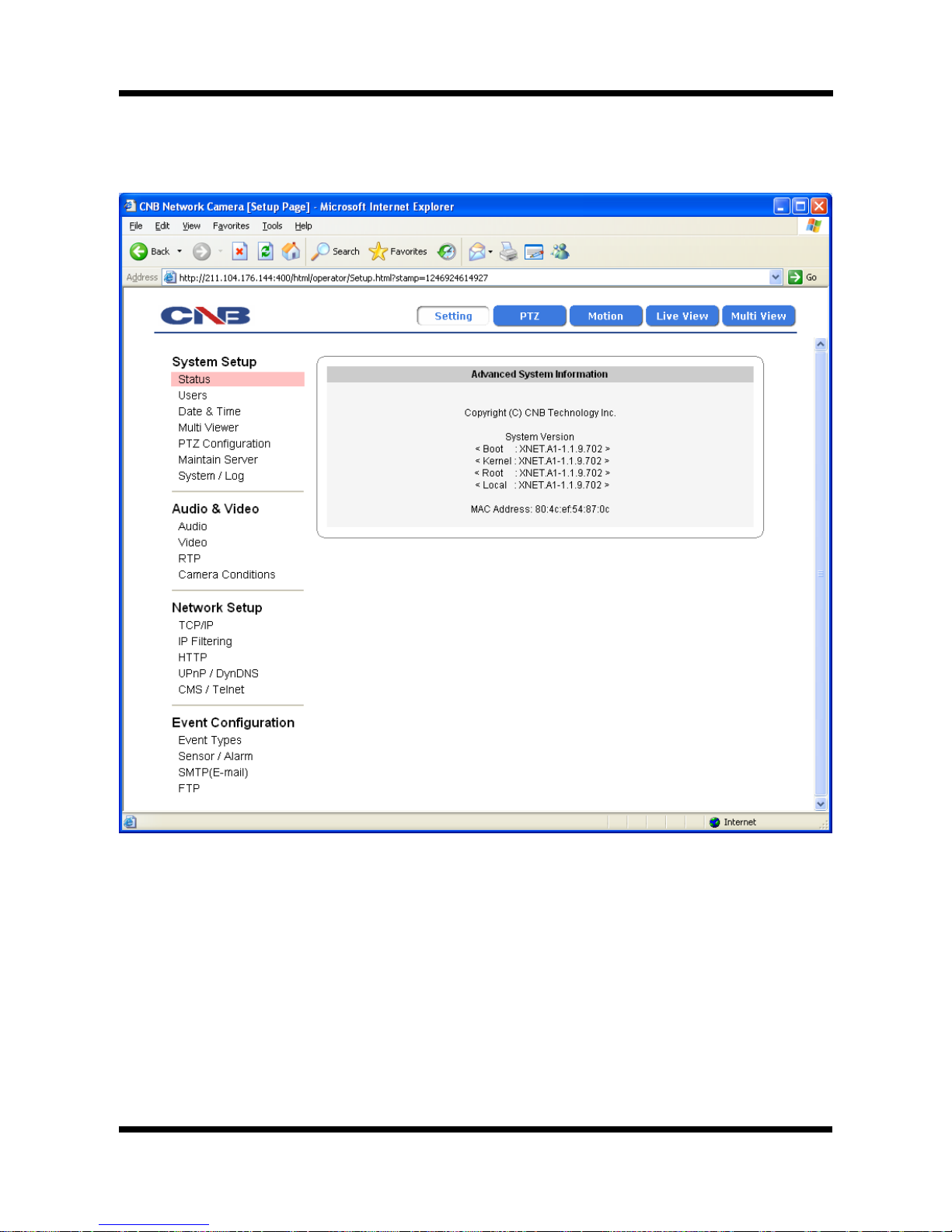
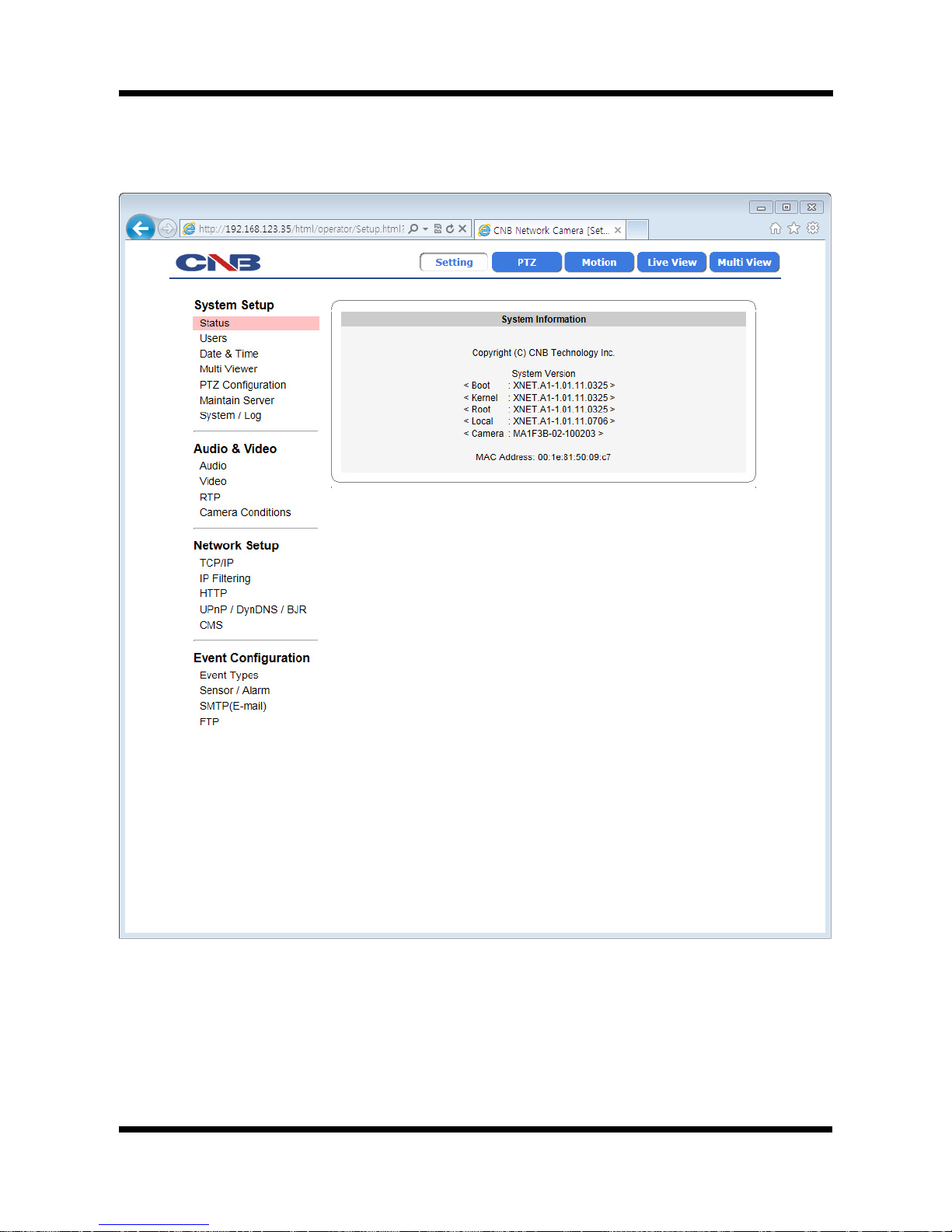
Status page displays XNET System’s Version and its Ethernet address.
Click [▷Status] button to open the page shown in Figure 1-4.
Figure 1-4 Status Page (Internet Explorer 7.0)
Indice