
Celestron 95510 SKYRIS 618C Manuale utente

inStRuctional manual
uSB 3.0 ASTRONOMICAL CCD CAMERA
95510 SKYRIS 618C
95511 SKYRIS 618M
95512 SKYRIS 445C
95513 SKYRIS 445M
95514 SKYRIS 2 74 C
95515 SKYRIS 2 74 M
2
SyStem RequiRementS
// Computer with Windows XP, Vista, 7, or 8 (32-bit and 64-bit supported)
// Pentium®M processor equivalent or higher, 1.7 GHz or higher
// USB 3.0 (for maximum performance) or USB 2.0
// 1 GB or more of system memory
// 20 GB or more hard disk space (recommended)
// Telescope with a 1.25” eyepiece holder or adapter with C-threads
// Motorized Mount, Altitude-Azimuth or German Equatorial (recommended)
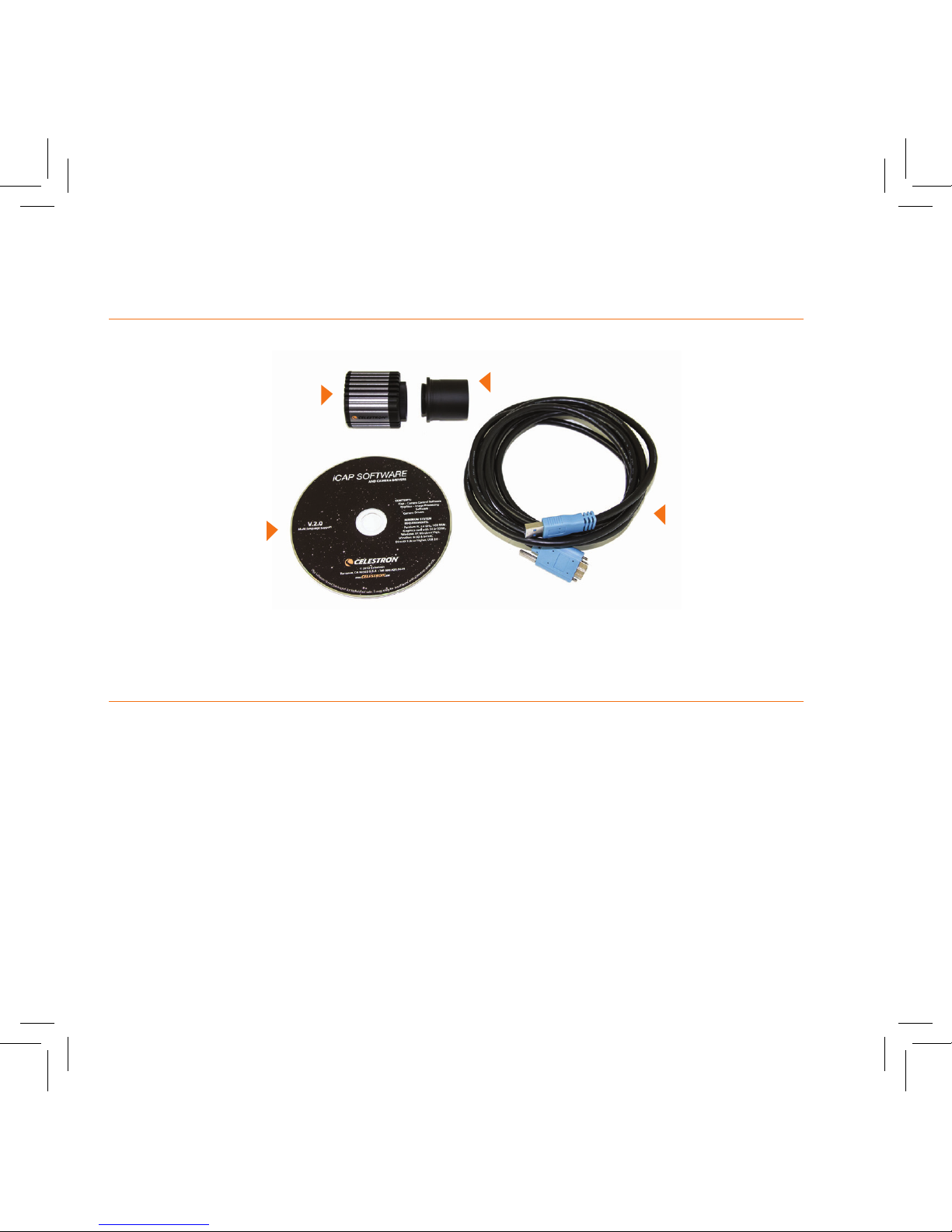
NOSEPIECE
SKYRIS CAMERA BODY
iCAP SOFTWARE CD USB 3.0 CABLE
included itemS
NOSEPIECE

3
cameRa dRiVeR inStallation
1. Insert the software CD into your
computer’s CD-ROM drive.
The language selection
screen will appear.
2. Select your language
and click OK. The iCap
Software launch screen
will appear.

4
The Skyris camera will also operate in USB 2.0 at a reduced frame rate.
3. Click Install Driver. The Driver
Installation Wizard will appear
and prompt you to connect
your camera.
4. Plug the Skyris camera into
the computer’s USB port
using the included cable. If
equipped, use a USB 3.0
port. The Driver Installation
Wizard will automatically
detect your Skyris model.
Click Next and proceed
through the prompts until the
driver installation is complete.

5
SoftwaRe inStallation
1. Click Install iCap and follow the prompts to complete installation.
2. Click Install RegiStax and follow the prompts to complete installation.
connecting the cameRa
to a teleScope
1. Remove the dust cap on
the camera body and thread
the 1.25” nosepiece to the
camera body. The threaded
ring on the camera body
should still be attached.
2. Insert the camera into the
1.25” eyepiece holder on your
telescope. The camera body
can also attach to a camera
adapter with C-threads,
typically requiring the use of a
T-to-C adapter. 1.25” nosepiece
1.25” visual back
Optional T-to-C Adapter (not included)

6
captuRing imageS
Detailed Solar System images are created by stacking several individual images
or “frames” to one master image. The images are captured in video, allowing you
to accumulate hundreds of frames in just a few seconds. The video files will later
be exported to RegiStax and processed as shown in “Processing Images.”
1. Set up your telescope and point it at a bright target such as the Moon or
Jupiter. Center the target in your eyepiece, then remove the eyepiece.
Remove the diagonal if you are using one. Some refractor telescopes may
require an extension tube when used without the diagonal.
2. Plug the camera into your computer’s USB port. If
equipped, use the USB 3.0 port on your computer,
which may also bear the USB SuperSpeed logo
(see right). When connecting the cable to the Skyris
camera, use the threaded fasteners to provide the most
secure connection.
3. Insert the camera into the 1.25” eyepiece holder on your telescope as
shown previously in this manual, “Connecting the Camera to a Telescope.”
4. Locate the iCap shortcut on your desktop and open iCap.
iCap 2.3

7
5. Select your Skyris camera from the
Available Video Capture Devices
window and click OK.
6. The live video window will
automatically appear and
display the framerate. Gain
and exposure are defaulted to
automatic, but you may need to
make adjustments for the object
you are imaging.
7. If a defocused image appears,
focus the telescope until it appears
sharp on your screen. If no image
appears, confirm your telescope
is still centered on a bright object
and proceed to step 8.
8. Go to the Device menu and select
Properties. Click the Exposure
tab to access the Gain and
Exposure. Uncheck the Auto box
for each to allow for adjustments.

8
Video framerate will depend on the Skyris model used and the exposure. If the exposure time is
slower than the camera’s maximum frame rate, the FPS count will closely match the exposure time
(1/exposure time).
For iCap version 2.3, use the dropdown menu to select the framerate closest to the exposure time
used. For example, if the exposure time is 1/34 sec, select 30 FPS.
9. In the Capture menu, select Toggle
Recording Info Dialog.
10. Click on the Codec icon to access
the Recording Settings window.
We highly recommend selecting Uncompressed to retain the full
image quality and size. Note that Uncompressed will consume
a significant amount of hard disk space in a very short time. Be
mindful of the file sizes when creating AVI files.
Choose RGB32 or Y800. For Skyris
color cameras, choose RGB32 which will
record in color, making export easier. You
can also select Y800 in color models;
however, you must debayer (color convert)
the image later when processing.
RegiStax is included with your software
CD and will debayer the images.

9
11. Click on the Video File tab to access the
file naming convention settings. Choose
the folder path you wish to save your
video, and select an object name and time
stamp if desired. Check the Index box to
automatically number your video files.
12. Click the Advanced tab to access
custom video recording limits. You can
choose to limit the recording by the
number of frames or length of time.
Remember that these AVI files will
consume massive amounts of hard
disk space very quickly. Click OK
when finished.
13. Click the red record icon to
begin recording.

10
pRoceSSing imageS
Now that your video file is recorded, you can export it to RegiStax to stack and
process into a final image.
1. Double-click the RegiStax icon on your computer’s desktop
to start the program.
Familiarize yourself with the initial
RegiStax screen.
A
B
D
C
E
If the object you are imaging does not consume most of the field
of view, you can select an ROI (region of interest) to save hard
disk space. Go to the Device menu and select ROI Specifiy,
or click on the ROI icon. Draw the ROI with your mouse, then
click inside the red box to set the ROI. The ROI can be reset any
time by clicking the reset icon or going back to the Device menu.
Questo manuale è adatto per i seguenti modelli
5
Indice
Altri manuali Celestron Telecamera di sicurezza


