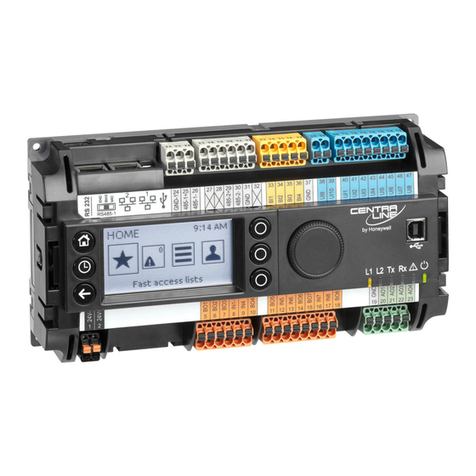
HAWK 8000 CONTROLLER – BACKUP & RESTORE GUIDE
3 EN2Z-1027GE51 R0517
OVERVIEW
Topics covered in this chapter
♦Creating a USB backup
♦Restoring from a USB backup
♦Restoring factory defaults
♦Shutting down the controller
The HAWK 8000 allows you to back up the entire platform and station to a USB flash drive without requiring the
backup functions of COACH NX. Called a clone backup, the file created by a USB backup contains a complete image
of the platform and station, including system modules and the QNX OS.
NOTE: Starting in NX 4.2, the HAWK 8000 can be converted (downgraded) to run AX 3.8.111.6.5 – with some
feature limitations. For example, for any HAWK 8000 running AX the USB Backup/Restore functionality is
not supported. When running AX, the USB port on the device is not monitored. Other unsupported features
are IEEE 802.1X wired authentication and WiFi functionality.
The BackupService, which comes standard with COACH NX, backs up station files to a local Supervisor or browser
PC. A backup made by the BackupService includes only pointers to required core software modules. To restore from
a backup made using COACH NX, not only do you need COACH NX, but also its software database with matching
versions of all required core .dist files, OS .dist files, and software modules. Afterwards, use the Distribution File
Installer to restore the backup.
The HAWK 8000 provides the ability to:
• Initiate a backup manually by inserting a USB flash drive into the USB port and pressing the backup and restore
button on the unit itself.
NOTE: USB backup supports only FAT32 and FAT32X file systems. NTFS is not supported.
CAUTION
Risk of equipment damage!
►Only flash drives (USB sticks ≤128GB) are recommended for backup/restore operations. USB bus-powered ex-
ternal hard drives often have higher power requirements and so may not function as expected, possibly resulting in
permanent damage to the drive or to the HAWK 8000. Plugging in an external hard drive may cause the controller
to become unresponsive, requiring a reboot.
• Restore a USB backup image using a USB flash drive, USB-to-Micro USB cable connection and a terminal
emulator program.
• Recover the factory default image. This feature does not require a USB flash drive, special cable or terminal
emulator. The system pulls the factory image from non-volatile, read-only memory.
Creating a USB Backup
You may create a clone backup while a station is running or stopped. When the controller is powered on, the software
continuously monitors the USB port. Putting a USB flash drive in the port triggers backup/restore mode.
Prerequisites:
• USB backups are enabled on the controller: Platform Administration→Advanced Options→USB Backup Enabled
property is selected
NOTE: USB backup supports only FAT32 and FAT32X file systems. NTFS is not supported.
• You need a USB flash drive with enough memory to contain the complete platform and station image along with
the operating system and all software modules.
Step 1: Confirm that the controller's power is ON.
Step 2: Insert a USB flash drive into the USB port.
The backup and restore LED turns ON.