Chipset Communication USB-KS1 Manuale utente

Keyboard Security USB
USB-KS1
User Manual
1

Contents
1.HardwareInstallation .................................................................................. 3
2.SoftwareInstallation.................................................................................... 4
3.BasicUsage .................................................................................................. 5
4.AdvancedSetting ......................................................................................... 6
4.1AdapterMenu......................................................................................................... 6
4.2AdapterSettingDialog ............................................................................................ 7
4.2.1SecurityStatus ................................................................................................... 7
4.2.2EnableOptions................................................................................................... 8
4.2.3SupportList ...................................................................................................... 10
5.Notation .................................................................................................... 15
5.1AdapterEncryptedKey.......................................................................................... 15
5.2Limitation ............................................................................................................. 15
5.3Uninstallation ....................................................................................................... 16
2

1. Hardware Installation:
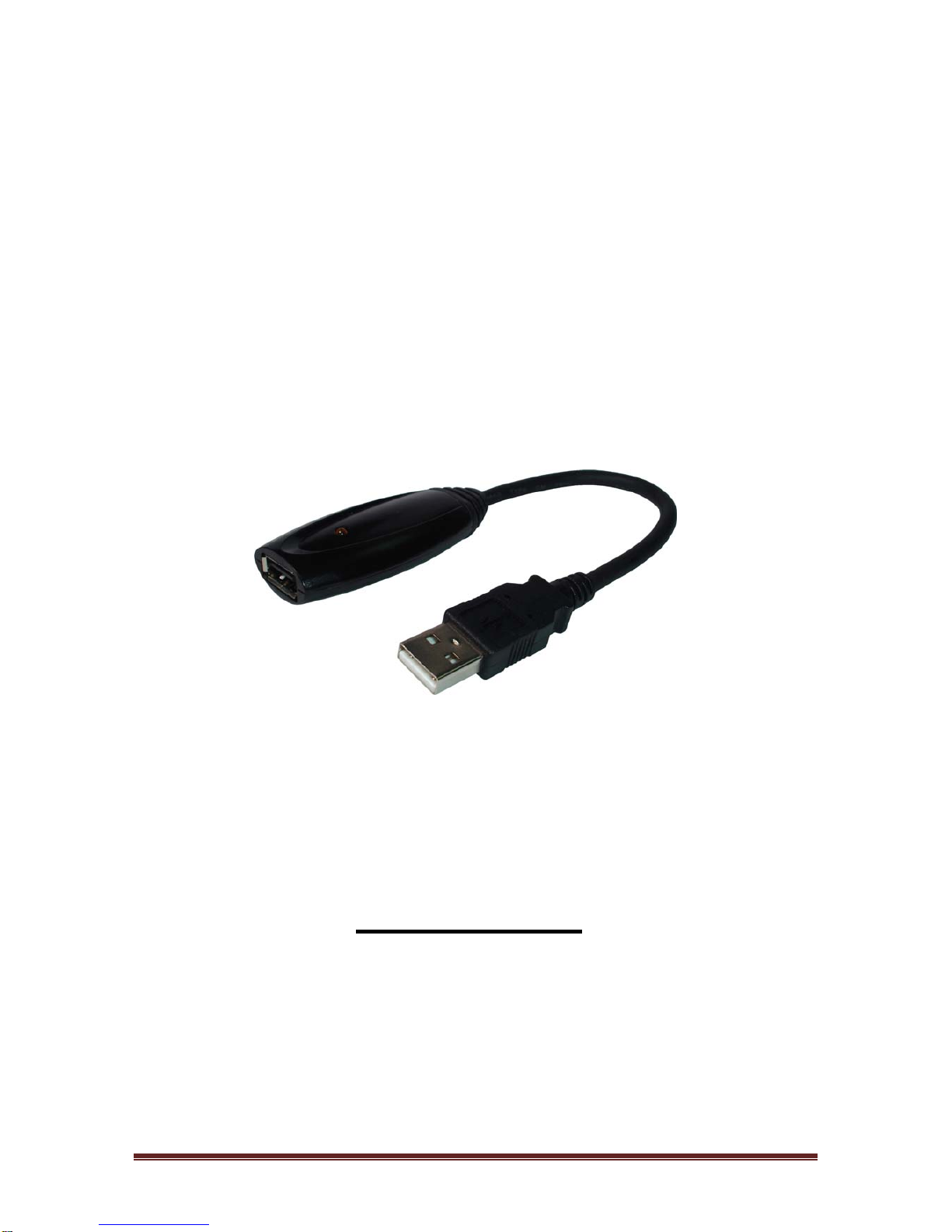
Keyboard Security USB Adapter (USB-KS1)
a. PlugyourstandardUSBkeyboardorwirelesskeyboard(maleconnector)to
USB‐KS1Adapter(femaleconnectorofUSB).
b. PlugUSB‐KS1maleconnectortoyourPC(desktoporlaptop).
c. Installthesoftwareasnextsection.
3

2. Software Installation
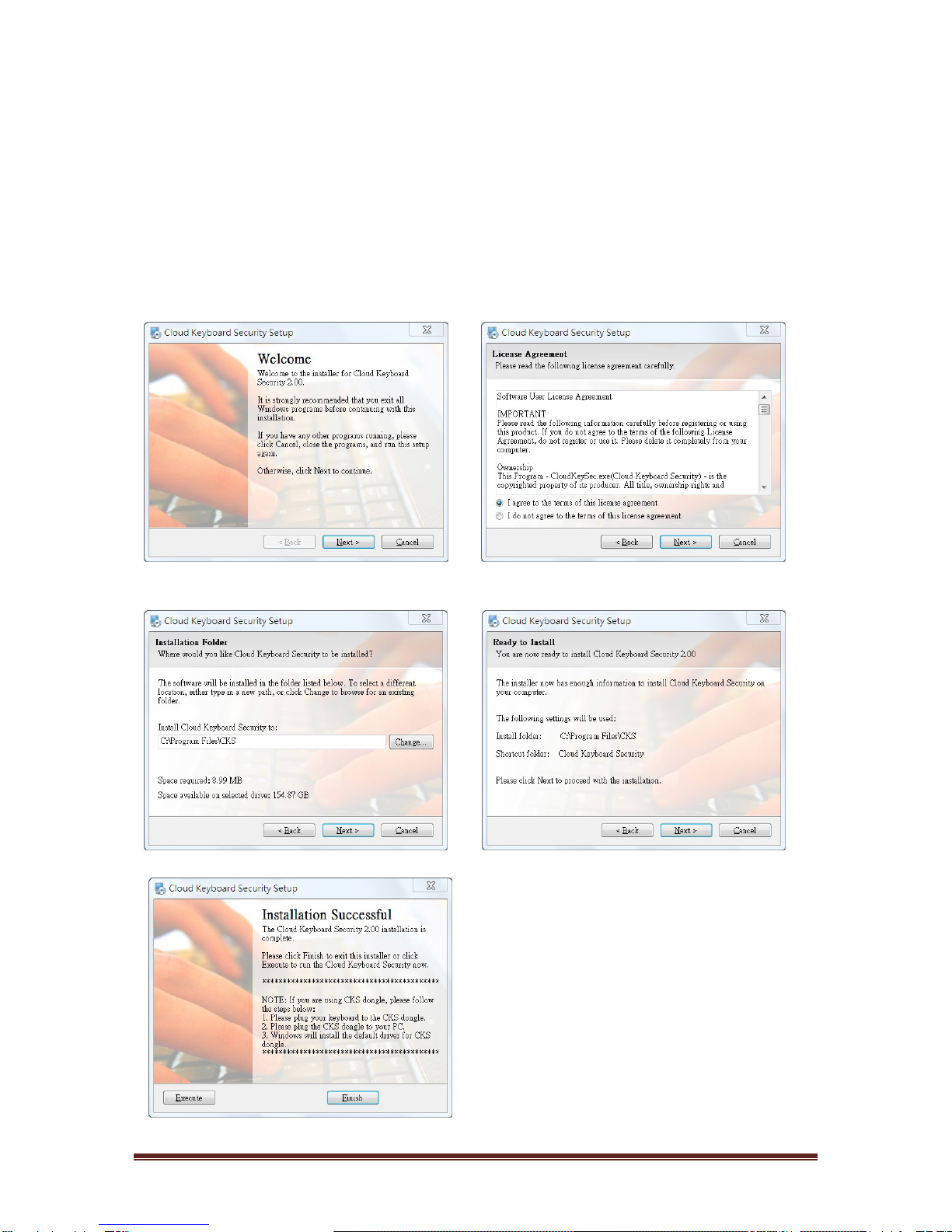
InsertbundledCD(orflashbuilt‐indisk)toPCforsoftware/driver’sinstallation,andthen
followfewstepsasfollowingproceduretoinstallthesoftware
Step1:WelcomeStep2:LicenseAgreement
Step3:InstallationFolderStep4:ReadytoInstall
Step5:InstallationSuccessful
4

3. Basic Usage
Ifyouinstallofsoftwarecompleted,thennexttimewhenyourre‐bootitwillauto‐run
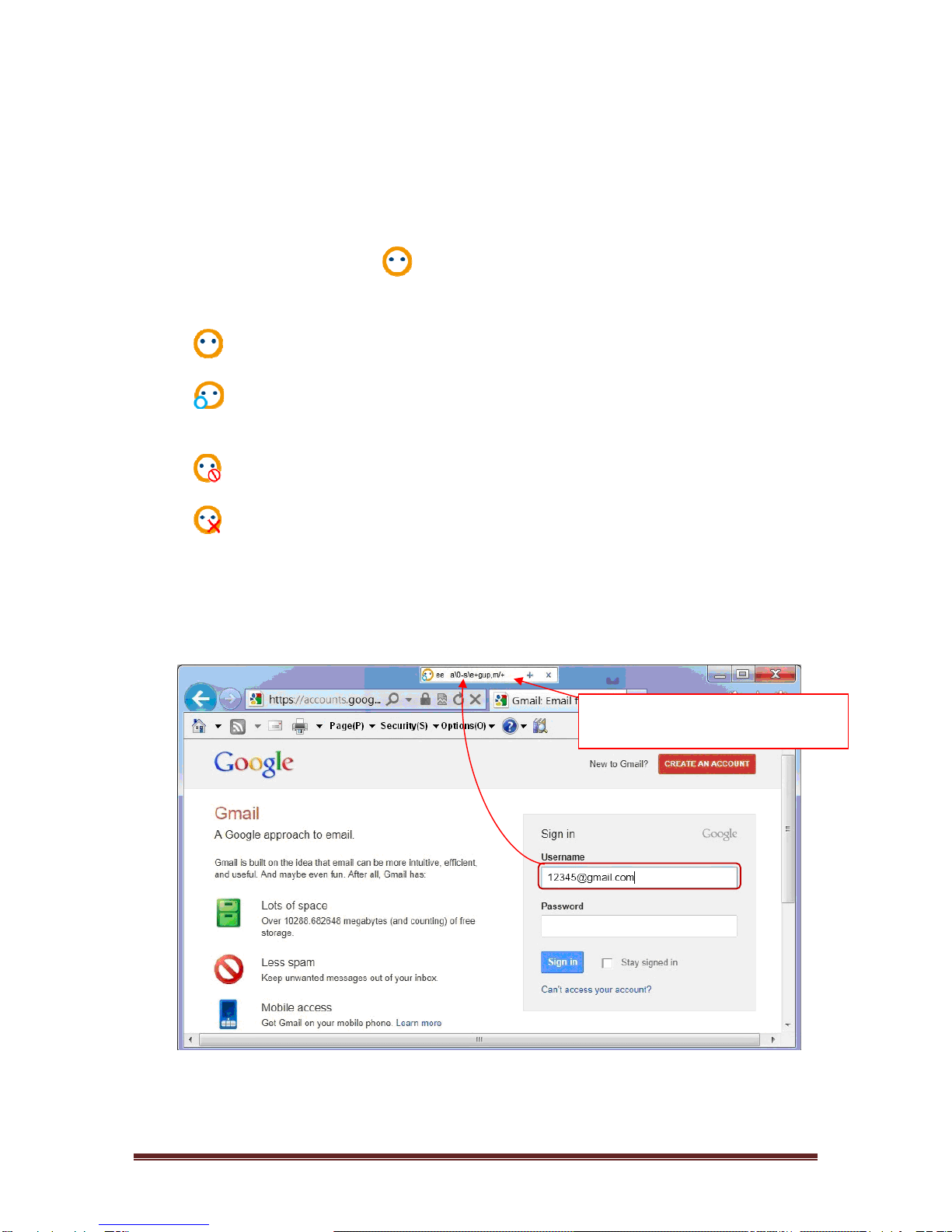
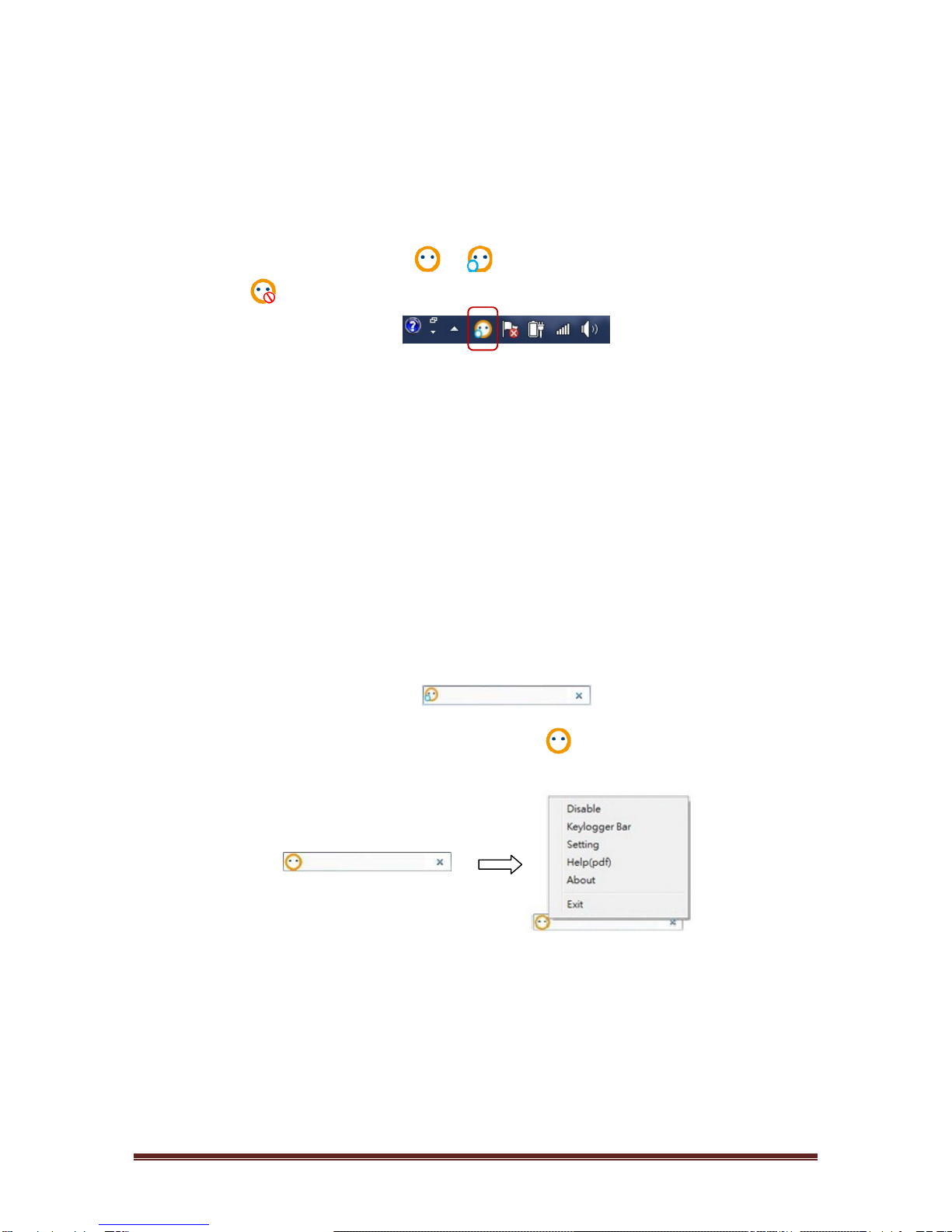
bydefaultsetting.Theiconwillappearonsystemtrayarea.Thereare4statesof
icononsystemtrayforrepresentingUSB‐KS1status.
Enabled:Whenthesoftwareisenabledandhardwareisready.
Connected:WhentheUSB‐KS1isconnectedtotheapplicationsoftware.The
datafromkeyboardareprotectedinthisstate.
Disabled:Whenthesoftwareisdisabled.
Disconnected:WhentheUSB‐KS1hardwareisnotfound.
WhentheUSB‐KS1isconnectedtoapplicationsoftware,thedatafromkeyboardinthe
applicationwillbeprotectedbyTheAnti‐keyloggerSystem.TheSystemwillauto
changetheencryptedkeybymouseclick,<Tab>key,<CapsLock>keyand<Enter>key.
Thehackeronlycangetthe
meaninglessencrypteddata.
5

4. Advanced Setting
4.1 Adapter Menu
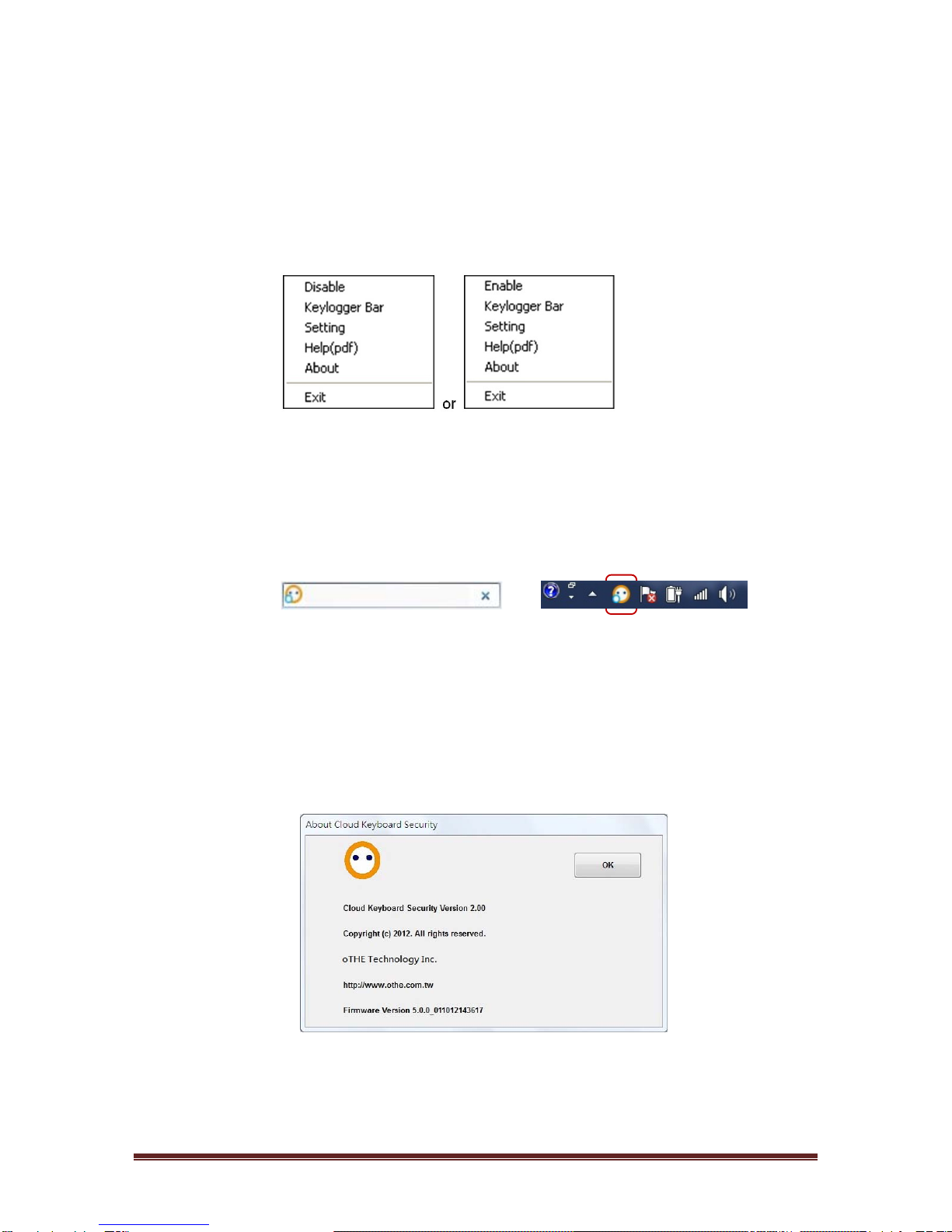
ByrightclicktheSoftwareinsystemtray,thesystemmenuwillappearasfollows.
a. Select[Disable]/[Enable]toDisable/Enablethesecuritymode.
Win+CtrlkeysarethehotkeyforswitchingsecuritymodebetweenEnabledand
Disabled.
b. Select[KeyloggerBar]orleftclicktheiconinsystemtray,theKeyloggerBarwill
appearasbelow:
Youcanknowtheencryptedcharactersforeachwordwhenyouaretyping.Right
clicktheiconontheKeyloggerBarwillpulldownthesystemmenu,too. When
Keylogger Bar was turn-off, you can click the icon to turn-on again.
c. Select[Setting]inthemenuorleftclicktheiconontheKeyloggerBarwillopenthe
settingdialog.
d. Select[Help(pdf)]toopentheUserManual.
e. Select[About]toreadtheinformationaboutthesystem.
f. Select[Exit]toclosethesoftware.
6

4.2 Adapter Setting Dialog
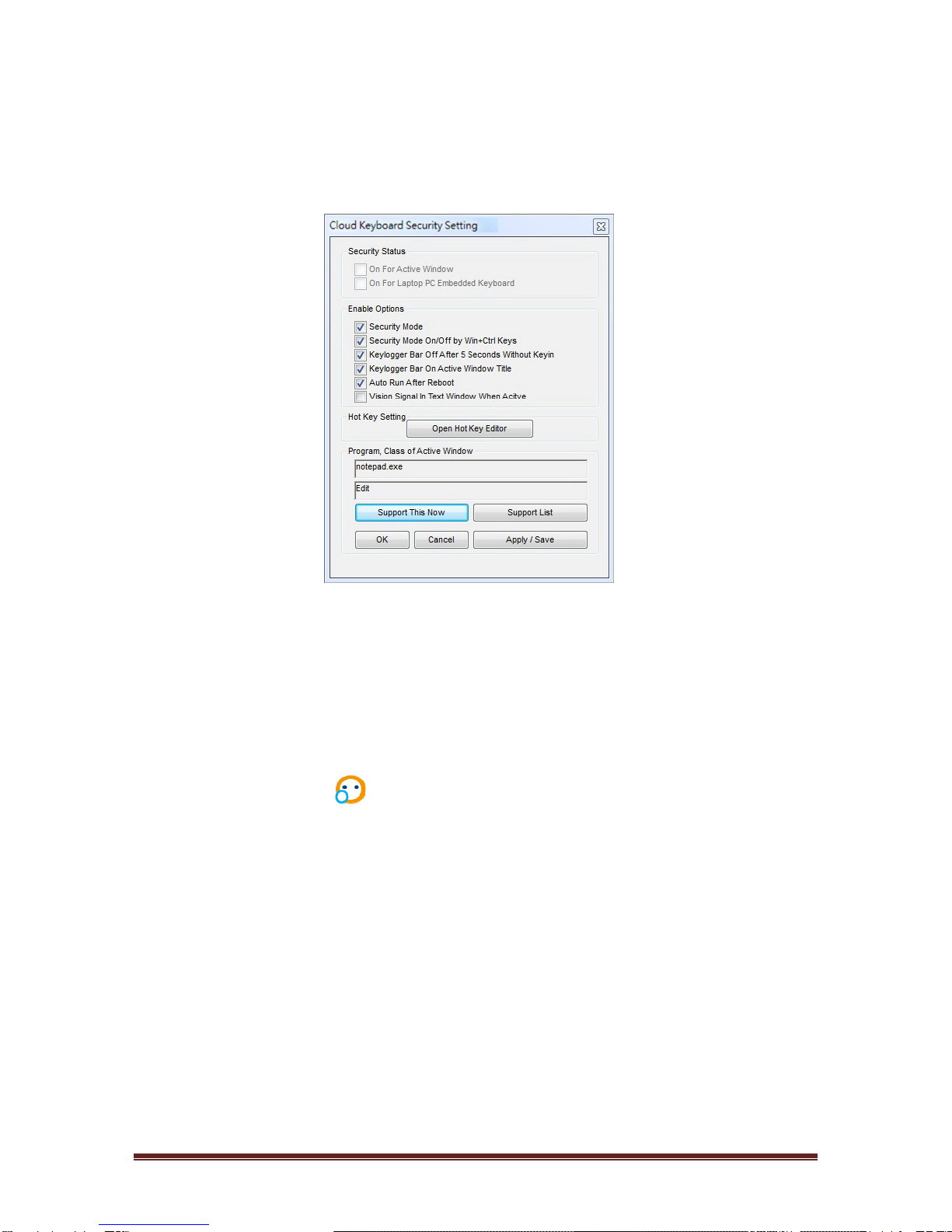
4.2.1 Security Status
a. OnForActiveWindow
ThisstatuswillbetickedwhenUSB‐KS1isconnectingtoapplicationsoftware;
yourtypingdataareprotected.Thesystemtrayiconwillshow:
(Connected)
b. OnForLaptopPCEmbeddedKeyboard
ThisstatuswillbetickedifyouhaveinstalledtheDriverforyourlaptopPC
embeddedkeyboard.
7

4.2.2 Enable Options
a. SecurityMode
Whenthisoptionisticked,thesoftwarewillbeenabled. The system tray and
Keylogger bar will show or . If Security Mode is disable then icon change to
.
b. SecurityModeOn/OffbyWin+CtrlKeys
Whenthisoptionisticked,securitymodecanbeturnedon/offbyusingthe
Win+Ctrlkeys.
c. KeyloggerBarOffAfter5SecondsWithoutKeying
Whenthisoptionisticked,KeyloggerBarwillturnoffafter5secondswithout
keying.
Win+Ctrlkeysarethehotkeyforturnon/offtheKeyloggerBar.
d. KeyloggerBarOnActiveWindowTitle
Whenthisoptionisticked,KeyloggerBarwillalwaysonthetopoftheactive
window.
If move the cursor to the Keylogger Bar icon , then right click will show the menu
as following.
e. AutoRunAfterReboot
Whenthisoptionisticked,thesoftwarewillalwaysauto‐runaftersystem
reboot.
8

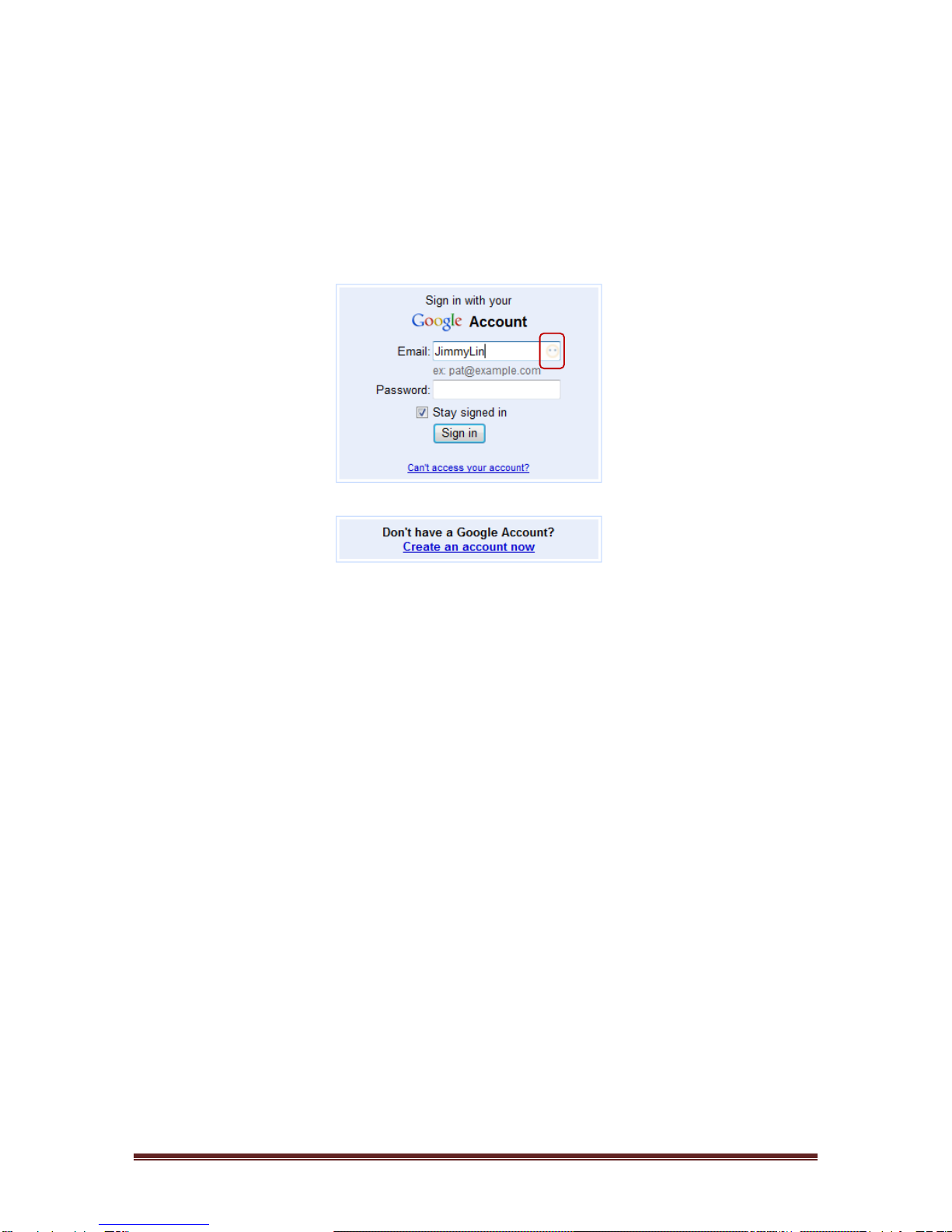
f. Vision Signal In Text Window When Active
When this option is ticked, the icon will be showed on the right-top corner or right side
of a text bar when the system is connected to target application software.
9

4.2.3 Support List
Usercansupporther/hisownsoftwarewhichisnotlistedinthesoftware
supportlistbythefollowingprocedure:
1. OpentheSettingDialogbyselectthe[Setting]intheAdaptermenu.
2. Clickthe[SupportList]buttonandselectthe[SupportedAP]section.
3. Clicktoasoftwareyouwanttosupport.Theprogramandclassnameofthe
activewindowwillbeshowedinthesettingdialog(Example:notepad.exe)
4. Clickthe[SupportThisNow]buttonthenclickthe[Apply/Save]button.
5. Afterthat,thesoftware’sprogramandclassnamewilladdintothesoftware
supportlist,user’stypingdatainthesupportedsoftware’sprogramand
classwillbeprotectedbythesystem.
10
Indice
Altri manuali Chipset Communication Adattatore