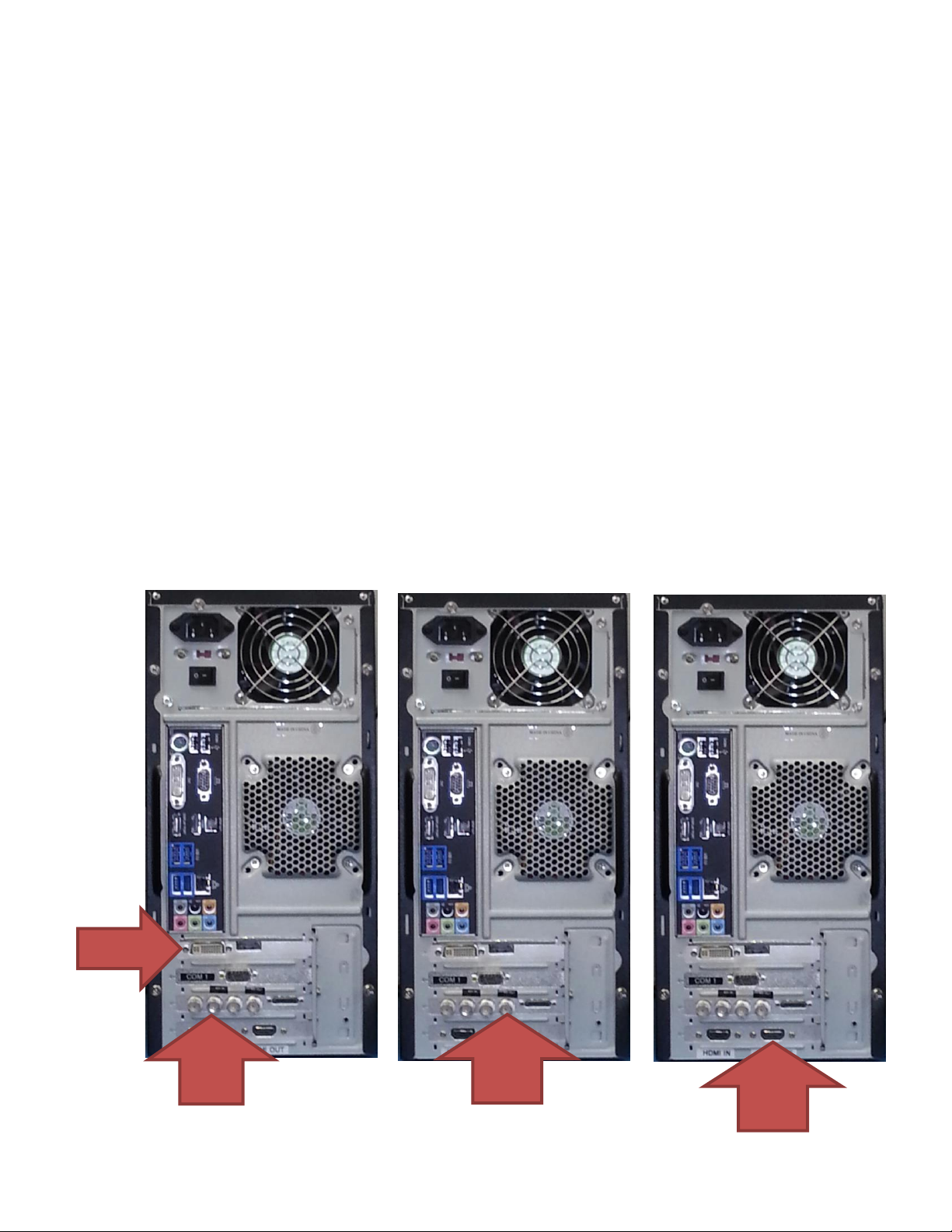
Video Output
The DVI, HDMI (not available on HD multi-SDI) and HD-SDI outputs are all
simultaneously active. In addition, other output formats such as analog component are
available via the included breakout cable connector (not available on HD multi-SDI).
Note that the system by default is configured to be optimized for HD-SDI operation.
Thus during boot-up, all diagnostic and boot messages are suppressed so as not to be
displayed “On Air”. It may take about 90 seconds or so for the system to boot and begin
playing the current project. Also note that the factory output resolution is fixed at
1920x1080.
Note:
If “External Key”is selected and saved using the ChyTV Tools Options / Settings
menu, the BNC immediately to the left of the SDI Out shown above will output a “Key”
signal for Fill and Key. Normally it would carry a second SDI Out Fill signal.
Video Input
A variety of input sources are supported including HD analog component via included
breakout cable (not available on HD multi-SDI) as well as HD-SDI via BNC connectors.
For HD-SDI input, the BNC connector closer to the breakout cable port is the active
input. Only one single Video Input may be active at any time. The current active Video
Input source can be set using the HD Configuration Manager utility described later in
this document.
Audio In / Out
The green 1/8 audio jack is the audio output. The blue is the audio input. Think “green
to the screen”. Input and output volumes can be set using the HD Configuration
Manager utility.
General Work Flow
Like all standard ChyTV devices, content is created, updated and managed using the
ChyTV Tools interface. The ChyTV Tools software is run on a separate PC and connects
to the ChyTV HD device via the network.
Alternately, content can be delivered across the Internet to the ChyTV HD device via
the ChyTV.net web service. In this case, the content is still authored and managed off-
line on a separate Windows PC. When completed, the project is packaged and
uploaded to the ChyTV.net server’s appropriate account and group. Complete
ChyTV.net operations are described elsewhere. Contact ChyTV Customer Support for
more information.
Setting the IP Address
Before the ChyTV HD device can be connected to directly across the network from
ChyTV Tools, it must be configured with a valid IP address. Since the ChyTV HD device
is a stand-alone appliance, configuring custom parameters such as the IP address are