Note: To guarantee the size and safety of photography files, the system will automatically save
the file once every 30 minutes and continue to record video. Please make sure the camera not
being blocked with sufficient illumination, keep the product body vertical and stable, with over
50cm distance with the objects to be recorded to get the images with right direction, natural
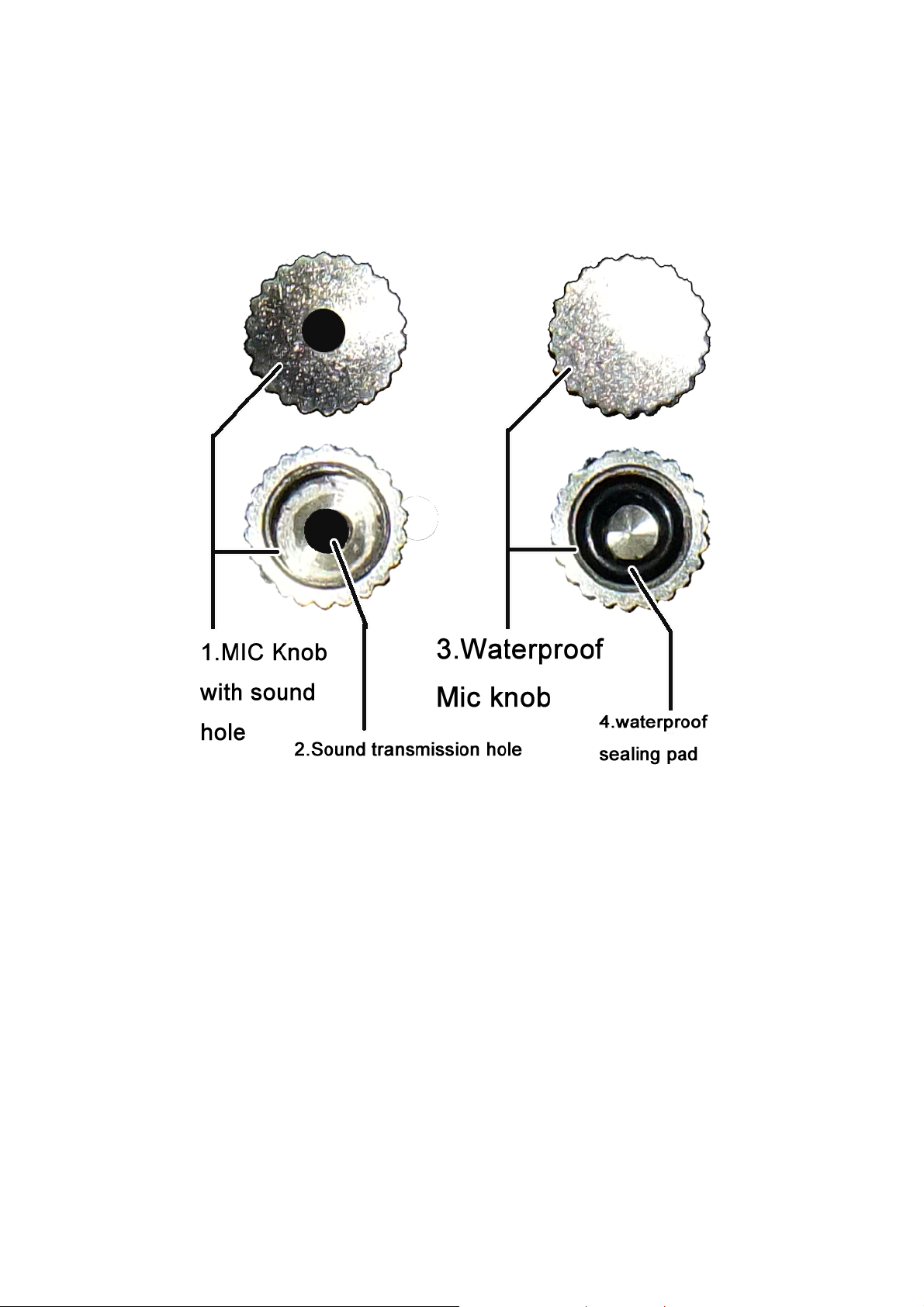
colors, clear images and stable images. Never block the microphone sound gate to ensure the
sound recording effect.
4. Audio Record
a.Switch over the device to audio record mode.
b.The BLUE light will keep on when the device is in standby status of this mode.
c.Press the OPERATION KEY shortly to start the audio record and the BLUE lamp will turn from
constantly ON status to even and slow flicker status.
d.Press OPERATION KEY shortly again to stop audio recording and save the file being
recorded, the BLUE light will turn from flicker status to constantly ON status.
e.In order to save system power, after the beginning of the video taking for 20 seconds, the
indicator light will automatically be off while the device is still in the recording mode. If need
confirm the device status or have a new operation, please press the any button once to see the
status indicator.
Note: To guarantee the size and safety of photography files, the system will automatically save
the file once every 30 minutes and continue to record audio. Never block the microphone sound
gate to ensure the sound recording effect.
5. Take Pictures
a. Switch over the device to photograph mode.
b. The GREEN light will keep on when the device is in standby status of this mode.
c. It will take one pictures and the GREEN light will flicker once every time the OPERATION KEY
is pressed shortly.
Note: Please make sure the camera not being blocked with sufficient illumination, keep the
product body vertical and stable, with over 50cm distance with the objects to be recorded to get
the images with right direction, natural colors, clear images and stable images.
6. PC Camera
When the unit is in this mode, you can chat with your friends on line with web camera, or hold the
net-conference with your co-workers of company; or you can apply the novel and interesting
purposes like shooting posters, etc. via the Windows programs provided by any third party. The
method of entering into computer web camera mode is shown as below.
a. Turn off the device at first. Keep the OPERATION KEY is pressed and use the usb data
cable to connect your product to computer USB port.
b. After the GREEN light is off and the RED light is on, the device enter the PC Camera
mode,Release the OPERATION KEY please, Reference to Chapter 9, to understand the
significance of the RED light .
c. Enter the PC Camera mode, Open MY COMPUTER, the icon of web cam will appear on the
screen to indicate that the web cam function of product is started up normally.