
ClickN KIDS 7" Capacitive Multi-Touch Tablet Manuale utente

7” Capacitive
Multi-Touch Tablet
TABLET GUIDE
Tablet
Tablet

1
Geng Started
Thank you for purchasing your new ClickN KIDS Tablet.
This quick start guide will take you through the setup
process in quick easy steps.
Aer opening the box make sure the package contents are
available for you.
Package Contents:
• ClickN KIDS Tablet
• Instrucon manual
• Tablet guide
• In- ear headphones
• AC charger.
• USB cable
• Matching gel case
• Looney Tunes Phonics scker.

Charging your tablet
Use the included wall charger.
• Make sure the charger is plugged into the wall.
• Insert the charging pin into the charging port. *Please see #7 below.
• A baery indicator red light on the boom right of the tablet will confirm that
your tablet is charging.
Note: The pictures shown in this guide are for reference only.
2
Before powering on your new ClickN KIDS Tablet please make sure it is charged.
Your tablet will need to be charged for at least 6 hours before your first use.
1. Front Camera
2. Charging Indicator light
3. Home
4. Reset
5. Microphone
7. Charging port
8. MINI USB interface
9. Micro SD card slot
10. Power on/off

Appearance and Buttons
1. Front Camera
2. Charging Indicator light
3. Home
4. Reset
5. Microphone
6. 3.5mm port
7. Charging port
8. MINI USB interface
9. Micro SD card slot
10. Power on/off
3
4
Tablet Setup Process
Powering on your device:
• The power buon is located on the boom right. *Please refer to page 3.
• Press and hold the power buon for 5 seconds unl you see the ClickN KIDS logo
on screen.
Note: The pictures shown in this guide are for reference only.
Setup
• Aer the device is powered on you will see the ClickN KIDS logo on screen.
• Aer a minute the logo will disappear and you will be taken to the ClickN KIDS
Tablet setup process.
Tablet

5
Tablet Setup Process
• Tablet setup “Welcome”
• The first process allows you to setup your language sengs.
• Aer you have selected your language tap “Start”.
Wi-FI Setup
• Select Wi-Fi or you can tap on “Skip” to setup Wi-Fi at another me.
• If you would like Wi-Fi to be setup, select your network name from the list.
• Enter your password and tap on “Connect”
• The Wi-Fi connecon will go through authencaon. Note: you may need to wait
a couple of minutes before authencaon is successful.
• Once authencaon is successful, you are now connected to Wi-Fi.
Got Google?
• If you have a Google account and you would like to use it on your
ClickN KIDS Tablet tap on “Yes” or you can tap on “No” to setup your Google
account at another me.
• Aer tapping on “Yes” to setup your Google account you will need to “Sign In”
• To sign into your Google account you will need to type in your Google email and
password.
• Type in your email address.
• Tap on the “Next” buon.
• Type in your password
• Tap the “Right” arrow buon.
• Tap “OK” on the “Terms of Service” and “Privacy Policy”
• Your ClickN KIDS Tablet is now connected to your Google account.
• On Google Entertainment you have the opon to “Setup credit card”
or “Not now”

6
Backup and Restore
• If you would like your Google account to back-up your apps, sengs (such as
bookmarks and Wi-Fi password) and other data, make sure the boxes are checked
for “Restore from my Google Account to this tablet” and “Keep this tablet backed
up with my Google Account.
• If you would like to setup “Backup and Restore” at another me make sure the
boxes are NOT selected.
• If you have selected to Backup and Restore tap on the “Right” arrow buon.
• The restore process can take up to 5 minutes.
• Your tablet is now backed up and restored.
Backup and Restore - Google & Locaon
• If you would like to use your Wi-Fi locaon make sure the box is selected for “Use
Wi-Fi locaon”.
• If you would like Google apps to access your locaon make sure the box is selected
for “Let Google apps access your locaon”.
• Tap on the “Right” arrow buon.
• If you would like to setup “Wi-Fi and Google apps” locaon at another me make
sure the boxes NOT selected.
• Congratulaons, setup is now complete.
• Tap on the “Finish” buon.
7
ClickN KIDS Tablet One Time Registraon
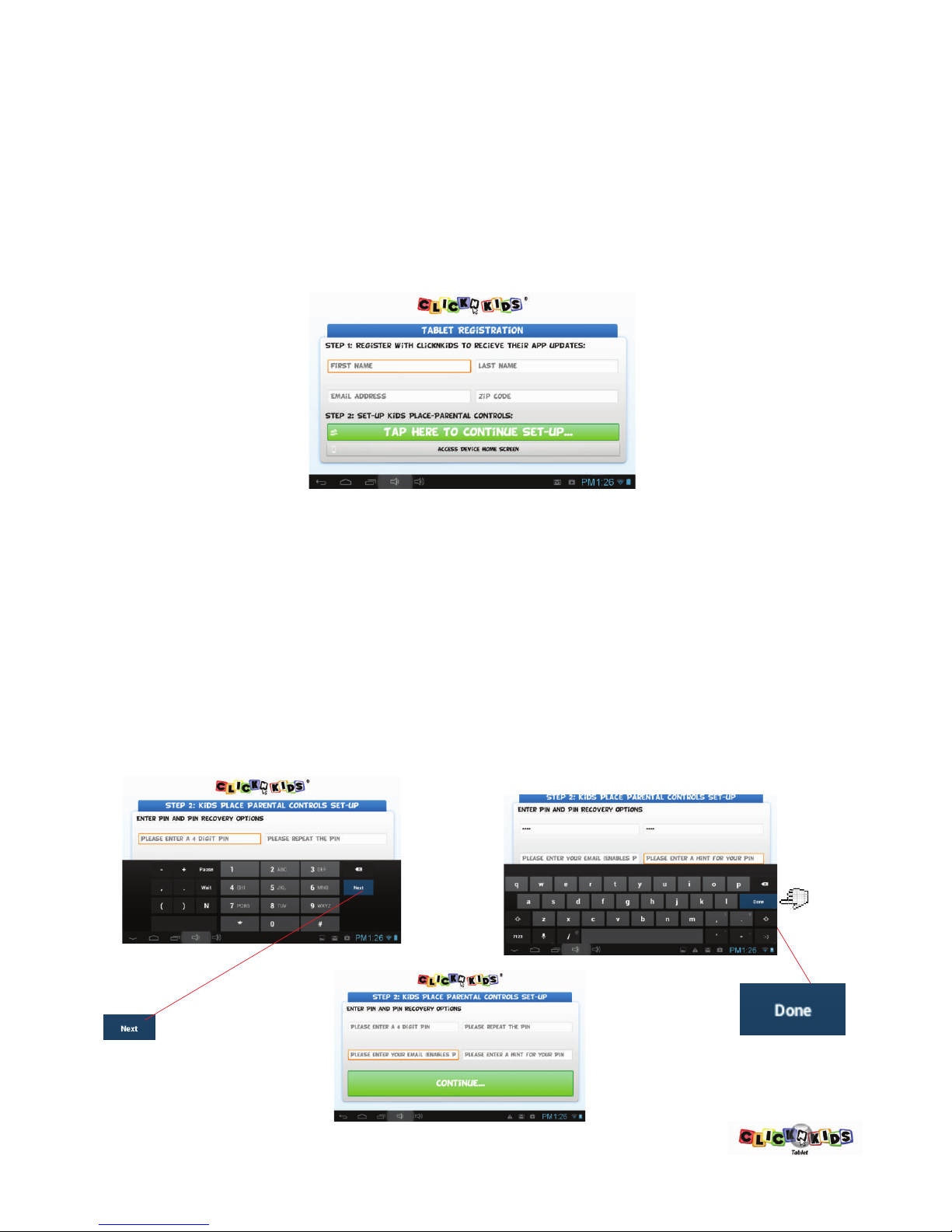
Step 1: Register with ClickN KIDS
• Enter your First Name, Last Name, Email Address, and Zip Code.
• Tap on “Done”
• Tap on the green bar “Tap here to connue set-up”
Step 2: Kids Place Parental Controls – Enter PIN and PIN recovery opons
• Enter a 4 digit PIN of your choice.
• Enter the same 4 digit PIN in the “Repeat the PIN field”
• Tap the “Next” buon. *Please refer to image #1 below.
• In the field “Please enter a hint for your PIN”.Enter a PIN hint.
*Please refer to image #2 below.
• Tap on “Done” *Please refer to image #2 below.
• Tap the green “Connue” bar. *Please refer to image #3 below.
1.
2.
3.

8
ClickN KIDS Tablet One Time Registraon cont...
Step 3: Kids Place Parental Controls – Set-up security quesons.
• Queson 1: Tap on the queson bar on the right to select a queson.
*Please refer to image #1 below.
• Select a queson. *Please refer to image #2 below.
• Tap on the text “Answer Here” and enter your answer.
*Please refer to image #3 below.
• Tap “Next”
• Queson 2: Tap on the queson bar on the right to select a queson.
• Select a queson.
• Tap on the text “Answer Here” and enter your answer.
• Tap “Done” *Please refer to image #4 below.
• Tap on the green “Connue” buon.
Congratulaons, you have successfully setup your ClickN KIDS Tablet!
4.
3.
2.1.
9
Using Kids Place for your kids one me setup
• When your kids are ready to use their new ClickN KIDS Tablet they will have their
own personalized secon to access each me they want to use the tablet.
• This secon will need to be setup by an Adult first.
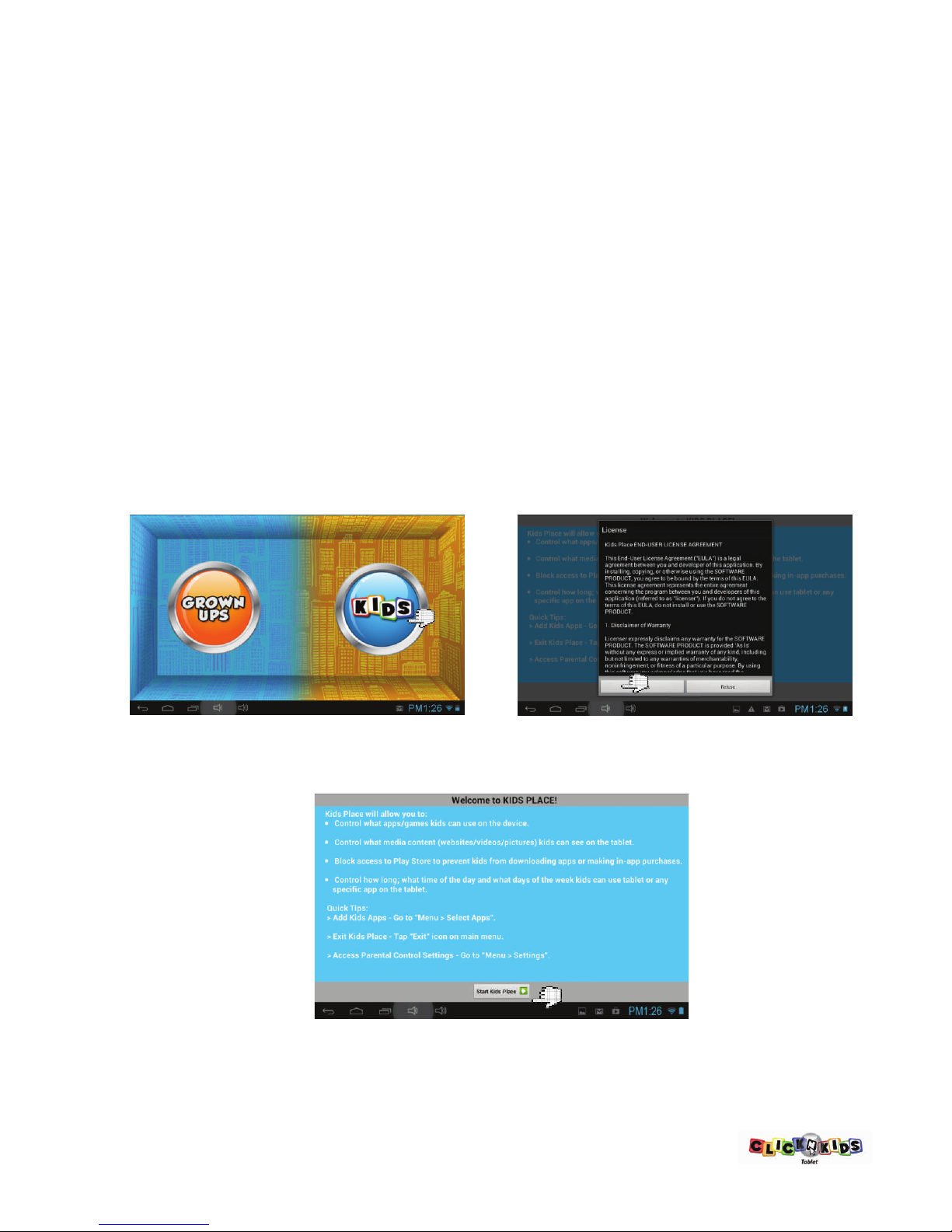
• To access your child's secon tap on the blue “Kids” icon on the right. *Please refer
to image #1 below.
• Review the Kids Place license agreement, this will only need to be reviewed during
the first me setup. *To scroll tap on it and drag your finger up or down.
• Tap on the “Accept” buon on the boom le. *Please refer to image #2 below.
• Tap on the “Start Kids Place” buon. *Please refer to image #3 below.
• Your children are now ready to use their place in Kids Place. They immediately
have access to Looney Tunes Phonics and other preloaded apps.
1. 2.
3.
1.


