
cogeco TiVo Manuale utente

Welcome to Cogeco’s
TiVo®PVR experience
TiVo®PVR User Guide.
Welcome to TV like
you’ve never seen it.
Get the most out of your TiVo®experience.
Get ready to live the TiVo®experience.
TiVo Logo Lockup | 4C Blue 5.22. 15
• Recording up to 6 HD shows at once 3
• TiVo’s best-in-class personalized recommendation
tool suggests shows based on what you like 4
• Accessing an entire universe of content with one simple, integrated search 5
• Access Netflix directly within TiVo 5
• Taking your recorded shows on the go with your smartphone
or tablet – even when you’re not connected to the Internet 6
• Make the most of your personalized TV experience 7
• How to: Control your TiVo®experience 8
• How to: Change the channels displayed in the Guide 9
• Recordings 10
• Personalized recommendations 11
• Discovery Bar 11
• Mobile application 12
• Netflix 12
• Integrated search 12
• Your Internet information 13
• Support BACK
3
Awesome features
Record up to 6 shows in HD at once.
Only TiVo®from Cogeco lets you record up to 6 shows at the same
time. You can set it to record single episodes or the entire series. TiVo
also lets you watch 5 live TV shows simultaneously. Never miss a show
again – now your whole family can watch what they want, where they want.
No more arguments, just great entertainment.
4
Awesome features
Personalized TiVo®recommendations –
only from Cogeco.
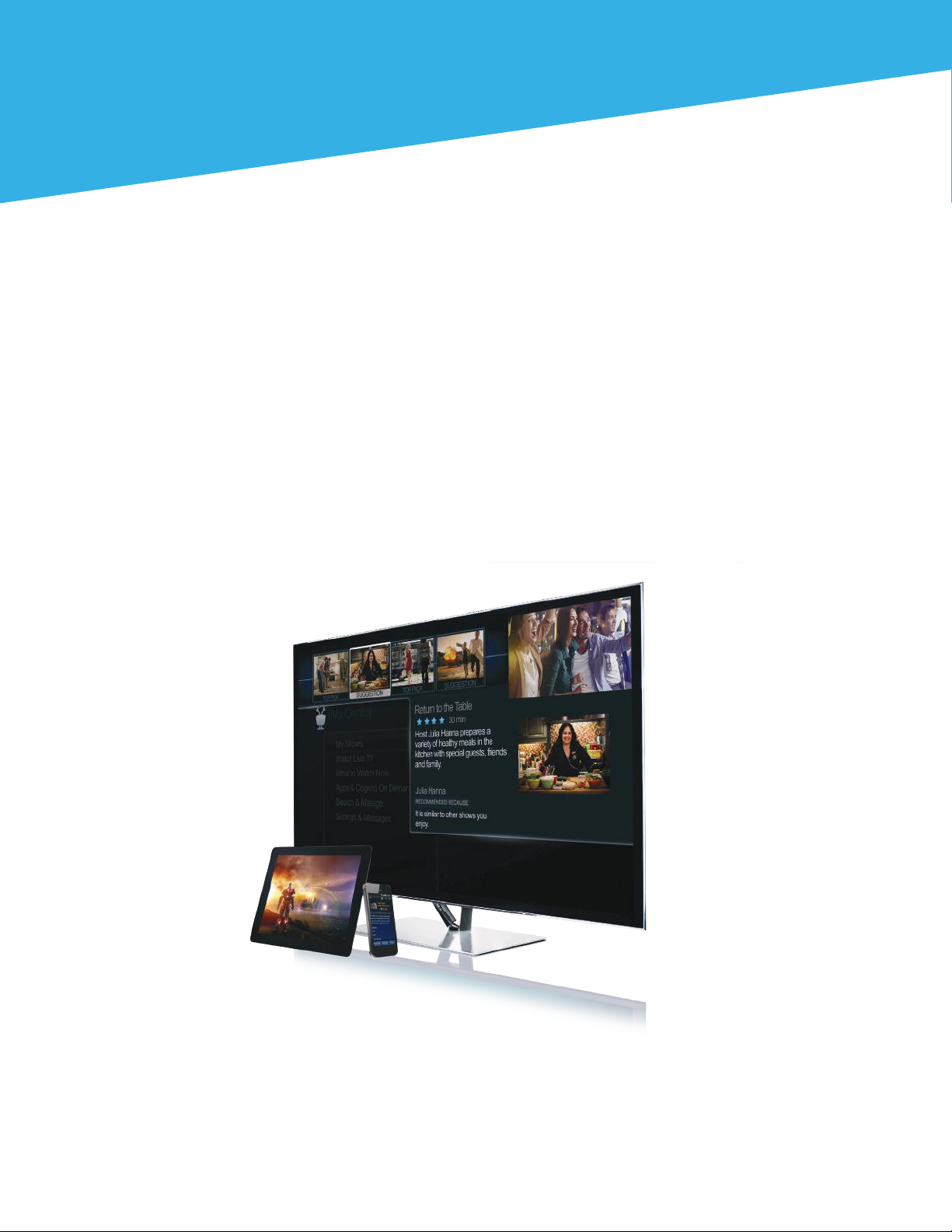
The Discovery Bar appears at the top of most TiVo®screens and it suggests shows you might
like based on what shows you record and mark as your favourites.
You can rate any show – whether it’s live, recorded, or listed in the program guide – by pressing
the THUMBS UP®or THUMBS DOWN®button on your remote. You can give a show up to three
Thumbs Up (love it) or three Thumbs Down (dislike it). TiVo then uses these ratings to learn what
you like and improve recommendations.
5
Awesome features
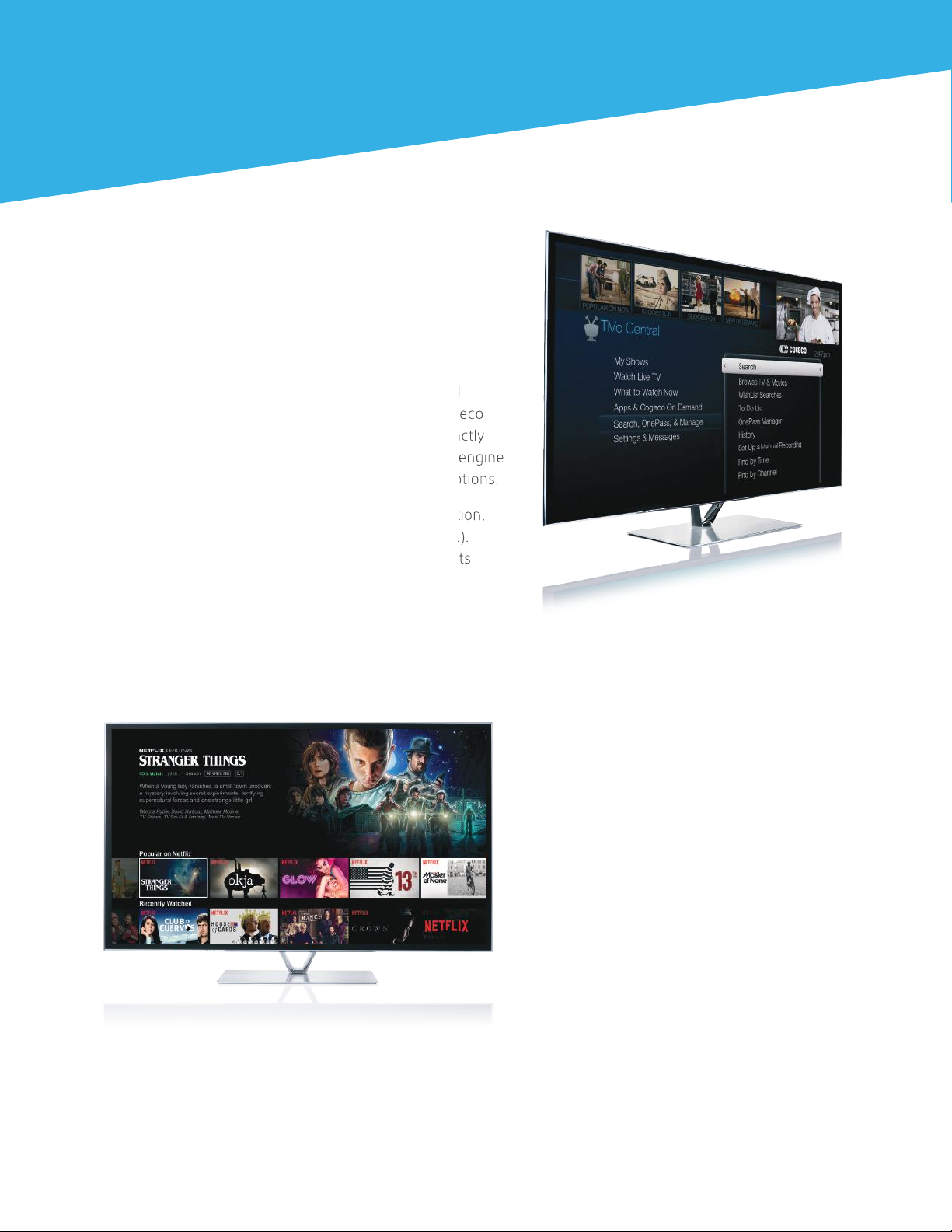
Only the TiVo®experience offers fully integrated
search. No other device instantly scans across all
TV programming, including your recordings, Cogeco
On Demand and available Netflix titles to find exactly
what you want. It’s like an entertainment search engine
presenting you with a list of nothing but great options.
Search by show title, episode title, show description,
or cast or crew member (e.g., actor, director, etc.).
You can even search for a particular channel by its
network name or call sign (e.g., CTV or Global).
One search.
All the content.
Netflix at the touch
of a button.
TiVo from Cogeco offers an integrated Netflix
experience. Plus, you can bring all your favourite apps,
like YouTube™ and Facebook, together with your
favourite programs, so you have access to all that
content at the touch of a button. No more jumping
back and forth to decide what to watch – now,
everything you want is all in one place.
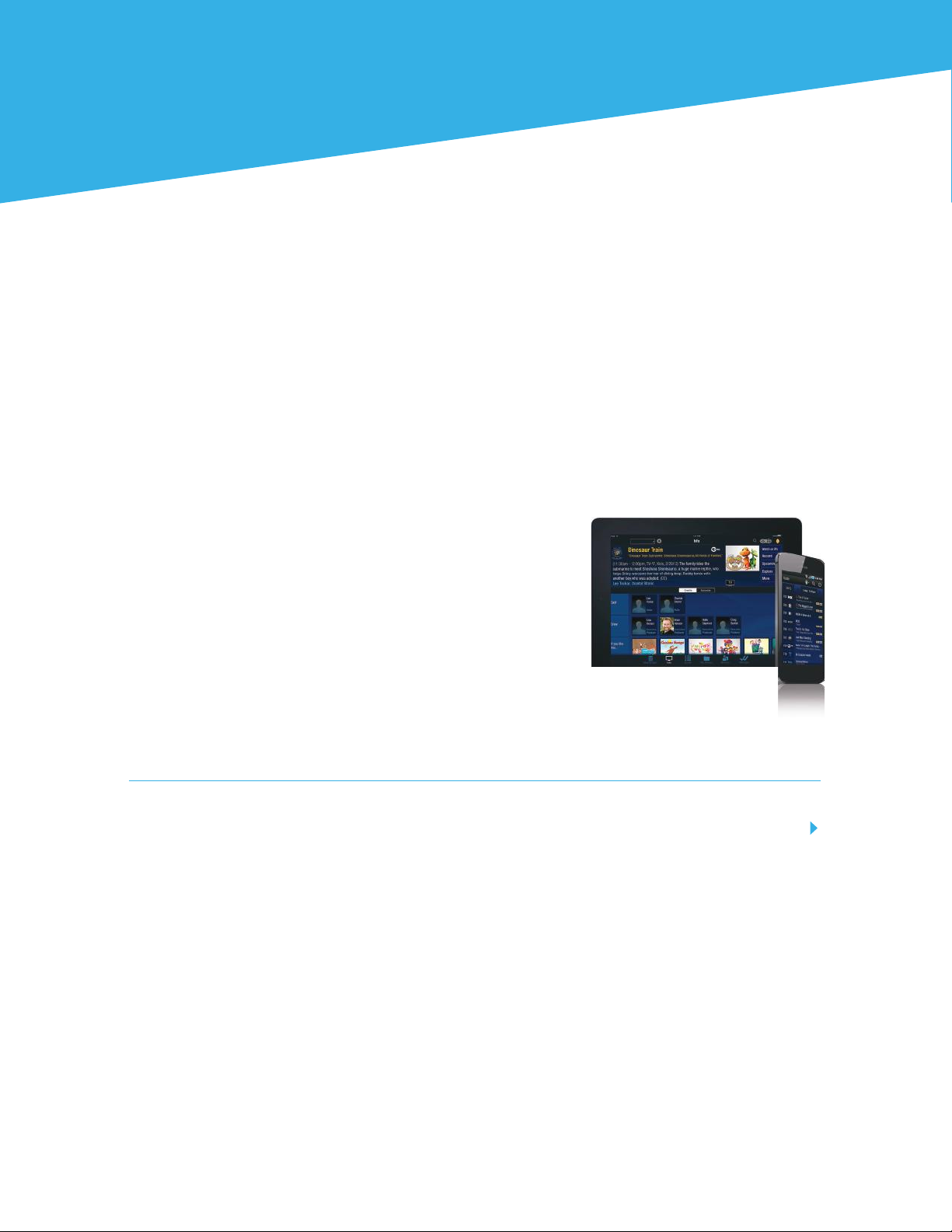
Watch these titles now on Netflix.
6
Awesome features
Take it all with you with
the TiVo®App.
Read on to learn how to get the most out of your TiVo experience.
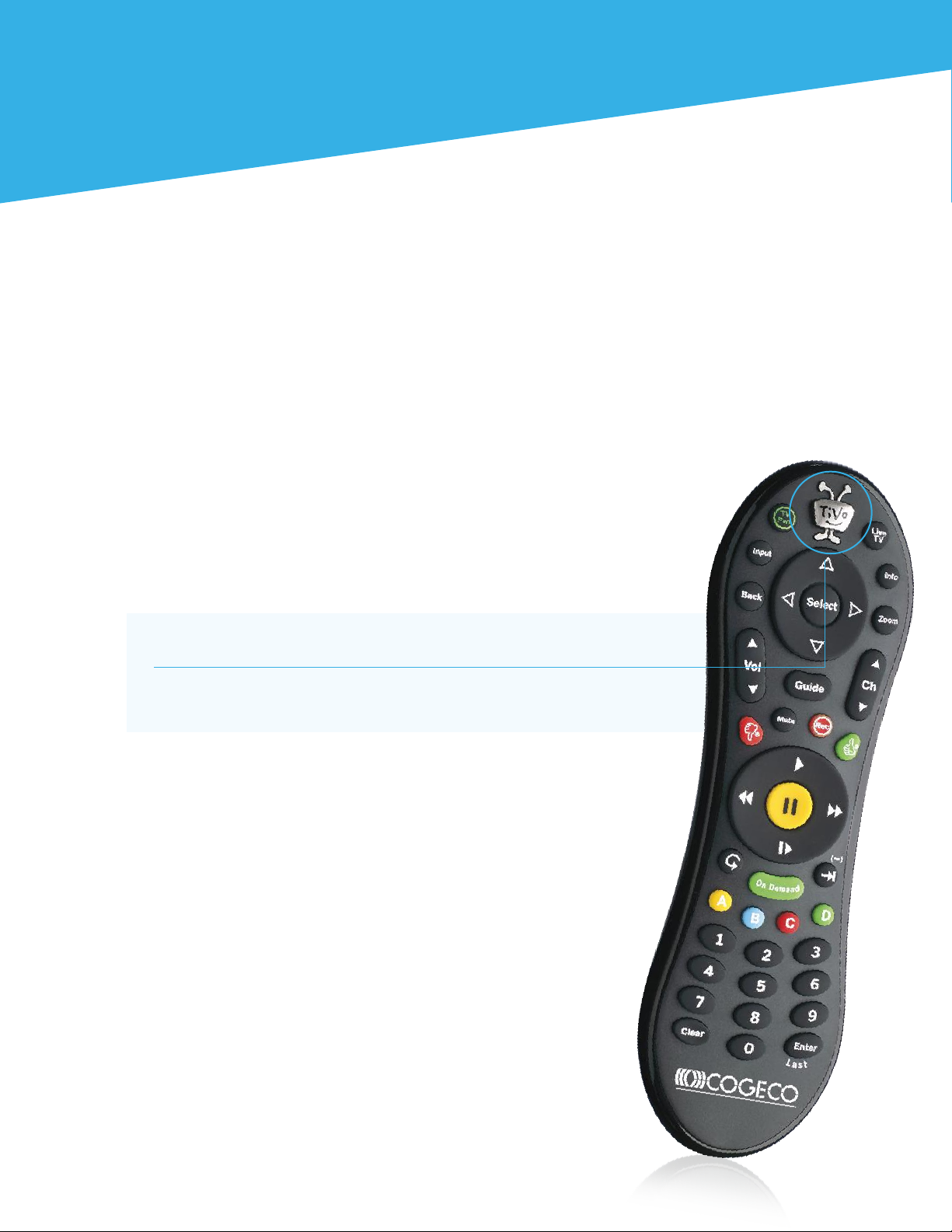
Watch, browse and manage your TV anywhere with mobile control. With the Cogeco TiVo App, easily
move your programs onto your smartphone or tablet so that you can watch recordings of your favourite
shows on the train or bus, in the air or at the cottage – even when you’re not connected to the Internet.
The app also lets you program the recordings, control your TV, browse for shows and more, all using
your mobile device.
Download the free Cogeco TiVo App from the App Store and:
•Watch live shows
•Watch recorded shows on your mobile device
•ogehtnouoyhtiwekatotswohsdaolnwoD
to watch even when you’re not online
•Schedule recordings from anywhere
•Browse current listings and What to Watch
•Manage your recordings
7
Make the most of your
personalized TV experience.
Here’s how you can always find answers:
In the next few pages, you’ll learn the basics of how to use your TiVo and its remote.
If you come across an issue that requires further assistance, we’re always here to help.
• Find detailed instructions on how to use the many
features of your TiVo®PVR at cogeco.ca/TiVosupport
• Use the Help screens on your TiVo PVR – go to
Settings & Messages > Help
• Contact Cogeco Customer Service at 1-855-701-4881
Dive into a new way of experiencing TV.
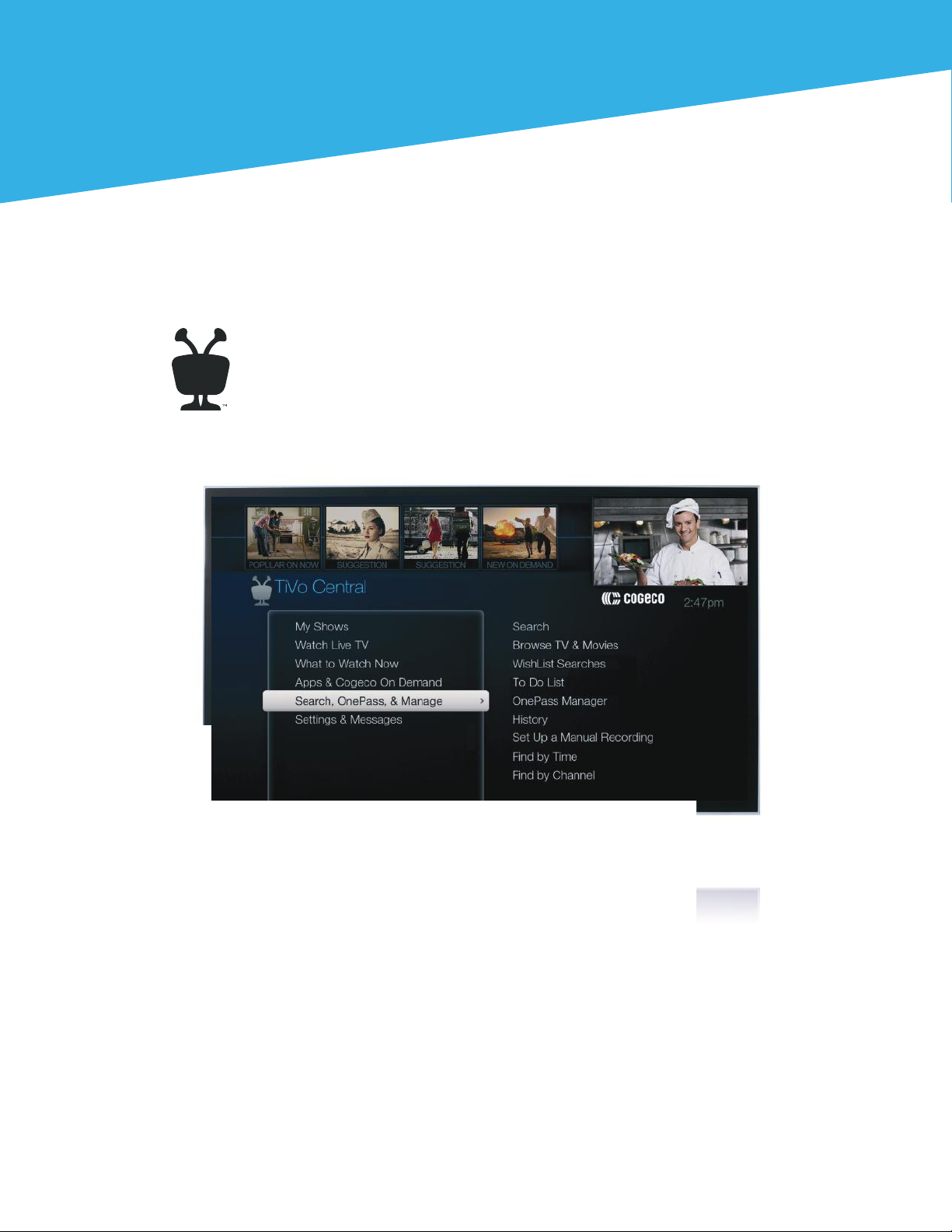
Press the TiVo button on your remote control to get to the TiVo Central®
screen, the starting point for all of TiVo’s amazing features.
For more help using your TiVo PVR, visit cogeco.ca/TiVosupport
TiVo®tips and tricks
8
TiVo®tips and tricks
You can program your TiVo remote to
only have to use one remote to control
your TV or sound system.
From TiVo Central, select Settings &
Messages > Remote, Devices &
Conditional Access > Remote Control Setup.
How to program a remote
to control a TV/stereo
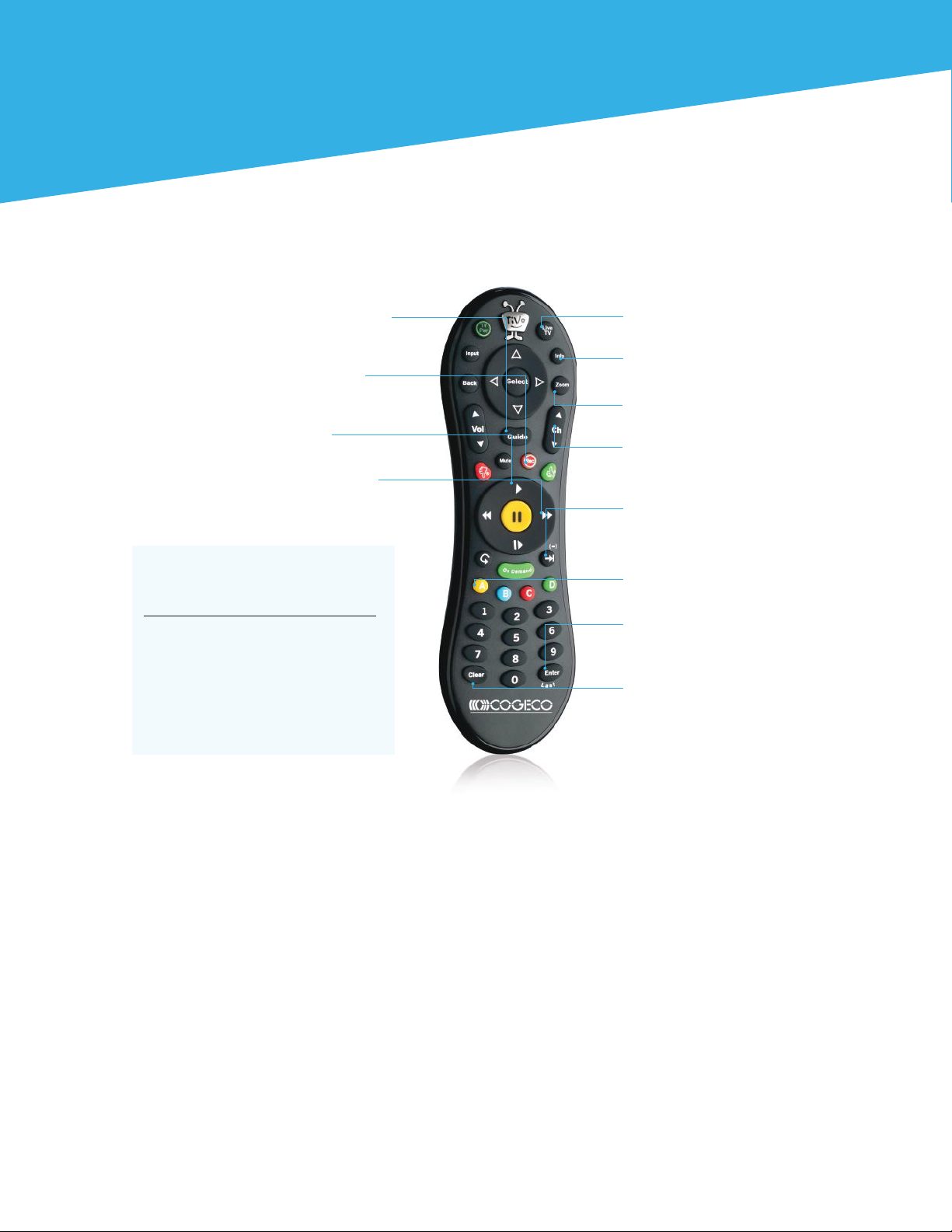
How to: Control your TiVo experience.
Live TV takes you to live TV. If you’re watching
live TV, use it to swap tuners.
Info shows the info banner while watching
live TV. Press it again to make it disappear.
Use Zoom to change the way programs are
displayed on your TV.
Use the Channel Up/Down buttons to change
the channel and to page up/down while in the
program guide or TiVo menus.
Advance moves forward in 30-second
increments. Press and hold to jump to the end
of the show. Or, press Advance tojump tothe
next tick mark when fast forwarding or rewinding.
The A, B, C, D buttons sort and filter views.
Look for the on-screen tips.
Enter/Last returns you to the last channel tuned
in to live TV. It also works like the Select button
when in Guide view.
Clear removes the display of the channel banner
or program guide, and deletes titles from the My
Shows or To Do list.
Guide takes you to the program guide, where
you can find shows to watch or record.
Press it again to clear the guide.
Press Record to start recording the show
you’re watching, or to set up a recording
for a show selected in the program guide.
Play starts playing a show from the
My Shows list.
Fast Forward fast forwards through a show.
Press it up to three times for three speeds.

9
TiVo®tips and tricks
How to: Change the channels
displayed in the Guide.
By default, all available channels aredisplayed in the Guide. You have 3 options to change the list.
From the Guide, press button Aon the remote control to display the Guide’s options.
Go to “Channels” and select one of the 3 options:
• All: display all channels available
•My Channels:onlydisplay the channels selected in the list of channels
(From the TiVo Central screen, select Settings & Messages, then Settings, Channels, Channels List.
Then select or deselect the channel you want to add or remove from “My Channels” in the guide.)
• Favourites:onlydisplay the channels you have identified as favourites
(To identify a channel as favourite, press the button Guideof your remote control,
highlight the number and thename of the channel and press the button Thumbs Up)

10
TiVo®tips and tricks
Recordings.
1. How do I record a show?
3. Where are my recordings?
5. How do I delete a recording?
2. How do I record a series of multiple episodes?
4. How do I watch my recordings?
6. How do I recover a recording?
While you are watching a show:
• Press the button Rec on your remote control,
then select “Record this episode/movie.”
•From the Guide – highlight the title of the
show you want to record and press the
button Rec on your remote control. Then
select “Record this episode/movie.”
All your recorded shows are in the section
“My Shows.” Press the button TiVo
Central twice to see all your recordings.
You can modify the way they are
displayed, remove a recording or recover
a deleted recording.
Delete a movie or a TV show:
• Highlight the movie or the TV show you
want to delete, then press the button
Clear on your remote control.
Delete a series of episodes:
• Highlight the folder of the series (blue icon)
you want to delete, then press the button
Clear on your remote control and select
“Delete everything in this folder.”
Press the button Rec on your remote control,
select “OnePass & other options,” then select
“Create a OnePass.”
Two ways to watch your recordings:
• Categories: use the section on the left to filter your
recordings by categories (TV shows, Movies, Sports).
• Filter: use buttons A, B and Cto apply some filters.
If you don’t find a recording, be sure you are in the right
category and that there is no active filter in the list.
With the arrows from the remote control, scroll the
list of recordings to access the folder “Recently Deleted
Recordings.” Press the button Select on the remote
control. Highlight the title you want to recover, press
the button Select from the remote control and select
“Recover this show.”
Then the show will be available in “My Shows.”
You can see the list of all deleted shows in the recordings management section:
TiVo Central > Search, OnePass, & Manage > History.
Altri manuali per TiVo
3
Indice
Altri manuali cogeco Registratore digitale


