
Comrex VH2 Manuale utente

Put Comrex On e Line. Toll Free in USA: 800-237-1776 • www.comrex.com
e-mail: info@comrex.com
19 Pine Road, Devens, MA 01434 USA
Tel: +1-978-784-1776 • Fax: +1-978-784-1717
VH2 Quickstart Guide
The VH2 is a studio telephone interface device designed to work on VoIP telephone systems. This guide will
give you the minimum you need to know to get the system hooked up and running. For more details on how
to configure more complex arrangements, see the full user manual.
Specifications
The VH2 can handle one or two VoIP accounts (a single account can be assigned to both channels).
The unit has the ability to easily transfer the call on either channel back and forth to a companion VoIP phone.
Caller output audio is available of balanced XLR-M. Send input is available on balanced XLR-F. Clip levels on
XLR feeds are +20dBu.
On-hold audio input is available on a ¼” TRS jack. Two channels may be fed to “on-hold” callers via “Tip-
sleeve” (channel 1) and “Ring-sleeve” (channel 2). These inputs are unbalanced and the clip level is +20dBu.
VH2 has a single 10/1000 Ethernet jack for network connection. The companion phone should be located on
the same physical LAN as the VH2 (no routers between them).
The approved companion phone (Polycom VVX201) can be powered from PoE networks. The VH2 cannot.
The companion phone contains a 2 port Ethernet switch, so the units can be wired as follows:
PoE Ethernet Jack ->Polycom phone->VH2.
If a PoE is not available, you must use the provided power adapter with the Polycom phone.
Requirements
To configure and start using the VH2, you’ll need the following information:
1 The user name, password, and server address of a cloud-based VoIP service, an available
account on your PBX, or similar information in order to utilize VH2 on a gateway device.
2 An available static IP on your network, including gateway, netmask and DNS server information.
3 Knowledge of how the VH2 will be attached to your studio audio ports. The choices are:
a VH2 can take a single “send” feed from your console, or two separate “send” feeds.
b VH2 can deliver a single “caller” feed to your console, or two separate “caller” feeds.
c VH2 can be fed a single “on hold” input, two separate “on hold” inputs, or none at all.
d VH2 can be configured to allow callers to hear each other when “on-air”, or they can be
isolated from each other.
e “Send” and “caller” feeds can be connected via analog or AES3 signals.
Steps
Here’s a list of the steps that need to be accomplished to start using VH2. We’ll outline each in detail below:
1 Using the Comrex Device Manager utility, set static IP info into the VH2.
2 If using the companion telephone set, enter the VH2 static IP info into the telephone set.
3 Using a computer browser, set up the provider details (cloud provider, pbx) into the VH2
Toolbox interface.
4 Using the Toolbox interface, configure the VH2 “behavior” to match your desired functions in
the studio.
5 Understand how the front panel buttons and indicators work.
Step 1 - Static IP
While it’s not technically required for VH2 to have a static IP address, it is required for use with the companion
phone, and if the DHCP address changes you’ll need to find the new address in order to configure the VH2
via the Toolbox interface.
VH2 is shipped from the factory set to DHCP mode, so it will find an address on your network if possible. The
easiest way to find what that address is to use the Comrex Device Manager utility, available on our website
for both Windows and Mac platforms. You can also use Device manager to upgrade the firmware on your VH2.
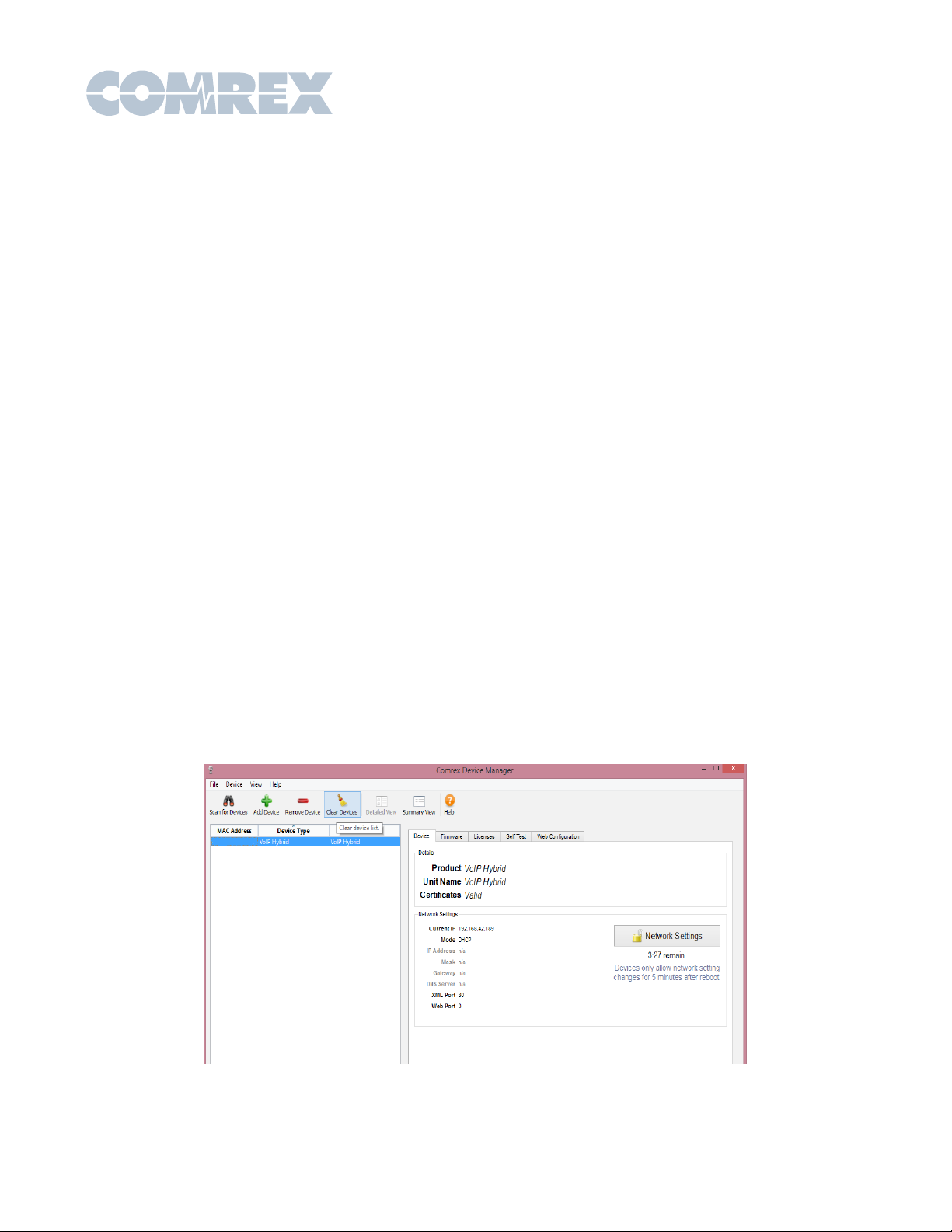
Install Device Manager on a computer on the same physical LAN as the VH2. Once installed and run, press
the “scan” button in the upper left corner to scan your network for Comrex products. The results should look
like this:
There are two ways to set the static IP information using Device Manager. The “rescue” mode allows you to
change parameters during the first five minutes of operation, and is initiated using the “Network Settings”
button on the right pane. This mode is most useful if you’ve forgotten the unit password. The normal mode of
changing any settings in VH2 is by clicking the “Web Configuration” tab in the right pane. This opens the
unit’s Toolbox interface. Toolbox is a web-based interface that allows you to set all relevant parameters of
the product. Once you know the unit’s IP address, Toolbox can also be accessed via a browser by going to
http://[ip-address]/cfg.
Toolbox requires that you log on with a user name and password. The default user name is ‘admin’ and the
default password is ‘comrex’. We recommend you change the default password, especially if your VH2 is
exposed directly to the Internet.
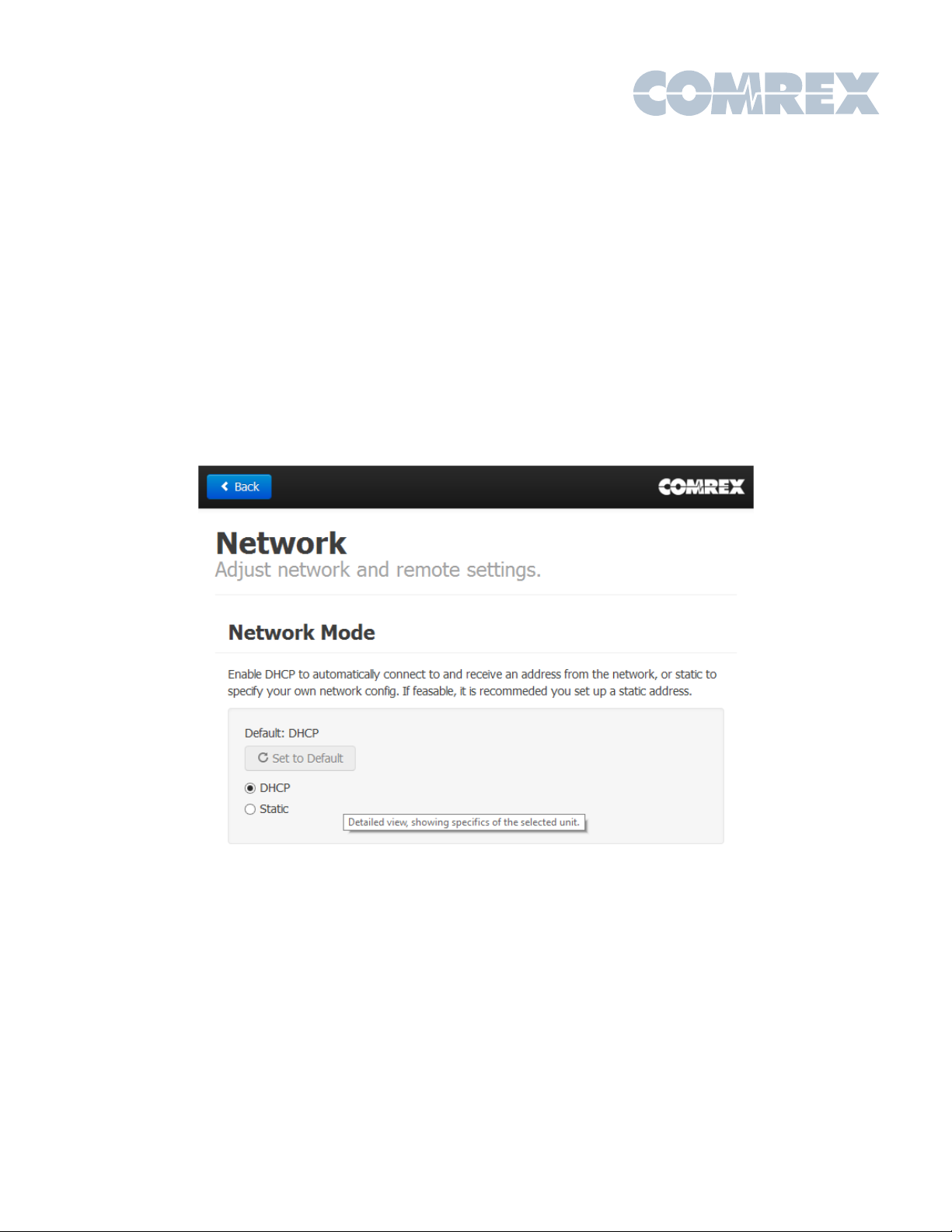
Once logged in, choose the ‘Network’ option. Under ‘Network Mode’, you’ll see the following options:
Change the mode to Static, and input the IP address, netmask, gateway and DNS information for your
network. Click ‘apply IP settings’ after all the information is correct. If you need to access Toolbox after this,
you’ll need to rescan and log in again (or open a browser to the new IP address).
Step 2 - Companion phone
If you have the VVX201 IP phone for use with VH2, you’ll need to set it up to be an extension of the VH2. The
phone needs to be on the same physical LAN as the VH2, but it doesn’t need a static IP address. You’ll only
need to program the static address of the VH2 into the phone.
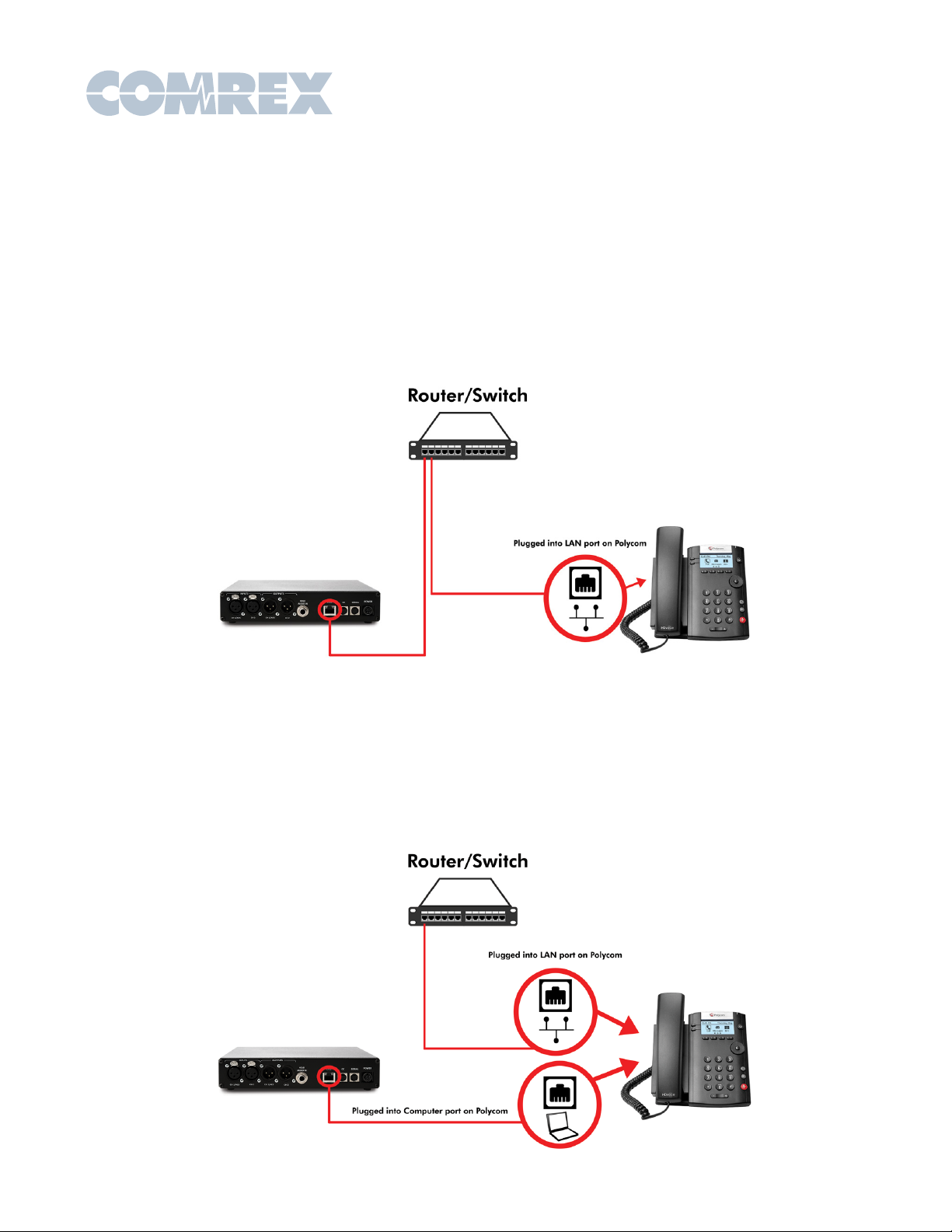
There are two common ways to connect the VH2 and Polycom phone to the same LAN network. One way is
to connect each into your network on their own separate ports as shown below.
The second way is useful when you do not have two ports available. Plug the Polycom’s ethernet port into the
network. Plug the VH2 into the computer port (shown with a laptop icon) on the VH2. Both units will be treated
as separate devices on the network.

Once the phone is on your LAN, it will get a DHCP address from the network. You can find what this is by
pressing the menu button(home icon) on the phone and navigating to the following using the direction cursor
and enter key:
Settings->4)Status->2)Network->1)TCP/IP Parameters
Open a browser on your local computer and input into the URL bar https://<polycom_ip_address>.
Example: https://192.168.1.154
IMPORTANT: You MUST type the https:// in the web browser preceding the Polycom IP address. Your
browser may put http:// in front of the IP address otherwise by default, and you will not be able to
access the Polycom configuration utility.
Once you enter in the address, your browser will likely give you a security warning. Click Advanced, and then
Proceed to “<polycom_ip_address>”
You will be prompted to log in to the phone’s web interface. Keep admin selected and enter the default
password ‘456’.

Time setting
To stop the annoying time display from flashing an incorrect time and date, set a default SNTP server and time
zone on the phone. Navigate to Preferences->Date & Time and set the fields to read the following:
SNTP Server-> pool.ntp.org (or any other SNTP server of your choosing)
Time Zone-> The offset of your time zone in hours from GMT (e.g. US Eastern = -5, US Pacific = -8)
VH2 settings
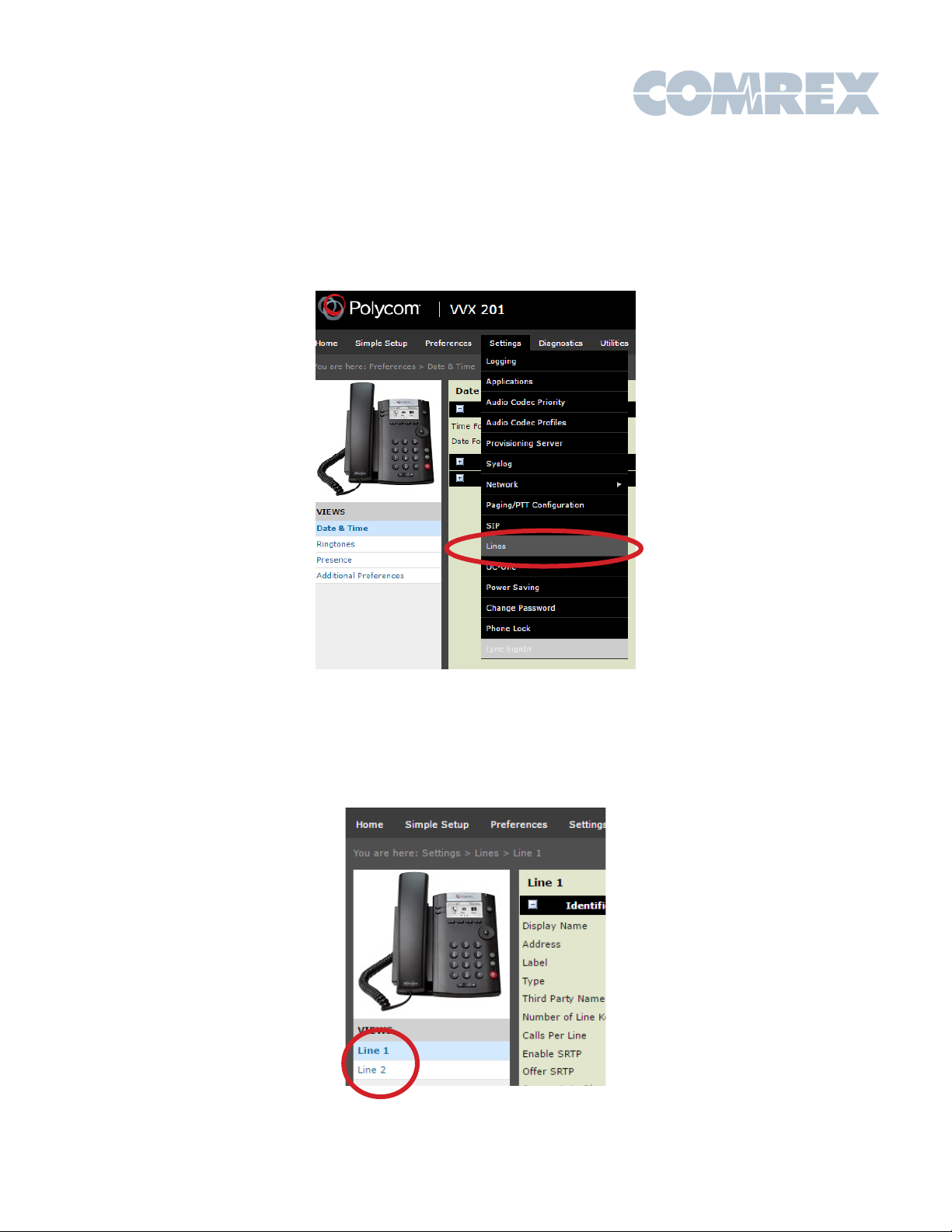
To put the details of your VH2 into the phone, go to Settings->Lines.
Note the two sub-sections, Line 1 and Line 2. You will need to program information into
both
of these pages.

On the Line 1 page, set the following fields:
Under
Identification
:
Display Name -> ‘Line 1’
Address-> ‘1100@<VH2_ip_address>’ (remove ‘ and <>)
Label ->’Line 1’
Type->Private
Third Party Name->’none’
Number of Line Keys->1
Calls per Line->1
Under
Authentication
:
Leave the Use Login Credentials to Disabled!
Domain -> <VH2_ip_address> (remove <>)
Authentication User ID -> ‘1100’
Authentication Password -> (default=”456” - can be changed in Toolbox)
Under
Server 1
:
Address-><VH2_ip_address> (remove <>)
Port->5170
Transport->DNSnaptr
Expires->100
Register->Yes
Retry Timeout->0
Retry Maximum Count->3
Line Seize Timeout->30
(leave the rest of the fields at default)

Your Line 1 Page should read like this (but with your VH2 IP address)
Click Save on the bottom of the page and then Yes to confirm. Next, select Line 2
On the Line 2 page, set the following fields:
Display Name -> ‘Line 2’
Address-> ‘1200@<VH2_ip_address>’ (remove ‘ and <>)
Label ->’Line 2’
Type->Private
Third Party Name->’none’
Number of Line Keys->1
Calls per Line->1
Under
Authentication
:
Leave the Use Login Credentials to Disabled!
Domain -> <VH2_ip_address> (remove <>)
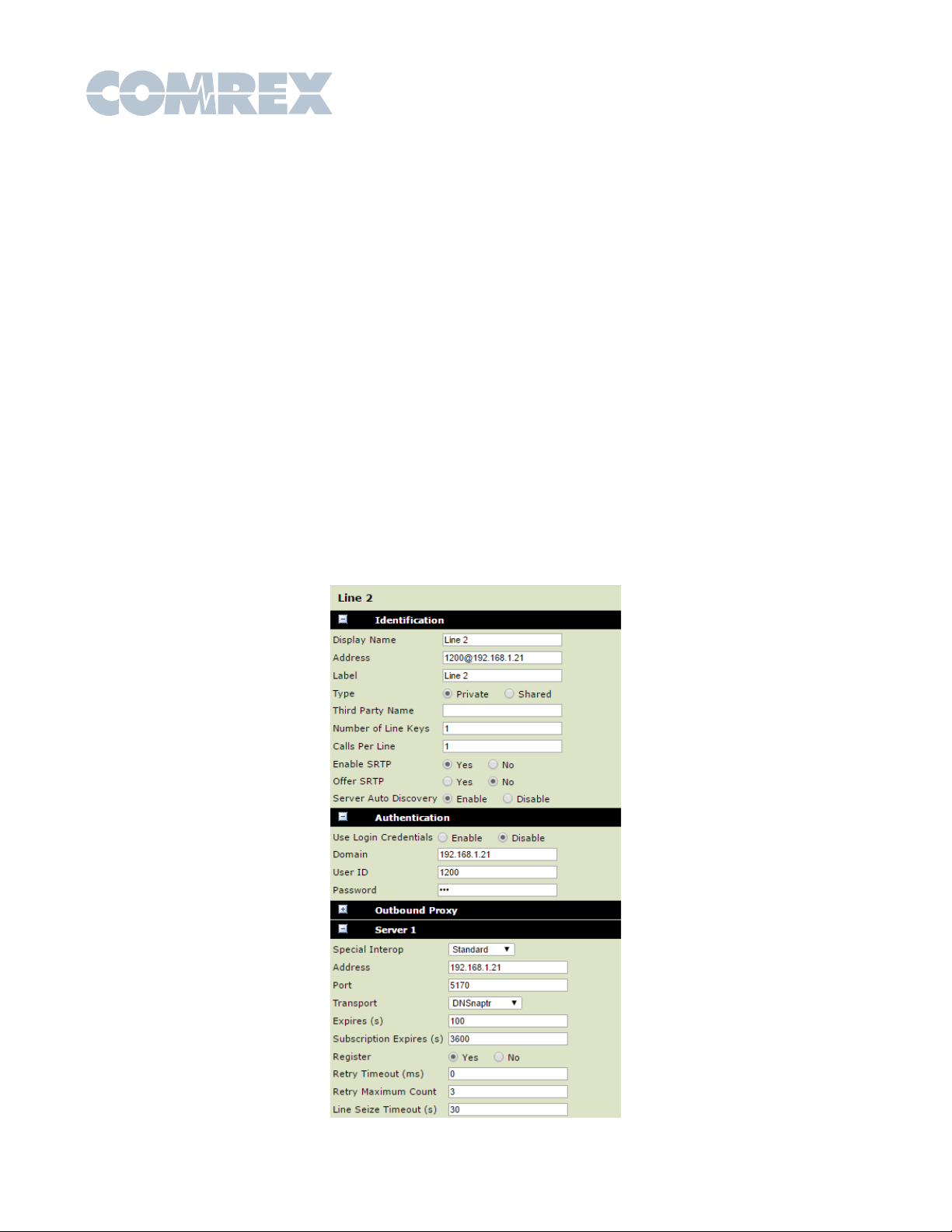
Authentication User ID -> ‘1200’
Authentication Password -> (default=”456” - can be changed in Toolbox)
Under
Server 1
:
Address-><VH2_ip_address> (remove <>)
Port->5170
Transport->DNSnaptr
Expires->100
Register->Yes
Retry Timeout->0
Retry Maximum Count->3
Line Seize Timeout->30
(leave the rest of the fields at default)
Your Line 1 Page should read like this (but with your VH2 IP address)
Click Save on the bottom of the page and then Yes to confirm.
Altri manuali per VH2
1
Indice
Altri manuali Comrex Apparecchiature di registrazione

Manuali Apparecchiature di registrazione popolari di altre marche


Strymon
Strymon NIGHTSKY Manuale utente

Mitsubishi Electric
Mitsubishi Electric 16CH DIGITAL RECORDER DX-TL5000U Manuale utente

Tews Technologies
Tews Technologies TPMC465 Manuale utente

Honeywell
Honeywell Excel 50 Manuale utente

SeaLevel
SeaLevel COMM+8.LPCI Manuale utente

Arturia
Arturia AUDIOFUSE STUDIO Manuale utente


