
Connect SmartHome CSH-DEDBLTBIO Manuale utente

Manual
Connect Smart Deadbolt with Fingerprint
(CSH-DEDBLTBIO)
WHAT’S INCLUDED
• 1 x Deadbolt Lock Set
• 1 x Manual
• 2 x Keys
• 1 x Hole Cutout Guide
• 1 x Latch
• 1 x Screwdriver
• 1 x Bag of Screws
• 1 x Lock Catch
• 1 x Installation Rubber
• 2 x Smart Keycard

• Touch the fingerprint reader
to activate the screen
• Press * to EXIT / BACK
• Press # to CONFIRM after
typing passcodes
1SETTING UP THE LOCK
KEYPAD FUNCTIONS
• Factory super admin passcode is: 666888
• To Modify the super admin passcode long press *
• Verify the administrator (type in super admin passcode - 666888 default) then #
• Next enter new admin passcode (must be 6 - 12 digits) then # to confirm or * to exit
DEFAULT SUPER ADMINISTRATOR PASSCODE
• Touch the fingerprint reader to activate the screen
• Long press #
• Verify the administrator (type in super admin passcode - 666888 default) then #
• Press 1 > 2
• Type in 6 - 12 digit passcode for new admin user and press # to confirm
ADD ADMINISTRATOR
• Long press # then type in super admin
passcode (default = 666888) then # to enter
Menu System will exit automatically if no
operation within 8 seconds
MENU
• There are only 3 administrators: ID 0 is Super admin (using 666888 default passcode).
• ID 1 is Smart Keycard admin and ID 2 is Fingerprint admin.
• If admin user is full follow instructions to delete Single User.
TIP

• Touch the fingerprint reader to activate the screen
• Long press #
• Verify the administrator (type in super admin passcode - 666888 default) then #
• Press > 1 > 1 > 1
• You will be prompted to add a passcode, keycard or fingerprint
• Adding Passcode:
Passcode needs to be 6 digits and will need to be input 2 times to confirm
• Adding a Keycard:
Place the Keycard on the screen to add
• Adding Fingerprints:
Place finger on fingerprint scanner above
the numberpad. The fingerprint will need
to be confirmed 3 times
ADD NORMAL USER
• Touch the fingerprint reader to activate the screen
• Long press #
• Verify the administrator (type in super admin passcode - 666888 default) then #
• Press 1 > Press 1 > Press 2
• Type in 6 - 12 digit Passcode and press # (input 2 times to confirm)
ADD ONE-TIME USER
• Touch the fingerprint reader to activate the screen
• Long press #
• Verify the administrator (type in super admin passcode - 666888 default) then #
• Press 1 > Press 3 > Press 1
• You will need to type in the User’s ID number then press # to confirm
then # again to delete
E.g. To delete User ID 2: Type 2 then # then # again to delete
DELETE SINGLE USER
If user is full follow instructions
to delete Single User.
TIP

• Touch the fingerprint reader to activate the screen
• Long press #
• Verify the administrator (type in super admin passcode - 666888 default) then #
• Press 1 > Press 3 > Press 2 then operate according to voice instructions
DELETE ALL USERS
• Touch the fingerprint reader to activate the screen
• Long press #
• Verify the administrator (type in super admin passcode - 666888 default) then #
• Press 2 > Press 2
• Then press 1 for Single User Mode (only 1 access type required)
or 2 for Double User Mode (this mode will require 2 types of authentication
e.g. Passcode + Fingerprint, Keycard + Passcode etc.)
SINGLE OR DOUBLE USER MODE
• Touch the fingerprint reader to activate the screen
• Long press #
• Verify the administrator (type in super admin passcode - 666888 default) then #
• Press 2 > Press 2 > Press 3
• Press 1 to enable Manual Lock (Press the # key to enable the lock/deadbolt)
or 2 for Auto Lock (Auto Lock will automatically enable the lock/deadbolt
after the set time)
• Note:
In Auto Lock input value from 1 – 99 to set Auto Lock time
LOCK MODE SETTING
• Long press #
• Verify the administrator (type in super admin passcode - 666888 default) then #
• Press 2 > Press 3 > then press either:
1 to Increase voice promt volume
or
2 to decrease voice promt volume
VOICE SETTINGS

2GET THE APP
QR Code for
Downloading Apps
3REGISTER OR
LOGIN TO APP
TAP
HERE
LOGIN
existing
account
REGISTER
no
account

Home Smart Me Home Smart Me
4RECOMMENDED APP SETTINGS

6CONNECTING LOCK TO APP
TIP
If device
not found
please check
Only 2.4G Wi-Fi
networks are supported
Home Smart Me
• Touch the fingerprint reader to activate the screen
• Long press #
• Verify the administrator (type in super admin passcode - 666888 default) then #
• Select 2 for System Settings
• Select 1 for Network Settings
• Select 1 for Smart Mode or 2 for AP mode (instructions shown are for Smart Mode only)
• The 0 number will start blinking indicating the device is in pairing mode
5PAIRING LOCK TO APP
1
2
1
2
3
1
2

7USING
THE APP
Battery Level
Alarms
Triggered
Settings
Registered
App users History
Generate Temporary
Passcode
Tap to generate
dynamic passcode
Removing Lock from App
Passcode Unlock
passcode

• Touch the fingerprint reader to activate the screen
• Enter the correct passcode and press # to confirm
8USING THE LOCK
PASSCODE UNLOCK
• Touch the fingerprint reader to activate the screen
• Press the # button to engage the lock/deadbolt
LOCKING
• Touch the fingerprint reader to activate
the screen
• Press 888 then # to request a remote unlock
• The lock will send a signal to the paired App
which will get a notification to remotely unlock
(must be actioned within 90s or the request
will be cancelled)
REMOTE UNLOCK REQUEST
• Touch the fingerprint reader to activate the screen
• Place keycard over numberpad to unlock
KEYCARD UNLOCK
To prevent people spying when entering your passcode you can first enter any number,
then enter the correct passcode, then enter any number and finally press the # to confirm.
For example if the passcode is 666888.
First enter "any number” then 666888 then “any number" then finally # to confirm.
TIP
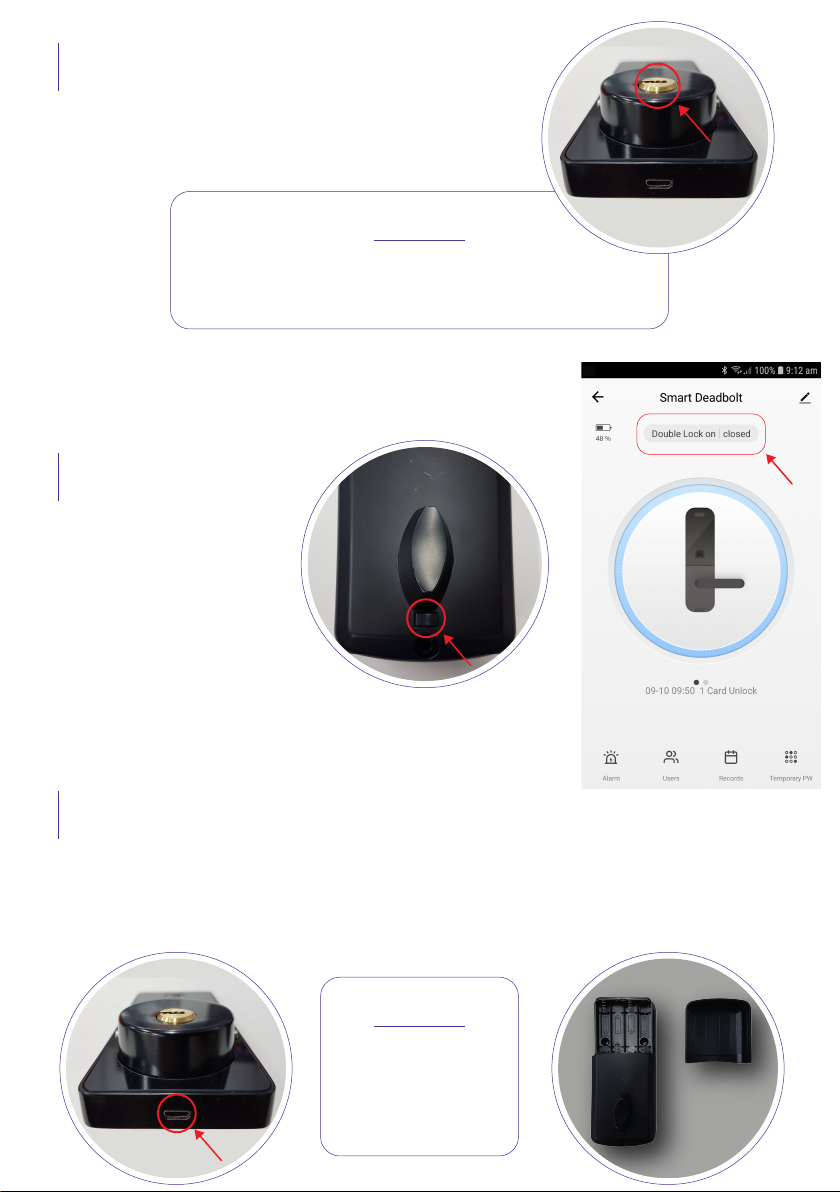
Please keep the regular key outside in a safe place
in case of product failure or improper operation.
TIP
• Remove the knob below the keypad then insert Key
into keyhole and rotate 90° to unlock
REGULAR KEY UNLOCK
• Press button to
enable double lock
• During this mode only
the Super Administrator
can log in
DOUBLE LOCK
Once the battery has exhausted and the lock has no power you can connect an
external power source using the Micro USB port under the front panel of the lock.
You can then use a passcode or Keycard to unlock the door.
EMERGENCY POWER SUPPLY
4 x AA batteries
are required
to use the lock
TIP
Indice


