
ConnectGear GA-H03D Manuale utente

122401-01
CardBus 10/100 Fast
Ethernet PC Card
User Manual

REGULATORY STATEMENTS
FCC Certification
The United States Federal Communication Commission (FCC)
and the Canadian Department of Communications have
established certain rules governing the use of modems and
other electronic equipment.
FCC Part 15 Registration
This device complies with Part 15 of FCC rules. Operation is
subject to the following two conditions:
1) This device may not cause harmful interface, and
2) This device must accept any interface received, including
interface that may cause undesired operation.
This equipment has been tested and found to comply with the
limits for a Class B digital device, pursuant to Part 15 of the
FCC Rules. These limits are designed to provide reasonable
protection against harmful interference in a residential
installation. This equipment generates, uses and can radiate
radio frequency energy, and if not installed and used in
accordance with the instructions, may cause harmful
interference to radio communications. However, there is no
guarantee that interference will not occur in a particular
installation. If this equipment does cause harmful interference
to radio or television reception, which can be determined by
turning off and on, the user is encouraged to try to correct the
interference by one or more of the following measures:
•Reorient or relocate the receiving antenna.
•Increase the distance between the equipment and
receiver.
•Connect the equipment into an outlet on a circuit
different from that to which the receiver is connected.
•Consult an experienced radio/TV technician for help.

TABLE OF CONTENTS
INTRODUCTION.............................................1
SYSTEM REQUIREMENTS..................................1
Operating Systems.......................................1
INTRODUCTION TO CARDBUS..................2
HARDWARE INSTALLATION.....................4
Inserting the CardBus Dual-Speed PC Card
.....................................................................4
Removing the CardBus Dual-Speed PC
Card.............................................................4
Connecting to the Network..........................5
LED Indicators............................................5
SOFTWARE INSTALLATION ......................7
INSTALLATION FOR WINDOWS 95 (OSR2).......7
INSTALLATION FOR WINDOWS 98 ....................8
INSTALLATION FOR WINDOWS 2000 ..............10
INSTALLATION FOR WINDOW ME..................13
INSTALLATION FOR WINDOWS XP .................15
INSTALLATION FOR NOVELL NETWARE.........17
SPECIFICATIONS.........................................18

- 1 -
INTRODUCTION
System Requirements
An IBM compatible notebook computer with
486 or faster processor with CardBus
supported socket.
Drivers and utilities provided with this
product
PCMCIA PC Card compliant Card Services
and Socket Services
100Base-TX Fast Ethernet or 10BaseT
Ethernet connectivity to your local area
network.
Operating Systems
Windows 95 OSR2, Windows 98/ME,
Windows 2000, XP, NT 4.0

- 2 -
INTRODUCTION TO CARDBUS
Cardbus is the next generation 32-bit version
issued by PCMCIA PC Card standard. In
addition to support a wider bus (32 bits instead of
16 bits), CardBus also supports bus mastering and
operation speeds up to 33 MHz. The 132MBytes
bus transfer rate (compares with legacy 16-bit I/0
PC Card, 20MByte) provides the mobile user to
enjoy the high-bandwidth network connection.
A Mobil computer, which equipped with
CardBus and properly configured is the
fundamental requirement to use the CardBus
10/100M PC Card. To make sure about this
point, please follow the guideline listed below:
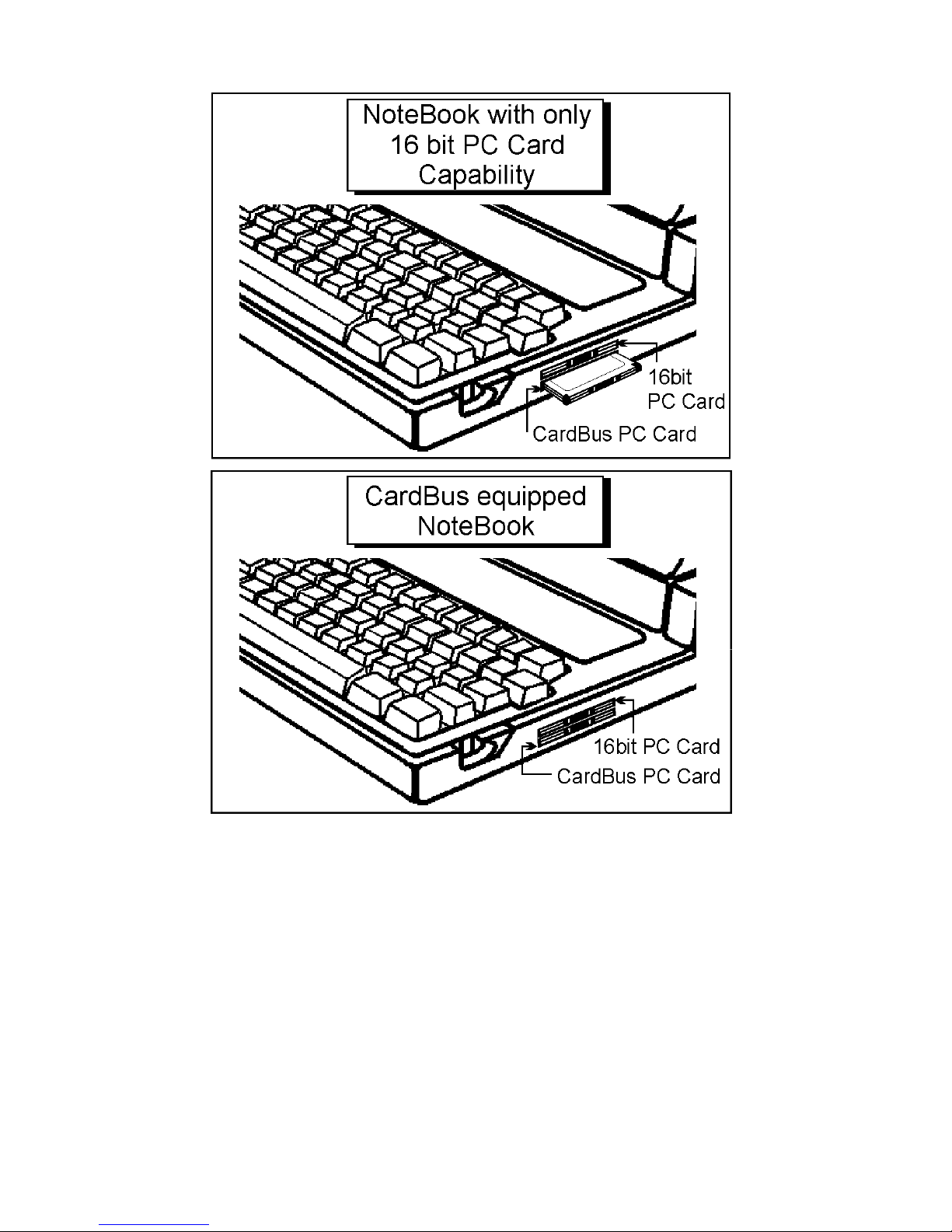
Cardbus is designed to support both 16-bit
and Cardbus Card. But the legacy 16-bit PC
Card slot couldn't accept the CardBus PC
Card. In order to prevent the wrong
operation, CardBus is thus developed with
particular mechanical consideration to
prevent it fit into the legacy 16-bit PC Card
Slot. If you can't insert the CardBus 10/100
PC Card into the slot firmly reaching the
bottom, your notebook probably hasn’t the
capability to support CardBus technology.
Please check your notebook manual for detail
information.
- 3 -
Due to variant design of notebook
computers, some models implement a setting
in the Computer’s BIOS to switch between
Cardbus and 16-bit PC Card modes. You
could consult the User’s Guide of your
notebook and properly set on the CardBus
or Auto_Detect mode.
- 4 -
HARDWARE INSTALLATION
Inserting the CardBus Dual-Speed PC
Card
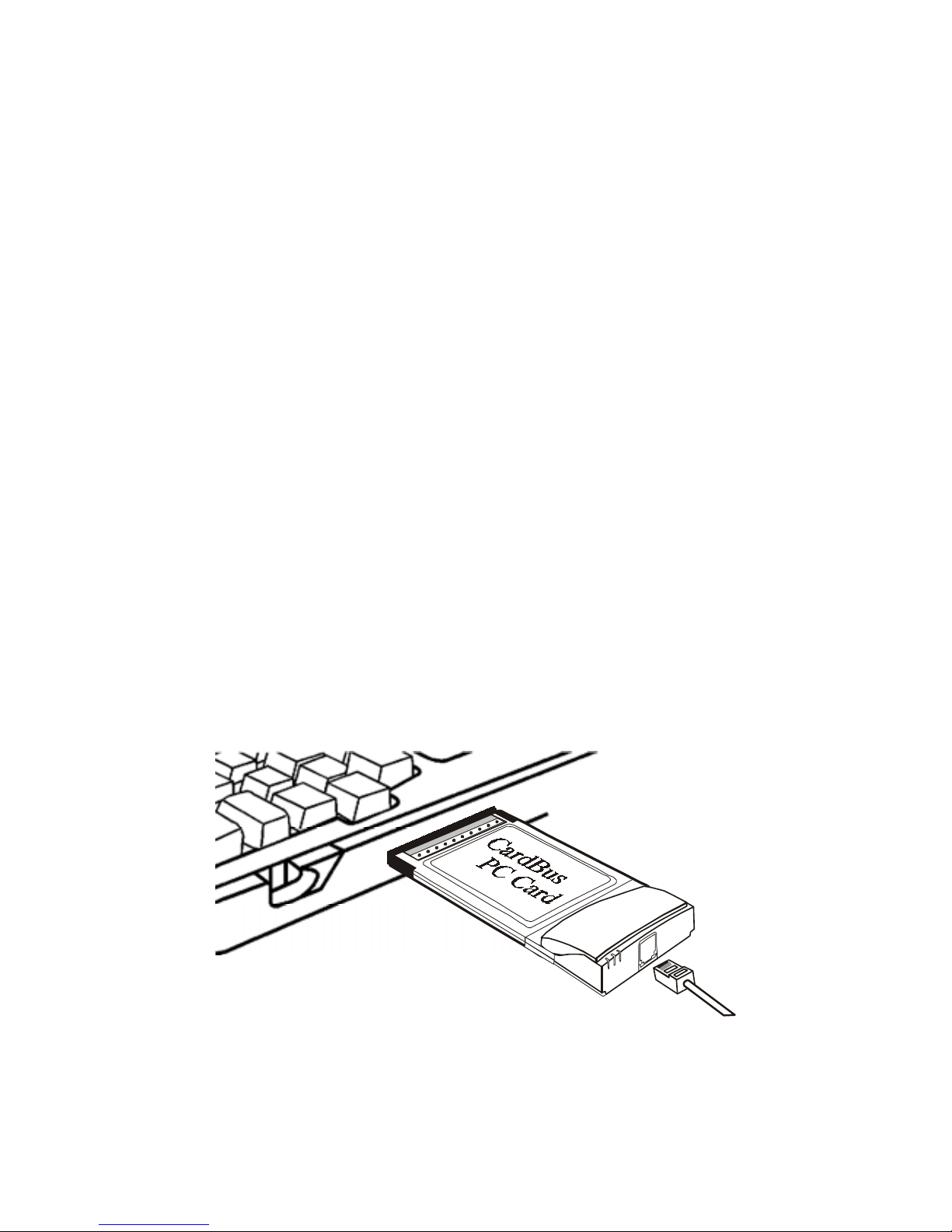
1. Hold the CardBus PC Card with wide
connector toward the slot and the brand
label facing upward.
2. Insert the CardBus PC Card and push it
firmly into the bottom. (Please see the
figure on the next page for reference)
Removing the CardBus Dual-Speed PC
Card
It’s quite different for various computer
mechanical designs. Please refer to the PC Card
removal instruction in the document for your
notebook computer.
N otebook
PowerLI
NK
ACT
- 5 -
Connecting to the Network
Connect RJ-45 port of the CardBus 10/100
Ethernet PC Card Adapter to the Category 5
Network cable before loading any network driver.
For operation in the 100Mbps (100Base-TX)
Ethernet network, a Category 5 unshielded
twisted pair (UTP) cable should be used to
connect between the RJ-45 port and
100Mbps hub or switch.
For operation in the 10Mbps (10Base-T)
Ethernet network, Category 3, 4 or 5
unshielded twisted pair (UTP) cable could be
used to connect between the RJ-45 port and a
10Mbps hub or switch.
LED Indicators
PowerLI
NK
ACT
1
2
3
4
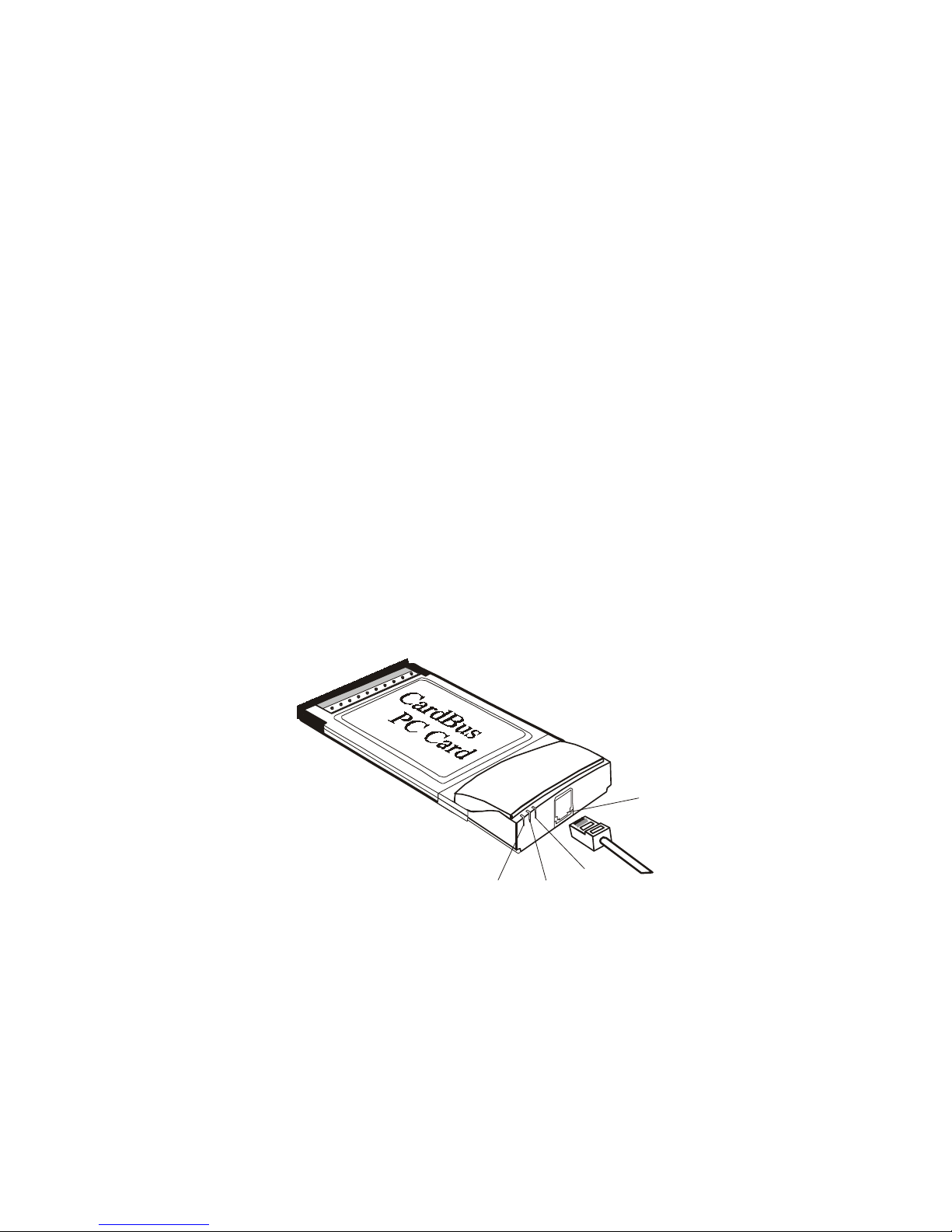
1. RJ-45 port: connects to the Category 5
Ethernet Network Cable.
2. LINK 10 LED indicator: glows green when
operated in the 10Mbps Ethernet network.
3. LINK 100 LED indicator: glows green when
operated in the 100Mbps Ethernet network.

- 6 -
4. ACT LED indicator: blinks orange when the
CardBus 10/100 Ethernet Attached Port PC
Card Adapter is transmitting/receiving data.
- 7 -
SOFTWARE INSTALLATION
Installation for Windows 95 (OSR2)
1. Start Windows. Make sure the CardBus
10/100 Fast Ethernet PC Card is well
connected to the CardBus Socket.
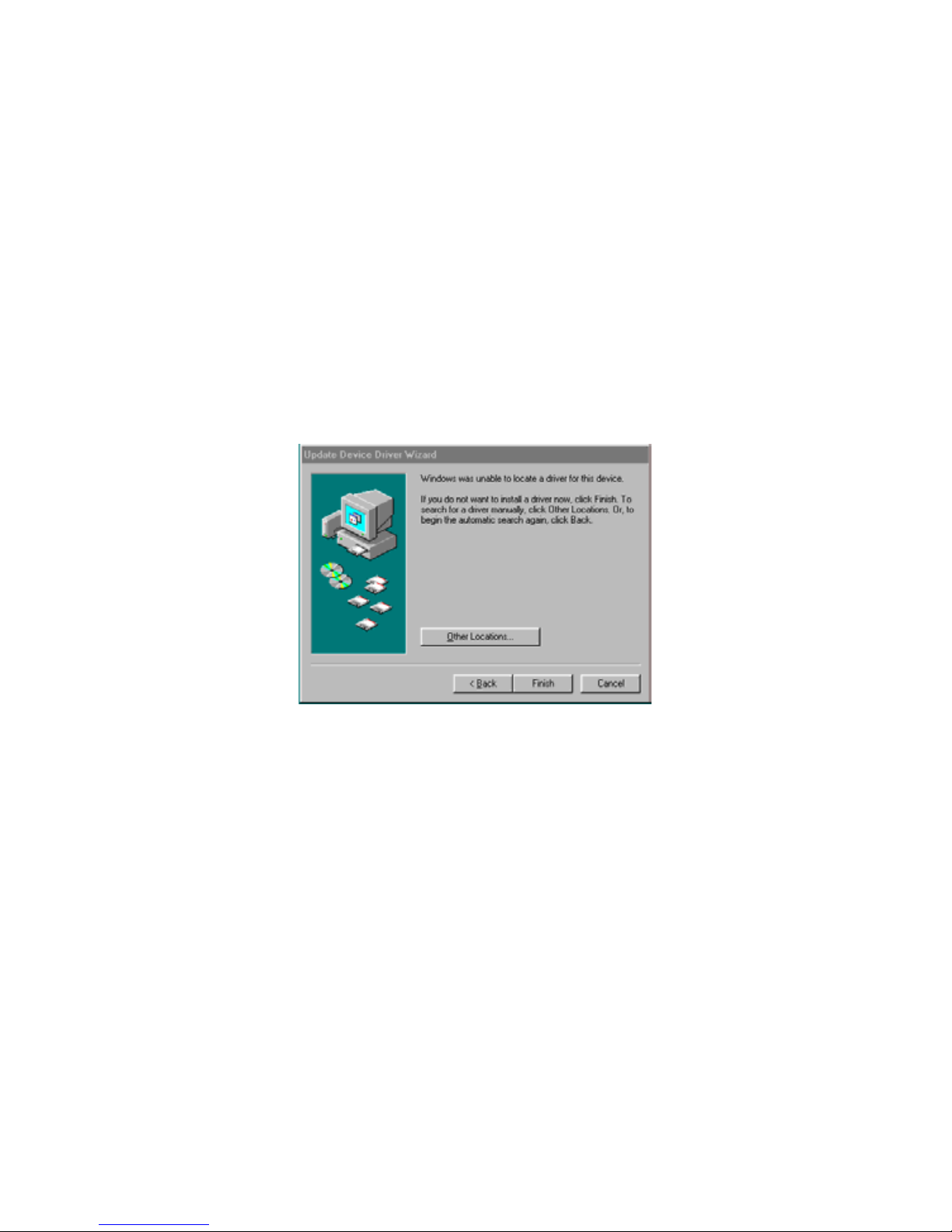
2. Click Next on Update Device Drivers
Wizard.
3. Click The Others Locations button.
4. Insert driver diskette into the floppy disk.
5. Type A:\. The driver will be installed and
you may be asked for the original Windows
95 CD/disks.
6. For the first time installation, please click
Network icon in Control Panel to add
Protocols, Client and Service if needed.
7. Reboot the machine and the card will be
fully functional.
Altri manuali per GA-H03D
1
Indice
Manuali Hardware per computer popolari di altre marche

EMC2
EMC2 VNX Series Manuale del proprietario

Panasonic
Panasonic DV0PM20105 Manuale utente

Mitsubishi Electric
Mitsubishi Electric Q81BD-J61BT11 Manuale utente

Gigabyte
Gigabyte B660M DS3H AX DDR4 Manuale utente

Raidon
Raidon iT2300 Manuale utente

National Instruments
National Instruments PXI-8186 Manuale utente


