
Coolpad Surf Hotspot Manuale utente

Coolpad Surf Hotspot Guide
Billing
Getting To Know Your Hotspot
First-Time Setup
Connecting Devices To Your Hotspot
Resetting Your Hotspot
Hotspot Usage Tips
Troubleshooting Tips
Tech Support
Guía del Coolpad Surf Hotspot
Facturación
Introducción a su Hotspot
Configuración Por Primera Vez
Cómo Conectar Dispositivos a Su Hotspot
Cómo Reiniciar a Su Hotspot
Consejos De Uso De Su Hotspot
Solución De Problemas
Servicio Tecnico
Page 1

Billing
How to pay your Bill Online
1. Login to https://hitconnect.org/sales/salesHome.aspx
2. Username: the Email address you registered with.
3. Password: Your phone number without dashes. (ex: 8882686925)
4. To pay your bill, you will click “Internet”, a drop-down menu will appear,
you select “ADD More Time”.
5. Select the number of months you would like to pay for.
6. Once you select the amount, click “Add To Cart”.
7. Click “View Cart” or by selecting the cart icon picture.
8. Confirm address and card information are correct while processing
payment.
9. Once payment is completed you will receive an order number.
How to Enroll in Automatic Payments
1. You will select the tab “AUTOPAY”
2. Ensure you have the correct device, card number and the number of
months you would like to pay automatically with.
3. Select “I Agree”
4. Select “Enable AutoPay”
How to File a Return Online (30 day Return Policy)
1. Click on “My Account”.
2. Click “View” next to the order to return.
3. Select “Return or Exchange”
4. Complete the final step of submitting the reason for the return.
5. Select “My Returns” to remain up to date on the return request.
If you have any questions about your bill or would like assistance with the following
items, please contact us directly using the billing contact information below.
1. Registering for automatic payments.
2. Paying your bill.
3. Account, Services, or Subscription Changes.
4. Your bill due date.
5. Any issues/concerns with billing or your account.
6. Returning your device and related policies & procedures.
Page 2
Please contact our billing department, Mon- Fri, 10AM - 4:30PM, one of the following
ways:
1. Text Message: (562) 372-6925 (This number receives text messages
only, not phone calls.)
2. Email: [email protected]
3. Phone: (888) 268-6925
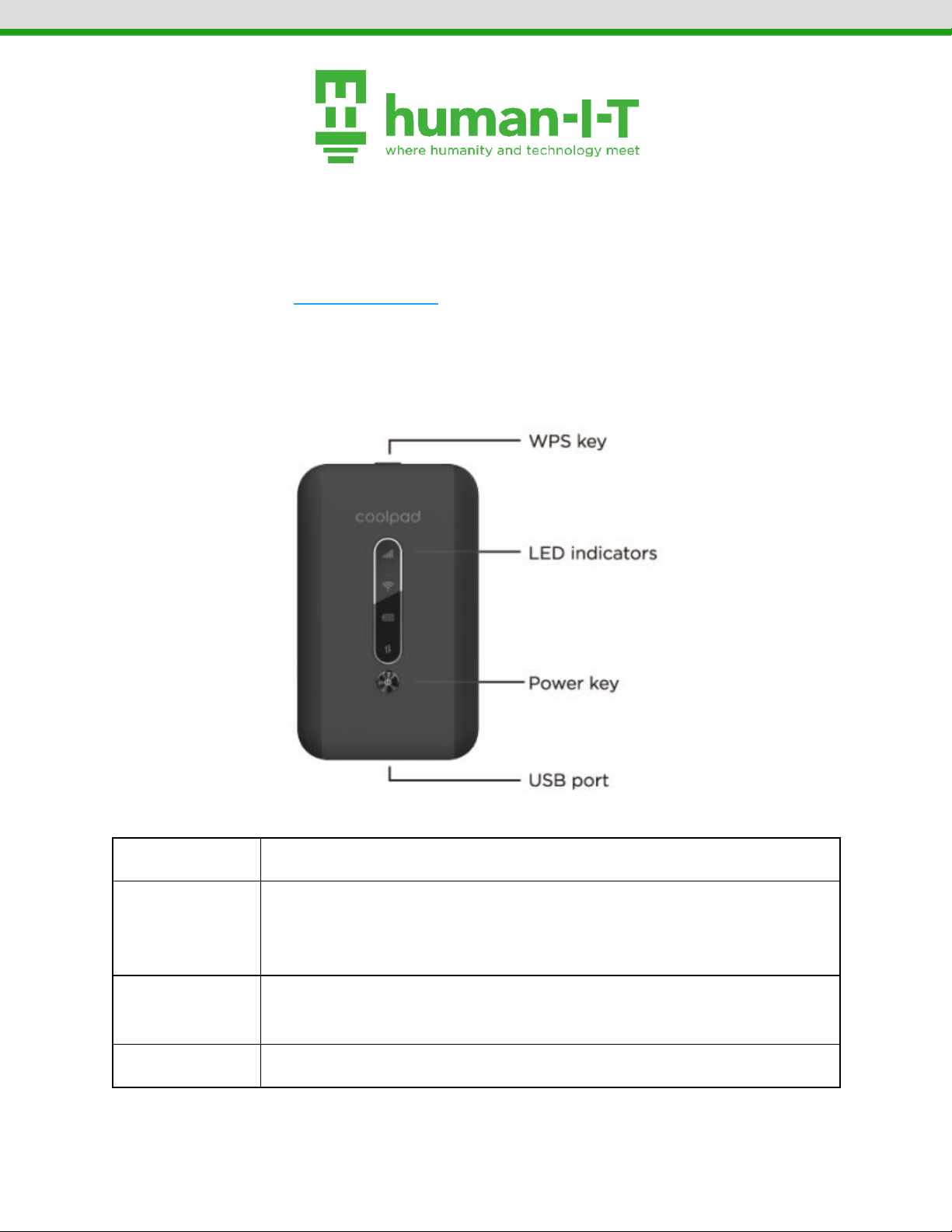
Getting To Know Your Hotspot
Hotspot Button
Function
WPS Key
Press and hold for 3 seconds to activate the WPS function. When
activated, the Wi-Fi indicator will flash. If the network isn’t accessed
within 2 minutes, the WPS function will turn off automatically.
LED Indicators
Displays the signal strength, Wi-Fi strength, battery charge level,
and the mobile data status.
Power Key
Press and hold for three seconds to turn the hotspot on or off.
Page 3

USB Port
Use the included USB cable to recharge your hotspot.
LED Indicator
Description
Signal
Displays the current network status. A green light indicates a strong
network connection, a yellow light indicates a poor network
connection, and a red light indicates no connection, no SIM card,
or no service.
Wi-Fi
A green light indicates when Wi-Fi is connected.
Battery
Displays the battery status. A green light indicates a charge above
40%, a yellow light indicates a charge between 40% and 15%, and
a red light indicates a charge below 15%. The battery indicator will
flash if the battery is being recharged.
Data
A green light indicates that the hotspot has mobile data service.
First-Time Setup
NOTE: The battery will need to be installed and the hotspot will need to be activated
once before use.
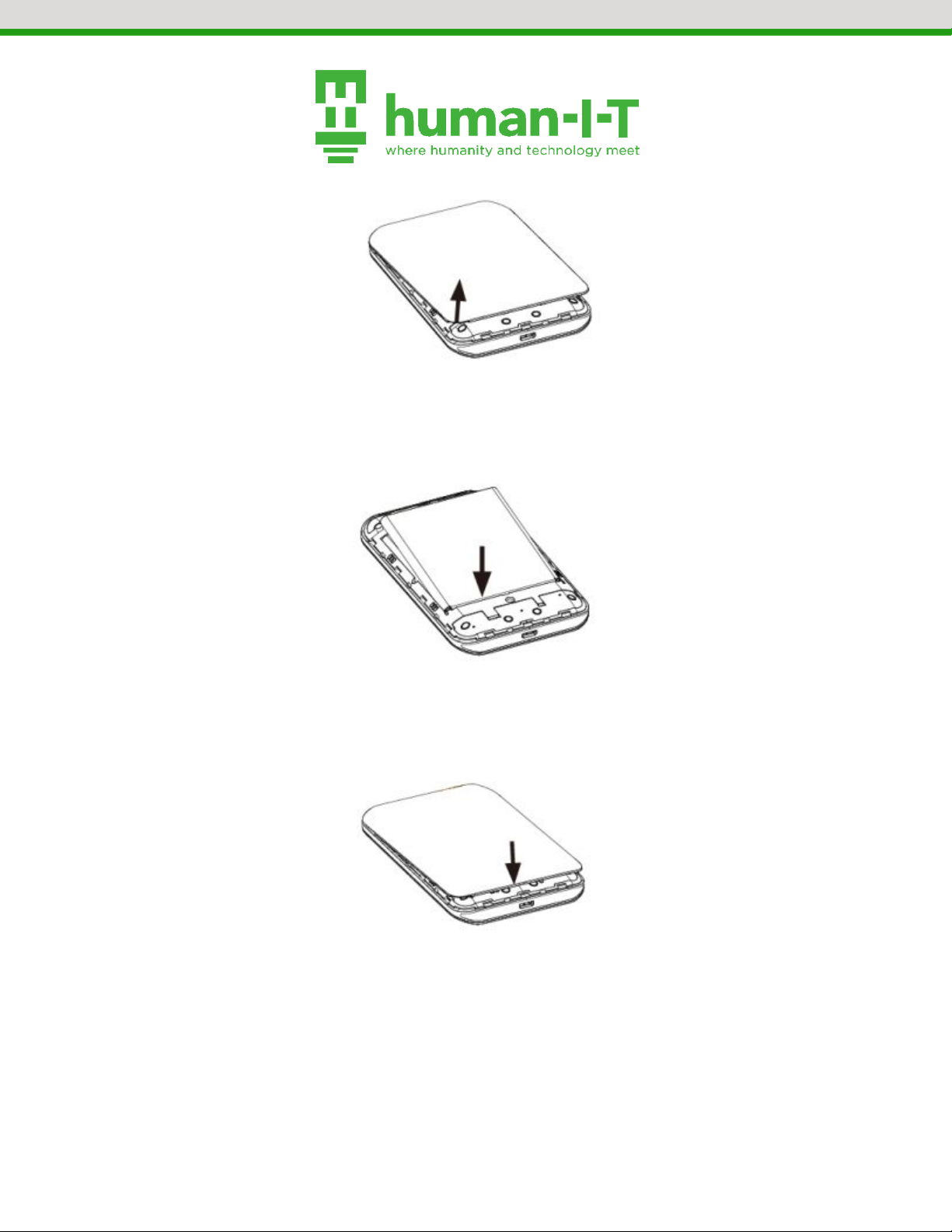
1. Remove the hotspot’s battery cover by lifting gently in the direction shown.
Page 4
1.1. Make note of the SSID and Password on the back of the battery cover.
You will need this information for connecting devices to your hotspot.
2. Insert the battery included with the original packaging. Ensure that the battery
and hotspot contacts align.
2.1. The side of the battery with writing on it should face you.
3. Attach the battery cover by pressing the cover over the back of the hotspot. The
cover will click into place. Please make sure that all tabs are securely in place.
There should be no gaps around the cover.
4. Press and hold the power button for three seconds to turn on the hotspot.
4.1. All indicator LED lights will turn on and flash from top to bottom.
5. The hotspot will automatically activate itself. This process may take up to 10
minutes.
5.1. After 10 minutes the hotspot will be ready to use.
Page 5

Connecting Devices To Your Hotspot
1. Turn on the Wi-Fi of the device you want to connect to your hotspot.
1.1. Your device will provide a list of available Wi-Fi networks.
2. Select the Wi-Fi network that matches the SSID from Step 1 of the First-Time
Setup section of this document.
2.1. The SSID is located on the inside of the battery cover and is typically in
the following format: CoolpadSurf_####
3. When prompted for a password, enter the password from Step 1 of the
First-Time Setup section of this document.
3.1. The password is located on the inside of the battery cover and is typically
8 digits long.
3.2. NOTE: To connect more devices to the hotspot, repeat Steps 1-3.
Resetting Your Hotspot
1. Ensure that your hotspot is on.
2. Press and hold the Power and WPS keys for 13 seconds.
3. Once all LED indicators have flashed blue four times, then the reset is complete.
Hotspot Usage Tips
●Location: The hotspot needs to be able to connect to Sprint’s cell tower for data
service. In order to have the strongest/fastest connection possible, please place
your hotspot near a window or outward facing door.
●Range: The device connected to the hotspot needs to be as close to it as
possible. For the strongest connection, please limit the distance between the
hotspot and your device.
●Devices: The amount of devices connected to the hotspot impacts internet
speeds. To achieve the fastest speeds possible, it’s recommended that you limit
the amount of devices connected to the hotspot at one time. Since streaming
Page 6

video uses up a lot of bandwidth, we recommend streaming content on one
device at a time.
●Battery: In order to prolong the hotspot’s battery life, we recommend
unplugging the hotspot from the outlet after it’s fully charged. Leave the
hotspot unplugged until the battery LED indicator turns red, then charge it back
up to full. Leaving the hotspot plugged in at all times might shorten the
hotspot’s battery life.
Troubleshooting Tips
Issue: The battery is swollen or the hotspot won’t hold a charge.
●Solution 1: If you’re experiencing power or battery issues with your hotspot,
then it needs to be replaced. If your hotspot is still under warranty, Mobile
Citizen will replace your hotspot free of charge. You can reach them by calling
877-216-9603. If you’re unsure whether it’s under warranty or not, you can call
them and they will confirm. For more details on how to call, please refer to the
Tech Support section of this document. If your hotspot is no longer under
warranty, you will need to purchase a new hotspot.
Issue: Bad signal strength or the internet connection fails.
●Solution 1: We recommend moving the hotspot around your home and find a
window or outward facing door that allows for the strongest connection.
●Solution 2: If your device is far from your hotspot, internet speeds might be
impacted. Please keep your devices as close to each other as possible.
●Solution 3: Internet speeds are dependent on network congestion. During peak
hours of cell network use, usually in the evenings after 5pm, internet speeds
might be impacted. If this occurs, please use the device outside of peak hours.
Issue: No internet access and the data LED indicator is red.
●Solution 1: Remove and reinsert the SIM card.
●Solution 2: The hotspot might be outside of Sprint’s data coverage areas. Please
use the hotspot in an area with data coverage.
Page 7

Issue: The hotspot is overheating
●Solution 1: If the hotspot has been left plugged in for hours, unplug the device
and allow it to cool.
●Solution 2: If the hotspot has been left inside a hot car, or in direct sunlight, for
hours at a time, the hotspot might overheat from time to time. To prolong the
hotspot’s life, we recommend that the hotspot is used and stored at room
temperature.
●Solution 3: Remove the battery and allow both the hotspot and battery to cool.
Reinstall the battery once both have cooled down enough.
Tech Support
human-I-T
Hours: Monday - Friday, 9am - 4pm PST
Text Message: 562-372-6925 (The quickest way to get a hold of us!)
Phone Call: 888-268-3921 (Press 1 at the first menu, then press 5 at the next menu)
Email: [email protected]
human-I-T is responsible for all billing and Mobile Citizen is responsible for tech
support. Mobile Citizen can be reached by calling 303-532-1084, then pressing 2 to go
directly to tech support. Once in tech support, one of two things can happen. Either
the phone will ring for a bit, then you will be connected with a live representative, or it
will ring and you will be prompted to leave a voicemail. Please leave them a message.
Mobile Citizen will not return your call unless you leave a message. If you call early,
they will often return your call within the same day. Otherwise, it can take up to 1
business day for them to return your call. Once you get a live representative on the
line, please have your hotspot handy because they will be locate your account
information based on the numbers found on your hotspot. Please let human-I-T know if
you run into any issues reaching them. If you do not contact us, we will assume that
Mobile Citizen resolved the issue.
Mobile Citizen
Hours: Monday - Friday, 7am - 4pm MST
Phone Call: 877-216-9603 (During normal hours)
Page 8


Facturación
Cómo pagar su factura en línea
1. Inicie sesión en https://hitconnect.org/sales/salesHome.aspx
2. Nombre de usuario: la dirección de correo electrónico con la que se
registró.
3. Contraseña: Su número de teléfono sin guiones. (ex: 8882686925)
4. Para pagar su factura, hará clic en "Internet", aparecerá un menú y
seleccionará "Add More Time".
5. Seleccione la cantidad de meses que le gustaría pagar.
6. Una vez que seleccione la cantidad, haga clic en "Add to Cart".
7. Haga clic en "View Cart" o seleccionando la imagen del icono del carrito.
8. Confirme que la dirección y la información de la tarjeta son correctas al
procesar el pago.
9. Una vez completado el pago, recibirá un número de pedido.
Cómo inscribirse en pagos automáticos.
1. Seleccionarás la pestaña “AUTOPAY”
2. Asegúrese de tener el dispositivo correcto, el número de la tarjeta y la
cantidad de meses que le gustaría pagar automáticamente.
3. Seleccione "Accept"
4. Seleccione "Enable AutoPay"
Cómo presentar una devolución en línea (Regreso de aparato dentro de 30 dias)
1. Haga clic en "My Account"
2. Haga clic en "View" junto a la orden que desea devolver.
3. Seleccione "Return or Exchange" (Devolución o cambio)
4. Complete el paso final que es el motivo de la devolución"
5. Seleccione "My Returns" para mantenerse actualizado sobre la solicitud
de devolución.
Si tiene alguna pregunta sobre su factura o le gustaría recibir ayuda con los siguientes
artículos, comuníquese con nosotros directamente utilizando la información de
contacto de facturación que se encuentra a continuación.
1. Registro para pagos automáticos.
Page 10
Indice
Lingue:
Altri manuali Coolpad Router wireless


