
Corega CG-WLBARGO Manuale utente
User Manual
54M Wireless broadband Router
CG-WLBARGO


WLBARGO Manual
PB 1
1. Product Introduction...................................................................................................3
1.1 Package Contents............................................................................................3
1.2 Features...............................................................................................................3
1.3 Hardware Introduction...............................................................................4
2. Product Installation.......................................................................................................5
2.1 Hardware Installation................................................................................5
2.2 Installation Procedure..............................................................................5
3. PC Setting........................................................................................................................6
3.1 TCP/IP Configuration..................................................................................6
3.1.1 Windows Vista O/S...............................................................................6
3.1.2 Windows XP O/S...............................................................................8
3.1.3 Windows 2000 O/S...........................................................................10
3.1.4 Windows 98/95/ME O/S.............................................................13
3.1.5 Mac OS 8.x~9.x O/S..........................................................................14
3.1.6 Mac OS X O/S......................................................................................14
3.2 Browser Configuration..............................................................................15
3.2.1 Windows Vista O/S.........................................................................15
3.2.2 Windows XP O/S.............................................................................16
3.2.3 Mac O/S..............................................................................................18
4. Network Configuration.........................................................................................19
4.1 Quick Network Configuration..................................................................19
4.1.1 Auto obtain IP (DHCP)...................................................................31
4.1.2 Fixed IP...............................................................................................23
4.1.3 Float IP (PPPoE)............................................................................25
4.2 Establishing Wireless Internet Connection.......................................27
4.2.1 Setup Wireless Adapter ............................................................27
5. Wireless Security Configuration...........................................................................30
5.1 WEP Setting........................................................................................................30
5.2 WPA Setting.......................................................................................................31
<WPA-PSK>................................................................................................31
<WPA-EAP>...............................................................................................32
6. Function Introduction...........................................................................................33
Contents

WLBARGO Manual
2 3
2 3
2 3
6.1 Features..............................................................................................................33
<Mode>......................................................................................................33
<WAN setting (world wide web)>.....................................................34
<WAN setting/ Dynamic DNS>.........................................................36
<WAN setting/Other setting>.............................................................37
<LAN setting/LAN IP>..........................................................................37
<LAN setting /DHCP server>.................................................................38
<LAN setting/PC database>..................................................................38
<Wireless setting/802.11g/b setting>.............................................39
<Wireless setting/802.11g/b security setting>........................40
<Wireless setting/Connection control>.............................................40
<Security setting>...................................................................................41
<Security setting/Connection control>.......................................41
<Security setting/filter list>.................................................................42
<Advanced setting/virtual server>..................................................42
<Advanced setting/Special Applications>...................................42
<Advanced setting/DMZ>..................................................................43
<Advanced setting/Routing Table/Static Routing>......................43
<Advancedsetting/RoutingTable/DynamicRouting(RIP)>...43
<Advanced setting/Routing Table/Routing Table>....................44
<Advanced setting/UPnP >..................................................................44
<Advanced setting/SNMP >................................................................44
<Management>........................................................................................45
<Status>......................................................................................................47
<Status/Log Display/Dos Attack log>...............................................47
<Status/Log Display/system log>.....................................................48
<Status/Log Display/E-mail function>........................................48
7. FAQ....................................................................................................................................49
8. Sepcifictaion................................................................................................................ 52
Contents

2 3
2 3
WLBARGO Manual
2 3
Corega WLBARGO is a 54M wireless broadband Router with IEEE802.11g wireless
access point standard. It supports TX-burst technology which can effectively
improve the transmit speed. It also contains 5 dBi detachable antenna which can
maximum transmit length up to 500m. Moreover, WLBARGO supports security
settings such as WEP, WPA and WPA2. WDS and WMM functions are also support-
ed. With extensive functions and superior efficiency, WLBARGO is the best choice
for users seeking for a high quality and broad coverage area wireless broadband
Router.
1.1 Package Contents
Check the listed contents thoroughly before installation. In case of discrepancy
to the list below, check with your local dealers.
- Wireless 54Mbps Broadband Router
- Power Adapter
- Detachable Antenna
- Flat UTP Cable
- Product Stand (with Mounting Screws)
- Wall Mount Kit
- Quick Installation Guide
- User Manual
1.2 Features
• IEEE802.11b/g standard
• Contains 5 dBi detachable antenna which can improve wireless coverage up
to 500m.(Environmental factors may adversely affect wireless signal range.)
• Supports TX-Burst technology. Can effectivly improve transmit speed when
working with corega WLCBGMO or corega WLUSB2GO.
• Supports WEP 64/128bit, WPA/WPA2 security setting.
• Internal NAT and NAPT fuction, allowing several computers access Internet,
compatible on-line gaming, and IM software at the same time.
• Supports WMM mode, improves transmittal quailty of multimedia software.
• Supports WDS - P to MP(P to MP bridge mode )and AP Repeater (repeater
mode).
• Advanced SPI, DoS Firewall
• Chinese and English version utility
• Supports UPnP and on-line broadband applications (Such as Windows
Messenger, MSN Messenger, Yahoo Mesenger, Skype, ICQ and etc.)
1Product Introduction
WLBARGO Manual
4 5
4 54 5
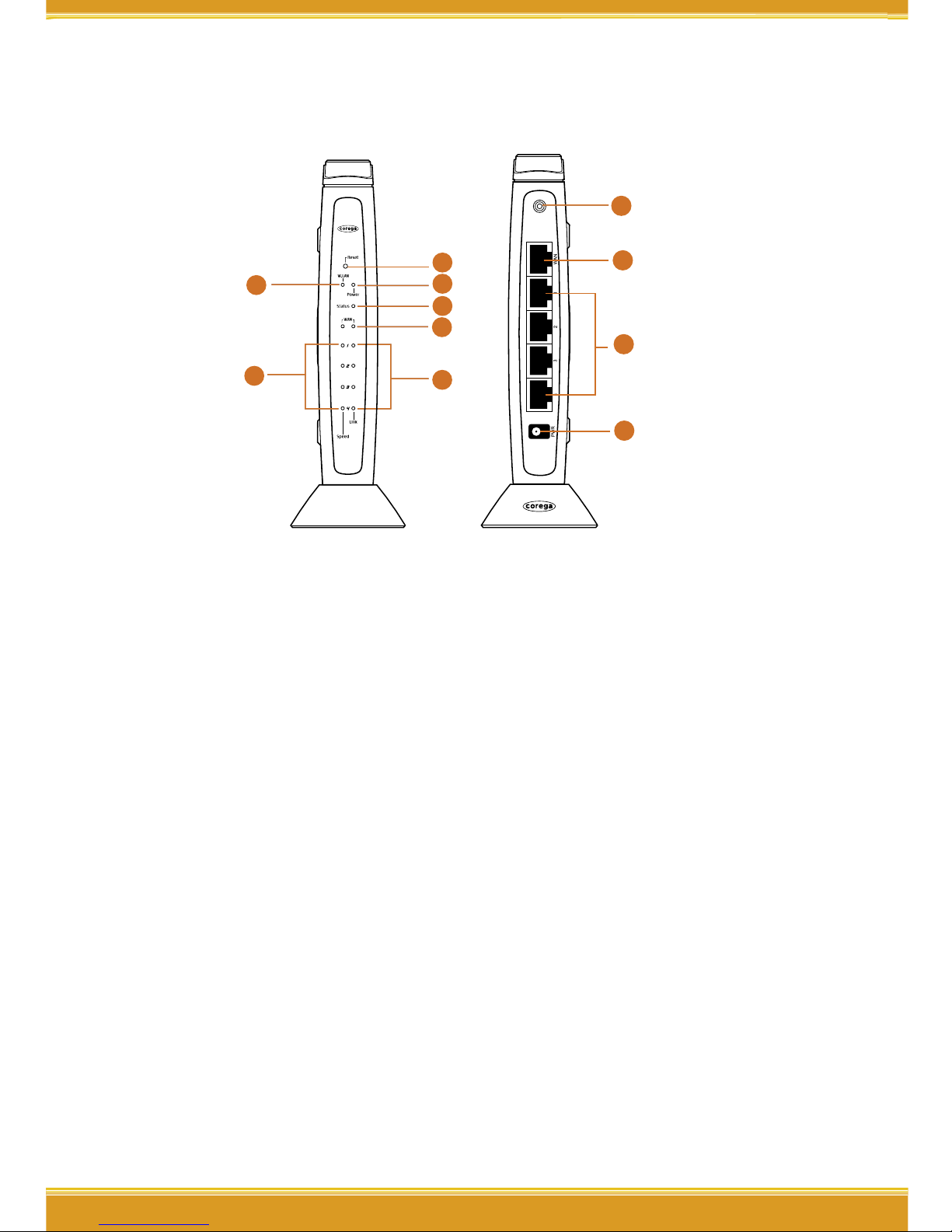
1.3 Hardware Introduction
1
3
4
5
7
6
2
8
9
11
10
1. Reset Button
Press this button it will reset to
default setting
2. WLAN LED (Green)
ON:Connected
3. Power LED (Green)
Indicate power status
4.Status LED (Orange)
Steady on: Abnormal
Blink:Connected
Flash:Firmware upgrade/Reboot
5. WAN LED (Green)
ON:Connected
Blink:Transmitting or receiving data
6. Speed LED (Green)
ON:100Mbps
Off:10Mbps
7. Link LED (Green)
ON:Connected
Blink:Transmitting or receiving
data
8. Detachable Antenna
Connector
9. WAN port
Connected with modem
10. LAN ports(1-4)
Connected with PC
11. AC IN Socket
Connect with power adapter
4 54 5
WLBARGO Manual
4 5
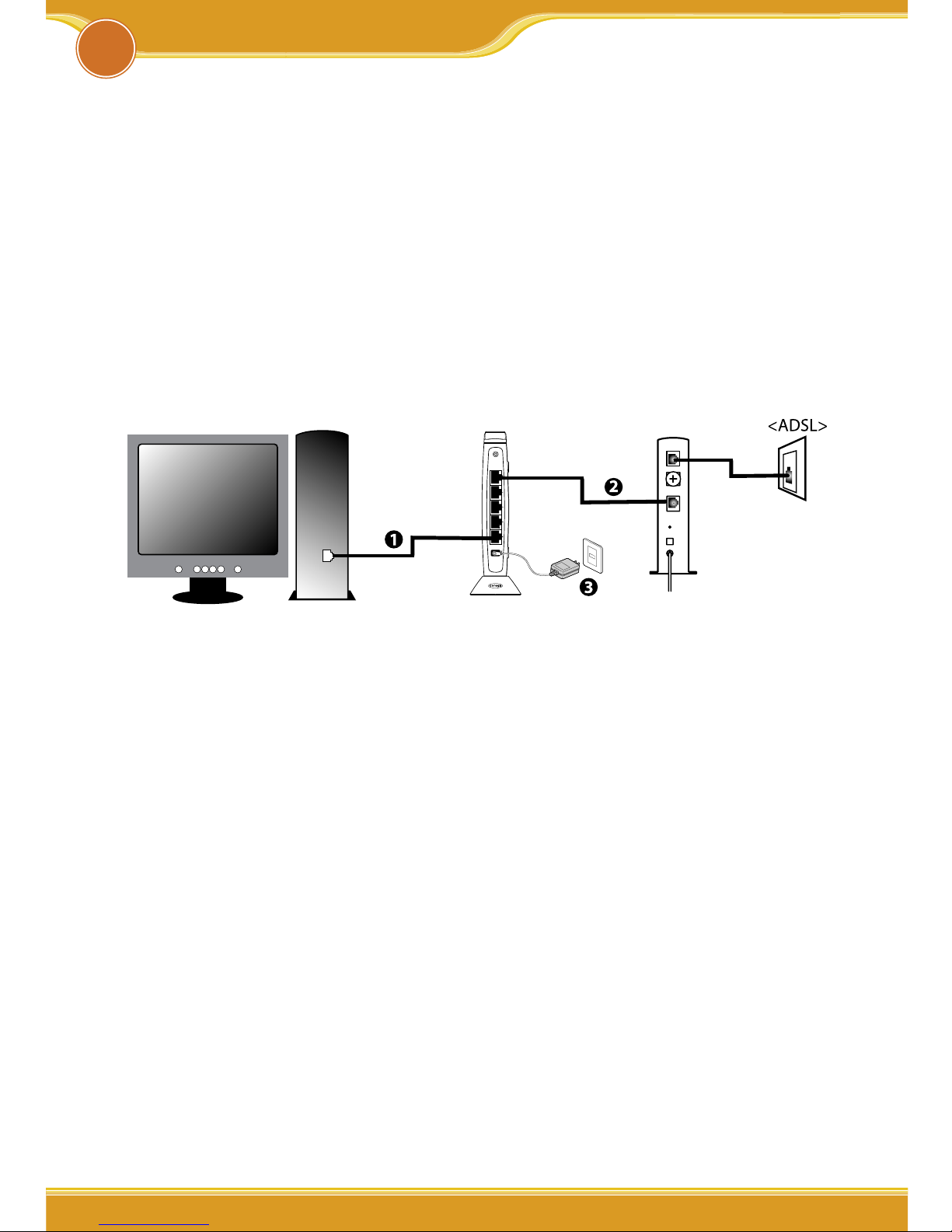
2.1 Hardware Installation
Following the steps below to set up WLBARGO and the connection.
(1) Insert the cable connector into the Network Adapter embeded in PC, and
insert the other side into one of LAN ports (1~4) of the Router.
(2) Insert the connect into the WAN port of the Router and insert the other side
into the modem.
(3) Connect the Power Adapter, and plug in the AC power.
WAN
LAN
corega WLBARGO Modem
PC
2.2 Installation Procedure
To ensure successful installation, following the below steps after confirming all
installation data and/or equipment.
Install the hardware -> PC setting -> Open the browser (such as IE 6.0), and
type [192.168.1.1] in the browser’s address bar, and press enter. -> User name:
root, leave Password empty, and press Submit. ->Select [Quick Installation
Setting] for quick installation->Setting the Wirless Security->Use PC with com-
patible wireless card for wireless connection.
2Product Installation
WLBARGO Manual
6 7
6 76 7
3.1 TCP/IP Configuration
The following steps and screenshots maybe dissimilar in different operat-
ing systems. This manual takes Windows XP/2000, 95/98/ME, and Mac O/S as
examples:
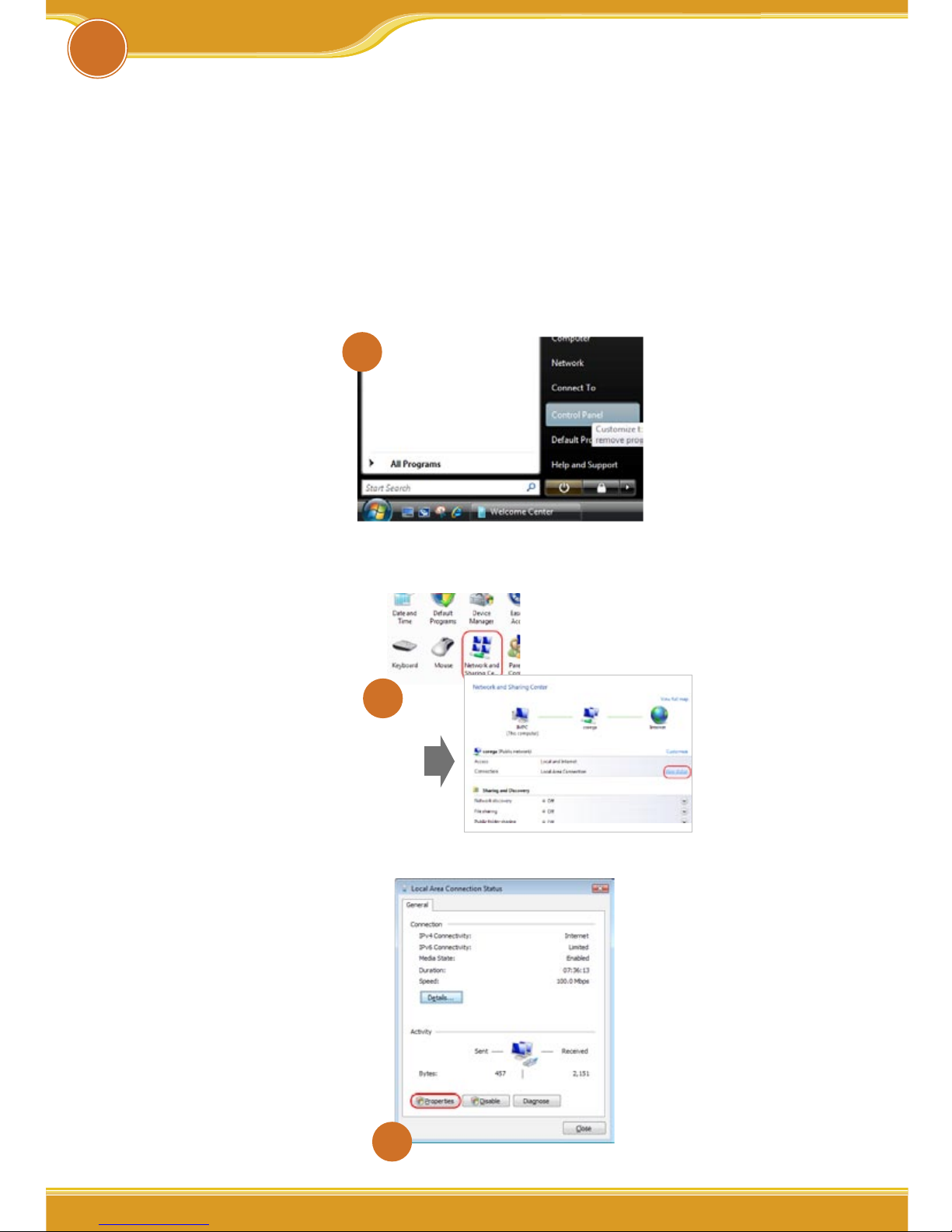
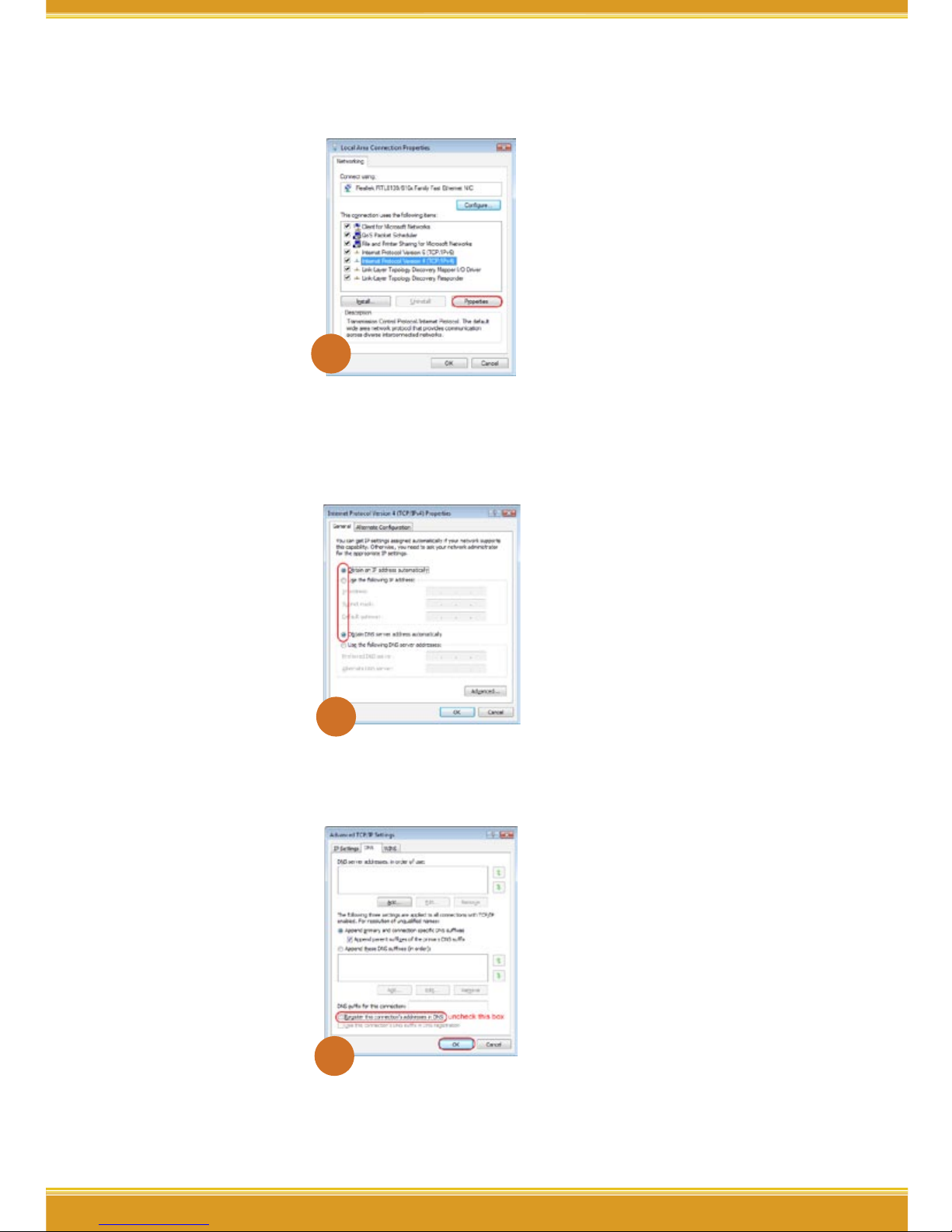
3.1.1 Windows Vista O/S
1. Click[Start] > select [Control Panel]
2. Double click [Network and Sharing Center]=>Click [View
Status] under [Local Area Network].
3. Click [Properties]。
3
2
1
3PC Setting
6 76 7
WLBARGO Manual
6 7
4. Select [Internet Protocol Version 4 (TCP/IPv4)]=>click
[Properties]。
5. Select the [General] tab=>click both [Obtain an IP
address automatically] and [Obtain DNS Server address
automatically]=>click [Advanced].
6. Select the [DNS] tab=>uncheck the [Register this connection's
addresses in DNS] box=>click [OK].
7. Close all pages.
4
5
6
WLBARGO Manual
8 9
8 9
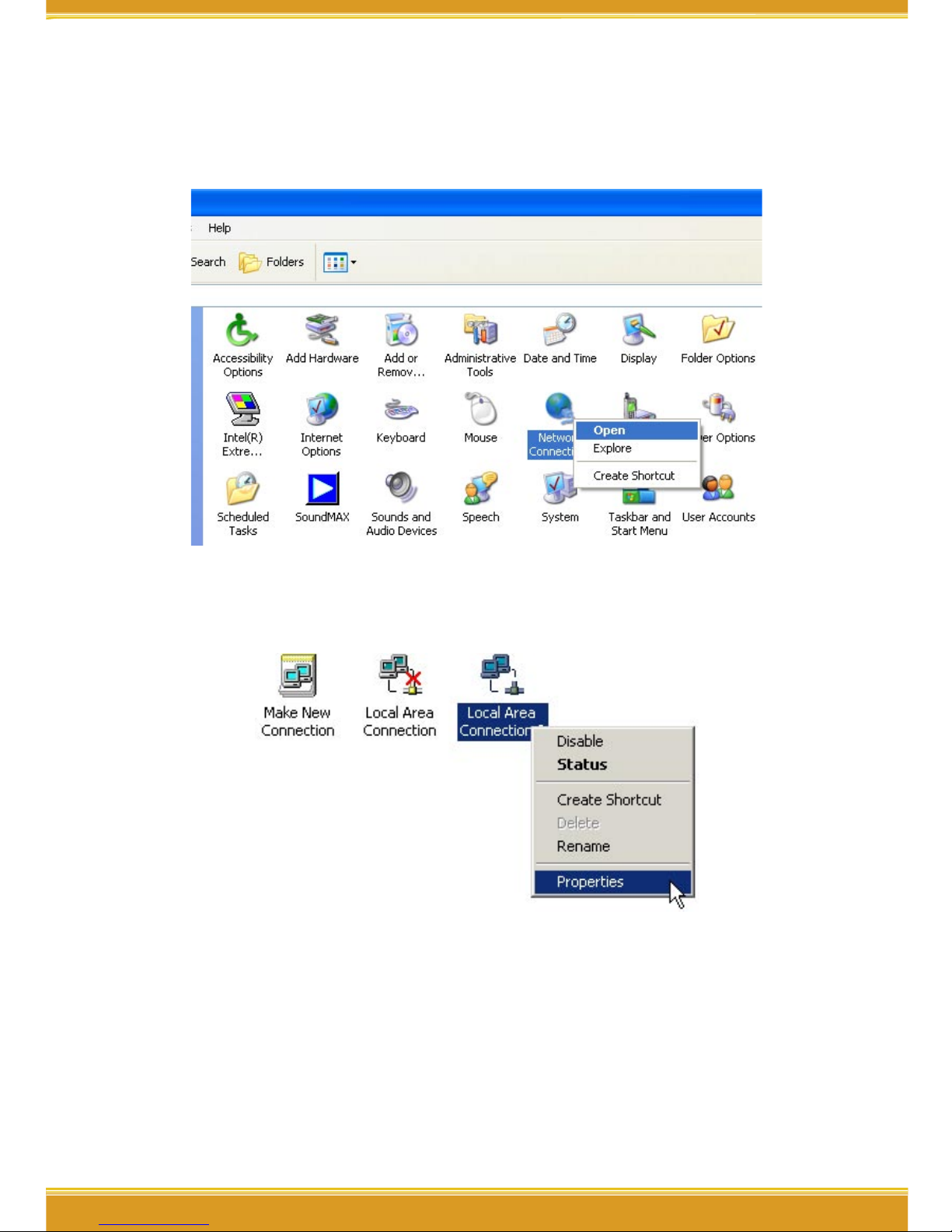
3.1.2 Windows XP O/S
(1) Enter [Control Panel] -> click [Network Connection] -> right click and select
[Open].
(2) Click [Local Area Connection] and right click and select [Properties].
(3) Click [General] -> click [Internet Protocol (TCP/IP), and click [Properties].
Altri manuali per CG-WLBARGO
1
Indice
Altri manuali Corega Router wireless


