
CPR Guardian III Manuale utente
crl-guardian3-plug-and-play-guide.md 11/5/2021
1 / 5
platform: {Azure Sphere OS 21.10} device: {Guardian3} language: {English}
GUARDIAN III USER GUIDE
Table of Contents
Introduction
Prerequisites
Prepare the Device
Connect to Azure IoT Central
Integration with Azure IoT Explorer
Additional Links
Introduction
About this document
This document describes how to connect GUARDIAN III to Azure IoT Hub using the Azure IoT Explorer with
certified device application and device models.
IoT Plug and Play certified device simplifies the process of building devices without custom device code. Using
Solution builders can integrated quickly using the certified IoT Plug and Play enabled device based on Azure
IoT Central as well as third-party solutions.
This getting started guide provides step by step instruction on getting the device provisioned to Azure IoT
Hub using Device Provisioning Service (DPS) and using Azure IoT Explorer to interact with device's capabilities.
Guardian III is an IoT gateway product series based on Microsoft Azure Sphere OS. It provides end-to-end IoT
security solutions and can be used in a variety of industrial fields.
Guardian III has multiple types of southbound interfaces, such as LoRa, Bluetooth, Ethernet, CAN, RS422,
RS485, etc., which can be easily connected to many devices or sensors. At the same time, it also includes three
types of northbound interfaces (WiFi, Ethernet, 4G), you can easily connect to the Internet.
The Guardian III series includes three different product forms, namely GIIICM680L, GIIICM680E, and
GIIICM680R. The main difference between the three product forms is the southbound interface.
Prerequisites
You should have the following items ready before beginning the process:
For Azure IoT Central
Azure Account
crl-guardian3-plug-and-play-guide.md 11/5/2021
2 / 5
Azure IoT Central application
For Azure IoT Hub
Azure IoT Hub Instance
Azure IoT Hub Device Provisioning Service
Azure IoT Public Model Repository
Prepare the Device.
Development Environmental setup
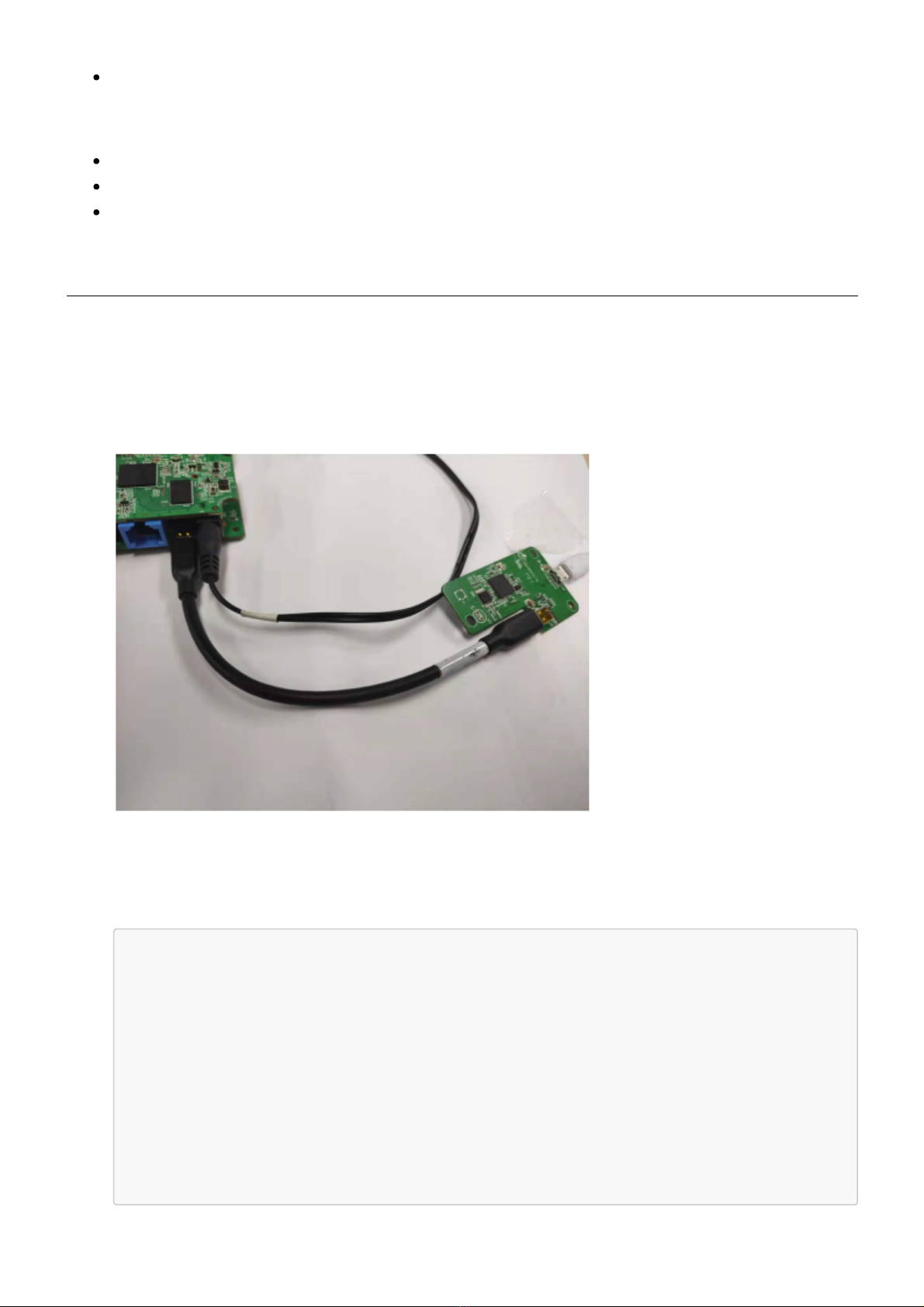
1. Connect Guardian III series products to your PC through USB. When plugged in, the device exposes
four USB Serial Converters, The first time you plug in the device, the drivers should be automatically
downloaded and installed. As shown in the figure below:
2. Before you can run the sample, you must configure it correctly by the sample's application manifest to
enable capabilities which we supply in the sample, mainly including followings in the Capabilities
section:
"Capabilities": {
"AllowedConnections": [
"global.azure-devices-provisioning.net",
"crl-hub1.azure-devices.net",
"crl-pnp-hub.azure-devices.net",
"certsvc-hub-prod-japaneast.azure-devices.net",
"certsvc-hub-prod-northeurope.azure-devices.net",
"certsvc-hub-prod-westus2.azure-devices.net",
"certsvc-hub-prod-centralus.azure-devices.net",
],
crl-guardian3-plug-and-play-guide.md 11/5/2021
3 / 5
3. You must configure it correctly by the sample's application manifest to enable pnp function which we
supply in the sample, mainly including followings in the CmdArgs section:
"CmdArgs": [ "--ConnectionType", "DPS_PNP", "--ScopeID", "0ne000FFA42", "--
ModelID", "dtmi:crl:Guardian;3" ],
4. Make sure to add the gdn_pnp_sample() function call in main.c main thread.
int main(int argc, char* argv[])
{
...
gdn_pnp_sample();
....
while(1){
...
}
return 0;
}
Connect to Azure IoT Central (Simple)
To configure a device to connect to Azure IoT Central you need the following
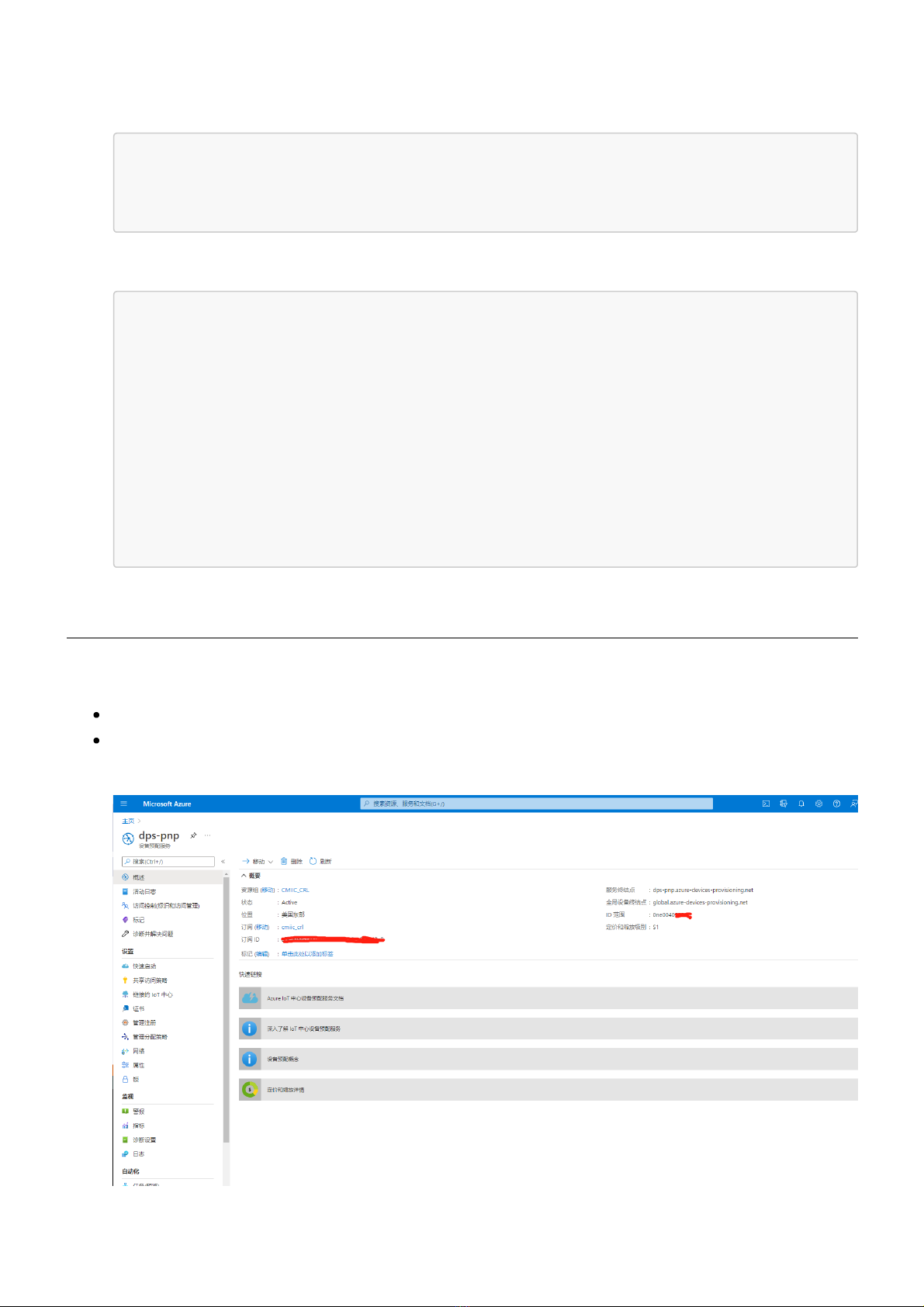
ID scope: 0ne0040****.
Group primary key: attestation methods X.509
1. Create a Policy for DPS.
crl-guardian3-plug-and-play-guide.md 11/5/2021
4 / 5
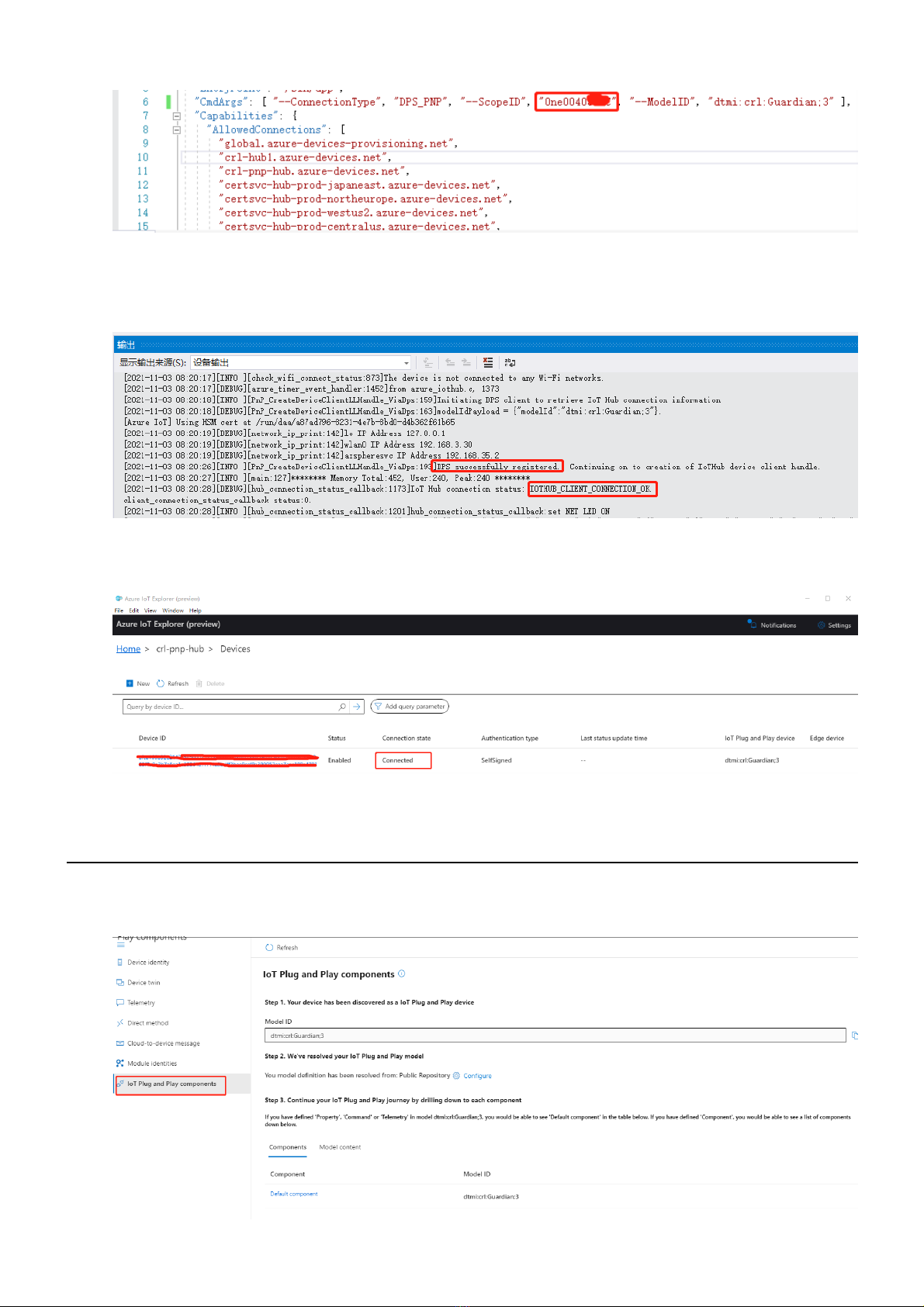
2. Modify the sample's application manifest and fill in your ID scope(As shown in the figure below):
3. Run sample code, you can find device DPS register status and hub connect status when it connect
Internet. If displayed DPS successfully registered and IOTHUB_CLIENT_CONNECTION_OK in Visual
Studio output window, it is successful.
4. If you use azure-iot-explorer tool connect your hub. You can see that the connection status of the
device is connected.
Integration with Azure IoT Explorer (Advanced)
1. When you enter the device details page, you can you can click IoT Plug and Play components button
enter components the details page.
crl-guardian3-plug-and-play-guide.md 11/5/2021
5 / 5
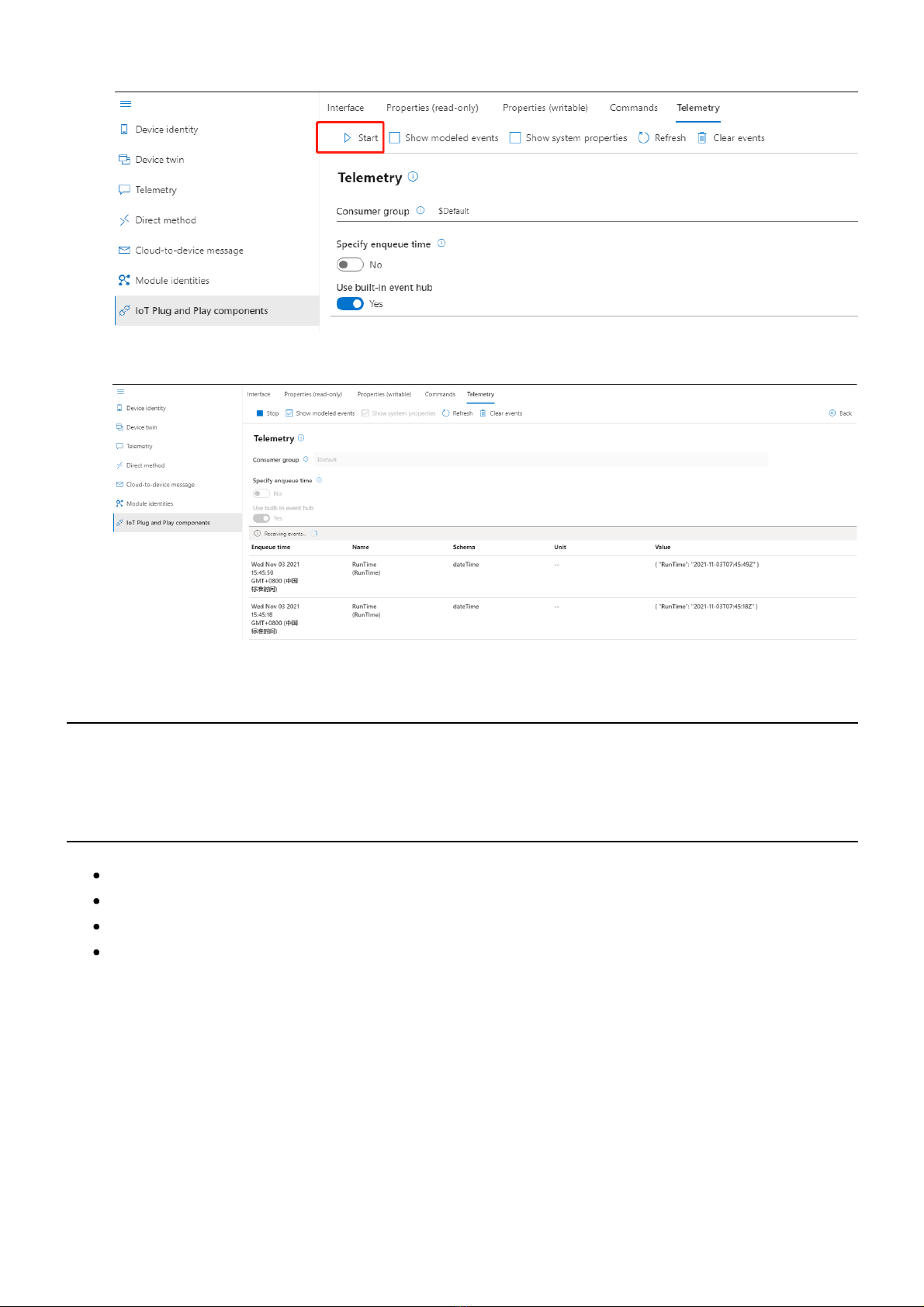
2. You can click Telemetry button enter Telemetry operation page.
3. If you click start button in Telemetry operation page, you can receive device telemetry message.
Additional information
Email: [email protected]
Additional Links
Manage cloud device messaging with Azure-IoT-Explorer
Import the Plug and Play model
Configure to connect to IoT Hub
How to use IoT Explorer to interact with the device
Altri manuali per Guardian III
2
Indice
Altri manuali CPR Orologio


