
D-Link DSL-2640U/NRU Manuale utente
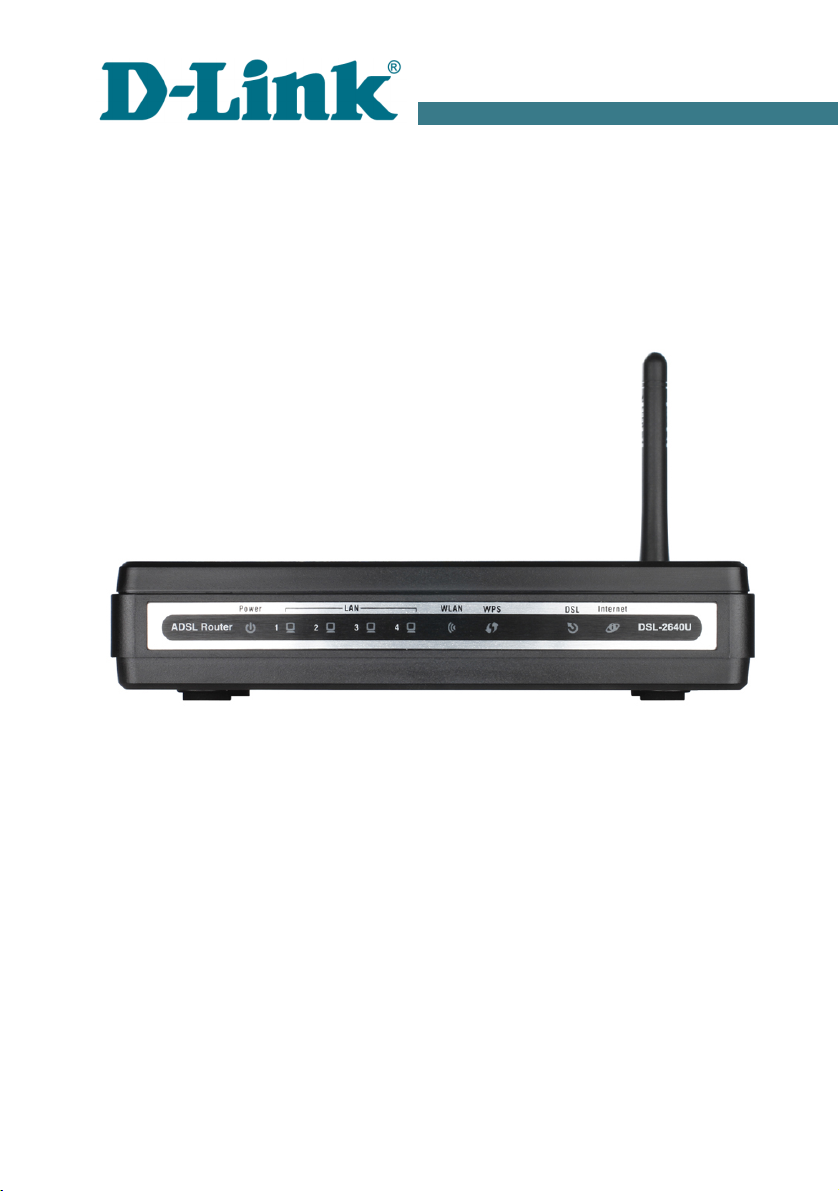
Quick Installation Guide
DSL-2640U/NRU
ADSL/Ethernet Router with Wi-Fi and Built-in Switch

DSL-2640U/NRU Quick Installation Guide
BEF RE Y U BEGIN
Delivery Package
•Wireless router DSL-2640U/NRU
•Power adapter
•RJ-11 telephone able
•Straight-through Ethernet able (CAT 5E)
•Splitter
•CD-ROM with “User Manual” and “Quick Installation Guide”
•“Quick Installation Guide” (bro hure)
If any of the items are missing, please onta t your reseller.
!Using a power supply with a different voltage rating than the one
included will cause damage and void the warranty for this product.
Default Settings
IP address of router 192.168.1.1
Username (login) admin
Password admin
Name of wireless network (SSID) DSL_2640NRU
System Requirements and Equipment
•A omputer with any operating system that supports a web browser.
•A web browser to a ess the web-based interfa e of the router: Windows
Internet Explorer, Mozilla Firefox, or Opera.
•A NIC (Ethernet or Wi-Fi adapter) to onne t to the router.
•A 802.11b, g, or n Wi-Fi adapter to reate a wireless network.
2

DSL-2640U/NRU Quick Installation Guide
C NNECTING T PC ( S WIND WS XP)
PC with Ethernet Adapter
1. Make sure that your PC is powered off.
2. Conne t an Ethernet able between any of Ethernet ports lo ated on the
ba k panel of the router and the Ethernet port of your PC.
3. To connect the router to a DSL line: onne t a phone able between the
DSL port of the router and the ADSL OUT port of the splitter. Conne t
your phone to the PHO E port of the splitter. Then onne t another
phone able between a phone ja k and the ADSL I port of the splitter.
4. To connect the router to an Ethernet line: onne t the Ethernet able
between any of four Ethernet ports lo ated on the ba k panel of the router
and the Ethernet line.
5. Conne t the power ord to the power onne tor port on the ba k panel of
the router, then plug the power adapter into an ele tri al outlet or power
strip.
6. Turn on your PC and wait until your operating system is ompletely
loaded.
Now you should onfigure your PC to obtain an IP address automati ally (as
DHCP lient).
1. Cli k the Start button and pro eed to the Control Panel > Network
and Internet Connections > Network Connections window.
3

DSL-2640U/NRU Quick Installation Guide
2. In the Network Connections window, right- li k the relevant Local
Area Connection i on and sele t the Properties line in the menu
displayed.
3. In the Local Area Connection Properties window, on the General
tab, in the This connection uses the following items se tion, sele t
the Internet Protocol (TCP/IP) line. Cli k the Properties button.
4

DSL-2640U/NRU Quick Installation Guide
4. Sele t the btain an IP address automatically radio button. Cli k
the K button.
Cli k the ОК button. Now your omputer is onfigured to obtain an IP address
automati ally.
PC with Wi- i Adapter
1. To connect the router to a DSL line: onne t a phone able between the
DSL port of the router and the ADSL OUT port of the splitter. Conne t
your phone to the PHO E port of the splitter. Then onne t another
phone able between a phone ja k and the ADSL I port of the splitter.
2. To connect the router to an Ethernet line: onne t the Ethernet able
between any of four Ethernet ports lo ated on the ba k panel of the router
and the Ethernet line.
3. Conne t the power ord to the power onne tor port on the ba k panel of
the router, then plug the power adapter into an ele tri al outlet or power
strip.
4. Turn on Wi-Fi: push the relevant button on the ba k panel of the router.
5

DSL-2640U/NRU Quick Installation Guide
5. Turn on your PC and wait until your operating system is ompletely
loaded.
6. Turn on your Wi-Fi adapter. As a rule, modern notebooks with built-in
wireless NICs are equipped with a button or swit h that turns on/off the
wireless adapter (refer to your PC do uments). If your PC is equipped
with a pluggable wireless NIC, install the software provided with your
Wi-Fi adapter.
Now you should onfigure your Wi-Fi adapter.
1. Cli k the Start button and pro eed to the Control Panel > Network
and Internet Connections > Network Connections window.
2. Sele t the i on of the wireless onne tion and make sure that your Wi-Fi
adapter is on.
3. Sear h for available wireless networks.
4. In the opened Wireless Network Connection window, sele t the
needed wireless network (DSL_2640NRU) and li k the Connect
button.
After that the Wireless Network Connection Status window appears.
6

DSL-2640U/NRU Quick Installation Guide
C NFIGURING R UTER
Connecting to Web-based Interface
1. Start a web browser.
2. In the address bar of the web browser, enter the IP address of the router
(by default, the following IP address is spe ified: 192.168.1.1). Press
the Enter key.
3. On the opened page, enter the username (login) and password for the
administrator a ount (by default, the following username and password
are spe ified: admin, admin). Then li k the Enter button.
!
If the error “ The page cannot be displayed ” (or “ Unable to display the
page ”/“ Could not connect to remote server ”) o urs upon onne ting to
the web-based interfa e of the router, make sure that you have properly
onne ted the router to your omputer.
After su essful registration the system statisti s page opens. The page
displays general information on the router and its software.
!It is strongly re ommended to hange the administrator password upon
initial onfiguration of the router. To do this, go to the System /
Administrator password page.
7

DSL-2640U/NRU Quick Installation Guide
The web-based interfa e of the router is bilingual (English/Russian). Sele t a
needed language from the menu displayed when the mouse pointer is over the
Language aption. You an hange the language of the web-based interfa e
in any menu item.
Configuring Connection to the Internet
!
You should onfigure your WAN onne tion in a ordan e with data
provided by your Internet servi e provider (ISP). Make sure that you
have obtained all ne essary information prior to onfiguring your WAN
onne tion. Otherwise onta t your ISP.
ADSL WAN Connection
1. Go to the Net / Connections page and li k the Add button.
2. In the General settings se tion, spe ify a name for your onne tion
(any name for easier identifi ation) in the Name field and sele t a type
for your onne tion from the Connection Type drop-down list.
8

DSL-2640U/NRU Quick Installation Guide
3. In the Physical layer se tion, spe ify the VPI and VCI in the relevant
fields, and then sele t a method of en apsulation from the
Encapsulation Mode drop-down list.
4. For the IPoA and IPoE onne tion types, fill in the IP Address,
Netmask, and Gateway IP Address fields in the IP settings se tion.
For the IPoE type, you an spe ify automati assignment of these
parameters (to do this, sele t the btain an IP address
automatically he kbox).
9

DSL-2640U/NRU Quick Installation Guide
5. For the PPPoE and PPPoA onne tion types, enter authorization data
provided by your ISP in the PPP Settings se tion (the username (login)
in the PPP Username field and the password in the Password and
Password confirmation fields). If these data have not been provided
by your ISP, sele t the Without authorization he kbox.
6. Desele t the NAT he kbox in the Miscellaneous se tion if your ISP
requires you to disable the network address translation fun tion.
7. Cli k the Save button.
10
Indice
