DAP Technologies M9020 Manuale utente

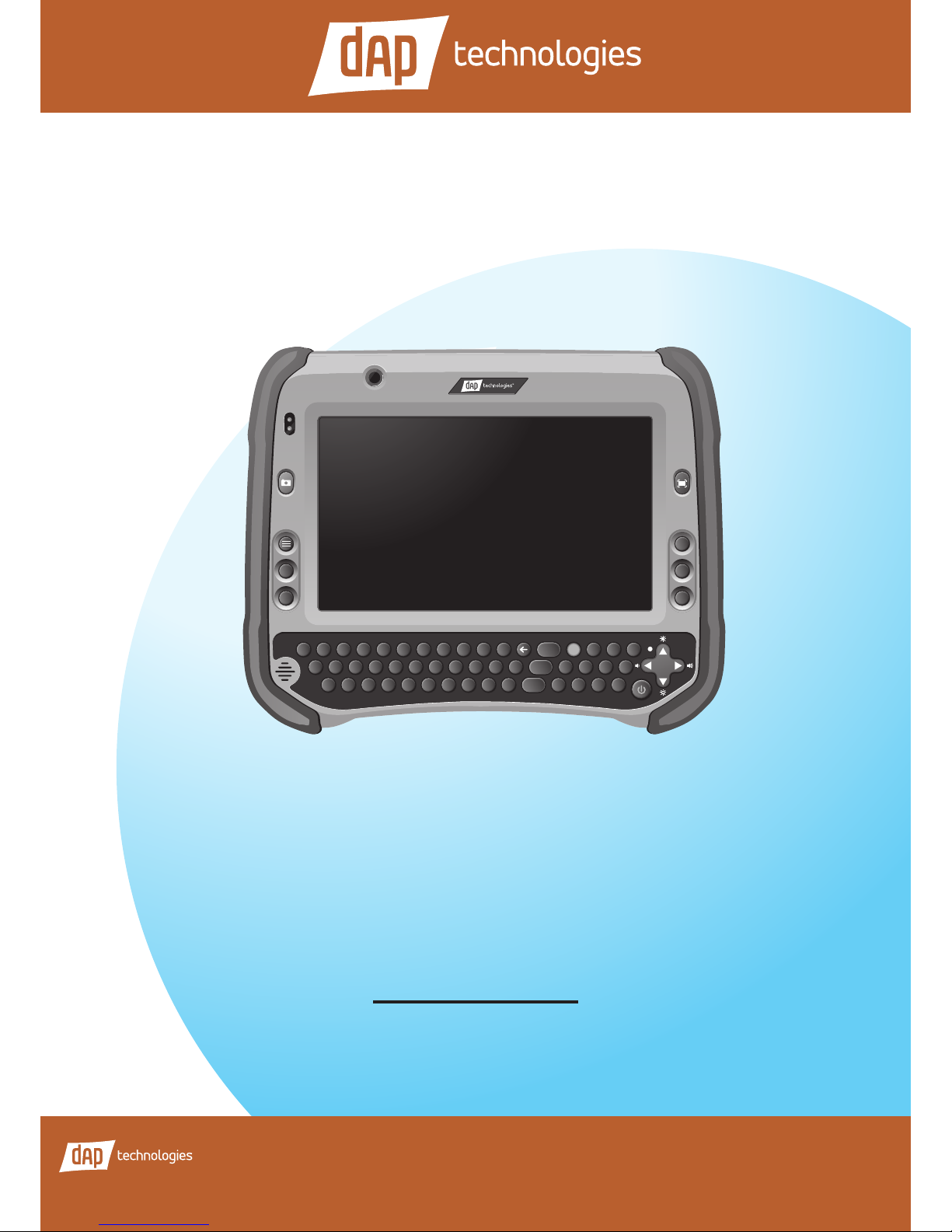
Rugged Tablet Computer
User's Manual
M9020
Esc
Tab
Ctrl
Q
A
ZXCVBNM0123
456
789
Alt
Shift
SDFGHJKL
Enter
Space
Del Fn
,.
WE RT YU IOP
!@
-=
#$%^&*(
?>][}{
)
|
;
\:“‘ ~`
F1
F2
F4
F3
F5
Caps
/
-
+
United States
8945 South Harl Avenue, Suite 112
Tempe, Arizona, 85284 USA
Phone: +1 (855) DAP-TECH
2915 Premiere Parkway, Suite 300
Duluth, Georgia, 30097 USA
Phone: +1 (855) DAP-TECH
Canada
4535 Wilfrid Hamel Blvd., Suite 100
Quebec City, QC Canada G1P 2J7
Toll Free: +1 (800) 363-1993
Phone: +1 (418) 681-9394
Fax: +1 (418) 681-0799
Europe, Middle East, Africa
9 The Chambers, Vineyard
Abingdon UK OX14 3PX
Phone: +44 (0) 1235 462130
Fax: +44 (0) 1235 462131
Toll Free : +1 (855) DAP-TECH (327-8324)
www.daptech.com

Copyright © 2014 DAP Technologies. All rights reserved.
No part of this manual may be reproduced, copied, translated, or transmitted in any form or by any
means, electronic or mechanical, for any purpose, without the written permission of DAP Technologies.
TRADEMARKS
All product names, trademarks or logos mentioned herein are the properties of their respective
owners.
Microsoft, Windows, and the Windows logo are either registered trademarks or trademarks of
Microsoft Corporation in the United States and/or other countries. Microsoft products are licensed to
OEMs by Microsoft Licensing, Inc., a wholly owned subsidiary of Microsoft Corporation.
The Bluetooth®word mark and logos are registered trademarks owned by Bluetooth SIG, Inc.
All other brand and product names are trademarks or registered trademarks of their respective
owners.
NOTE:
Display images shown may vary slightly from actual display. Information in this manual is subject to
change without notice.
DISCLAIMER
DAP Technologies reserves the right to make any product changes without notice, including circuits
and/or software described or contained in this manual in order to improve design and/or performance.
DAP Technologies assumes no responsibility or liability for the use of the described product(s),
conveys no license or title under any patent, copyright, or masks work rights to these products, and
makes no representations or warranties that these products are free from patent, copyright, or mask
work right infringement, unless otherwise specied. Applications that are described in this guide
are for illustration purposes only. DAP Technologies makes no representation or warranty that such
application will be suitable for the specied use without further testing or modication.
WARRANTY
DAP Technologies warrants that each of its products is free from material and workmanship defect
for a period of one year starting from the invoice date. If the customer discovers a defect, DAP
Technologies will, at its option, repair or replace the defective product at no charge to the customer,
provided it is returned during the warranty period, with transportation charges prepaid. The returned
product must be properly packaged in its original packaging to obtain warranty service.

DAP Technologies i
Contents
Preface...................................................................................................v
Notational Conventions ....................................................................vi
Getting Started....................................................................................1-1
Unpacking ........................................................................................1-2
Optional Items...........................................................................1-3
Device Overview ..............................................................................1-4
Front View.................................................................................1-4
Rear View (With Compartment Cover and Battery Packs).......1-6
Rear View (Without Compartment Cover and Battery Packs)..1-7
Top and Bottom View................................................................1-9
Installing the Hand Strap and Stylus.........................................1-10
Removing the Stylus.................................................................1-11
Releasing the Compartment Cover..................................................1-12
Tightening the Compartment Cover..........................................1-13
Installing the Memory Card ..............................................................1-13
Removing the Memory Card.....................................................1-14
Installing the SIM Card.....................................................................1-15
Installing the Battery Pack................................................................1-17
Removing the Battery Pack ......................................................1-18
Connecting to AC Power ..................................................................1-19
Turning the M9020 On and Off.........................................................1-20
Turning On................................................................................1-20
Turning Off................................................................................1-21

ii DAP Technologies
Operating Your Tablet
Computer.............................................................................................2-1
Using the Touch Screen ...................................................................2-2
Calibrating the Screen ..............................................................2-3
Using the Integrated Keyboard.........................................................2-5
Keyboard Overview ................................................................2-5
Special Function Keys ..............................................................2-5
Navigation Keys........................................................................2-6
Using the Panel Keys.......................................................................2-6
Using Wireless LAN .........................................................................2-7
Turning the Wireless Radio On and Off....................................2-7
Connecting to a Wireless Network............................................2-9
Using Bluetooth................................................................................2-10
Turning the Bluetooth On and Off.............................................2-10
Turning the Bluetooth Adapter On and Off................................2-11
Pairing with Bluetooth Devices .................................................2-12
Conguring Bluetooth Settings .................................................2-15
Using the WWAN Network ...............................................................2-17
Connecting to a WWAN Network..............................................2-17
Using AirCard®Watcher............................................................2-18
Conguring AirCard®Watcher Settings.....................................2-20
Using GPS........................................................................................2-22
Turning the GPS On and Off.....................................................2-22
Enabling the Location Sensors.................................................2-23
Using u-center ..........................................................................2-24
Using the Camera ............................................................................2-26
Opening the Camera ................................................................2-26
The Camera Screen .................................................................2-27
Shooting Photos .......................................................................2-28
Camera Settings.......................................................................2-29
Using the DAP Control Center .........................................................2-32
Opening the DAP Control Center .............................................2-32
Viewing System Information .....................................................2-33
Dening Hotkeys.......................................................................2-34

DAP Technologies iii
Using the Barcode Reader...............................................................2-36
Using ScannerManager............................................................2-37
Working With Bluetooth Scanners............................................2-40
Connecting Your M9020..................................................................... 3-1
Connecting USB Devices.................................................................3-2
USB Port Connection................................................................3-2
Connecting VGA Devices.................................................................3-3
Connecting Audio Devices ...............................................................3-4
Connecting Serial Devices ...............................................................3-5
Managing Power.................................................................................4-1
Battery Pack.....................................................................................4-2
Charging the Battery Pack........................................................4-2
Checking the Battery Level.......................................................4-4
Replacing the Battery Pack ......................................................4-5
Power Management .........................................................................4-6
Power Saving Tips............................................................................4-6
Expanding Your M9020 ...................................................................... 5-1
Connecting the Docking Station.......................................................5-2
Overview of the Vehicle Docking Station..................................5-2
Docking the M9020...................................................................5-4
Connecting the Docking Station ...............................................5-6
Maintenance, Troubleshooting and Specications.........................A-1
Taking Care of Your M9020..............................................................A-2
Location Guidelines ..................................................................A-2
General Guidelines...................................................................A-2
Cleaning Guidelines..................................................................A-2
Touchscreen Guidelines ...........................................................A-2
Troubleshooting................................................................................A-3
M9020 Specications .......................................................................A-5

iv DAP Technologies
Regulatory Information......................................................................B-1
Important Information .......................................................................B-2
Safety Information (EN) ............................................................B-3
Informations de sécurité (FR) ...................................................B-4
About the Batteries ...................................................................B-5
About the Adapter....................................................................B-5
FCC Regulations..............................................................................B-6
ANSI/ISA 12.12.01-2013 ..................................................................B-7
CAN/CSA C22.2 No. 213-M1987 .....................................................B-7
CE Notice (European Union)............................................................B-7
RF Exposure Information (SAR) ......................................................B-8
IC Regulations..................................................................................B-8
Important Note..........................................................................B-9

DAP Technologies v
Preface
This manual contains information that will help you operate this rugged
computer. It is divided into ve chapters and two appendices.
• Chapter 1: Getting Started, takes you through the process of setting up
your M9020 and identifying its external components.
• Chapter 2: Operating Your M9020, tells you how to use M9020’s
components and features.
• Chapter 3: Connecting Your M9020, provides information on installing
and using peripheral devices.
• Chapter 4: Managing Power, provides information on power
management.
• Chapter 5: Expanding Your M9020, provides information on installing
and using optional accessories, such as docking stations, expansion
modules, etc.
• Appendix A, provides technical specications and information on caring
for your M9020, and gives solutions to common problems you may
encounter when using the device.
• Appendix B, provides regulatory information and safety notices on your
M9020.

vi DAP Technologies
Notational Conventions
Throughout this manual, the following conventions are used to distinguish
elements of text.
NOTE: Identies additional information that requires special attention.
CAUTION: Identies important information that, if not followed, may result in loss of data or
damage to the device.
Hardware and keyboard keys are shown in a bold typeset. For example:
Press the F1 key to complete.
A title, command, setup item, value, option, or button that you can see on the
screen is shown in bold typeface. For example:
Select When I press the power button, set it to Shut down, and then tap
the Save changes button.

DAP Technologies 1-1
Getting Started
CHAPTER 1
Congratulations on purchasing the DAP M9020. Its rugged design allows you
to use it in harsh outdoor environments. You can use it under blazing heat,
subzero cold, driving rain or dusty surroundings – places you could not take a
consumer-grade tablet computer.
This chapter tells you, step by step, how to get the M9020 up and running. You
will nd instructions for the following procedures:
• Unpacking
• Device Overview (an explanation of the external components and their
functions)
• Installing the Hand Strap
• Installing the SIM Card
• Installing Battery Packs and Connecting to AC Power
• Turning the M9020 On and Off
Getting Started

1-2 DAP Technologies Getting Started
Unpacking
After unpacking the shipping carton, you should nd these standard items.
Inspect all items. If any item is damaged or missing, notify your dealer
immediately.
√ M9020 √ Battery Packs
Esc
Tab
Ctrl
Q
A
ZXCVBNM0123
456
789
Alt
Shift
SDFGHJKLEnter
Space
Del Fn
,.
WE RT YU IOP
!@
-=
Caps
#$%^&*(
?/
-
>][}{
)+
|
;
\:“‘ ~`
F1
F2
F4
F3
F5
√ Power Adapter √ AC Power Cord
√ Stylus √ Hand Strap
√ VGA Cable √ Screws
√ Windows 7 Certicate of Authenticity Label (COA)
√ Quick Start Guide
Altri manuali per M9020
1
Indice
Altri manuali DAP Technologies Tavoletta