Deep Analytics Boom Camera Manuale utente

USER
MANUAL
Revision 3 –4 March 2020
The Boom Camera is designed and manufactured by Deep Analytics LLC in Montpelier, Vermont.
Visit the Boom Camera page for support documentation at www.boomcam.us
Training videos for this manual content including
additional tips and tricks can be found at
www.boomcam.us

2
Revision
Date
Summary
Release
23 September 2019
--
Revision 2
22 November 2019
Addition gimbal details; Updated pictures
Revision 3
4 March 2020
Revision to the front page
Note to the User:
The Boom Camera was designed during a yearlong R&D project sponsored by the Improvised
Device Defeat (IDD) organization within the Counter Terrorism Technical Support Office
(CTTSO) in 2018 and 2019. We would like to thank our user group that provided feedback during
development: the Vermont State Police, the Vermont Air National Guard 158th EOD Team, and
Massachusetts State Police. For those new to the Boom Camera, we’re looking to make
improvements based on real field usage so we can make Boom Camera a go-to tool for Bomb
Squads and EOD teams. If something about the Boom Camera doesn’t work right, or needs
improvement, please let us know.

3
Contents
Introduction to the Boom Camera .................................................................................................................................. 4
Kit Contents.................................................................................................................................................................... 4
System Nomenclature.................................................................................................................................................... 5
Android Application Features...................................................................................................................................... 5
Grip Buttons ................................................................................................................................................................... 7
Indicator LEDs............................................................................................................................................................... 7
Assembly .............................................................................................................................................................................. 8
List of Parts ..................................................................................................................................................................... 8
Mechanical Assembly..................................................................................................................................................... 8
Connecting Cables........................................................................................................................................................10
Pre-Operation....................................................................................................................................................................12
Charging System Batteries...........................................................................................................................................12
Charging the Android device......................................................................................................................................12
Charging the Gimbal Remote.....................................................................................................................................13
Loading and Changing System Batteries ..................................................................................................................13
Operation ...........................................................................................................................................................................13
Powering Up .................................................................................................................................................................13
Starting the Android Application...............................................................................................................................14
Gimbal Settings.............................................................................................................................................................14
Connecting Bluetooth Remote to Gimbal ...............................................................................................................15
Streaming Live Video ..................................................................................................................................................15
Capturing a 52 megapixel image ................................................................................................................................15
Recording 4K video.....................................................................................................................................................16
Transferring Video and Images.................................................................................................................................. 16
Best Practices.....................................................................................................................................................................17
Using the Boom Camera as a Screening Tool ......................................................................................................... 17
Troubleshooting................................................................................................................................................................17
Gimbal Balance and Vibration...................................................................................................................................17
Gimbal Strength ...........................................................................................................................................................19
Black Screen or No Video Display............................................................................................................................ 19

4
Introduction to the Boom Camera
The Boom Camera is a pole-mounted camera system designed to make it easier to investigate for explosive
threats while wearing a bomb suit. The Boom Camera streams and records 4k video to a grip mounted
display, has high intensity white and near-infrared illuminators, and can capture 52 megapixel still images. The
Boom Camera is mounted on a steerable gimbal, so users can tuck it into tight spaces and look around. Video
and still pictures captured with the Boom Camera transfer to the grip mounted display (an Android smart
device), and can be transferred via text, e-mail, SD, or USB cord. Control of the Boom Camera is
accomplished with an Android App on the display, and buttons on the grip.
Kit Contents
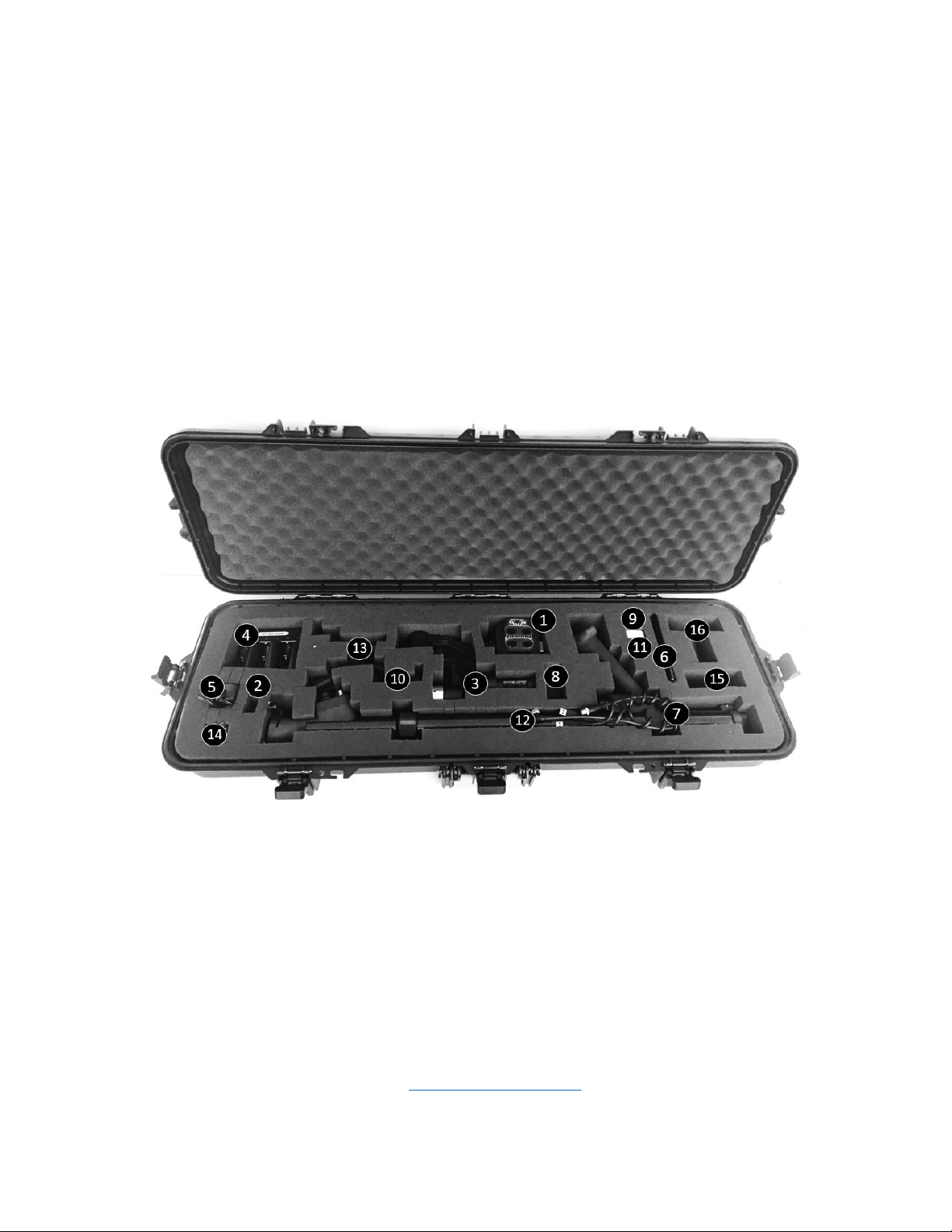
The Boom Camera comes packaged in a gun case. Within the gun case are the following components:
1. Boom camera head with mounting pin
2. Keys for the case
3. Gimbal
4. Charger, 3x batteries
5. AC adapter
6. Samsung Note 8 with protective case
7. System cables
8. Gimbal remote
9. Samsung Note 8 charging cable
10. Screen holder
11. Samsung Note 8 charger
12. Boom camera grip
13. Bipod
14. Micro USB Cable
15. Small Arm Cup
16. Large Arm Cup
If any items are missing, please contact us at support@boomcamera.us directly for replacement parts.

5
System Nomenclature
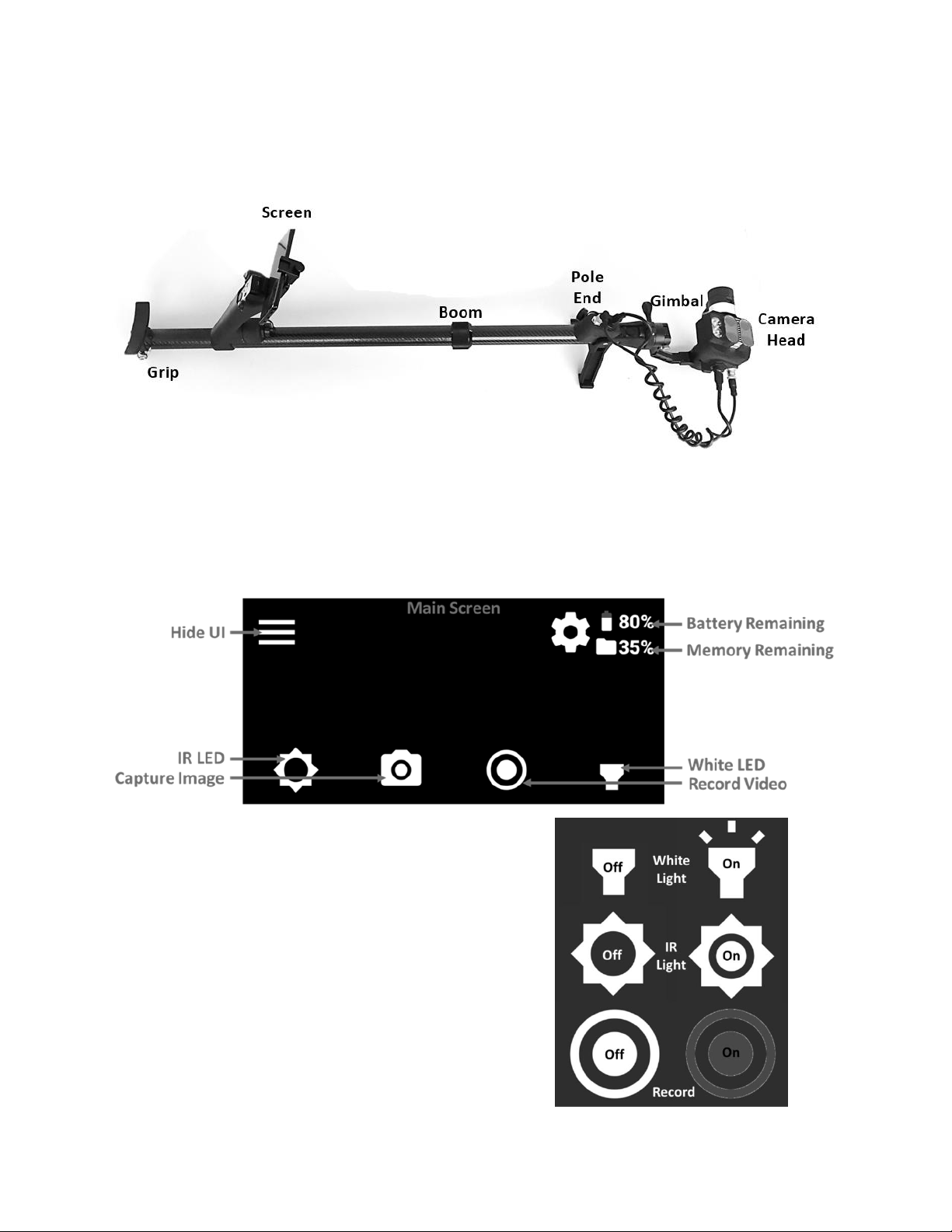
The system is comprised of six key components: the grip, the screen, the boom, the pole end, the gimbal, and
the camera head. An assembled Boom Camera system labeled with these items is shown below.
Android Application Features
The Android Application has only two screens: Main and Options
The main screen is presented below with a black background. During normal operations, the black
background will be replaced with live video.
The main screen includes all the touch-buttons
shown here. The user can hide all the buttons and
just look at raw video with the Hide UI button in
the top left. Functions that can be toggled on or
off display their state.
The remaining function, Capture Image, takes a 52
megapixel image. When selected by touching the
button, or by pulling the grip trigger, a loading
wheel appears in the center of the app indicating
for the user to hold still while the image captures.

6
The options menu is opened by selecting the gear icon on the main screen.
The options menu touch buttons have the following functions:
QUICK START –View the quick start guide on
the Android device
DOWNLOAD FILES –Copy the video and
pictures taken by the Boom Camera to the
Android device’s Picture folder
WIFI ON/OFF –Create a Boom Camera WiFi
Hotspot so others can view the live feed
USER MANUAL –View this document on the
Android device
DELETE FILES –Clear the files off the Boom
Camera (not the Android device)
UPDATE –Update the Boom Camera software
(for future use)
Users can go back to the main screen by touching the BACK button in the top left of the Options screen.

7
Grip Buttons
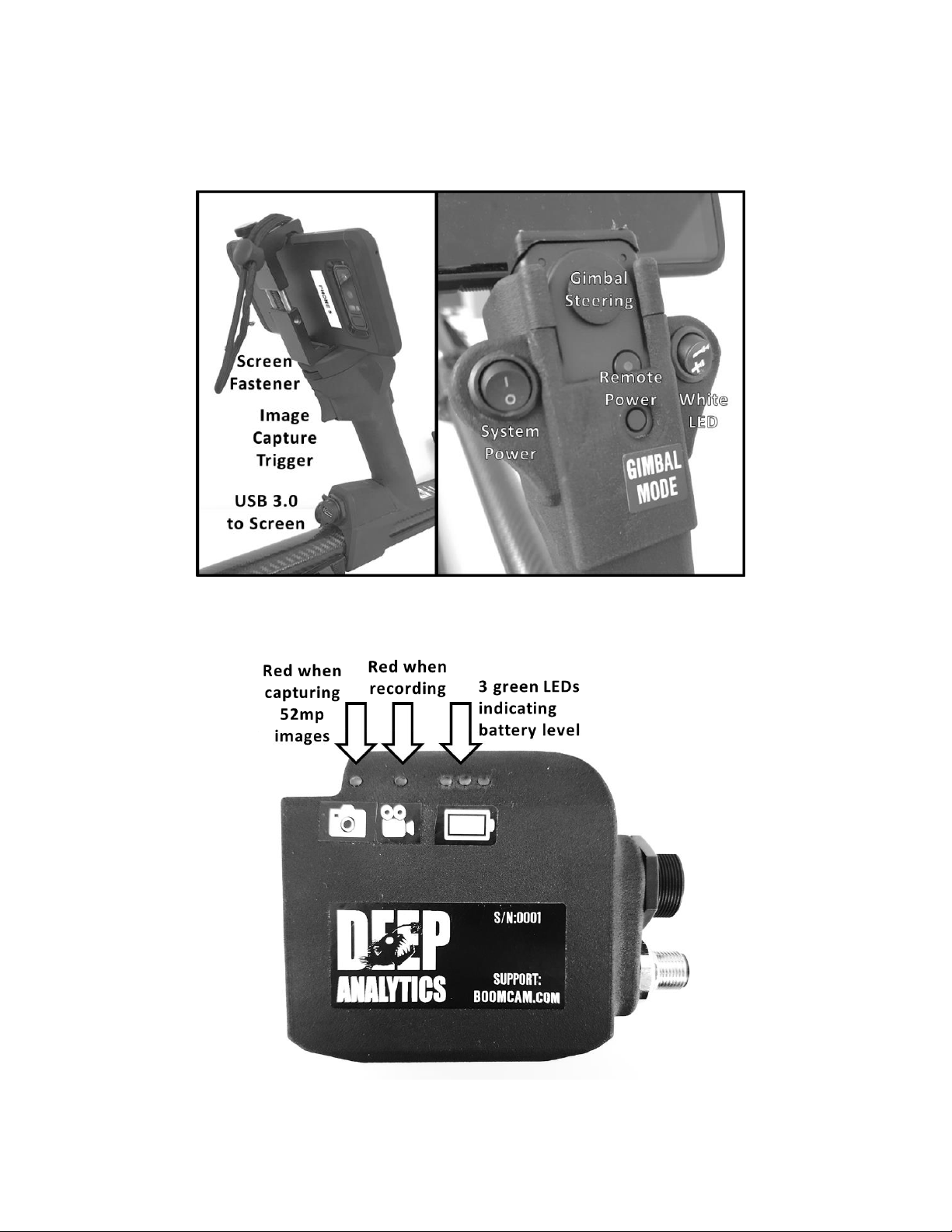
The grip buttons have several functions that mirror the app. These buttons enable the user to, for the most
part, have single-handed operation of the Boom Camera. The grip buttons have the following functions:
Indicator LEDs
Th e rear of the Camera Head case has five indicator LEDs.

8
Assembly
Assembly of the Boom Camera takes only a few seconds. It’s recommended the Android device and system
batteries are fully charged before the first assembly. These steps will ensure the system is fully assembled.
List of Parts
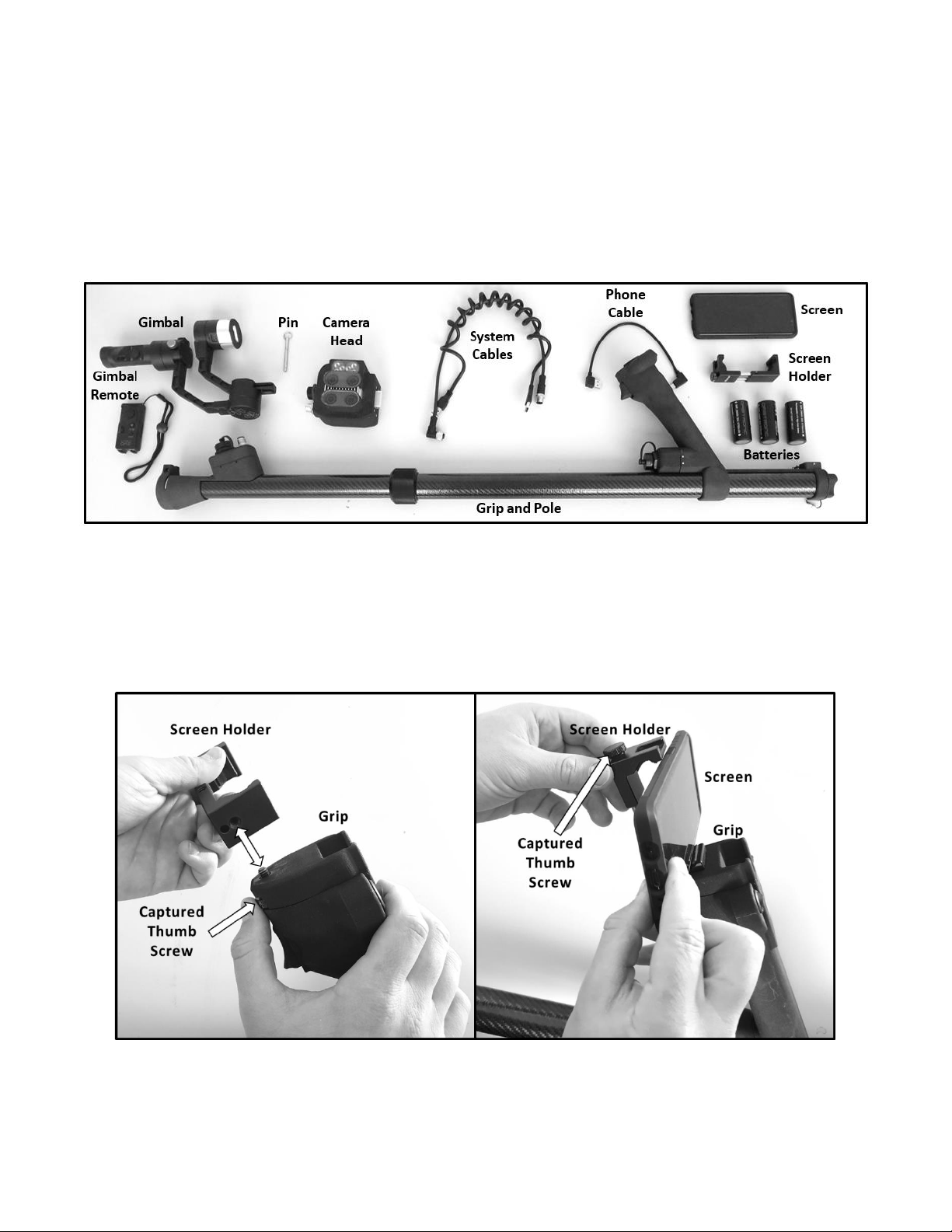
When fully disassembled and stored, the user will assemble the following items found within the Boom
Camera case:
Please note the camera head is stored with the attachment pin already inside the mount. We recommend
users store the pin there after usage.
Mechanical Assembly
To begin assembly, locate the grip assembly, the screen, and the screen holder. Use the captured thumb screw
on top of the grip to attach the screen holder. Then, place the screen in the holder and lightly tighten.
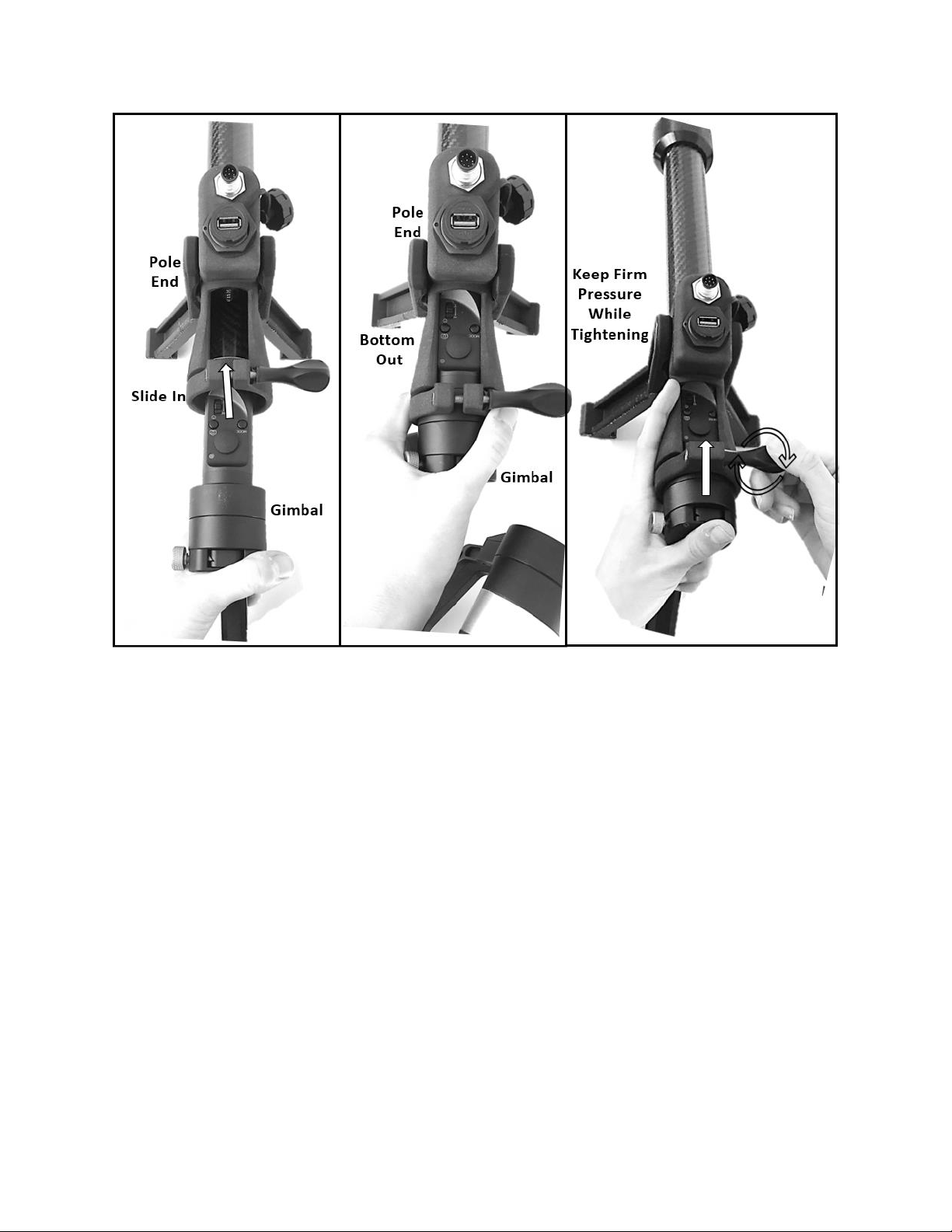
Next connect the gimbal to the pole end. Slide the gimbal into the pole end making sure to keep the controls
in the provided window. Bottom out the gimbal into the pole end and keep pressure on the gimbal while
tightening the screw. This pressure maintains electrical contact from the system to the gimbal.

9
Finally, the camera head needs to be attached to the gimbal. Orient the camera so when facing forward, the
gimbal is below and to the left. Align the holes in the camera mount with the gimbal, and pin them together,
being sure to bottom out the pin.

10
A correctly mounted camera will look like this:
Connecting Cables
There are three cables to connect before powering up the Boom Camera system:
1. The Android device connects to the USB 3.0 connector mounted on the front of the grip
Indice