
DH Wireless Solutions PDN PACK Manuale utente

1877.524.0430
PDNPACK Field Manual FIELD MANUAL

PDNPACK Field Manual
www.portablessupport.com 2
Table of Contents PAGE
Welcome......................................3
What’s Inside..................................3
What’s Included ...............................3
Getting to Know Your PDN....................4–5
General Use...................................6
Quick Start Guide .............................7
Storage......................................7
Transport ....................................7
Cleaning..................................... 7
Monthly Maintenance Checks...................8
Troubleshooting ...............................9
Detailed Troubleshooting Guide ............10–12
Warranty......................................13
Service .......................................13
Important Safety Measures & Warnings ......... 14
12-Month Maintenance Log .................15–19
Read entire Field Manual before using your PDN.
3877.524.0430
PDNPACK Field Manual
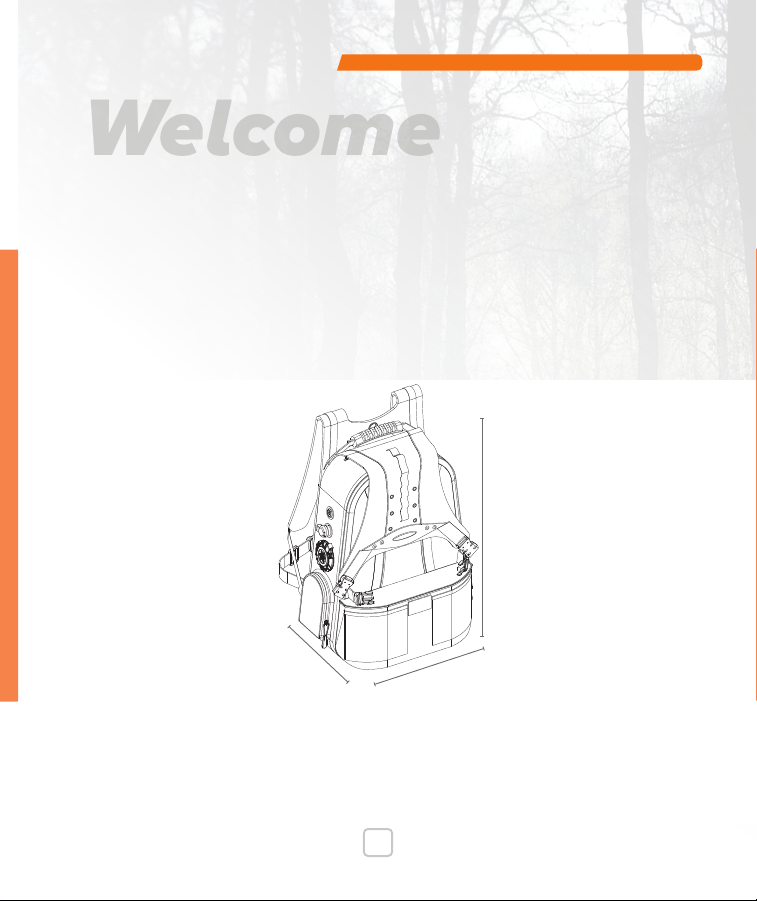
Your PDNPACK is a secure, mobile comms solution perfect for remote parallel
network applications. It is a portable data network that becomes the ultimate
“WiFi Hotspot” and a ready, accessible “go kit” for cellular, digital-data
communications. The PDNPACK utilizes high-gain cellular connectivity to allow
its end-users to access and push/pull digital data, all in an easy-to-carry
backpack. We are committed to supporting your PDN communication needs.
Sincerely,
DH Wireless Solutions
Welcome
WHAT’S INSIDE
PAGE
Power Button
Data Port (Ethernet)
110-120V AC Input
Battery Meter
Antenna
AGM Battery
Cellular Gateway
Field Manual
WHAT’S INCLUDED
✓
Wireless gateway with
wide-ranging WiFi and GPS
✓
Critical communications antenna
✓
Portable, rugged, and
outdoor-ready backpack
✓
AGM Battery for up to
18 hours of operational life*
✓
AC charging / power
✓
WAN/LAN Ethernet port
✓
Comprehensive service plan
*Actual battery life may vary depending
on gateway model, usage pattern, other
surrounding and environmental factors.
7”
16”
21”

PDNPACK Field Manual
www.portablessupport.com 4
10%
ON
Battery Meter
60% 100%
GETTING TO KNOW YOUR PDN
9
1
2a
2
33
44
5
6
7
88
3a

5877.524.0430
PDNPACK Field Manual
1 Power Button: Enables or disables gateway with backpack closed.
2 Data Port: One RJ45 port — WAN (IN) /LAN (OUT), programmable.
2a Data Cable: One Ethernet cable to connect other devices to the PDN.
3 AC Charging Port: 110-120V AC input, 50-60Hz.
3a AC Power/Charging Cord: Enables charging and use of the PDN.
4 Cable Pouch: Stores cables.
5
Field Manual:
Detailed PDNPACK use instructions, stored within Cable Pouch.
6 Spine: Custom designed rugged chassis that houses internal components.
7 Antenna: Low profile, enables critical communications.
8 Battery Meter: On-demand battery status indicator.
9 Cellular Gateway: Enables wireless connectivity. See your gateway
specifications for more details.
Internal Components (not pictured):
• AGM Battery: Provides up to 18 hours of operational life.
• On-Board Charger: Safely charges the AGM battery.
PART

PDNPACK Field Manual
www.portablessupport.com 6
GENERAL USE
Power Button enables and disables
gateway with backpack closed.
Power Button
To charge unit, plug into AC Charging Port via
AC Power Cord. Unit can run at the same time
it is being charged.
Charging AC POWER PORT (110-120V AC 50-60Hz)
Data
Port is programmable to be LAN or WAN. Use as WAN (IN)
to
connect alternate Internet
source (e.g., modem, gateway,
or satellite) to the PDN. Use as LAN (OUT) to provide a
wired Internet connection to switches, routers, network
extenders and other devices as well as a wired connection
to the PDN’s embedded Cellular
Gateway GUI for
configuration
changes and gateway status.
Battery Meter
Battery Meter will indicate charge when
ON button is pressed.
Note: Your PDN
PACK
is ready to use. If you are experiencing regular issues with
your PDN
PACK
, contact your PDN
PACK
reseller.
10%
ON
Battery Meter
60% 100 %

7877.524.0430
PDNPACK Field Manual
Quick Start Guide
1. Verify power is “ON” by pressing the Power Button. The button will illuminate,
indicating the unit is active. Within minutes the gateway will connect to the
cellular network and provide available connectivity for passing data.
2. Locate available PDN WiFi network on your device.
3. Log your device into available PDN WiFi network with your credentials.
Storage
For field readiness, unit should be plugged in via AC Power Cord with Power
Button “ON” while in storage.
Transport
Your PDN is TSA friendly and suitable for carry-on. When traveling by airplane,
cut power to the PDN by pressing the Power Button.
WARNING To reduce risk of injury or electric shock, press Power Button
to cut power to unit and unplug unit before cleaning.
Cleaning
While the PDN
PACK
is rugged and made for outdoor use, it may require an occasional
cleaning. Using a soft, lint-free cloth, please observe the following recommendations:
- Use only mild, non-abrasive cleaners sparingly.
- Gently wipe all surfaces and avoid excessive moisture.
- Allow all surfaces to dry prior to storage.

PDNPACK Field Manual
www.portablessupport.com 8
MONTHLY MAINTENANCE CHECKS
We recommend monthly maintenance checks of the unit for optimal
functionality. (See pages 16–19 for a convenient Maintenance Log.)
The steps below should be followed every month to ensure unit is
ready when needed:
1. Determine you are within good cellular range.
2. Press the Power Button (see 1 on page 4). An LED light will indicate the
gateway is powered on.
3. Open backpack and press Battery Meter on the front of the Spine (see 8
on page 4). A fully charged PDN will show 100% on Battery Meter.
4. With backpack open, ensure Cellular Gateway adequately boots by checking
status lights via gateway viewing window (see 9 on page 4).
Note: Status light availability is based upon your selected gateway model.
5. After the gateway has connected to the cellular network, log your device(s)
into the available PDN WiFi network using your unique credentials.
6. Once logged in, access the Internet, making sure you can view multiple
pages and not simply information that has been cached.
7. Once you have established eective Internet access, log o the network
and press the unit’s Power Button. The LED light will turn o, indicating
gateway services have been turned o. Avoid leaving the gateway on when
not in use, as it will continue to draw power from the battery if left on.

9877.524.0430
PDNPACK Field Manual
8. Locate AC Charging Cord, lift the weather cover on the recessed AC
receptacle, and plug in the unit. At this time, press the Battery Meter and
observe the current charge level. If 30 days have passed since the last
charge, it will likely show low charge. Allow the battery to charge until
Battery Meter indicates full-charge status.
9. Return to storage while keeping unit plugged into available live
AC power source.
Record your maintenance data in the Maintenance Log on pages 16-19.
Note: All pass-through ports, caps, seals and gaskets should be inspected periodically to
ensure a tight fit. Contact DHWS for information regarding PDN remote updates or other
maintenance needs. If you are experiencing ongoing issues with your PDN or would like to
order parts, contact DHWS at 877.524.0430, option 3. For online support ticketing or incident
reporting, visit www.portablessupport.com.
TROUBLESHOOTING
1. If unit fails to power up, check the Battery Meter to ensure battery is
suciently charged. Unit can run at the same time it is being charged by
AC power source.
2. If battery needs to be charged, connect supplied AC Power Cord to unit’s
AC Charging Port, and then plug into a live 110-120V AC power source.
3. If WiFi does not appear on your device, ensure Cellular Gateway is active
by checking status lights.
4. Should a power-related issue persist, visit www.portablessupport.com.

PDNPACK Field Manual
www.portablessupport.com 10
CONNECTIVITY
Problem/
Symptom
Possible
Cause Verification Possible
Corrections
Device is not connecting to gateway
Line of
service is
not active
Confirm with chosen
cellular provider that line
of service is active on an
eligible rate plan.
Activate line of service on
an eligible rate plan.
Hidden
network
SSID
Contact Administrator
of device to verify
configuration.
If configured in this manner,
Administrator will need to
provide SSID and logon info.
WiFi slow
or not
connected
WiFi is disconnected for
security reasons. Wireless is
slow due to low bandwidth
or transmission of large
data files.
Connect device to LAN
port with Ethernet cable
provided in accessory bag.
Gateway is
not getting
power
Observe status lights
on gateway. If Power Button
light is not “ON”, gateway is
not getting power.
If Power Button light is not
on, see power system
troubleshooting section.
Poor signal or slow
connection
Low
antenna
signal
strength
Open backpack and check
signal strength LED through
gateway inspection window.
See gateway service
manual for LED signal
strength definitions.
If possible, move the PDN
to a location with better
signal. If hardline/ISP
Internet is available connect
the Ethernet cable from
hardline/ISP to WAN port.
Detailed Troubleshooting Guide
Indice
Manuali Sistema di conferenza popolari di altre marche

Kramer
Kramer VIA GO Manuale utente

AVT
AVT MAGIC AC1 Go Manuale utente

ProSoft Technology
ProSoft Technology AN-X4-AB-DHRIO Manuale utente

Sony
Sony PCS-I150 Manuale utente

Middle Atlantic Products
Middle Atlantic Products VTC Series Manuale utente

Prentke Romich Company
Prentke Romich Company Vanguard Plus Guida


