
Diamond Multimedia WR300N Manuale utente

WR300N
Portable Wireless-N Repeater
Quick Start Guide

User Manual
Page 2
of 40
Table of Contents
About the Device ........................................................................................................ 3
Minimum System Requirements ................................................................. 4
Package Contents ........................................................................................ 4
Device Overview ..........................................................................................
Front Panel ................................................................................................................ 5
Bottom Panel ............................................................................................................ 6
Tips for placing the Repeater ..................................................................................... 7
Configuring the Repeater ............................................................................ 8
Use the Device as a Wireless Repeater ...................................................... 12
Use the Device as a Wireless Bridge .......................................................... 12
Configure the WR300N as a Wireless AP ................................................... 13
Changing the Wireless Settings ................................................................. 1
Changing the Wireless Security Settings ................................................... 1
WPS ........................................................................................................... 16
Configuring Wireless MAC Filtering ............................................................ 17
Viewing the Home Page ............................................................................ 18
System Management ............................................................................................... 20
Accessing System Management ................................................................ 20
What’s on System Management ................................................................ 20
Information ............................................................................................................. 21
Firmware ................................................................................................................. 22
eboot ..................................................................................................................... 25
Password ................................................................................................................. 26
Setting a Static IP on your PC .................................................................... 27
FCC Notice ................................................................................................................. 39

User Manual
Page 3
of 40
About the Device
Diamond Multimedia W 300N Portable Wireless-N epeater supports
wireless 802.11b/g/n standards with one 10/100Base-T Ethernet port.
W 300N is designed with MIMO technology to extend the reach of
any existing wireless router/AP to maximize the coverage in your home or
office. It basically receives the signal from your wireless router/AP and
repeats it to extend the range to farther locations that are previously
unreachable.
Equipped with 64/128-bit WEP, WIFI Protected Access (WPA), and the
latest WPA2 encryption with TKIP and AES algorithm to protect your wireless
network from unauthorized access. MAC Address Filtering for wireless links
provides an additional layer of security for your wireless network.
The device comes with 1 x 10/100M Auto MDI/MDIx Ethernet port
that can be used to connect to an existing wired network to serve as a
wireless AP or wireless bridge. It can also be used to configure the device
via its web-based GUI, or upgrade the firmware when connected to the
Network Interface Card of your PC.

User Manual
Page 4
of 40
Minimum System Requirements
Your computer must meet the following minimum requirements.
Any operating system can be used
Web Browser
233MHz processor
Ethernet network adapter
Or Wireless network adapter
Package Contents
Package contents are listed below.
W 300N
Ethernet cable
Easy Start Guide
esource CD
User Manual
Page 5
of 40
Device Overview
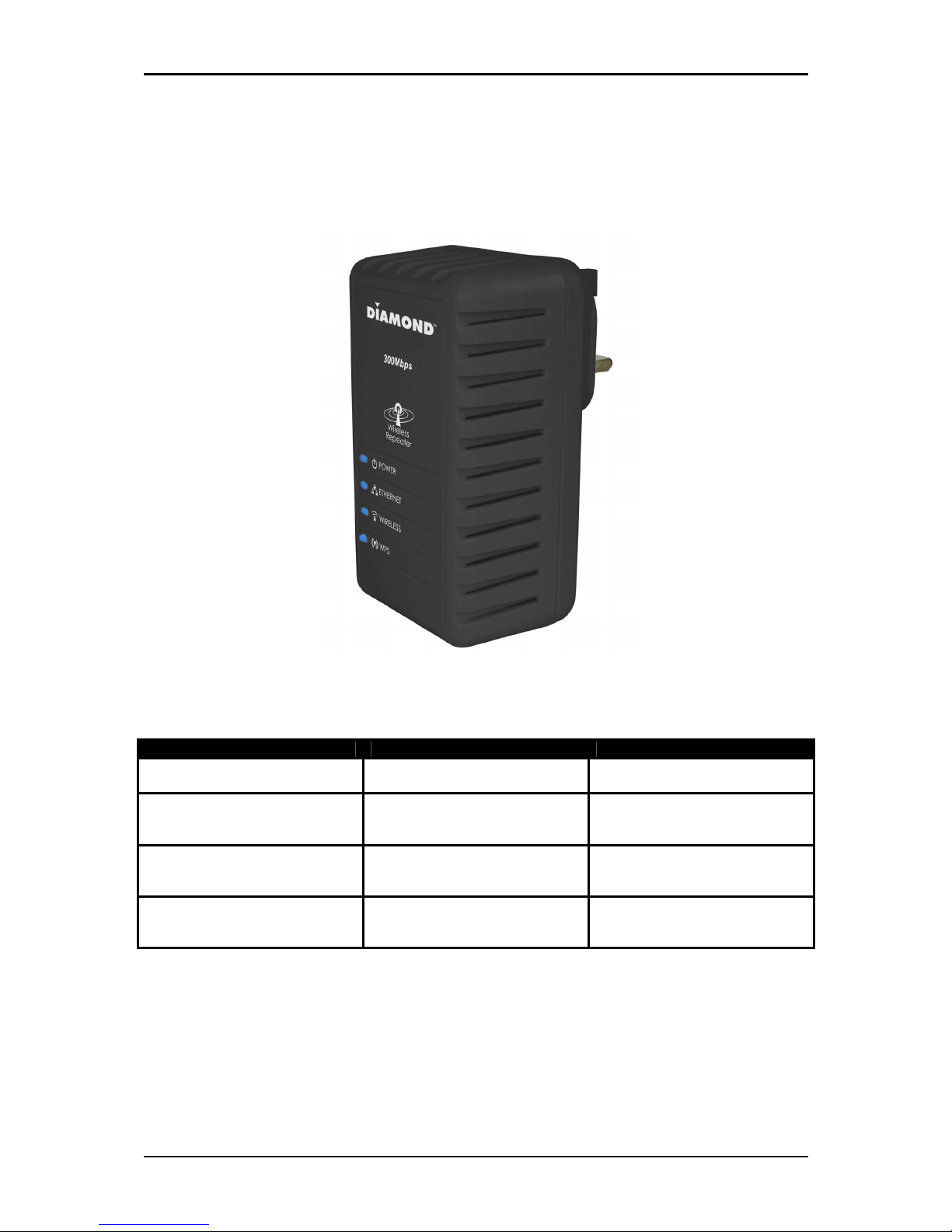
Front Panel
LABEL
STATE
DESC IPTION
POWE LED
On
–
Solid Green
Off
Device is powered ON
Device is powered OFF
ETHE NET LED
On
–
Solid Green
On – Blinking Green
Off
Ethernet device is connected
Indicates LAN activity
No Ethernet device connected
WI ELESS LED
On
–
Solid Green
On – Blinking Green
Off
Wireless interface is UP
Indicates wireless activity
Wireless interface is DOWN
WPS LED and BUTTON
On
–
Solid Green
On – Blinking Green
Off
WPS association is successful
WPS authentication on going
WPS disabled

User Manual
Page 6
of 40
Bottom Panel
LABEL
DESC IPTION
ESET Press the eset button for 5 seconds to restore the device to
default factory settings
ETHE NET PO T Connect to computers/Ethernet devices

User Manual
Page 7
of 40
Tips for placing the Repeater
Before proceeding to configure your W 300N, it is often a good idea to
identify the areas where you have good wireless reception and weak or no
wireless signal at all. Based from this assessment you may place the
wireless repeater in between a location where you have good wireless
reception and where you have poor wireless coverage. This will serve as the
identified location
identified locationidentified location
identified location
for the W 300N. The illustration below is an example of a
network diagram.
NOTE: Placement of the Wireless epeater is crucial to get the best possible
results for extending your existing wireless signal. It is ideal for the wireless
repeater to be placed in a location where it can receive good wireless signal
from the wireless router/Access Point (AP) so as to avoid disconnection and
packet loss.

User Manual
Page 8
of 40
Configuring the Repeater
Setting up the device is easy. Follow the steps below to configure the device
for your current wireless router/AP. Ensure to disable the wireless
connection on the PC or laptop used for configuring the W 300N. Please
note that the main router/AP and Wireless epeater must be on the same
wireless channel.
To configure your device via the Web GUI:
1. Connect the W 300N to a power outlet.
2. Connect an Ethernet cable from your PC’s Ethernet port to the Ethernet
port at the base of the W 300N.
3. Once a connection to the W 300N is established, your PC/laptop will
receive an IP address and you can start the configuration using the
web graphical user interface.
4. To access the web GUI, Launch your web browser and input
10.0.10.254 on the address bar.

User Manual
Page 9
of 40
5. Input admin for username and input admin for password. Click the OK
button.
6. Click on the Auto Setup button. This will show the available wireless
networks that are in range of the W 300N.

User Manual
Page 10
of 40
NOTE: If you are connecting to a hidden wireless network, you need to go
through the Manual Setup and key-in the information from your existing
wireless router/AP manually. Also un-tick the Broadcast SSID option so your
wireless network can remain hidden.
7. Click the Connect
ConnectConnect
Connect button located on the right side of the wireless
network you want to connect to. Click efresh if you don't see your
wireless SSID on the list.
Indice
Altri manuali Diamond Multimedia Ripetitore


