Dictaphone Walkabout EXPRESS Voicedata Drive Manuale utente

EXTERNAL VOICEDATA DRIVE FOR YOUR PC NETWORK
User Guide

Overview. . . . . . . . . . . . . . . . . . . . . . . . . . . . . . . . . . . . . . . . . . . . . . . . . . . 1
What’s In The Box . . . . . . . . . . . . . . . . . . . . . . . . . . . . . . . . . . . . . . . . . . . . . . . . . . 1
Walkabout Express Voicedata M Card Reader. . . . . . . . . . . . . . . . . . . . . . . . . . . . . . 1
Walkabout Express File Transfer Software . . . . . . . . . . . . . . . . . . . . . . . . . . . . . . . . 1
Features . . . . . . . . . . . . . . . . . . . . . . . . . . . . . . . . . . . . . . . . . . . . . . . . . . . . . . . . . . 1
System Requirements . . . . . . . . . . . . . . . . . . . . . . . . . . . . . . . . . . . . . . . . . . . . . . . . 2
PC Setup Instructions . . . . . . . . . . . . . . . . . . . . . . . . . . . . . . . . . . . . . . . . 3
Selecting a Parallel Port Setting . . . . . . . . . . . . . . . . . . . . . . . . . . . . . . . . . . . . 3
Checking the Windows Multimedia Software . . . . . . . . . . . . . . . . . . . . . . . . . . . 3
Installing the Voicedata M Card Reader. . . . . . . . . . . . . . . . . . . . . . . . . . 4
Installing the Walkabout Express Software . . . . . . . . . . . . . . . . . . . . . . . 6
Installing the Voicedata M Card Reader Software . . . . . . . . . . . . . . . . . 11
Walkabout Copy Program Overview. . . . . . . . . . . . . . . . . . . . . . . . . . . . 14
Starting the Software. . . . . . . . . . . . . . . . . . . . . . . . . . . . . . . . . . . . . . . . . . . 14
Walkabout Copy Program Screen . . . . . . . . . . . . . . . . . . . . . . . . . . . . . . . . . . 15
M Card Reader Overview . . . . . . . . . . . . . . . . . . . . . . . . . . . . . . . . . . . . 16
Inserting an M Card into the Reader . . . . . . . . . . . . . . . . . . . . . . . . . . . . . . . . 16
Viewing M Card Reader Files. . . . . . . . . . . . . . . . . . . . . . . . . . . . . . . . . . . . . 17
Using the Walkabout Copy Program . . . . . . . . . . . . . . . . . . . . . . . . . . . 19
Copying M Card Voice Files to Your PC. . . . . . . . . . . . . . . . . . . . . . . . . . . . . . . . . 19
Troubleshooting the Copy Program. . . . . . . . . . . . . . . . . . . . . . . . . . . . . . . . . . . . . 21
Digital Miniature Card Reader Tools . . . . . . . . . . . . . . . . . . . . . . . . . . . 23
Using the MiniCard Binary Utility to Upgrade Walkabout Express Software. . . . . . 23
Using the MiniCard Polling Control Application. . . . . . . . . . . . . . . . . . . . . . . . . . . 28
Using the Minicard Uninstall Application . . . . . . . . . . . . . . . . . . . . . . . . . . . . . . . . 29
I
Contents

1
Overview
Overview
Congratulations on your purchase of the Walkabout™ Express Voicedata™
M Card Reader and File Transfer software from Dictaphone! After you insert
an M card with voice files created by a Walkabout Express digital portable
into the M (Miniature) Card Reader, you may use the File Transfer software
to copy the files to your PC. The File Transfer software also includes
a number of utility programs, or Digital Miniature Card Reader tools.
What’s In The Box
Check to make sure you received all of the following items with this manual
in the Voicedata M Card Reader shipping box:
• Voicedata M Card Reader with parallel port cable
• AC Power Adapter
• Walkabout Express File Transfer Software CD
Walkabout Express Voicedata M Card Reader
After you set up your PC and the Voicedata M Card Reader, you can easily
insert an M card into the top of the reader. All the voice files stored on the
card (except for Incomplete files) may be downloaded to your PC through
the parallel port cable/connection.
Walkabout Express File Transfer Software
This software basically consists of utility programs and the Walkabout Copy
program, which copies voice files from the M Card Reader to your PC. The
utility programs or "Digital Miniature Card Reader tools" allow you to
upgrade the software on your Walkabout Express digital portable, and set the
polling interval for the M Card Reader.
Features
Key benefits provided by the Voicedata M Card Reader and File Transfer
software, include:
• All the Priority Complete (PCM) and Complete (COM) voice files on
each M card are downloaded to your PC.
• An optional feature can purge the voice files from your PC after a specific
number of days.

• The Minicard Binary Utility program allows you to upgrade the
application software on your Walkabout Express digital portable.
• You may use another utility program to set the polling interval used by
your PC to check if an M card is in the M Card Reader.
System Requirements
Before you begin the setup steps, make sure your PC meets the following
minimum system requirements to support Voicedata M Card Reader and File
Transfer operations.
✐Note: To avoid compatibility problems with the Voicedata M Card Reader,
you should not have a removable disk drive device (e.g., an Iomega Zip®
Drive) attached to your PC.
Hardware:
• Multimedia Pentium PC running at 166 MHz or higher required,
Pentium II processor or higher recommended.
• 32 MB of RAM required, 64 MB recommended.
• 40 MB of available hard disk space minimum. 200 MB or higher
recommended for temporary storage of voice files.
• CD-ROM drive.
• VGA monitor adapter or higher.
• Dedicated Parallel Port configured for EPP mode recommended, Standard
or Compatible mode required (for Voicedata Drive).
• Microsoft™ Mouse or compatible pointing device.
• Network Adapter card or modem (to upload files onto a network device).
Software:
• Microsoft™ Windows™ 95, 98, or Windows NT 4.0 Workstation Service
Pack 4 or higher.
• Windows Multimedia component installed.
2
Overview

3
PC Setup Instructions
You should also make sure your PC is configured to operate with the
Voicedata M Card Reader.
Selecting a Parallel Port Setting
The Voicedata M Card Reader must be the only device connected to the
LPT1 parallel port on your PC to transfer voice files to the PC. For optimum
file transfer performance, select the EPP mode for the parallel port setting.
To change the parallel port setting, you must access your PC’s BIOS (Basic
Input/Output System). You can normally access BIOS Setup screens during
your PC’s startup procedure by pressing the F1, F2, or Delete key. Check
your PC owner’s manual for instructions describing how to access these
screens. You may also check the PC manufacturer’s web site if you need
further assistance.
Checking the Windows Multimedia Software
Check to make sure Windows Multimedia software is installed on your PC
as follows:
1Click Start on the Windows taskbar, and select Settings and Control Panel.
2Double-click on the Add/Remove Programs icon.
3Click the Windows Setup tab (if you have Windows NT, the tab will read
Windows NT Setup).
4Check to make sure the Multimedia box is checked (indicating that
Windows Multimedia software is installed on your PC).
5If the Multimedia box is not checked, check this box and click OK to
install the software (you may be prompted to insert the Windows CD).

Installing the Voicedata M Card Reader
Set up the M Card Reader to work with your PC as follows:
1Shut down your PC.
2If you are using a local printer attached directly to your PC and the PC
only has one parallel port (LPT1), shut down the printer and disconnect it
from the parallel port.
3If you are using a local printer and your PC has two parallel ports, the
printer cable must be connected to the LPT2 port.
4Connect the Voicedata M Card Reader cable to the LPT1 parallel port on
your PC, as shown.
✐Note: The M Card Reader should be the only device connected to the
LPT1 port. Use the LPT2 port for all other devices.
4
Installing the Voicedata M Card Reader
Voicedata M Card Reader Cable Connections
PC
LPT1 Port
Voicedata M Card
Reader Cable
AC Power
Adapter
Voicedata M Card Reader

5
5Connect the electrical plug on the AC power adapter to an outlet
or power strip.
6Connect the other end of the AC power adapter to the rear of the M card
reader, as shown.
Installing the Voicedata M Card Reader
7Locate the R/W switch at the rear of the M card reader, and move this
switch to the ON position as illustrated below.
8The green, on-line indicator on the M card reader should light.
9Start up your PC.
Congratulations! You have successfully installed the Voicedata M Card
Reader hardware.
AC Power
Adapter
R/W Switch
Voicedata M Card Reader – Rear View

Installing the Walkabout Express Software
This section describes how to install the Walkabout Express File Transfer
software on your PC.
1Insert the Walkabout Express File Transfer Software CD into the CD-
ROM drive on your PC.
2If Windows Multimedia software is not installed on your PC, the
following warning message will appear. Click OK and refer to Checking
the Windows Multimedia Software to install this software before you
attempt to install the Walkabout Express File Transfer software again.
6
Installing the Walkabout Express Software
Multimedia Software Warning Message
3If you already installed a previous version of the File Transfer software,
the following message will appear. Click Yes to continue.
Previous Software Installed Message

7
Installing the Walkabout Express Software
4The Walkabout Express Installation program will start up automatically
and display the following screen:
Initial Walkabout Express Installation Screen
✐Note: If the installation program does not start up, click Start on the
Windows taskbar, and select Run. Click Browse in the Run dialog box,
Open the Setup.exe file on the CD, and click OK to run the file.
5The following screen should appear immediately. Click the Next button to
continue the installation process.
Walkabout Express Welcome Screen

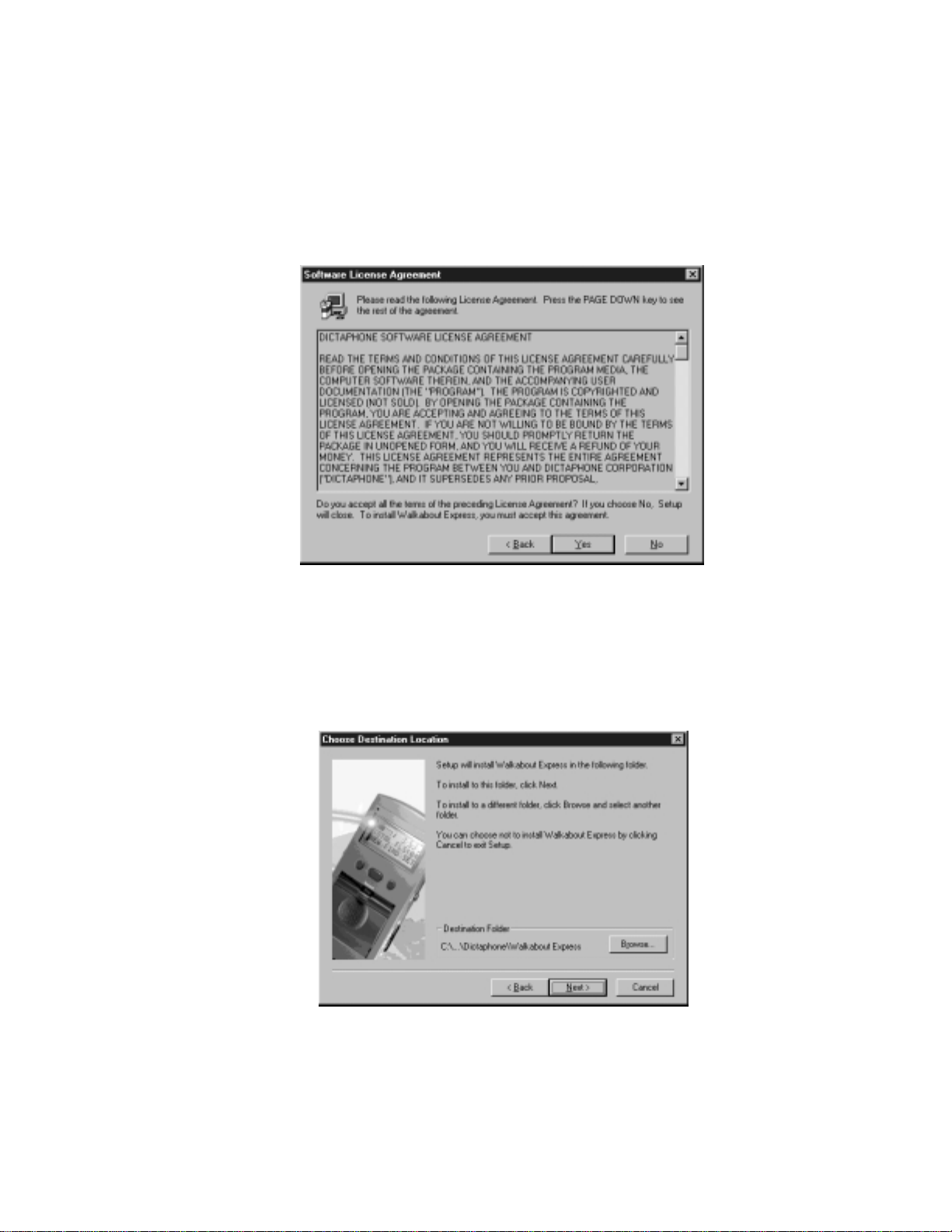
6When the following screen appears, click Yes to accept the License
Agreement and continue the installation process.
8
Installing the Walkabout Express Software
Software License Agreement Screen
7On this screen, click Next to accept the default destination folder for the
Walkabout Express software, or click Browse to find another folder and
then click Next. Dictaphone recommends that you accept the default
destination folder.
Walkabout Destination Location Screen
Indice