
Difrnce HS8DTB2 Manuale utente
1
HS8DTB2 User Manual
8” Tablet Android 4.1
*ANY PROBLEM OR QUESTIONS, CALL SUPPORT DESK 0900-3437623 (NL)
*VRAGEN OF PROBLEMEN, BEL ONZE SUPPORT DESK 0900-3437623 (NL)
*BEI FRAGEN ODER PROBLEMEN WENDEN SIE SICH BITTE AN UNSEREN
SERVICE: 00-31-348 409 371 (DU)
*VRAGEN OF PROBLEMEN, BEL ONZE SUPPORT DESK 0900-88020 (BE)
*SI VOUS AVEZ DES QUESTIONS SOIR DES PROBLEMES, CONTACTEZ-NOUS AU
NUMERO DE SAV SUIVANTE: 0900-88020 (BE)

1
Content
Welcome....................................................................................................................2
Important Notices.......................................................................................................2
Keys and Functions....................................................................................................4
I. Getting Started........................................................................................................5
1.1 Turn on/off....................................................................................................5
1.1.1 Turn on..............................................................................................5
1.1.2 Turn off..............................................................................................5
1.2 Lock/unlock the screen (sleep mode)...........................................................6
1.3 Connect to computer....................................................................................6
II. Your Home Screen.................................................................................................7
2.1 Change wallpaper for home screen: ............................................................8
2.2 Add/delete applications on home screen: ....................................................8
2.3 Add widgets to home screen:.......................................................................9
III. Network Connection..............................................................................................9
3.1 Wi-Fi.............................................................................................................9
3.1.1 Turn on Wi-Fi.....................................................................................9
3.1.2 Turn off Wi-Fi................................................................................. 10
3.1.3 Add a Wi-Fi network...................................................................... 10
IV. Internet Browsing.............................................................................................. 11
4.1 Internet Browsing ..................................................................................... 11
V. Install and Manage Apps................................................................................... 12
5.1 Install Apps...............................................................................................12
5.2 Manage Apps........................................................................................... 12
VI. Multi-media Functions....................................................................................... 13
6.1 Music........................................................................................................ 13
6.2 Video........................................................................................................ 14
6.2.1 HDMI output.......................................................................................... 15
6.3 Gallery...................................................................................................... 15
6.4 Camera..................................................................................................... 16
6.5 E-book reader........................................................................................... 17
VII. Settings............................................................................................................ 18
VII. Battery ............................................................................................................. 20
Troubleshooting ..................................................................................................... 21

2
Welcome
Thank you for purchasing our tablet HS8DTB2.
It brings you much convenience for your business (supports Word, Excel, send
& receive e-mails...) and entertainment (supports 3D game, chatting, movie
playback, eBooks.....).
Running on Android 4.1, with a 1.6GHz processor and highly responsive
capacitive touch screen, it brings you wonderful user experience.
Before beginning, please refer to this user manual carefully.
Important Notices
⊙The new battery will be in its best condition after 2-3 times full charge and
discharge.
⊙While using the earphone, if the volume is excessively high it may cause
hearing damage. So please adjust the volume of the player to a moderate
level and balance the time of using.
⊙Do not disconnect the tablet suddenly when formatting or uploading and
downloading, which can lead to program errors.
⊙Do not dismantle the tablet by yourself, and do not use alcohol, thinner or
benzene to clean its surface.

3
⊙Do not use the tablet while driving or walking.
⊙The tablet is not moisture and water resistant. Please do not use it in a
damp environment.
⊙Do not drop or hit it to hard surface, or the screen may get damaged.
⊙Do not upgrade the firmware by yourself. This would cause damage to your
tablet.

4
Keys and Functions
1. Power Button
Hold and press to turn on or turn off the unit.
Briefly press to turn on or turn off the screen.
2. Vol Button Press to adjust the volume
3. Micro-USB slot
Connect to PC via a USB cable to transfer data
(e.g., music, videos, photos, and other files).
4. DC port To connect with your power adapter
5. Earphone jack To connect with your earphone
6. HDMI Connect to TV output via a HDMI cable
7. MIC Voice Recording
8. TF Card Slot To insert your TF Card
9. Speaker Speakers
10. Reset To reboot your tablet
5
11. Rear camera 0.3M pixel rear camera (enhanced to 2.0MP)
12. Front camera 0.3M pixel front camera
I. Getting Started
1.1 Turn on/off
1.1.1 Turn on
To start your tablet, press and hold the power key at the right side of your
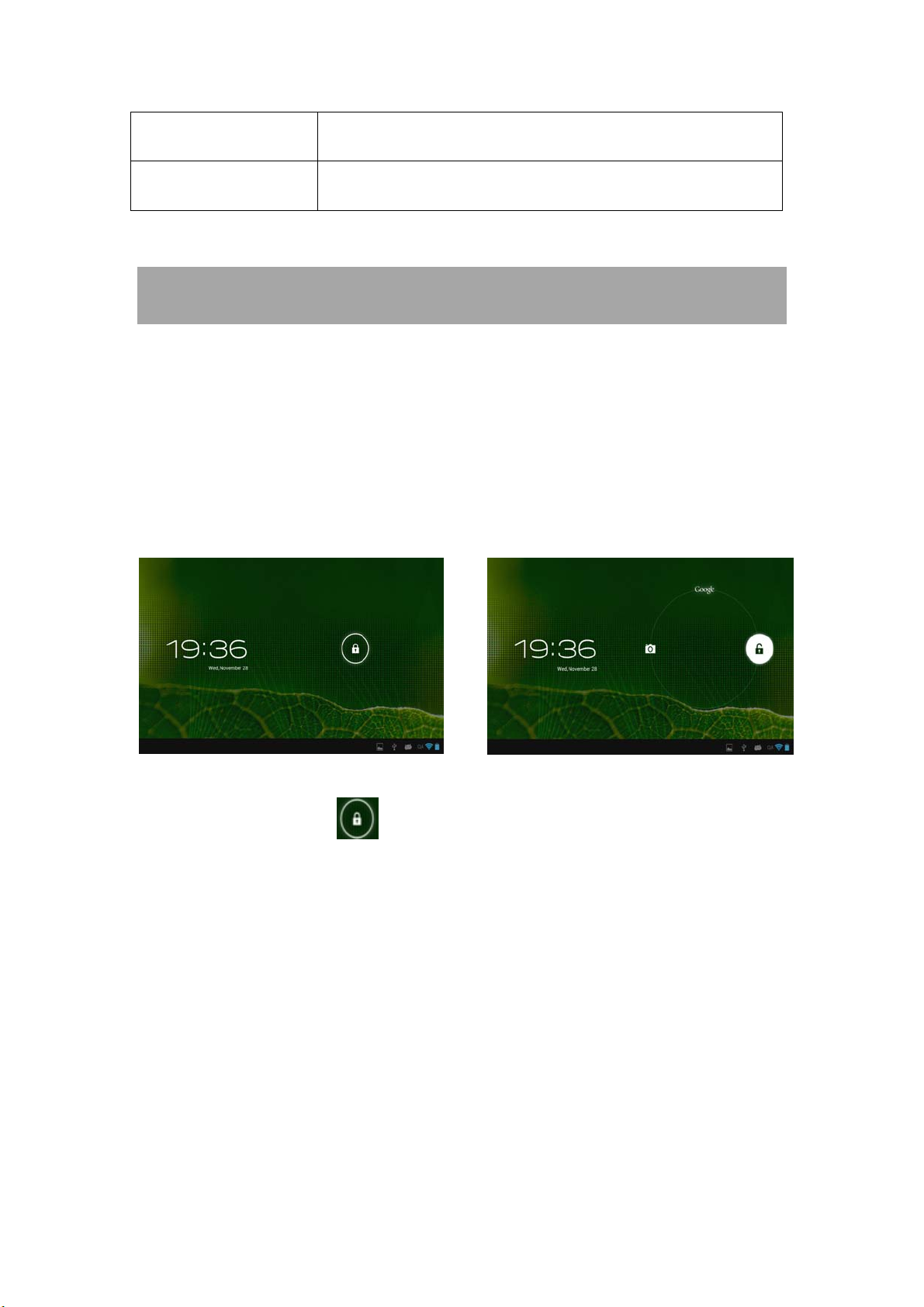
tablet for a while. Tab and drag the lock out of the circle to unlock.
→
Tab and drag the lock out of the circle to unlock.
Drag the lock to right: you will go to the home screen.
Drag the lock to left: you will go to camera directly.
1.1.2 Turn off
To power off your tablet, press and hold the power button until the “Do you
want to shut down?” dialog appears and tap “OK” to power it off.

6
1.2 Lock/unlock the screen (sleep mode)
To save battery, you should put your tablet in sleep mode by turning off the
LCD display. To do this, shortly press the power key. Press it again to wake up
the screen.
1.3 Connect to computer
You can connect your tablet to your computer with the supplied USB cable so
you can transfer media files.
If your computer is XP system, please install a Windows Media Player 11 for
your computer before transfer media files as android 4.1 system needs
Windows Media Player 11 support.
7
II. Your Home Screen
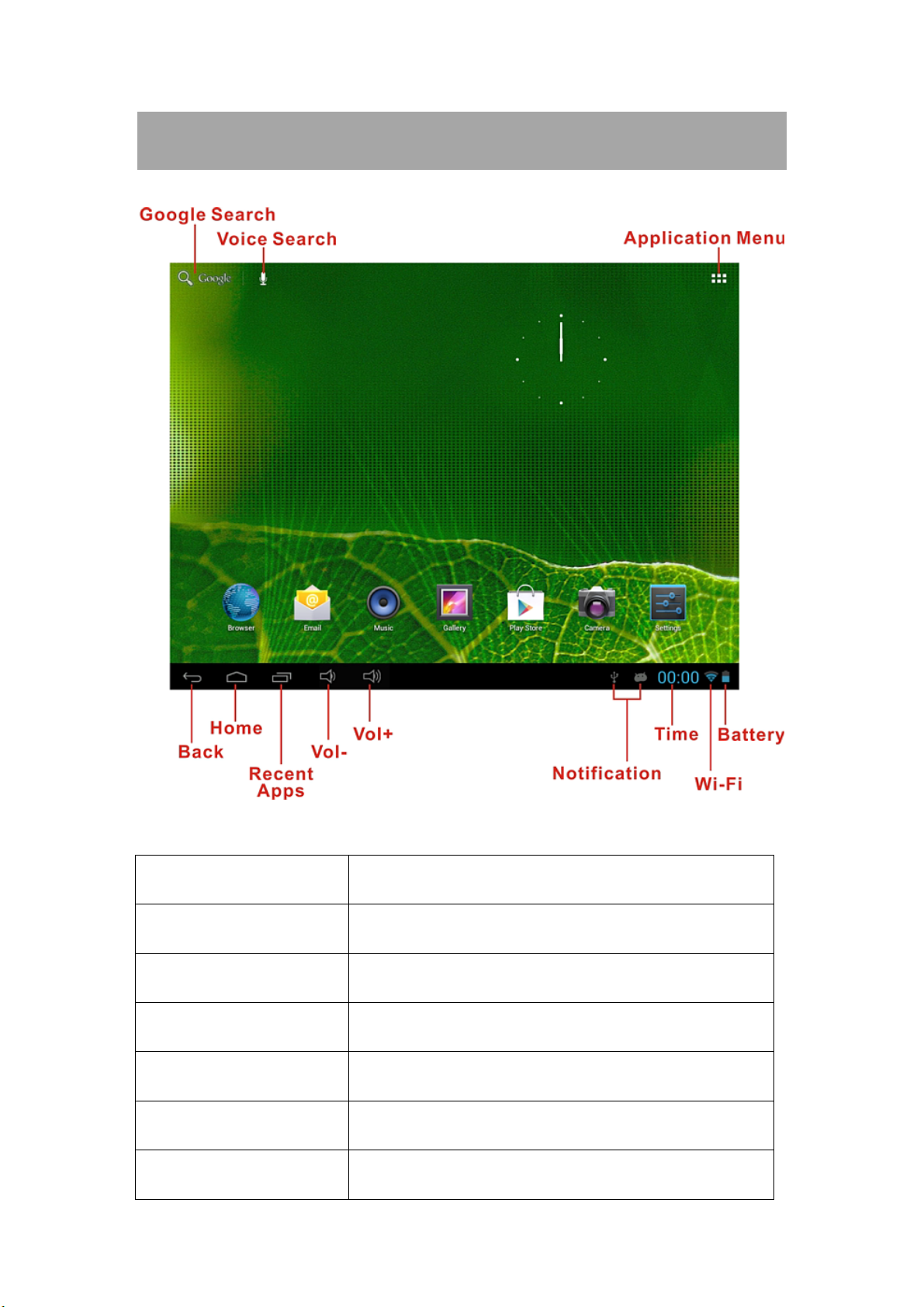
Google search Tap to enter Google search page
Voice search Tap to open voice search
Application menu Tap to show all the installed applications
Back Tap to return to the previous screen/ page.
Home Tap to return to your home page
Recent Apps Tap to show your recent operations
Volume - Tap to lower the volume
8
Volume + Tap to upper the volume
Notification Tap to review all system notices
Time System time
WIFI Signal There will be WIFI signal when WIFI connected
Battery status Show battery status
2.1 Change wallpaper for home screen:
Tab and hold your finger in any blank space of the home screen, you will see a
pop-up options; you can choose wallpaper from Gallery, live Wallpapers or
Wallpapers.
2.2 Add/delete applications on home screen:
There are several apps in the home screen, you can also add more
frequently-used app icons in this home page and delete some less
frequently-used ones.
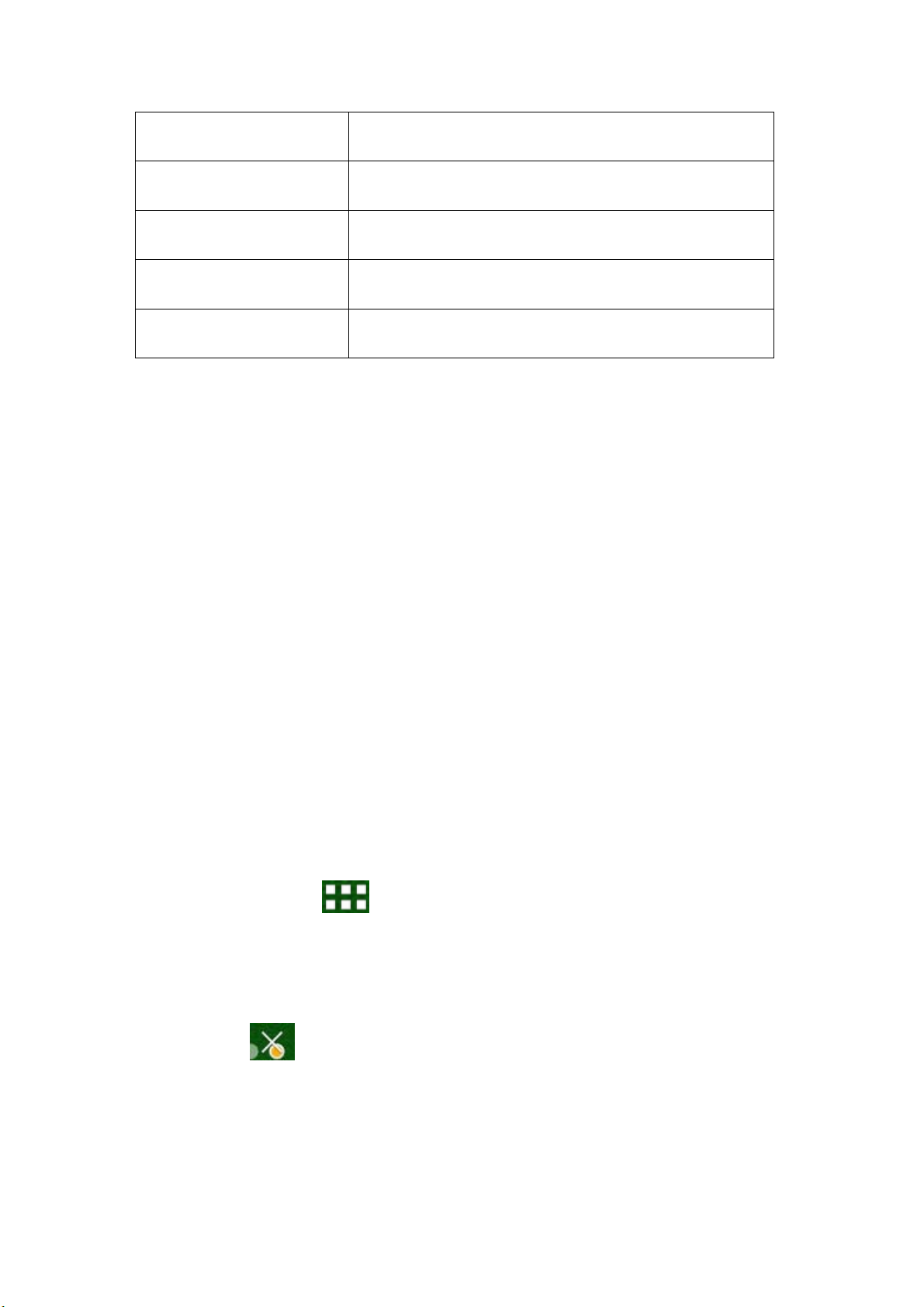
Tab the app launcher in the top right corner to go to all apps panel, tap
and move the app you want to the home screen.
To delete an app from home screen, tap and hold it, and them movie it to the
remove icon

9
2.3 Add widgets to home screen:
Tab all Apps launcher→Tab WIDGETS. There are Analog clock, bookmarks,
calendar, Email, and lots of other widgets. Drag the widget you want to the
home screen.
Tips: Besides your home screen, you can access to other four panels by sliding
left or right in your home screen. You can also customize these panels.
III. Network Connection
3.1 Wi-Fi
Wi-Fi can only be used when it connects with home Wi-Fi Access Point (AP) or
a free unsecured Wi-Fi hotpot. Under “Wireless & networks”, tap “Wi-Fi” to
turn it on. After a moment, your Wi-Fi networks list should populate. If you
need to rescan for available networks, tap "scan"
3.1.1 Turn on Wi-Fi
Within the App Panel, tap “Settings”” →“Wi-Fi” to turn on wifi.
Indice
Altri manuali Difrnce Tavoletta


