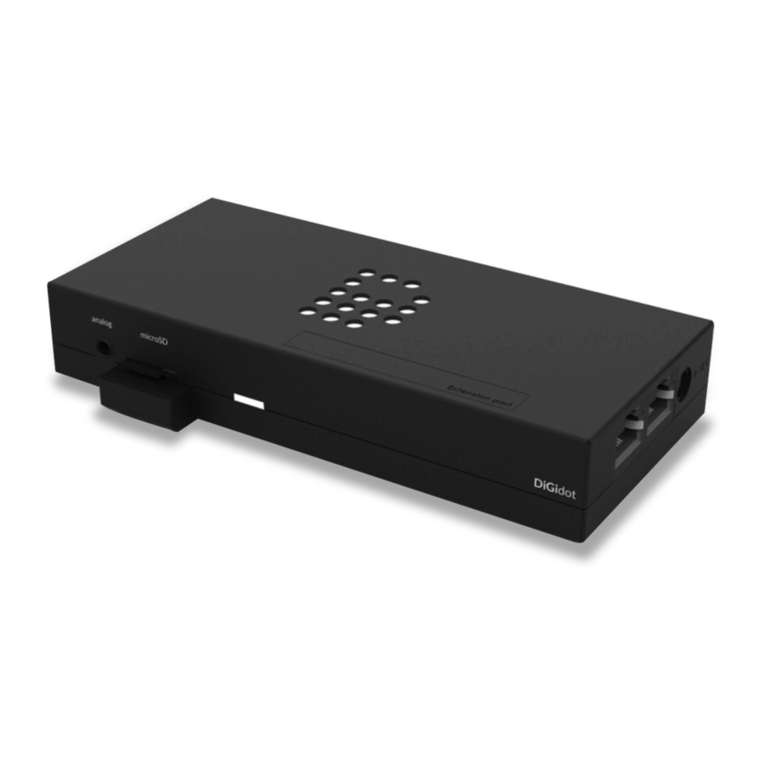
DiGidot C4 Guida alla risoluzione dei problemi

C4
Quick Start-Up Guide

Table of contents
Introduction
Product Explanation
Unboxing & Connecting to Computer
Conguring Computer for Connection
Conguring the DiGidot C4
Connection Possibilities
Using with LED Software
Technical Specications
3
4
7
8
9
10
12
13
2

Introduction
The DiGidot C4 is part of the first generaon of LED
drivers that can directly control LED lights through
Art-Net and DMX. It’s unique in its various capabilies.
The DiGidot C4 has an enormous controlling capacity -
more than 6,000 individual LEDs.
The DiGidot C4 has a built in User Interface. Meaning
the device can be configured directly through a
computer. Several DiGidot C4s can be connected to
each other to expand its capabilies.
3

Extension Port
Input/Ouput Port
Top Status Light
Button
Power
Ethernet Ports
Side Status
Light
Analog Jack
MircoSD
Product explanation
4

Extension
Port
The extension port on the DiGidot
C4 is used to connect a specially
designed extension board that
expands the capabilies of the
DiGidot C4.
Product explanation
Top Status
Light
The top status light indicates
whether or not the device is on, if
there is signal detected or if there is
a problem with it. On Page 6 the
different light indicaons are
described in detail.
Button The buon is used for triggering
acons* and factory reseng.
Input/Output
Port
This connector is used to provide
power to the DiGidot C4, connect
the LEDs or DMX in/out.
MicroSD Each DiGidot C4* is provided with
a microSD card. The MicroSD card
is used to store Art-net programs
and presets so that LED soware is
not required and the DiGidot C4
can operate stand-alone.
A 3,5 mm TRRS jack gives the
opportunity to connect various
triggers.
Analog Jack
The side status light indicates the
state of the device. Together with
the Top Status Light they reproduce
the different states. On Page 6 the
different indicaons are described
in detail.
Side Status
Light
The Ethernet Ports are used to
connect the DiGidot C4 to a
computer, through which you can
use any type of Art-Net soware.
The Ethernet Ports can also be used
for daisy chaining several C4s.
Ethernet Port
Power Port Used to power the DiGidot C4
(5V - 24V).
* only avaialble on the DiGidot C4 Extended 5

Product Explanation
There are several states of the device. Different states
are described using both the Top and the Side Status
Light.
Status Light Indicators
Power On
(With License)
Fading Blue light between Top
and Side Status Lights.
Power On
(Without License)
Top and Side Status Lights
blink Yellow simultaneously.
Receiving
Art-Net
Fading Green to Blue light
between Top and Side Status
Lights.
Save Sengs
(Success)
Both Top and Side Status Lights
blink Green for 1 second.
Save Sengs
(Fail)
Both Top and Side Status Lights
blink Red for 1 second.
Play Scene Fading Pink to Blue light
between Top and Side
Status Light.
Error State Both Top and Side Status Lights
blinking Red.
Freeze Constantly alternang between
Red and Blue on both Top and
Side Status Light
Crash Constantly alternang between
Red and White on both Top and
Side Status Light
Factory
Reset
While holding the Buon, both
Top and Status Light will blink 5
mes yellow and will turn off
when device is ready.
Baery Error Both Top- and Side Lights
blinking from yellow to red
for 3 seconds.
6

Unboxing & Connecting
to computer
In every box there is one C4, one ethernet cable ( )
and one USB to power cable ( ). Firstly you have to
connect the power cable (img. 1) to the power plug
on the C4, the other end can be connected to any
other USB output device (5V-24V). Secondly you have
to connect the ethernet cable (img. 2) to the ethernet
port of the DiGidot C4 (it does not make a difference
of the port being used) and the computers
Ethernet/UTP Port.
1
2
7

Conguring computer for
connection
Before you can start working with the User Interface
of the DiGidot C4 you should re-configure your
computer’s LAN sengs. Note that changing your
Ethernet sengs will block your LAN network
connecon. If you wish to be connected to the
Internet and using the DiGidot C4, then it is best to
have a computer that has both LAN and Wi-fi
connecon. By accessing the User Interface of the
DiGidot C4 you can change the sengs, so it fits with
the Art-Net control Soware/Device and the type of
LED.
For PC
Go to
Control Panel - Network and Sharing Center - Ethernet
- Properes - Internet Protocol Version 4 (TCP/IPv4) -
Use the following IP address
Then replace the IP sengs in the following boxes to:
IP adress: 10.0.0.1
Subnet mask: 255.0.0.0
For Mac
Go to
System Preferences - Network - Ethernet - Configure
IPv4 - Manual
Then replace the IP sengs in the following boxes to:
IP address: 10.0.0.1
Subent mask: 255.0.0.0
8

* only avaialble on the DiGidot C4 Extended
Conguring the DiGidot C4
To start using the DiGidot C4 as intended meaning to
start controlling LED lights first the device should be
configured. Inial configuraon includes naming the
DiGidot C4, giving it an IP address and Subnet mask
which the Art-Net soware/device will recognize. Last
step is to configure the number of universes and the
type of LEDs that you will use it with.
To configure the device you go to Sengs. From there
you can change the IP address and subnet mask of the
DiGidot C4. The IP must always start with 10, for your
computer to recognize it. The Subnet Mask should
always stay 255.0.0.0.
Note that those are default sengs for working with
the DiGidot C4. Alternavely the DiGidot can match
your local network sengs to work in your network
e.g. 192.168.x.x (be sure to update your own network
to match the DiGidot C4 Network sengs)
Once the device is named and given a recognizable IP
address the next step is to configure the amount of
universes and the type of LED they will be used with.
From the buon ‘Select an output’ you can choose
the type of LED source the DiGidot C4 will be used
with. Then the number of universes used can be
adjusted.
Configuring the type of LED that will be used with the
DiGidot C4 will then allow you to connect your LED
lights or DMX512 properly to the DiGidot C4. On the
next page the meaning of each of the outputs on the
DiGidot C4 is displayed and how they vary depending
on the type of output that is used.
9

Connection Possibilities
Depending on the LED type that is being used this
how it should be connected to the Input/Output
connector. These are only two examples of connecng
LEDs to the DiGidot C4. The device can be connected
to different types of LED outputs. It is compable
with:
• Any type of Dynamic LED light
• DMX512
• LED Strips
• LED Wall Washers
• LED Downlights
There are various LED light sources that can be
connected to the DiGidot C4. They are connected
directly to the device through the Input/Output
connector. The following table shows how to connect :
Single Data LED strip, Clock/Data LED strip and
DMX512.
Type of
LED Output
Single Data
LED Strip
Clock/Data
LED Strip
DC+
DC-
D1
D2
D3
D4
DC+ DC+
Data
Ground
Data
Output 1
Data
Output 2
Data
Output 3
Data
Output 4 Data
Clock
Data
Clock
DMX
In/Out
DMX 2 -
DMX 2 +
DMX 1 -
DMX 1 +
DC+
Data
Ground
DMX
Ground
10
Altri manuali per C4
3
Indice
Altri manuali DiGidot Controllori