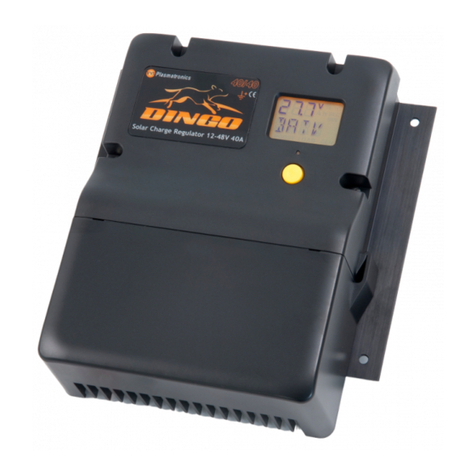
DINGO D4040P Manuale utente

Dingo D4040P
Positive Ground
40A Max. Charge
40A Max. Load
Advanced Solar Charge Controller
User Guide
Read this before installing
Ver 3.1 031017

Dingo D4040P User Guide
2

3
Dingo D4040P User Guide
Wiring Instructions 6
Monitoring your System 12
Using the Menus 8
Choosing your Settings 10
Install your controller:
• Vertically, where air can circulate around it;
• In a dry environment out of direct sunlight;
• Away from flammable gases or liquids;
• Away from spiders, wasps or other insects
which might make nests in it.

Dingo D4040P User Guide
4
Fig. 1
Warning: This controller is for DC current ONLY
It is not an MPPT device (there is no voltage conversion)
Suitable array max power voltages are: 12V sys 16-19V, 24V sys 32-38V, 48V sys 64-76V
TEST
BOOST
V
+-+-+-
Display
Button
Alarm led
Control connections
(plug in terminal block)
Test
terminal
Accessory
port
High current connections

5
Dingo D4040P User Guide
Screw wires into the
high current terminals
tightly in the order
listed on page 6.
Basic Connection Order
1. Connect Battery
2. Test Solar Polarity
3. Connect Solar
4. Connect Load
After connection you must set the system voltage (p10)
TEST
+-+-+-
BATTERY-
SOLAR+
BATTERY+
LOAD+
‘G’ Terminals
Sensor T+
Temperature T-
B- Sense
LOAD-
SOLAR-
‘G’ Terminals
Accessory
Port
Test terminal
Fig. 2

Dingo D4040P User Guide
6
Wiring instructions
For safety and to avoid damage, connection of wires must be
done in the following order.
All connections must be tight!
a. Connect the battery first. Positive to Battery+, Negative to
Battery -. If the display comes on, then connection is correct.
(see figure 3)
b. Connect the positive (+) wire from the solar panel(s) to the
solar panel positive (+) terminal.
TEST
BOOST
V
+-+-+-
Display comes on
Connect
Battery
1
Battery
+
–
* *
*For safety, most installa-
tion standards require fuses
or circuit breakers on both
sides of the battery.
For other connections, see
the reference manual.
WARNING:
The controller can be
damaged quickly by
reverse connection of
the solar array in 32V,
36V and 48V systems.
Test first to avoid
damage.
Fig. 3

7
Dingo D4040P User Guide
c. Test the solar panel connection
by touching the negative (-)
wire from the solar panel onto
the Test terminal (TEST).
•If the alarm led does not flash
then it is OK.
•If the alarm led flashes quickly
then it is not OK. Check the
polarity and test again. (There
must be some light on the solar
panels for this test to work).
If OK connect to the Solar
negative (-) terminal.
d. Connect the negative (-) wire
from DC load circuit to the
load negative (-) terminal and
connect the positive wire from
the load to the load positve
(+) terminal. Test that the load
circuit works.
The controller
is protected against load short
circuits, but cannot protect your
load devices if you reverse the
connection to them. Now, set
the system voltage - see pg.10
N
ote: The controller is protected
against short circuit on the solar input.
Fig. 4
TEST
BOOST
V
+-+-+-
Battery
+
–
flashes if
wrong
test
here
Test
Solar
2
Solar
–
+
TEST
BOOST
V
+-+-+-
Battery
+
–
Solar
–
+
Connect
Load
3
Load
+
–

Dingo D4040P User Guide
8
Using the Menu System
You can move around the menu system and change settings
using the button on the front of the controller. There are
seven top-level menu items in the menu system (BATV,
CHRG, LOAD etc - see figure 5). Each menu item provides
access to a sub-menu, and some of these sub-menus lead
to further sub-menus.
A short push tells the controller to advance to the next
menu item or setting value. To do a short push, press on
the button on the front of the controller, and release it
immediately.
A long push “selects”, moving into a sub-menu or allowing
you to change settings. To do a long push, press the button,
holding it down until the menu changes (about one second).
Getting back
Wherever you are in the menu system, a series of short-
pushes will bring you back to the top-level menus without
changing any settings. There are two exceptions: when a
number is flashing during setting adjustment (see page 10)
and when you see the word “EXIT” in the “HISTORY” sub
menu - see page 16.
Note: ‘external’ screens do not appear if there are no
accessories attached. If an accessory is attached, the
screen names will indicate the accessory type.

9
Dingo D4040P User Guide
Menu System (Programs 0-3 )
Thick arrow = long push
Thin arrow = short push
SET
TIME VOLT PROG BCAP
Set Set Set Set
DATA
VMAX VMIN FTIM SOC TEMP SOLV HIST
History Data
Adjust
OUT
INT External
Clear Clear
IN
INT External
Clear Clear
LOAD
LINT External Low Battery Disconnect
CHRG
CINT External Generator Control
BATV
Regulator State
Fig. 5

Dingo D4040P User Guide
10
Choosing your settings
Failure to correctly set the system voltage (VOLT) and select the
correct program (PROG) for your battery may result in damage
to the battery or connected equipment. Follow this procedure:
1. Set the Time
a. Short-push until the display shows “SET”.
b. Long-push once and the display will show “TIME”.
c. Long-push again, and the time will start flashing.
(Note that the
time is displayed in hours and tenths of hours. For example, “6.5” means
6:30am, and “13.1” means 1:06pm.)
d. Short-push until the time shown is correct. If you pass 23.9
(11.54pm), it will cycle back to 0.0 (midnight).
e. When the time shown is correct, long-push to set it.
Note: time setting does not affect battery charging.
REVERSE & FAST FORWARD
If you overshoot the setting you want and need to go back, you can
use reverse. Do a long push. The number stops flashing. Do another
long push. The number starts flashing again but this time goes down.
More than 5 quick pushes will start the fast forward mode.
To return to normal mode, stop pushing for 1 second.
2. Set the System Voltage (! Important)
a. Short-push to move from “TIME” to “VOLT”.
b. Long-push and the voltage will start flashing.
c. Short-push until the voltage is correct for your battery. If
you pass 48V, it will cycle back to 12V.
Altri manuali DINGO Controllori