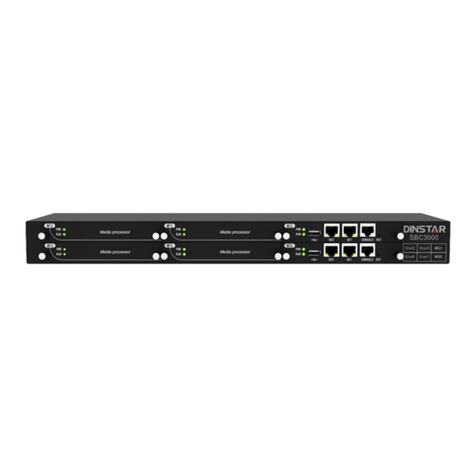
Dinstar SBC300 Manuale utente

Quick Installation Guide
SBC300
SBC1000
SBC3000
Thanks for Choosing Dinstar’s Session Border Controller!
Please read this guide carefully before installing the gateway. If you need any technical support,
please contact us.
Tel: +86 755 61919966
Email: support@dinstar.com
Website: www.dinstar.com

SBC Series Technical Specifications
1
SBC Series Technical Specifications
2
Indicator Definition Status Description
Power Indicator
Running Indicator
Alarm Indicator
On
On
On
Off
Blinking quickly
Off
Off
The device is switched on
The power is switched off or
there is no power supply
Off
Blinking slowly
Network
Link Indicator
Network Speed
Indicator
PWR
RUN
ALM
GE
The device is running properly
The device goes wrong
The system is working properly
The system is down
The device is properly connected to network
The device is not connected to network or
network connection is improper
Work at 1,000Mbps
Network speed lower than 1,000Mbps
On/Off
Model
SPEC
SBC300
Network Port
for Service
Network Port
for Management
Max
Concurrent
50 1,000
5,000
10,000
4 1
1
0
4
4
500
2,000
SBC1000
SBC3000
Max
Registration

Indicators and Ports
3
SBC300
SBC1000
RSTDC12V 0 1 2 3 Admin
GE
GE
RUN ALM SIM TF
E1/T1
1 3 2 1 0
Speed
Link
0
TF ConsolePWR
Power Indicator
Running Indicator
Alarm Indicator
SIM Card Indicator
TF Card Indicator USB Interface
TF Card
Slot
Console Port
E1/T1
In-use Indicator Network Link Indicator
Network Speed Indicator
Power Jack Network port for service Network port for
Management
Reset Button
Admin
GE
E1/T1
1 3 2 1 0
Speed
Link
0
RUN ALM SIM Console
100-240VAC50-60HZ
POWER0
OFF
ON
OFF
ON
100-240VAC50-60HZ
POWER1
0 1 2 3 Admin RSTSIM
GEE1/T1
0 1
PWR
SBC1000
Admin
Power Indicator
Running Indicator
Alarm Indicator
SIM Card Indicator USB Interface
Console Port E1/T1
In-use Indicator
Network Link Indicator
Network Speed Indicator Cooling Fan
Power Jack Network port
for service
Network port for
Management
Reset
Button
Power Switch E1/T1 Ports SIM card
Slot
Grounding
Lug

RUN
PWR Mediaprocessor
MFU
RUN GE2 GE3 RST
GE0 GE1 CONSOLE
PWR
MFU
RUN
PWR Mediaprocessor
Mediaprocessor
MFU
RUN
PWR
MFU
Mediaprocessor
MCU
RUN
PWR
MCU
100-240VAC50-60HZ
POWER0
POWER1
100-240VAC50-60HZ
SBC3000
Power Indicator for MFU
Running Indicator for MFU
Screws
Network port for service
Power Indicator for MCU
Running Indicator for MCU USB Interface
Network port
for service
Network port for
Management
Console Port
Reset Button
Grounding Lug Power
Jack
Power
Switch
Cooling Fan Screws
SBC3000
Attentions before Installing
4
The SBC1000/SBC3000 mounting cabinets should be 19 inches in width and 550 mm or
more in depth (Dinstar provides the required brackets for installation);
To guarantee device works normally and to lengthen the service life of the device, the
humidity of the equipment room where device is installed should be maintained at 10%-90%
(non-condensing), and temperature should be 0℃~45℃;
It's suggested that personnel who has experience or who has received related training be
responsible for installing and maintaining device;
Power supply of SBC300 should be 12V DC, and power supply of SBC1000/SBC3000
should be 100~240V AC;
It's advised to adopt uninterruptible power supply (UPS);
Please wear ESD wrist strap when installing device;
Please do not hot plug cables;
Ensure the equipment room is well-ventilated and clean.

Installation Instruction
5
Connection Diagram for SBC300
Connect to the network
RSTDC12V 0 1 2 3 Admin
GE
RSTDC12V 0 1 2 3 Admin
GE
Network port for Management
192.168.11.XXX
PC
192.168.11.XXX
Network port for service
DC 12V
Connect to the power supply
Connection Diagram for SBC1000
Connect to the network
100-240VAC50-60HZ
POWER0
OFF
ON
OFF
ON
100-240VAC50-60HZ
POWER1
0 1 2 3 Admin RSTSIM
GEE1/T1
0 1
100-240VAC50-60HZ
POWER0
OFF
ON
OFF
ON
100-240VAC50-60HZ
POWER1
0 1 2 3 Admin RSTSIM
GEE1/T1
0 1
Network port for
Management
192.168.11.1
PC
192.168.11.XXX
Network port for service
Grounding Cable
Connect with power input and grounding lug
AC 100-240V AC 100-240V Grounding Lug

100-240VAC50-60HZ
POWER0
POWER1
100-240VAC50-60HZ
Network port for Management
192.168.11.1
PC
192.168.11.XXX
Network port for service
Grounding
Cable
Grounding
Lug AC 100-240V AC 100-240V
RUN
PWR Mediaprocessor
MFU
RUN GE2 GE3 RST
GE0 GE1 CONSOLE
PWR
MFU
RUN
PWR Mediaprocessor
Mediaprocessor
MFU
RUN
PWR
MFU
Mediaprocessor
MCU
RUN
PWR
MCU SBC3000
Connection Diagram for SBC3000
Connect to the network
Connect with power input and grounding lug

Modify PC’s IP Address
6
On the PC, click ‘Network (or Ethernet) → Properties’.
Double-click ‘Internet Protocol Version 4 (TCP/IPv4)’.
Select ‘Use the following IP address’, and then enter an available IP address
‘192.168.11.XXX’ .
1
2
3
To log in the Web Management System of the SBC, you need to modify the lP address of PC
first to make it at the same network segment with the SBC. Connect PC with the SBC, and then
add an lP address of 192.168.11.XXX on the PC.

Log in Web Management System
7
Connect the computer to the GE1 port of SBC3000 (or the Admin port of SBC300/SBC1000),
then open the browser, enter the IP address (https:// 192.168.11.1) in the browser, press enter,
and the login GUI will be displayed.
Enter username and password in the displayed login GUI. The default username is admin, while
the default password is admin@123#.
Modify IP Address of Network Port for Service
8
After logging in the SBC, user needs to modify the lP address of the network port for service.
After that, please restart the device for the configurations to take effect.
Note: The GE1 port of SBC3000 also can be used as a network port for service, but the Admin
port of SBC300/SBC1000 is only used for local management and maintenance.
Model
SBC300
Network port for Management
192.168.11.1
192.168.11.1
192.168.11.1
Admin
Admin
GE1
SBC1000
SBC3000
IP Address

Configure Access Network
9
On the 'Service - Access Network' page, users can configure the Access Network to use SBC
for proxy registration
The signaling and media interfaces are the same as the corresponding network port for service.
The local SIP listening port is 5090(customizable), and other configuration items keep the
default.

Configure Access SIP Trunk
10
On the 'Service - Access Network' page, users can configure the Access SIP Trunk to connect
SBC with service provider or third-party SIP line provider.
The signaling and media interfaces are the same as the corresponding network port for service.
The local SIP listening port is 5070 (customizable), and the Remote IP: Port is the server IP and
port provided by the Service Provider.
Configure Call Routing
11
Configure Call Routing(Core SIP Trunk→ Access SIP Trunk)
On 'Service - Routing Profile – Call Routing' page, add an outbound route, select Core
SIP Trunk as the source and Access SIP Trunk as the destination, and keep the other
configuration items as default.
Set the priority (the smaller the number, the higher the priority) and the description:
(1)
Altri manuali per SBC300
1
Questo manuale è adatto per i seguenti modelli
2
Indice
Altri manuali Dinstar Controllori