
DisplayLink USB Display Adapter Manuale utente

USB Display Adapter
User’s Manual

USB Display Adapter User’s Manual
ABOUT THIS MANUAL
This manual is designed for use with the USB Display Adapter. Information in this document has
been carefully checked for accuracy; however, no guarantee is given to the correctness of the
contents. The information in this document is subject to change without notice. The manufacturer
does not make any representations or warranties (implied or otherwise) regarding the accuracy and
completeness of this document and shall in no event be liable for any loss of profit or any
commercial damage, including but not limited to special, incidental, consequential, or other damage.
SAFETY INSTRUCTIONS
Always read the safety instructions carefully:
Keep this User’s Manual for future reference
Keep this equipment away from humidity
If any of the following situation arises, get the equipment checked by a service technician:
The equipment has been exposed to moisture.
The equipment has been dropped and damaged.
The equipment has obvious sign of breakage.
The equipment has not been working well or you cannot get it to work according to the
User’s Manual.
COPYRIGHT
This document contains proprietary information protected by copyright. All right are reserved. No
part of this manual may be reproduced by any mechanical, electronic or other means, in any form,
without prior written permission of the manufacturer.
i

Table of Contents
ii
Table of Contents
1. Introduction.......................................................................................................1
Applications ........................................................................................................2
Features..............................................................................................................2
Package Contents...............................................................................................3
System Requirements.........................................................................................3
2. Installation.........................................................................................................5
On Windows 2000/ XP/ Vista..............................................................................5
On Windows 7 ....................................................................................................8
Connected to the adapter and monitor..............................................................12
3. Using the Adapter ...........................................................................................14
Display Properties.............................................................................................14
Display Modes ..................................................................................................15
Extend Your Windows Desktop to Add-on Monitor (Default)......................15
Mirror Your Windows Desktop ...................................................................18
Be the Primary Monitor ..............................................................................20
Adjusting Resolution, Color Depth and Refresh Rate .......................................21
Configure the components.........................................................................22
Standby and Hibernate, Shut Down and Restart...............................................25
Disconnecting the Adapter ................................................................................25
Using Dual Adapters .........................................................................................25
Verifying the Driver Installation..........................................................................27
Uninstall the Adapter and Driver .......................................................................28
4. Troubleshooting..............................................................................................29
5. Specifications..................................................................................................31
6. Regulatory Compliance..................................................................................33
FCC Conditions ................................................................................................33
CE.....................................................................................................................33
WEEE Information ............................................................................................33
1. Introduction
1. Introduction
This USB Display Adapter enables you to connect one more monitor, LCD or projector to a
computer with a USB 2.0 port. For desktop users adding an extra monitor via USB
connection is easier than ever without having to open the computer chassis to install an
internal video card. Once the installation is done, the USB-attached monitor soon wakes up.
No function key hassle to swap a second monitor.
With this handy adapter, you can enjoy many benefits brought by an add-on monitor. The
most obvious one is that you get more desktop area to have more applications visible at
one time. For example, you may work on one monitor while your family watching video on
the other. No more stacking windows within the confines of a single display. Or you may
span an application, e.g. spreadsheets, across two sides of displays. What’s more, the
adapter is hot pluggable. If you are not using the extra monitor, just unplug the adapter at
any time; no reboot needed.
System performance is an important issue when using multiple monitors. Another benefit of
this adapter is that it uses little computer resource; ensuring users get quality display
without comprising computer performance.
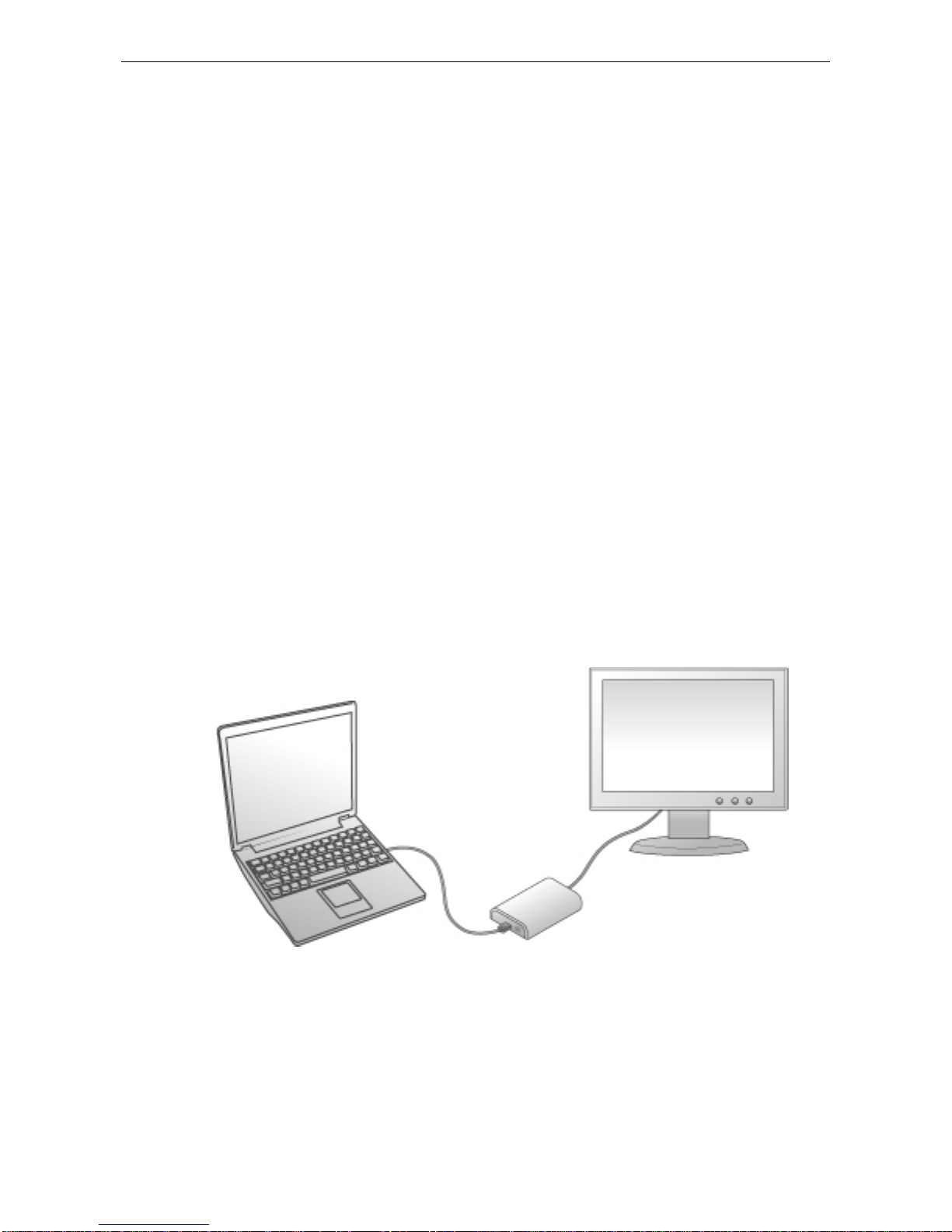
VGA or DVI monitor
USB-enabled computer
1

USB Display Adapter User’s Manual
Applications
Office workstation
View your large spreadsheets across two screens with display continuity
Multitask more effectively without overlapping windows
Edit on one screen while surfing the Internet information on the other
On the road
Do multiple screen presentations without bringing another computer
Easily provide multiple screen exhibitions in a trade show
Graphics workstation
Use second display for palettes/tools
Get a panoramic view of large documents
Editing workstation
Type documents on one screen while viewing reference material on the other
Compare two documents simultaneously across two screens
Financial analysis
Have one monitor per data stream
View charts and live data at the same time
Entertainment
View videos/TV on one screen and reviews on the other
Get additional perspectives when playing games
Features
Add-on monitor, LCD or projector through a single USB 2.0 port
Hot-plug ; add or remove monitor without system reboot
Small in size, works with all VGA / DVI-I displays.
Supports High Resolution up to 1920x1080
Video streaming is supported up to 1080p
Extend and Mirror mode support.
Resumes from hibernation and suspend modes
Supports up to 6 USB display adapters to work simultaneously
2

1. Introduction
Package Contents
Before installation, please check the items in the package. The package should
contain the following items:
USB Display Adapter x1
Driver CD x1
USBCable x1
Quick Installation Guide x1
DVI to VGA Adapter (Optional) x1
System Requirements
The minimum requirements for the PC are:
With Single Core CPU at 1.2GHz or higher processor clock. Intel
Pentium/Celeronfamily, or AMDK6/Athlon/Duronfamily, or
compatible processor
512MB memory
At least one USB2.0 port
30Mb of available disk space
Windows2000 SP 4, XP Home or Professional (Including Table edition) SP2
or SP3, VistaSP1 (32-bit or 64-bit) and Windows7 (32-bit or 64-bit).
Super VGA (800 x 600) or higher resolution monitor
To play DVD on the adapter-attached monitor, in addition to the requirements
above, the following requirements should also be met:
With dual core CPU at 2.0 GHz processor clock
The adapter screen resolution be set to 800x600 with 16bit color
3

USB Display Adapter User’s Manual
4
In addition to the following processor and memory configurations (base on usage
model)
For 1-2 monitors, business usage, productivity target.
This may not provide full frame rate DVD playback at full screen.
1.2GHz Single Core CPU
512MB memory
For 3 monitors, where 1 could run DVD video while also targeting productivity and
business apps.
Will support only 1 video of DVD resolution at full screen:.
1.8GHz CPU
1GB memory
For 6 screen where 1 screen can run full screen DVD video:
1.6GHz Core Duo
1GB memory
2. Installation
2. Installation
On Windows 2000 /XP/ Vista
Caution: DO NOT connect the USB display adapter to your computer before you install the
provided driver. You will be instructed to do so later.
Follow the procedures below to install the driver and then connect the adapter:
1. Insert the provided CD into your disc drive. Please locate and double-click the
Run Setup.exe file under x:\Driver where x is your disc drive letter.
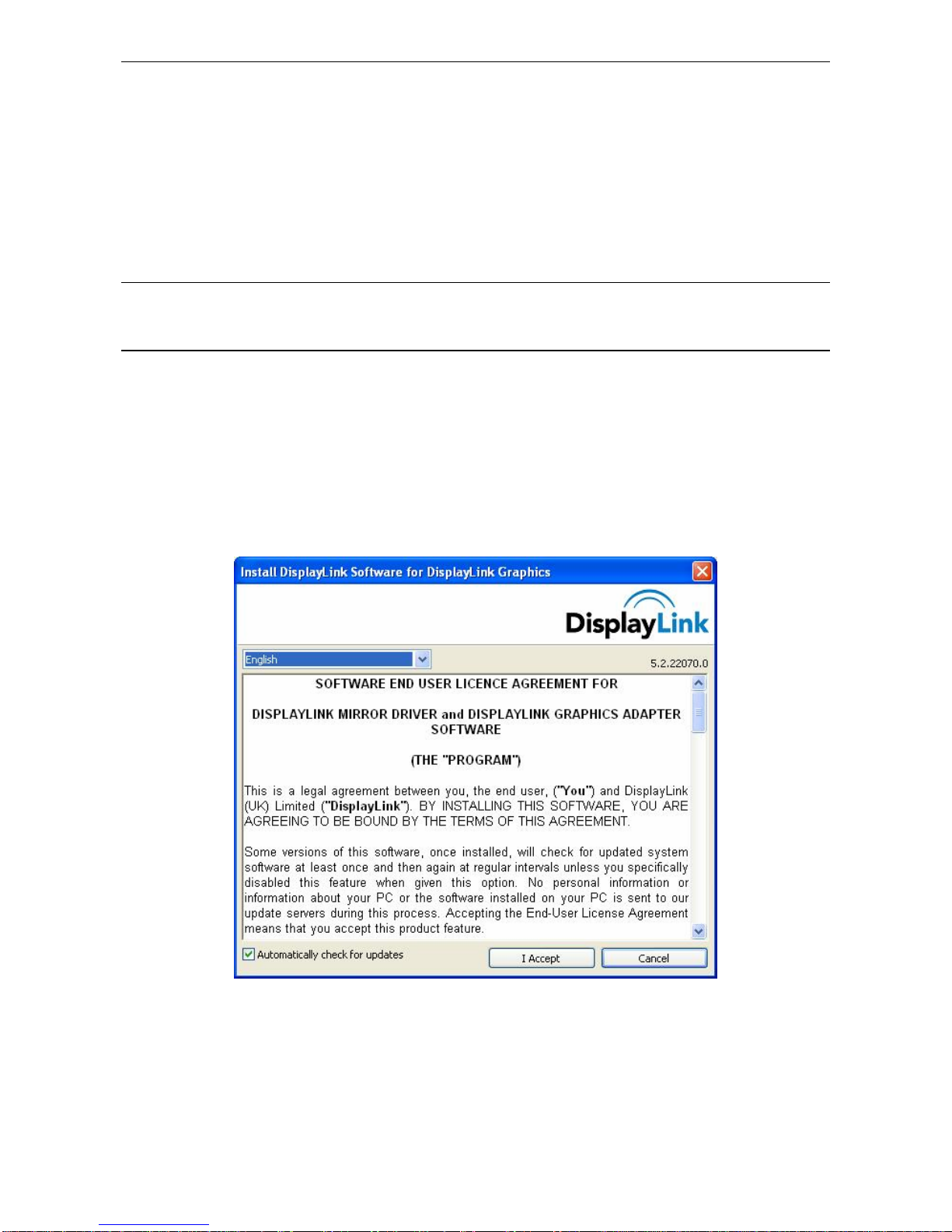
You may see the License agreement screen prompted as below. Please click on I
Acceptto start the Driver install.
Note:
If the installer program doesn’t run automatically, please locate and double-click on
the Autorun.exe file in the CD to launch the install program.
If you encounter a User Account Control dialog box when attempting to install a
program, enter an administrator password or click Allow to start the installation.
5
USB Display Adapter User’s Manual
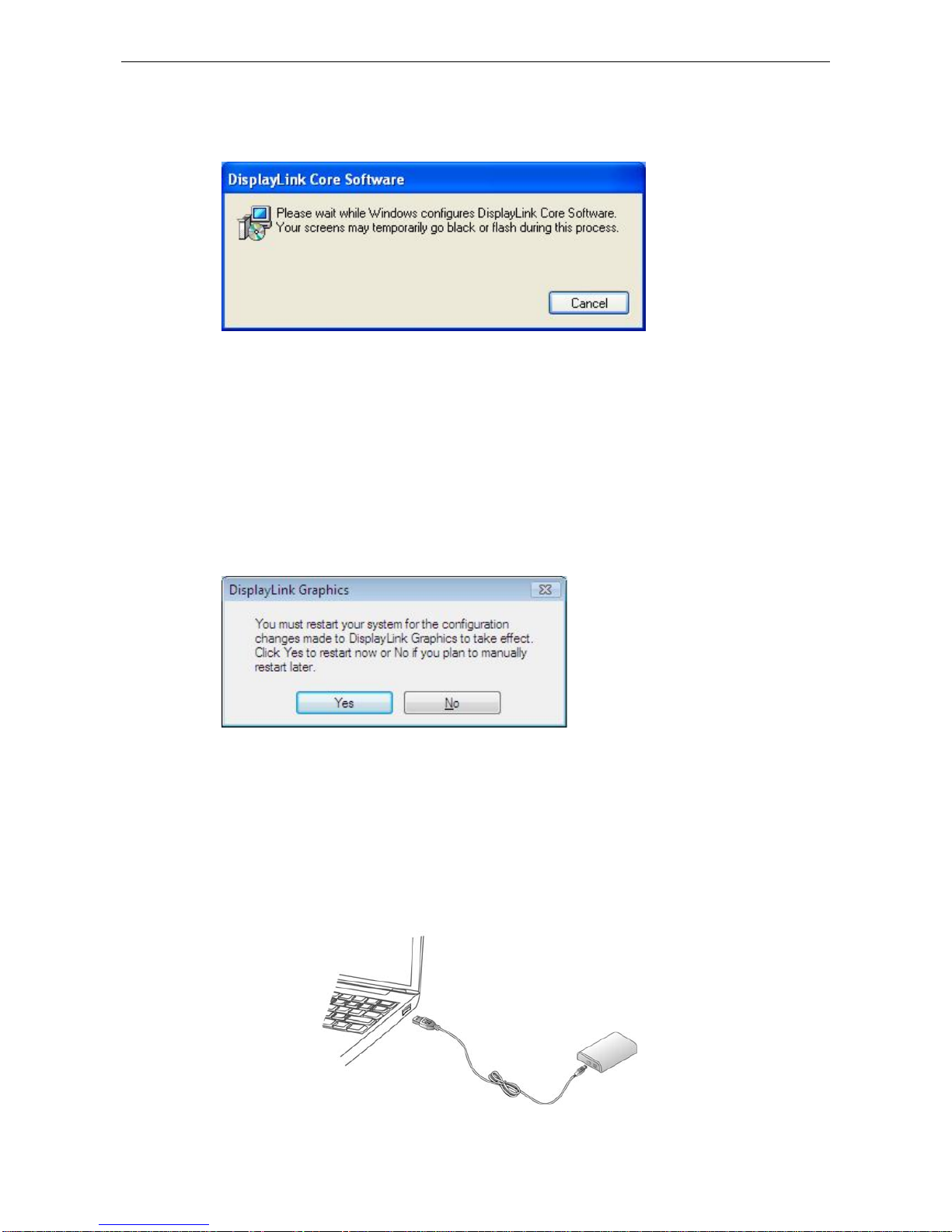
2. Please wait while Windows configures DisplayLink Core Software. Your screens
may temporarily go black or flash during this process.
*Actual strings depend on your operation system. These screen shots are from Windows XP
and might vary slightly for each operation system.
Notice for Windows Vista/2000 users:
If prompted to restart your computer, click Yes to restart or No to manually
restart later. Note that a reboot is always needed for a successful installation.
If the reboot prompt doesn’t appear, make sure to manually reboot your
computer.
3. When finished, the installation screen will disappear and you will return to your
desktop.
4. Connect the USB display adapter to your computer and monitor. Connect the
smaller end of the USB cable to the adapter. Then connect the other end of the
USB cable to an USB 2.0 port on your computer.
6

2. Installation
5. After the installation is completed, you will see the DisplayLink Manager Icon in
System Tray that looks like a monitor as below. Click on the icon to bring up the
menu.
-Extend Mode: The screen is part
of the extended desktop.
-Mirror Mode: The screen copies
the contents of the primary screen.
-Off Mode: The screen is black.
-Set as Main Monitor: The screen
is the primary screen.
-Notebook monitor off: The
Notebook screen is black and the
DisplayLink screen is the primary
screen.
7
Indice


