dji OSMO MOBILE 3 Manuale utente

OSMO MOBILE 3
2019.08
v1.0
User Manual

Not nal
2
© 2019 DJI OSMO All Rights Reserved.
Using this Manual
Legend
Important Hints and Tips
Download the DJI Mimo App
Scan the QR code or search for "DJI Mimo" on the App Store or Google Play.
The Android version of DJI Mimo is compatible with Android v6.0 and later. The iOS version of DJI
Mimo is compatible with iOS v10.0 and later.
Searching for Keywords
Search for keywords such as “battery” and “install” to nd a topic. If you are using Adobe Acrobat
Reader to read this document, press Ctrl+F on Windows or Command+F on Mac to begin a search.
Navigating to a Topic
View a complete list of topics in the table of contents. Click on a topic to navigate to that
section.
Printing this Document
This document supports high resolution printing.

© 2019 DJI OSMO All Rights Reserved.
3
Contents
Using this Manual 2
Legend 2
Download the DJI Mimo App 2
Introduction 4
Overview 4
Getting Started 5
Charging 5
Mounting and Balancing a Mobile Phone 5
Using Osmo Mobile 3 6
Controls and Operations 6
Operation Modes 9
DJI Mimo App 10
Updating the Firmware 13
Maintenance 14
Specications 14
After-Sales Information 15

OSMO MOBILE 3 User Manual
Not nal
4
© 2019 DJI OSMO All Rights Reserved.
Introduction
Equipped with 3-axis stabilization, OSMOTM Mobile 3 turns your mobile phone into a camera that
can deliver a stabilized and super-smooth image. The foldable design makes Osmo Mobile 3 easy to
transport and store. Lightweight and ergonomic, Osmo Mobile 3 puts seamlessly smooth video creation
at your ngertips.
Osmo Mobile 3 is easy to use and the mobile phone can be manually adjusted by hand in Follow mode.
Get creative with features such as Story mode, ActiveTrackTM 3.0, Hyperlapse, Timelapse, and Pano
that are available through the DJI Mimo app.
Overview
1. Mobile Phone Holder
2. M3×0.5 Screw Hole*
3. Tilt Motor
4. USB-A Port
5. Shutter/Record Button
6. USB-C Charging Port
7. M Button**
8. Joystick
9. Battery Level Indicators
10. LED Status Indicator
11. Pan Motor
12. Roll Motor
13. Zoom Slider
14. 1/4”-20 UNC Port
15. Lanyard Hole
16. Trigger
1
2
3
4
5
8
9
10
11
6
7
12
13
14
16
15
* Used for mounting counterweights.
** Used as the power/function button.

OSMO MOBILE 3 User Manual
© 2019 DJI OSMO All Rights Reserved.
5
Getting Started
Charging
• To charge Osmo Mobile 3, connect a USB adapter (not included) to the charging port using the power
cable (included). The battery is fully charged when the battery level indicators turn off.
Charging time: 2.5 hours (when using a 10 W charger)
Max. runtime: 15 hours*
• Connect your mobile phone to the USB-A port. If Osmo Mobile 3 is powered on, the mobile phone will
begin to charge. If Osmo Mobile 3 is powered off, press the M button once to start charging.
Mounting and Balancing a Mobile Phone
Only mount and balance a mobile phone while Osmo Mobile 3 is powered o.
• Make sure the phone holder is vertical before mounting a mobile phone.
• Hold the tilt motor and move the mobile phone left or right until the mobile phone remains balanced
when released.
USB-A Port
USB-C Charging Port
M Button
* Max. runtime was tested with the gimbal balanced and held steadily. This value should be taken as a
reference only.
If required, use the anti-slip pads (included) to secure the mobile phone in the phone holder.
Anti-Slip Pads

OSMO MOBILE 3 User Manual
Not nal
6
© 2019 DJI OSMO All Rights Reserved.
Make sure the mobile phone is properly installed and balanced on the holder of Osmo Mobile 3
before each use.
Mount your mobile phone before powering on Osmo Mobile 3. Osmo Mobile 3 will enter standby
mode when no mobile phone is detected.
• Hold the tilt motor and move the phone holder left or right until the mobile phone remains balanced
when released.
Using Osmo Mobile 3
Controls and Operations
The buttons on the handle allow greater control over the gimbal and mobile phone. The gimbal converts
joystick movements into smooth pan and tilt transitions, and reduces the impact of natural vibrations. In
Follow mode, the mobile phone can by adjusted by hand.
1. M Button
Press and hold to power on. After powering on, press and hold until you hear a beep to enter or exit
standby mode. Press and hold until you hear two beeps to power o.
When powered o, press once to check the battery level. When powered on, press to switch be-
tween photo and video mode or enter or exit the quick menu.
Press twice to switch between landscape and portrait mode.*
Press three times to enter or exit standby mode.
* Landscape and portrait mode can also be switched by adjusting the phone holder directly.

OSMO MOBILE 3 User Manual
© 2019 DJI OSMO All Rights Reserved.
7
2. Shutter Button
Press once to take a photo or start or stop recording. Press and hold for burst shooting when in
photo mode.
3. Battery Level Indicators
Indicates the battery level of Osmo Mobile 3. With Osmo Mobile 3 powered o, press the M button
once to check the battery level.
4. System Status LED
Indicates the current status of Osmo Mobile 3.
Blinking Pattern Descriptions
Solid yellow Bluetooth disconnected
Solid green Bluetooth connected
Pulses yellow or green Standby mode
Blinks red and green alternatively Firmware update required or rmware update failed
Solid red Gimbal abnormality (such as temperature is too low or too
high, battery is over discharged)
5. Joystick
Move vertically to tilt the mobile phone. Move horizontally to pan the mobile phone. The joystick
control direction can be set in DJI Mimo.
When using ActiveTrack 3.0, move the joystick to adjust the camera view.
ActiveTrack 3.0: ActiveTrack 3.0 has been optimized for tracking human subjects with a head and
shoulder model along with face detection using deep learning algorithms. The subject will remain in
the center of the camera view. The default position is the center of the camera view. Users can also
adjust the camera view manually. There are three ways to use ActiveTrack 3.0:
a. Drag a box on the screen in the camera view in DJI Mimo. A green box around the subject
indicates ActiveTrack 3.0 is successfully enabled. Tap the X icon on the top corner to stop
tracking.
b. Enable One-press ActiveTrack in DJI Mimo, and press the trigger once to start or stop ActiveTrack
3.0.
c. Enable Gesture Control in DJI Mimo, and then perform a palm or V gesture for one to two seconds
when facing the camera. The back camera will detect the nearest head and shoulders and start to
track the subject. The front camera will detect the nearest face and start to track the subject.

OSMO MOBILE 3 User Manual
Not nal
8
© 2019 DJI OSMO All Rights Reserved.
The dierences between the head and shoulder tracking and face track are that head and shoulder
tracking supports 360° tracking while face tracking does not. Also, the detection range of the camera
are dierent. The detection range between the back camera and the gesture is 0.5 to 3 m, and the
distance between the front camera and the gesture is 0.5 to 2 m.
Note that ActiveTrack 3.0 may increase the power consumption and the temperature of the mobile
phone. See the DJI Mimo App section for more information.
6. Zoom Slide
Push up or down to zoom in or out. Push the slider to the T position to enlarge the subject and push
the slider to the W position to shrink.
8. USB-C Charging Port
Charge Osmo Mobile 3 by connecting a USB adapter to this port. Refer to the Charging section for
more information.
9. USB-A Port
The USB-A port can be used to charge mobile phones.
10. 1/4”-20 UNC Port
The 1/4"-20 UNC port can be used to attach a tripod.
7. Trigger
Press and hold to enter lock mode. In lock mode, the gimbal will not follow the handle movements.
Release to exit lock mode.
When ActiveTrack 3.0 is enabled in DJI Mimo, press once to start or stop ActiveTrack 3.0.
Press twice to recenter the gimbal. When using ActiveTrack 3.0, the gimbal will recenter to the center
of the camera view.
Press three times to switch between front and back cameras.
Press once, and then press and hold to enter Sport mode. Release to exit. In Sport mode, the follow
speed of the gimbal increases for capturing quick movements.

OSMO MOBILE 3 User Manual
© 2019 DJI OSMO All Rights Reserved.
9
Osmo Mobile 3 will be powered o automatically if there is no operation for 10 minutes in standby
mode.
Due to sensor noise, the handle may vibrate slightly when the gimbal is moving. This phenomenon is
normal and does not aect shooting stability.
Note that in Follow mode, to make sure the gimbal can be centered quickly and resume tracking, the
mobile phone will be within ±3° of the true center after re-centering. The joystick can be used to ne-tune
the position of the mobile phone.
Operation Modes
The gures below depict the operation modes when using Osmo Mobile 3 in landscape mode. The
same operation modes apply when used in portrait mode.
Upright Mode
Upright mode can be used without any further user input. In this mode, press the M button twice quickly
to center the mobile phone.
Underslung Mode
Hold Osmo Mobile 3 upside down to enter Underslung mode, in which the mobile phone can easily
capture images from a lower position.
Side Grip Mode
Rotate Osmo Mobile 3 to the right or left by 90° to go from Upright to Side Grip mode.
Upright Mode Underslung Mode Side Grip Mode
11. Lanyard Hole
The lanyard hole can be used to attach a wrist strap.
12. Combination Operation
Press the M button, shutter button, and trigger simultaneously to reset the Bluetooth connection.

OSMO MOBILE 3 User Manual
Not nal
10
© 2019 DJI OSMO All Rights Reserved.
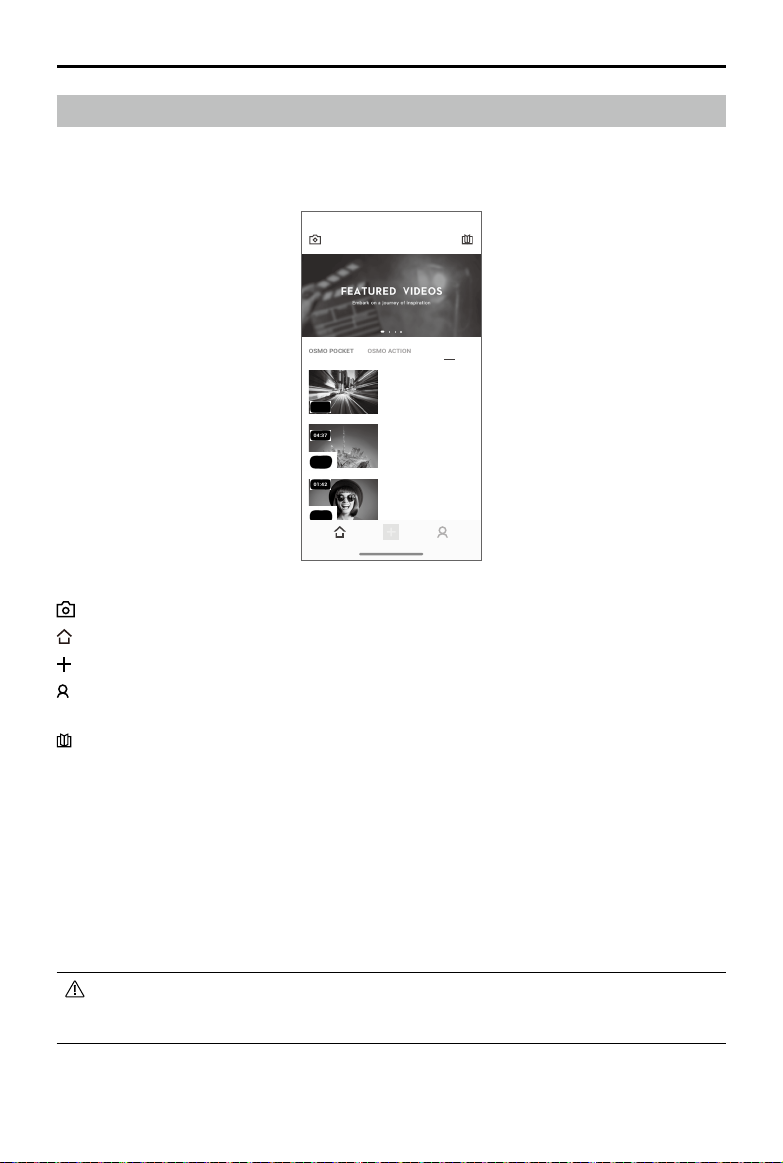
Camera View: tap to connect to Osmo Mobile 3. Once connected, DJI Mimo enters camera view.
Home: tap to return to home.
Edit: tap to edit photos or video from Osmo Mobile 3 or import and edit from a mobile device.
Prole: register or log in to a DJI account. View works and settings, check likes and followers, send
messages to other users, and connect with the DJI Store.
Academy: tap to watch tutorials and manuals.
When connected via Bluetooth, Osmo Mobile 3 is able to control the camera of the mobile phone
without DJI Mimo. This feature is available with a mobile phone which supports camera control using
the volume button.
Connecting to the DJI Mimo App
1. Power on Osmo Mobile 3.
2. Enable Bluetooth on the mobile phone, and connect the device with an OM3 prefix name in DJI
Mimo.
3. When using Osmo Mobile 3 for the first time, activation is required using DJI Mimo. Follow the
instructions to activate.
4. Enter camera view after activation is complete.
DJI Mimo App
Watch a live HD video feed on your mobile screen through the DJI Mimo app. The app also allows you
to use Story mode, Hyperlapse, Timelapse, ActiveTrack 3.0, and Pano, or congure camera and gimbal
settings in just a few taps.
#OSMO POCKET
00:16
04:37
01:42
DJI MIMO
#OSMO POCKET
Learn to use Story Mode and
create fun videos
#Tutorial
Learn how to take easy
Timelapse shots with Osmo
Pocket
#Pano Mode
Quickly master 3X3 panorama
shots
OSMO ACTION
OSMO MOBILE 3
OSMO POCKET
Altri manuali per OSMO MOBILE 3
4
Indice
Altri manuali dji Accessori per fotocamere

dji
dji RONIN 2 Manuale utente

dji
dji OT-111 Manuale utente

dji
dji RSC 2 Manuale utente
dji
dji Thumb Controller Manuale utente

dji
dji Zenmuse Z15-A7 Manuale utente

dji
dji RSC 2 Manuale utente

dji
dji Ronin Manuale utente

dji
dji Remote Start/Stop Manuale utente

dji
dji RONIN 4D Manuale utente

dji
dji crystalsky CS785 Manuale utente