
Doro 8035 Manuale utente
English
Doro 8035

3
2
6
8
9
10
14
1
4
5
11
7
12
15 16 17
13
Note! All illustrations are for illustrative purposes only and may not
accurately depict the actual device.
1. Headset port
2. Earpiece
3. Volume keys
4. Touch display
5. Home key
6. Recents key
7. Power button
8. Proximity sensors
9. Front camera
10. Back key
11. Microphone
12. Charging port
13. Loudspeaker
14. Rear camera
15. Flash
16. Second microphone
17. Assistance button
This guide is for reference only. The actual device, including but not
limited to the colour, size, and screen layout, may vary. The actual device
and the items supplied may vary depending on the software and acces-
sories available in your region or offered by your service provider. Your lo-
cal Doro dealer provides additional accessories. The supplied
accessories provide the best performance with your phone.

English
Contents
How to set up your Doro 8035 ..................................................................... 1
Step 1 – Unbox your new phone .......................................................... 1
Step 2 – Getting started ....................................................................... 2
Step 3 – Insert SIM card and memory card ........................................ 3
Step 4 – Charge .................................................................................... 5
Step 5 – Turn on the phone.................................................................. 6
Step 6 – Startup guide.......................................................................... 6
Get to know your phone ................................................................................ 7
Sign in to Google™.................................................................................. 7
Assistive functions................................................................................. 7
Touchscreen motion and gestures....................................................... 8
Sensors .................................................................................................. 9
Home screen ....................................................................................... 10
Lock screen..........................................................................................10
Screen lock ..........................................................................................10
To use the phone keys ........................................................................11
My applications screen .......................................................................13
Quick and easy way to quiet your phone .......................................14
Status bar ............................................................................................14
Notification panel ................................................................................15
Quick settings panel............................................................................16
Enter text .......................................................................................16
Capture a screenshot..........................................................................19
Connect to the Internet.......................................................................19
Battery..................................................................................................21
Navigate your phone .............................................................................23
Select on-screen actions.....................................................................23
Call..................................................................................................23
View ................................................................................................ 24
Send................................................................................................25
Search ............................................................................................26
Add..................................................................................................26
Snap ...............................................................................................26
Discover.......................................................................................... 27
Listen..............................................................................................27
Set ..................................................................................................27

English
Voice assistant...............................................................................28
Phone settings.............................................................................................29
Where to find the settings ..................................................................29
The date and time ...............................................................................29
Vibrate on touch ..................................................................................30
Screen timeout ....................................................................................30
My wallpaper........................................................................................30
Home screen shortcuts.......................................................................30
My widgets ...........................................................................................31
The text size.........................................................................................32
The screen brightness.........................................................................32
The text contrast..................................................................................32
The colour inversion ............................................................................32
The colour correction ..........................................................................33
Improve accessibility further ..............................................................33
The volume ..........................................................................................33
My ringtone ..........................................................................................34
My audio setup for voice calls ............................................................34
The Bluetooth connection®.................................................................35
Aeroplane mode ..................................................................................36
Connect the phone to a computer ..................................................... 37
My phone information.........................................................................38
Backup .................................................................................................39
Reset the phone ..................................................................................40
Memory and storage ........................................................................... 41
Change the SIM PIN code ...................................................................43
Google™Play Store.......................................................................................44
Install applications ..............................................................................44
Uninstall applications..........................................................................45
Calls..............................................................................................................45
Make a call...........................................................................................45
Answer a call........................................................................................45
End a call .............................................................................................46
Options during a call ...........................................................................46
Headset................................................................................................ 47
Call log.................................................................................................. 47
Call settings ......................................................................................... 47
SOS calls ..............................................................................................48

English
Contacts.......................................................................................................48
Add new contact..................................................................................48
Manage your contacts.........................................................................49
Import and export contacts ................................................................49
How to find the ICE contacts ..............................................................50
An assistance option .............................................................................50
My assistance button ....................................................................50
ICE (In Case of Emergency) ...........................................................52
How to use Remote help ...............................................................53
Applications .................................................................................................53
Beginners guide - Discover your phone .............................................54
Doro Selection .....................................................................................54
Messages.............................................................................................54
Email ....................................................................................................55
Camera.................................................................................................57
Handle pictures in the Gallery............................................................58
Doro Connect & Care ..........................................................................59
My Doro Manager................................................................................63
Google search......................................................................................64
Internet (Web browser) .......................................................................65
Dock mode...........................................................................................65
Magnifier..............................................................................................66
Music....................................................................................................66
Listen to the radio ...............................................................................67
Calendar...............................................................................................67
Alarm ....................................................................................................68
The weather forecast ..........................................................................68
My notes...............................................................................................69
Torch.....................................................................................................69
Timer ....................................................................................................69
Calculator.............................................................................................69
Recorded sounds ................................................................................70
Code safe .............................................................................................70
Google Apps......................................................................................... 71
The cloud .............................................................................................72
Location based services .....................................................................72
Status icons .................................................................................................73
Safety instructions....................................................................................... 74
Network services and costs................................................................ 74

English
Operating environment ....................................................................... 74
Medical units .......................................................................................75
Areas with explosion risk ....................................................................75
Li-Ion battery........................................................................................75
Protect your hearing ............................................................................ 76
Emergency calls................................................................................... 76
GPS/Location based functions .......................................................... 76
Vehicles................................................................................................ 76
Protect your personal data .................................................................77
Malware and viruses...........................................................................77
Care and maintenance ...............................................................................78
Warranty.......................................................................................................79
Specifications ..............................................................................................79
Copyright and other notices................................................................80
Hearing aid compatibility ....................................................................82
Specific Absorption Rate (SAR) ..........................................................82
Correct disposal of this product .........................................................83
Correct disposal of batteries in this product .....................................83
Declaration of Conformity ...................................................................84

English
How to set up your Doro 8035
When you first get your phone, there is a few actions that you need to
take before starting to use it.
Step 1 – Unbox your new phone
The first step is to unbox the phone and assess the items and equipment
included in the delivery. Make sure to read through the manual so you
can familiarise yourself with the equipment and the basic functions.For
more information about accessories or other Doro products please visit
www.doro.com or contact our Helpline.
•The items supplied with the device and any available accessories
may vary depending on the region or service provider.
•The supplied items are designed for this device and may not be com-
patible with other devices.
•Appearances and specifications are subject to change without prior
notice.
•You can purchase additional accessories from your local Doro re-
tailer. Make sure they are compatible with the device before
purchase.
•Only use batteries, chargers and accessories that have been ap-
proved for use with this particular model. Connecting other accesso-
ries may be dangerous and may invalidate the phone's type approval
and warranty.
1

English
Step 2 – Getting started
Before you start using your new phone you may need:
•nano-SIM card. To take full advantage of your new smartphone’s ca-
pabilities, you should install a SIM card. The SIM card will enable
you to place calls or use mobile data to connect to various Internet
services. Your mobile service provider will give you a card and the
codes needed for it (PIN and PUK) when you buy a mobile contract
or a prepaid SIM card. Make sure you get a suitable contract that fit
your needs regarding calls and mobile data.
•Google account. To be able to fully use your new smartphone you
need a Google Account. If you don’t have one yet, no worries, as you
will be guided through a account setup when starting the phone for
the first time. It can however be a good idea to think of a Username
and Password as these will be used for many services, such as
Gmail, Google +, Google Drive, Google Photos and more.
•Memory card (optional). You can use a memory card (MicroSD) to in-
crease the storage space of your phone to be able to store more
files, pictures, videos etc. Insert a memory card, reboot your device
and follow the instruction to select how to use your memory card.
We suggest you to use a high speed memory card.
•Wi-Fi access. If you have a Wi-Fi access point available, it’s always
good to connect to that to reduce costs for data traffic and possibly
increase data speed.
2
English
Step 3 – Insert SIM card and memory card
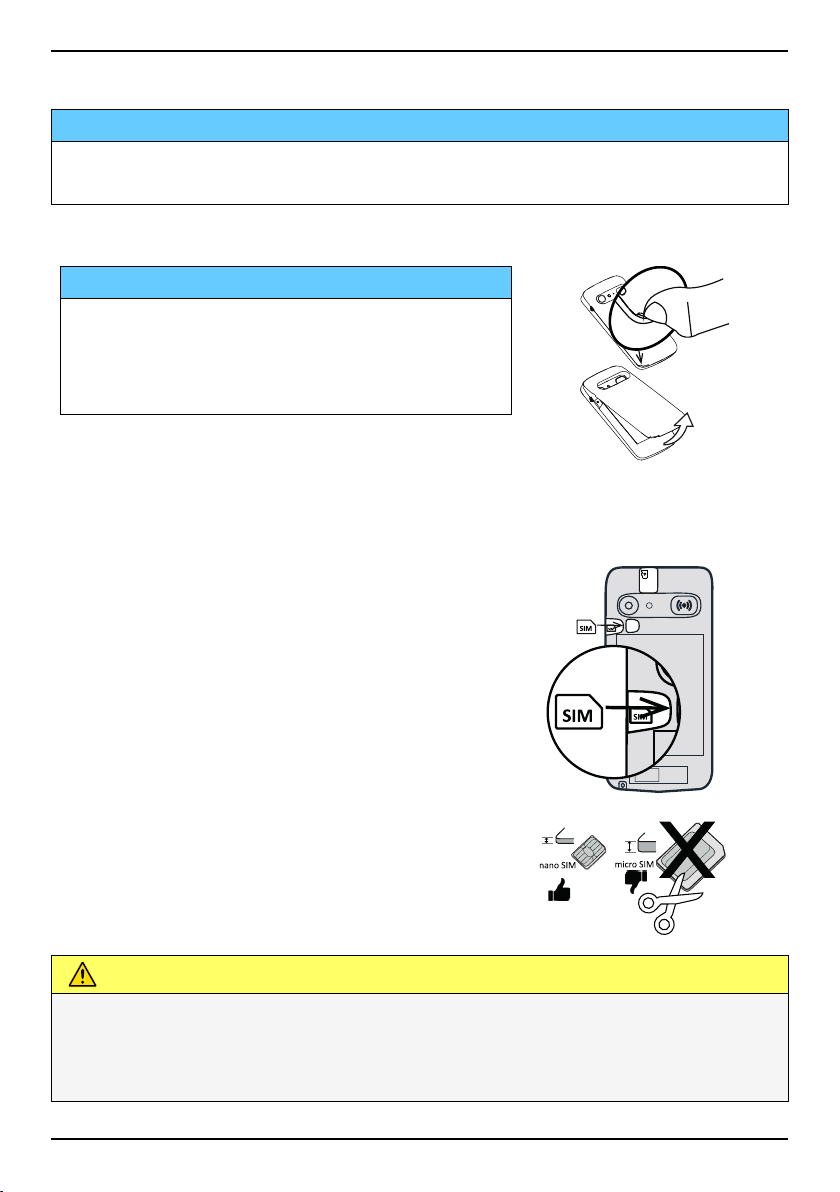
IMPORTANT!
Turn off the phone and disconnect the charger before removing the
battery cover.
Remove the back cover
IMPORTANT!
Be careful not to damage your fingernails
when you remove the battery cover. Do not
bend or twist the battery cover excessively
as it may get damaged.
Insert the SIM card (not included)
Insert the nano-SIM card by gently sliding
it into the SIM card slot. Make sure that
the SIM card’s contacts are facing in-
wards and that the cut off corner is up, as
shown . Take care not to scratch or bend
the contacts on the SIM card. Should you
need, but have problem to remove/re-
place the SIM card, use adhesive tape on
the exposed part of the SIM card to pull it
out.
SIM
SIM
SIM SIM
micro SIM
nano SIM
CAUTION
This device accepts nano-SIM or 4FF SIM card.
Using a modified incompatible card that is thicker than a nano-SIM
card may damage the card itself, the card slot and corrupt any data
stored on the card.
3

English
Insert the memory card (optional and not included)
Tip: Take care not to scratch or bend the
contacts on the memory or SIM card when
inserting them into the card holders.
You may also optionally insert a memory card.
Make sure that the memory card’s contacts
are facing as shown. To remove the memory
card: find the small ridge on the exposed end
of the memory card. Put your fingernail into
the ridge and gently pull the card out.
Replace the back cover.
SIM
GB
G
B
G
B
GB
IMPORTANT!
Use only compatible memory cards with this device. Compatible card
type: microSD, microSDHC.
Incompatible cards may damage the card itself, the device and corrupt
any data stored on the card. Some phones may have a pre-installed
memory card.
See External memory, p.41 for additional info.
Insert the battery
Insert the battery by sliding it into the battery
compartment with the contacts facing up to
the right.
Replace the back cover.
4
Altri manuali per 8035
6
Indice
Altri manuali Doro Telefono cellulare

Doro
Doro 7080 DFC-0310 Manuale utente

Doro
Doro 6030 Manuale utente

Doro
Doro 8080 Manuale utente

Doro
Doro 506 Manuale utente

Doro
Doro Liberto 810 Manuale utente

Doro
Doro 6051 Manuale utente

Doro
Doro PhoneEasy 618 Manuale utente

Doro
Doro 1361 Manuale utente

Doro
Doro 2404 Manuale utente

Doro
Doro Primo 215 Manuale utente

Doro
Doro 1361 Manuale utente

Doro
Doro 8035 Manuale utente

Doro
Doro 2880 Manuale utente

Doro
Doro 8035 Manuale utente

Doro
Doro Primo 366 Manuale utente

Doro
Doro Primo 406 Manuale utente

Doro
Doro PHONEEASY 410GSM Manuale utente

Doro
Doro PhoneEasy 618 Manuale utente

Doro
Doro PHONEEASY 338GSM Manuale utente

Doro
Doro 6820 Manuale utente


