
Drew Technologies DashDAQ XL Manuale utente

1
DashDAQ XL
Instruction Manual

2
Dear Customer,
Congratulations! You have just purchased the most powerful, sophisticated, and easy to use automotive data logger ever created The
DashDAQ XL gives everyone access to the powerful information embedded in their vehicle When it comes to automotive performance,
knowledge is horsepower
The DashDAQ XL works with any OBDII vehicle It can also be fitted to any other vehicle using optional add-ons Now you have a device
that captures information on your new vehicle as well as your vintage one
This is an exciting time for vehicle performance, and the more you know about your vehicle the more you can get out of it The
DashDAQ gives automotive enthusiasts the edge in knowing their vehicle, new or old
Drew Technologies would like to thank you on your decision to buy the DashDAQ XL However you use your DashDAQ, we know you will
be satisfied with all aspects of the product You demand the best, we deliver the best
Thank You,
Drew Technologies, Inc

3
Table Of Contents
Installation............................................................................................................................... 9
SAFETY FIRST! 9
OBDII Connector 9
Cable Routing 9
Attaching Windshield Mount 10
Windshield Mounting 10
Connections 11
SD Memory Card 12
Basic Operation ..................................................................................................................... 12
Off / On / Low Power Mode 12
Menu Navigation 12
Main Menu 14
Setup Menu Map 15
New Vehicle Setup 16
Display Dimmer/Display Brightness 16
Auto Power Off 16
GPS Navigation Setup 16
Custom splash screen 17
Installing Files From SD Card 17
DashDAQ Media Player 18
Gauge Setup & Navigation .................................................................................................... 19
Navigating Gauges: 19
Assign a Signal to a Gauge 19
Set Gauge Min/Max Values 20
Set Gauge Low Warning / High Warning 20

4
Warning Sounds 21
Media PLayer 22
Setting Signal/Graph Colors 22
Data Logging 23
Global Data Logger 24
Diagnostic Co e Rea er ........................................................................................................ 25
Performance Measurements ................................................................................................. 26
1/4-mile, 1/8-mile, 0-60mph Test 26
User Defined Speed Tests 27
Calculators ............................................................................................................................ 28
Installing a calculator driver 28
Setting the parameters for aNY calculator driver 29
Dyno Calculator 29
Fuel Economy Calculator 30
Rescale Signal Calculator 31
Statistics Calculator (Min / Max / Average) 33
Analog Inputs......................................................................................................................... 33
Connections and Wiring 34
Linear Analog input driver Setup 34
LInear Analog driver Correction Factor and Correction Offset 34
Converting an Analog Voltage into Physical Units 35
Non Linear Analog input driver Setup 36
non linear Analog input configuration 36
NON Linear analog input driver configuration file 36
Device Manager/Thir Party Accessories ............................................................................. 37
Licensed DashDAQ Drivers 37

5
Using Device Manager 38
Adding support for Enhanced OBD2 DATA 39
Adjusting Driver Parameters 40
Up ating DashDAQ ................................................................................................................ 41
Install the DashDAQ Recovery Tool 41
Updating DashDAQ 43
APPENDIX .............................................................................................................................. 49
Support 49
Technical Specifications 49
Limited Warranty 50
Appendix a: Accessory Cable Pin Out 51
Appendix b: English to metric conversion unit names 52
6
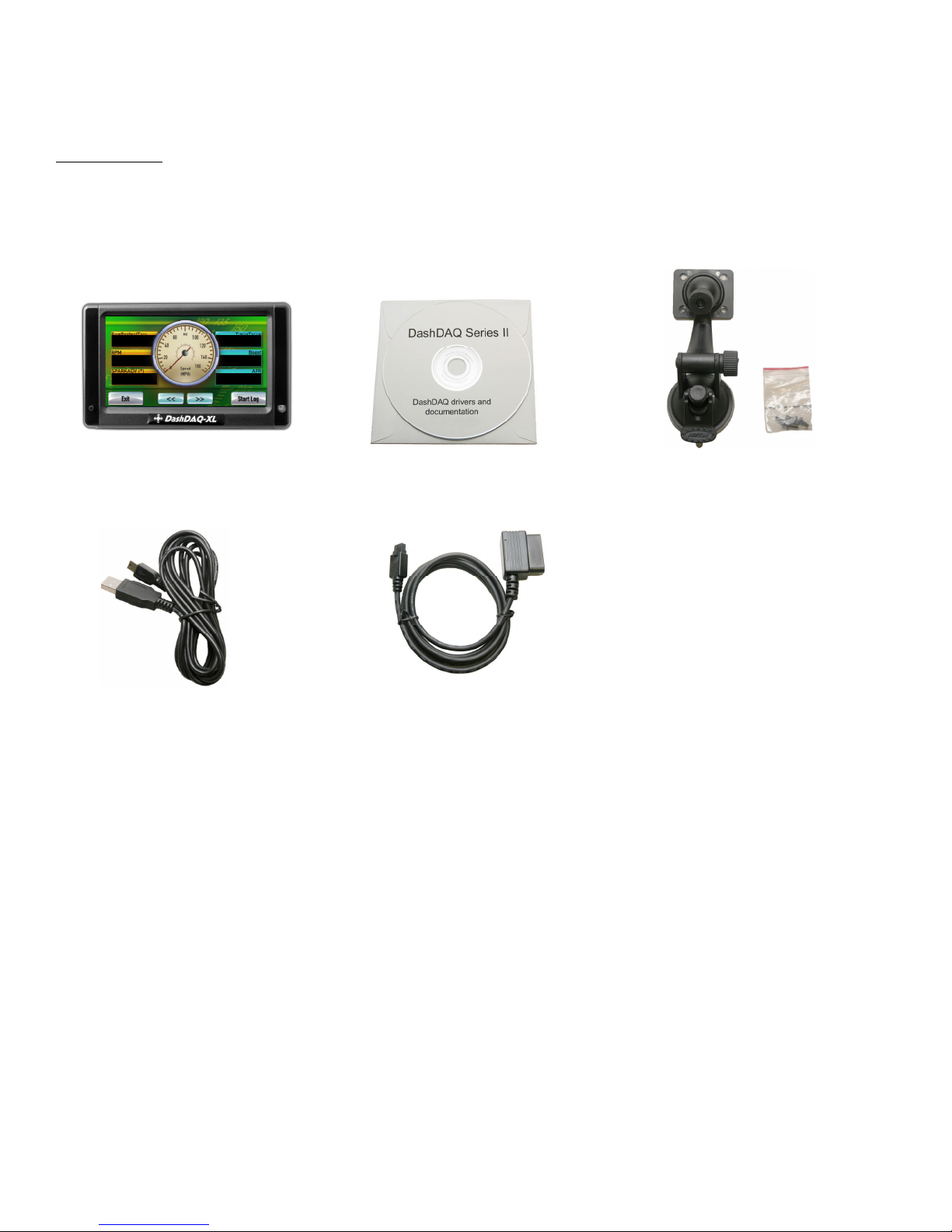
Components
Inclu e with DashDAQ
DashDAQ XL
Software CD
Windshield Mount with four screws
USB Cable
OBD2 Cable

7
Optional DashDAQ Accessories
DashDAQ Accessory Cable
10-pin accessory cable for analog and
serial connection Allows for up to two 0-
5 volt sensors and other third party data
collection devices
SD Me ory Card.
For data logging on DashDAQ Order the
SD Memory card directly from Drew
Technologies or a DashDAQ dealer
110 V Power Supply
Power the DashDAQ outside of your in
the comfort of your home or office
CAN Expansion Cable
8-pin CAN expansion cable is useful
when hard-wiring to CAN, J1850, or
ISO9141 connections such as stand-alone
EFI systems without an OBD2 plug and
CAN-based sensors
GPS Receiver
The GPS receiver allows users to collect
GPS data right alongside any other input
DashDAQ can monitor Speed, latitude,
longitude, and altitude are just a few of
the parameters available

8
IMPORTANT!
THIS IS A HIGH PERFORMANCE PRODUCT, USE AT YOUR OWN RISK
Do not use this product until you have carefully read the following terms and conditions for the use of this product The installation of
this product indicates the BUYER has read and understands this agreement and accepts its terms and conditions This agreement takes
precedence
DISCLAIMER OF LIABILITY
Drew Technologies and its successors, distributors, jobbers, and dealers (hereafter SELLER) shall in no way be responsible for the
product’s proper use and serviceability
THE BUYER HEREBY WAIVES ALL LIABILITY CLAIMS.
The BUYER acknowledges that he/she is not relying on the SELLER’s skill or judgment to select or furnish goods suitable for any
particular purpose and that there are no liabilities which extend beyond the description on the face hereof and the BUYER hereby
waives all remedies or liabilities, expressed or implied, arising by law or otherwise, (including without any obligations of the SELLER with
respect to fitness, merchantability, and consequential damages) or whether or not occasioned by the SELLER’s negligence The SELLER
disclaims any warranty and expressly disclaims any liability for personal injury or damages The BUYER acknowledges and agrees that
the disclaimer of any liability for person injury is a material term for this agreement and the BUYER agrees to indemnify the SELLER and
to hold the SELLER harmless from any claim related to the item of the equipment purchased Under no circumstances will the SELLER be
liable for damages or expenses by reason of use or sale of any such equipment The SELLER assumes no liability regarding the improper
installation or misapplication of its products It is the installer’s responsibility to check for proper installation and if in doubt, contact the
manufacturer
IN THE EVENT THAT THE BUYER DOES NOT AGREE WITH THIS AGREEMENT: THE BUYER MAY PROMPTLY RETURN THIS PRODUCT, IN A
NEW AND UNUSED CONDITION, WITH A DATED PROOF OF PURCHASE, TO THE PLACE OF PURCHASE FOR A FULL REFUND. THE
INSTALLATION OF THIS PRODUCT INDICATES THAT THE BUYER HAS READ AND UNDERSTANDS THIS AGREEMENT AND ACCEPTS ITS
TERMS AND CONDITIONS.
Warning: Minnesota and California state laws restrict the method of attachment and placement of objects to the
windshield and side windows of motor vehicles (See Minnesota Statutes 2005, Section 169 71 and California Vehicle
Code Section 26708(a)) Drew Technologies does not take any responsibility for any fines, penalties, or damages that
may be incurred as a result of disregarding the laws and statutes of the jurisdictions in which a DashDAQ is operated
Similar laws may apply within your province or state Please verify your provincial or state laws prior to installation
Warning: When mounting the DashDAQ to the windshield, place the device in a location where it does not obstruct the
driver’s view of the road and does not interfere with vehicle controls and safety devices or the safe operation of the
vehicle

9
INSTALLATION
SAFETY FIRST!
Install DashDAQ in such a manner that it does not interfere with the safe operation of the vehicle If DashDAQ cannot be mounted in
such a manner, promptly return the DashDAQ, in new and unused condition, with a dated proof of purchase, to the place of purchase
for a full refund less a 20% restocking fee
OBDII CONNECTOR
The OBDII or “data link” connector is necessary for DashDAQ operation in OBDII vehicles Power and all vehicle information come
directly from this vehicle link Some custom applications (aftermarket ECM’s, aftermarket data acquisition equipment, etc ) may not
have an OBDII connector in the vehicle In these cases the connection between the vehicle and DashDAQ is application specific
Most OBDII connectors are found directly below the steering column It should be in plain sight If you cannot find the OBDII connector
have a local mechanic show you where it is
CABLE ROUTING
The DashDAQ OBDII cable must be routed so that it does not interfere with safe operation of the vehicle
Cable routing tips:
• Find the OBDII connector first and work the cable to where DashDAQ is to be mounted on the windshield
• Route the DashDAQ OBDII cable between interior panel grooves to hold the cable as well as conceal it
• Use wire or zip ties to bundle any excess cable
Cable routing “Do nots”
• Do not let the cable dangle by your feet
• Do not let the cable hang free
• Keep the cable away from the steering wheel and any steering column controls
• Golden Rule: If the cable looks to be poorly routed, it is Reroute it

10
ATTACHING WINDSHIELD MOUNT
1 Remove these two items from packaging:
a Display Unit
b Windshield Mount
2 Line up the four holes on the windshield mount and thread each of the four screws into the display unit
3 Using a Phillips head screwdriver, lightly tighten each of the four screws Note: Over-tightening can possibly damage DashDAQ
Tighten the screws so they are snug, no more
Figure 1: Attaching the windshield ount to DashDAQ
WINDSHIELD MOUNTING
Mount DashDAQ on the windshield in a spot that does not obstruct the view of the road or in any way that interferes with the safe
operation of the vehicle
Mounting Suggestions:
Find the vehicle’s OBDII port Plug in the DashDAQ OBDII connector Route the cable safely, (see “Cable Routing” Page 9) and note
where it reaches Mount the DashDAQ in a spot that does not obstruct view based on where the cable ends
• Mount the DashDAQ as low to the dashboard as possible
• Mounting to left or in the middle works well
Altri manuali per DashDAQ XL
1
Indice


