
Dual XGPS150 Manuale utente
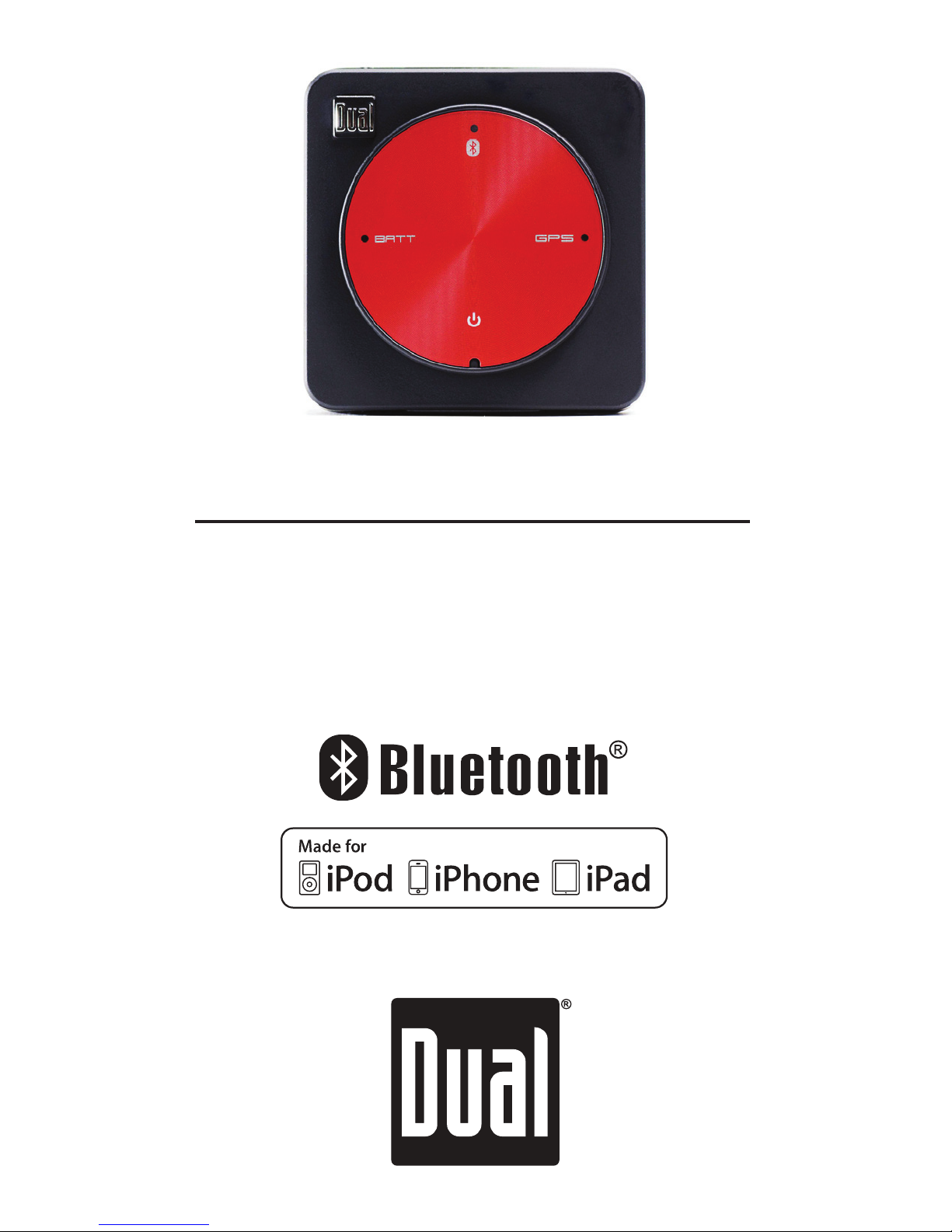
OWNER'S MANUAL
Universal GPS Receiver
XGPS150

XGPS150
2
Introduction
Thank you for purchasing the XGPS150 Universal
Bluetooth®GPS Receiver from Dual Electronics.
The XGPS150 works with signals from GPS satel-
lites to determine your location anywhere in the
world. It then can transmit your location informa-
tion to many kinds of devices which have Blue-
tooth connectivity and support the Bluetooth Serial
3RUW3UR¿OH6337KLVLQFOXGHV
WKHL3KRQH®JHQHUDWLRQVWKURXJK
WKHL3RGWRXFK®JHQHUDWLRQVWKURXJK
WKH¿UVWJHQHUDWLRQRIWKHL3DG®
You can also connect the XGPS150 to many An-
droid®, Windows®or Blackberry®smart phones
and tablets, as well as to notebook computers run-
ning Windows or OS X.
127(1RWDOOPDQXIDFWXUHUVLQFOXGH633LQWKHLU
devices, even if the device has Bluetooth. Please
FRQVXOW WKH RZQHU¶V PDQXDO IRU \RXU VSHFL¿F GH-
vice to determine whether it supports SPP. Some
devices, like Android-based devices, may need a
helper app to connect to the XGPS150. See Pair-
ing with your device for more information.

XGPS150
3
Features
Power switch. Firmly press and hold the power
icon for a moment to turn the device on or off.
Low battery indicator 7KLV OLJKW ZLOO ÀDVK UHG
when the battery level is low and the device re-
TXLUHVUHFKDUJLQJ6HHCharging the XGPS150
During charging, the light will glow red and change
to green when charging is complete. This light is
normally off while the XGPS150 is running.
Bluetooth status indicator. This light will indicate
whether the XGPS150 is searching for a device to
connect to, negotiating a connection with a device,
RUKDVVXFFHVVIXOO\SDLUHGWRDGHYLFH$VORZÀDVK
DERXWRQFHSHUVHFRQGLQGLFDWHVWKH;*36
Power on/off (push firmly &
hold momentarily)
Bluetooth status indicator
GPS status
indicator
Battery level
indicator

XGPS150
Features (cont’d)
is available to connect to another device. A quick
ÀDVK DSSUR[ WLPHV SHU VHFRQG EULHÀ\ KDS-
pens when the XGPS150 is pairing with another
device. A solid glow indicates that the XGPS150
has successfully paired and is communicating with
another device.
GPS status indicator. The GPS indicator will
ÀDVKZKLOHWKH;*36LVVHDUFKLQJIRUVDWHOOLWH
signals. The light will change to a steady green
when your location is successfully determined.
127(ZKHQSDLUHGZLWKDQL3DGL3RGRUL3KRQH
the GPS status light will not illuminate until an app
is actively requesting GPS information.

XGPS150
5
Features (cont’d)
USB connection. The USB connector is used for
charging the XGPS150.
Mode switch. The mode switch must be set for
WKHGHYLFH\RXZDQWWRXVHWKH;*36ZLWK
Switch Position For these devices:
/HIWWRZDUGV86%
FRQQHFWRU
$QGURLG:LQGRZV
Blackberry devices.
/DSWRSVDQGWDEOHWV
5LJKWDZD\IURP86%
FRQQHFWRU
L3RGWRXFKL3DGDQG
iPhone
USB port for charging
Mode switch
Right for iPad/iPod/iPhone
Left for all other devices

XGPS150
6
Setup
The XGPS150 is very simple to use. There is a
one-time setup process to connect it to your iPad,
iPod, smart phone, tablet or laptop computer.
Once this setup process is completed, simply turn
on the XGPS150 to begin using it.
To setup the XGPS150 with your device, you will
QHHGWRGRWZRWKLQJV
6HWWKHPRGHVZLWFKRQWKH;*36IRUWKH
type of device you will be using.
3DLUWKH;*36ZLWKWKHGHYLFH\RXZLOOEH
using.
Setting the mode switch
:LWKWKHWLSRID¿QHEDOOSRLQWSHQPRYHWKHPRGH
VZLWFKWRWKHSURSHUSRVLWLRQ
,I\RXDUHXVLQJWKH;*36ZLWKDQL3DG
iPod touch or iPhone slide the switch right,
away from the USB connector.
7RXVHWKH;*36ZLWKDQ$QGURLG:LQ-
dows or Blackberry smart phone, laptop com-
puter or tablet, move the mode switch to the left,
towards the USB connector.

XGPS150
7
Pairing with your device
Pairing is the process connecting two devices over
Bluetooth and allowing them to communicate. You
will need to go through the pairing process each
time you use the XGPS150 with a new device, and
the XGPS150 will automatically try to reconnect to
the last device it was paired with.
127(,I\RXUGHYLFHUHTXLUHVDFRGHWRFRQQHFW
GXULQJWKHSDLULQJSURFHVVXVH³´RU³´
Pairing the XGPS150 with the iPod touch, iPad
or iPhone
127(WKHVHLQVWUXFWLRQVZHUHZULWWHQXVLQJL26
YHUVLRQDQGPD\EHGLIIHUHQWLI\RXDUHXVLQJD
GLIIHUHQWYHUVLRQRIWKHL3KRQH26
0DNHVXUHWKHPRGHVZLWFKRQWKH;*36
LVVHWFRUUHFWO\IRU\RXUGHYLFHVHHSetup
2QWKHWRXFKL3DGL3KRQHGHYLFHJRWR
Settings->General->Bluetooth
and turn on Bluetooth. The device will automati-
cally begin looking for the XGPS150.
7XUQRQWKH;*367KHEOXH%OXHWRRWK
status light on the XGPS150 will begin to blink
VORZO\DERXWRQFHSHUVHFRQG
$IWHUDIHZVHFRQGVWKH;*36ZLOODSSHDU
as XGPS150-xxxxxx in the list of devices on
WKHWRXFKL3DGL3KRQHVFUHHQ7KHODVWGLJLWV

XGPS150
8
are part of the XGPS150 serial number and
ZLOOEHGLIIHUHQWIRUHDFKXQLW7KHZRUGMisc
may also appear for a few moments before
XGPS150-xxxxxx appears.
7DSXGPS150-xxxxxx in the list of devices to
connect to it. The words “Not Paired” will disap-
pear and be replaced by the spinning cursor.
$IWHUDSSUR[LPDWHO\VHFRQGVWKH
XGPS150-xxxxxx name in the device list will
FKDQJHWREOXHWH[WDQGWKHZRUGConnected
will appear. The blue LED on the XGPS150 will
blink rapidly for a few seconds and then stay
LOOXPLQDWHGFRQ¿UPLQJWKHWZRGHYLFHVKDYH
successfully paired and are communicating.
Pairing the XGPS150 with an Android device
127(WKHVHLQVWUXFWLRQVZHUHZULWWHQXVLQJ$Q-
droid OS version 2.1 and may be different if you
DUHXVLQJDGLIIHUHQWYHUVLRQRIWKH$QGURLG26
0DNHVXUHWKHPRGHVZLWFKRQWKH;*36
LVVHWFRUUHFWO\IRU\RXUGHYLFHVHHSetup
7XUQRQWKH;*367KHEOXH%OXHWRRWK
status light on the XGPS150 will begin to blink
VORZO\DERXWRQFHSHUVHFRQG
2QWKH$QGURLGGHYLFHJRWR
Settings->Applications->Development
and enable the option for Allow mock loca-
tions. This will let the Android device use GPS

XGPS150
9
LQIRUPDWLRQIURPDQH[WHUQDOGHYLFHOLNHWKH
XGPS150.
2QWKH$QGURLGGHYLFHJRWR
Settings->Wireless & networks
and turn on Bluetooth.
2QWKH$QGURLGGHYLFHJRWR
Settings->Wireless & networks->
Bluetooth settings
and select Scan for devices.
$IWHUDIHZVHFRQGVWKHZRUGXGPS150-
xxxxxxZLOODSSHDULQWKHOLVWRIGHYLFHV1RWH
the last 6 digits are part of the XGPS150 serial
QXPEHUDQGZLOOYDU\IURPGHYLFHWRGHYLFH$W
this point, the Android device may say Paired
but not connected and the blue Bluetooth
indicator XGPS150 will continue to blink slowly.
,QRUGHUIRU*36HQDEOHGDSSVWRXVHLQIRUPD-
WLRQIURPDQH[WHUQDO*36\RXZLOOOLNHO\QHHG
to install a helper app on your Android device.
This helper app runs in the background and will
let apps communicate with the XGPS150. Sev-
eral helper apps are available, and we recom-
PHQGXVLQJDIUHHDSSRQWKH$QGURLG0DUNHW
called Bluetooth GPS.
Using the Bluetooth GPS helper app with the
XGPS150
3OHDVHPDNHVXUH\RXKDYHFRPSOHWHGWKH

XGPS150
10
steps above in Pairing the XGPS150 with an
Android device.
'RZQORDGDQGLQVWDOOWKHBluetooth GPS app
IURPWKH$QGURLG0DUNHWSODFH
2SHQWKHBluetooth GPS app and select the
;*36IURPWKHSXOOGRZQPHQXRQWKH0DLQ
tab.
&KHFNWKHER[QH[WWREnable Mock GPS
Provider.
7DSWKHConnect button. Your Android device
will connect to the XGPS150 and begin stream-
ing location data to apps on your device. The
blue Bluetooth indicator on the XGPS150 will
illuminate without blinking.
Pairing the XGPS150 with a Blackberry device
127( WKHVH LQVWUXFWLRQV ZHUH ZULWWHQ XVLQJ D
Blackberry Storm 9550 and may be different if you
are using a different model of Blackberry smart
SKRQH
0DNHVXUHWKHPRGHVZLWFKRQWKH;*36
LVVHWFRUUHFWO\IRU\RXUGHYLFHVHHSetup
7XUQ RQ WKH ;*36 7KH EOXH %OXHWRRWK
light on the XGPS150 will begin to blink slowly
DERXWRQFHSHUVHFRQG
)URPWKH%ODFNEHUU\PDLQPHQXJRWR
Manage Connections
Altri manuali per XGPS150
1
Indice
Altri manuali Dual GPS

Dual
Dual NavAtlas XNAV3500P Manuale utente

Dual
Dual NavAtlas XNAV3550 Manuale utente

Dual
Dual XGPS160 Manuale utente

Dual
Dual XGPS160 Manuale utente

Dual
Dual XGPS170 Manuale utente

Dual
Dual XGPS190 Manuale utente

Dual
Dual XGPS150 Manuale utente

Dual
Dual XGPS170 Manuale utente

Dual
Dual NavAtlas XNAV3550 Manuale utente

Dual
Dual XDVDN9131 Istruzioni operative


