E&J COP 15-DVR15RT-600 Guida rapida

E&J Fire and Security - Digital Video Recording System
DIGITAL VIDEO RECORDING SYSTEM
DVR (Model: COP 15-DVR16RT-600)
User & Engineer Manual (Ver 1 – 3.21)
DVR SYSTEM

Revised Edition
November 2004
All rights reserved. This material, information and instructions for use contained herein are the
property
nsmitted, transcribed, stored in a retrieval system, or translated into any
languages in any form or by any means, except documentation kept by the purchaser for backup
purposes, without the express written permission ofberVision Inc. provides this manual “AS IS” without warranty of any kind, either
express or implied, including but not limited to the implied warranties or conditions of
merchantability or fitness for a particular purpose. In no event shall, its
directors, officers, employees or agents be liable for any indirect, special, incidental, or
consequential damages (including damages for loss of profits, loss of business, loss of use or data,
interruption of businesshef
r error in this manual or product.
Specifications or information contained in this manual are furnished for informational use only,
and are subject to change at any time without notice, and should not be constructed as a
commitmen manual, including the products and software
described in it.
Trademarks. Product and cooperate names appearing in this manual may or may not be
registered trademarks or copyrights of their respective companies, and are used only for
identification or explanation and to the owners’ benefit, without intent to infrie.
Translated material. Any dipancies, errors or omissions in non-Engversions of this
manual should be referenced to the English version for clarification.
Inc.
8F, No. 147,
Hsien-cheng 9th Road,
Chu-pei City, Hsin-chu Hsien,
Taiwan R.O.C.
Telephone: +886 (3) 553 8998
Fax: +886 (3) 553 8968
World Wide Web: http://ww
.tw
COP SECURITY SYSTEM CORP.
LINUX DVR USER MANUAL
Version 3.21
English
EMBEDDED-LINUX DVR

LINUX DVR User Manual
Revised Edition
March 2005
Copyright © 2000-2005 COP SECURITY SYSTEM CORP.
All rights reserved. This material, information and instructions for use contained herein are
the property of COP SECURITY SYSTEM CORP.No part of this manual, including the
products and software described in it, may be reproduced, transmitted, transcribed, stored in
a retrieval system, or translated into any languages in any form or by any means, except
documentation kept by the purchaser for backup purposes, without the express written permission
of COP SECURITY SECURITY CORP.
Liability. COP SECURITY SYSTEM CORP.provides this manual “AS IS” without warranty
of any kind, either express or implied, including but not limited to the implied warranties
or conditions of merchantability or fitness for a particular purpose. In no event shall
COP SECURITY SYSTEM CORP.its directors, officers, employees or agents be liable
for any indirect, special, incidental, or consequential damages (including damages for loss
of profits, loss of business, loss of use or data, interruption of business and the like), even if
COP SECURITY SYSTEM CORP.has been advised of the possibility of such damages arising
from any defect or error in this manual or product. Specifications or information contained in this
manual are furnished for informational use only, and are subject to change at any time without
notice, and should not be constructed as a commitment by COPSECURITY SYSTEM CORP.
COP SECURITY SYSTEM CORP. assumes no responsibility or liability for any errors or
inaccuracies that may appear in this manual, including the products and software described in it.
Trademarks. Product and cooperate names appearing in this manual may or may not be
registered trademarks or copyrights of their respective companies, and are used only for
identification or explanation and to the owners’ benefit, without intent to infringe.
Translated material. Any discrepancies, errors or omissions in non-English versions of this
manual should be referenced to the English version for clarification.
ii
Cop Security System Corp.
4~7F, No. 5, Lane 130, Min-Chung
Rd, Hsin Tien City, Taipei,
Taiwan R.O.C. (231)
Telephone: +886 (2)2218-0302
Fax: +886 (2)2218-1480
World Wide Web: http://www.cop-security.com
Email – Sales & Enquires: sales@cop-security.com

Contents
1. PRODUCT CHARACTERISTICS...............................................................................................................1
2. MAIN SCREEN..............................................................................................................................................3
2-1 DISPLAY MODE ................................................................................................................................................4
2-2 HARD DISK FREE SPACE ..................................................................................................................................5
2-3 RECORDING & DI/DO STATUS .........................................................................................................................6
3. PLAYBACK ....................................................................................................................................................7
3-1 SEARCH FOR RECORDED DATA .........................................................................................................................8
3-2 SAV E TO FLOPPY ..............................................................................................................................................8
3-2 SAV E TO FLOPPY ..............................................................................................................................................9
3-3 SAV E TO CD-R/RW........................................................................................................................................10
3-3-1 The Burning Procedures........................................................................................................................11
4. SYSTEM SETTINGS...................................................................................................................................13
4-1 CAMERA SETUP..............................................................................................................................................14
4-2 PTZ ...............................................................................................................................................................17
4-3 VIEW SETUP...................................................................................................................................................19
4-4 USER ACCOUNT MANAGEMENT .....................................................................................................................20
4-5 DI/DO ...........................................................................................................................................................23
4-6 ALARM NOTICE..............................................................................................................................................25
4-7 SYSTEM..........................................................................................................................................................29
4-7-1 Time Server ...........................................................................................................................................30
4-7-2 Other Functions ....................................................................................................................................31
4-8 NETWORK SETUP.........................................................................................................................................32
4-8-1 Remote Monitor.....................................................................................................................................33
4-8-2 Remote Setup.........................................................................................................................................33
4-8-3 Network Share.......................................................................................................................................33
4-9 DISK...............................................................................................................................................................34
5. REMOTE OPERATION..............................................................................................................................35
5-1 DOWNLOAD PLAYER ......................................................................................................................................36
5-2 REMOTE MONITOR VIA MPEG4.....................................................................................................................36
5-3 REMOTE MONITOR VIA JPEG.........................................................................................................................39
5-4 REMOTE PLAYBACK .......................................................................................................................................40
iii

5-5 DVR PLAYER.................................................................................................................................................42
5-6 DVR REMOTE SETUP.....................................................................................................................................43
5-7 DVR REMOTE BACKUP .................................................................................................................................44
6. APPENDIX ...................................................................................................................................................45
A. COMPATIBLE PC HARDWARE ......................................................................................................................45
B. MAIN MENU ...............................................................................................................................................47
C. FAQ............................................................................................................................................................48
D. INTERNET CONNECTION..............................................................................................................................50
E. MAINTENANCE ...........................................................................................................................................52
F. WARRANTY.................................................................................................................................................53
G. CUSTOMER SERVICE ...................................................................................................................................54
iv

1. Product Characteristics
Optimum Replacement for Time-lapse Recorder
Traditional Time-lapse Recorder is a mechanical device. It is very easy to break down after
long-term operation and it causes many problems such as: the overly used magnetic heads
which cause blurred image; tapes need to be changed often and manually; the recording time is
not long enough; the management of recorded tapes is complicated; inefficient when trying to
locate the needed data; recording a huge amount of useless images, etc.
SuperVision adopts digital recording technology. The quality of images will not deteriorate
with time. With its high compression rate, the storage time can last for months under normal
applications. The overwrite operation mode will overwrite the earliest data, and no more tape
change is required. Motion detection function will enable the recording only when there is
motion of the objective, and makes the system and data retrieval more efficient.
High Reliability
Normal PC digital surveillance system adopts the MS-Windows OS (Operating Systems). Such
kind of system is so often to crash. It usually makes a negative impression which digital
surveillance system is unreliable.
SuperVision adopts Embedded-Linux OS. Our advanced embedded technology condenses the
entire system into a tiny flash module, which makes the system more reliable. Even when the
power fails, the system will re-boot and return to normal operation in less than one minute.
Longer Recording Days
SuperVision adopts the advanced MPEG-4 compression to store the video images. It allows
you to record more data on the same capacity of hard disks.
1

Ease of Operation
Mouse clicking on the Graphical User Interface controls all the operations. No keyboard is
needed so that it is most suitable for the security guards and normal non-IT based users to use.
Multi-Function
Function of one set of SuperVision = Time-lapse Video Cassette Recorder + Multiplexer
processor + Motion Detection Processor
You can backup the data to CD-R/RW, remotely monitor the images and still recording the
current video data at the same time.
2

2. Main Screen
Display Mode
Date/Time
Playback
System Settings
HD Free Space
Status
Recording &
DI/DO Status
Full Screen Monitoring
Sequencer
On the right of the screen is the “status display”. From top to bottom you can see , Hard Disk
Free Space, followed by 3 columns and 16 rows, which signify Recording Status (1st column),
DI Receiving Status (2nd column), and DO Output Status (3rd column).
From left to right on the bottom of the screen you can see “7 Display Modes”, “Date/Time”,
“Full Screen Monitoring”, “Playback” and “System Settings”. Clicking on the button operates
all functions.
Note that whenever you click this button , the system will return to the main screen.
3

2-1 Display Mode
The 7 icons on the bottom of the Main Screen are Display Mode selections.
There are 4 splits, 6 splits, 8 splits, 9 splits, 10 splits, 13 splits, and 16 splits. The default
display mode is 16 splits. The cameras displayed on each split mode can be modified in the
system setting menu.
Besides the different kinds of split modes, you can click in a camera image on any split screen
to show the full screen of that specific camera as shown in the example below.
In the full screen mode the “Screen Adjustment Parameters” will locate at the bottom of the
screen. These parameters are “contrast”, “brightness”, “chroma”, and “saturation”.
When a Speed Dome is connected and the system is in full screen mode, PTZ control buttons
will pop up in the lower right of the screen. These controls include “Zoom in”, “Zoom out”,
“Auto Focus”, “Focus Near”, “Focus Far”, and “PTZ Speed”.
Zoom In
Zoom Out
Chroma Saturation
Brightness
Focus Far
Focus Near
PTZ Speed
Preset Point
Auto Pan
Auto Focus
Contrast
4

2-2 Hard Disk Free Space
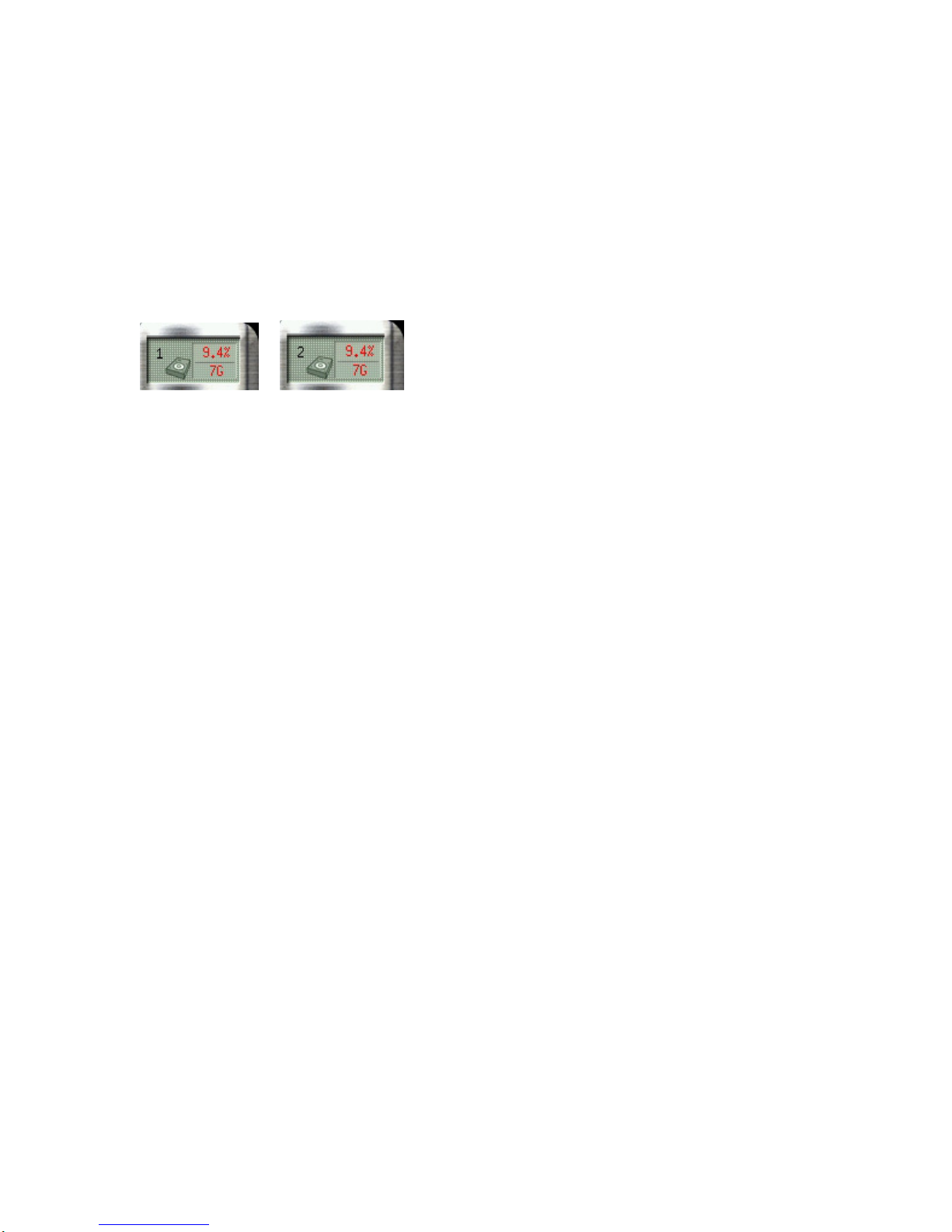
On the right side of the main screen, you can find the free space of hard disks. If there are
more than one hard disk is connected, it will display the status of each HD every 5 seconds.
When you start using a new hard disk (for example, a hard disk with capacity 80GB), the
percentage of free space will be very close to 100% (e.g. 99%), and the color will be BLUE.
However, as recording continues, the available space will diminish. When the remaining
available space is less than 4GB, the display color will change to ORANGE. This serves as a
warning message that the system will soon enter the Recycle Mode; which means, the earliest
recorded data will be replaced by the newest recording data. If you would like to keep all the
data, this is the time to swap a new hard disk.
If the disk has not been changed and the recording continues, the system will go into Recycle
Mode when the hard disk free space is less than 1GB. The color of “Hard Disk Free Space”
will turn RED.
5
Questo manuale è adatto per i seguenti modelli
1
Indice