
EastLink Maestro ARRIS MS4000 Manuale di programmazione

Maestro Media Streamer
ARRIS MS4000 Installation and Troubleshooting
Manual
Version 2.2

2
This page left intentionally blank

3
Table of Contents
Introduction 4
Features 4
Hardware Installation 5
Light Sequencing 5
Follow Me TV Mobile Application 6
oAndroid Installation 6
oAdd Media Player 8
oiOS Installation 11
oAndroid App Removal 15
oiOS App Removal 17
oGuide 18
oStreaming 18
oRemote Control 19
oRecording 19
oRecorded TV 20
oSettings 20
Media Player Names 21
Un-pairing Using APP 21
Un-pairing from a Media Player 22
Force Closing Apps (iOS and Android) 23
Troubleshooting 24
Airplay and Chromecast Support 26

4
Introduction
The ARRIS MS4000 Media Streamer takes the Maestro User Experience to a whole new level.
Eastlink Maestro customers can now stream their live and recorded content to most Android
and iOS (Apple) devices while in their home.
Additionally, Eastlink will also be allowing some content to be streamed outside of the home!
Unfortunately not all content is permitted to be streamed outside of the subscriber’s home
network, however Eastlink will strive to provide more and more outside of the home steaming
as it is made available.
Many other features will be detailed in this module as well. All of this is accomplished with the
installation of the ARRIS MS4000 Media Steamer and the Follow Me TV Mobile Application.
This device and application is feature rich and will bring the Eastlink Maestro experience to our
customer’s mobile devices.
Features
View Live TV or recorded DVR content on you iOS and Android devices.
View up to 4 simultaneous streams in the home
View no more than 1 stream outside of the home.
Adaptive bitrate - video quality is automatically adjusted for available bandwidth
with streaming with up to HD resolution.
Utilizes Sling box technology.
Simplified setup.
Uses the familiar Maestro App, with integrated with DVR management, parental
controls, and favorite channels.
Compatible with iOS 7+ and Android 4.0+
In-home streaming does not stream via the internet nor consume internet
bandwidth.
Each stream of Live TV will consume a tuner while programming is being watched.
Recorded content does not consume a tuner.
External streaming is not available outside of Canada.
5
Hardware Installation
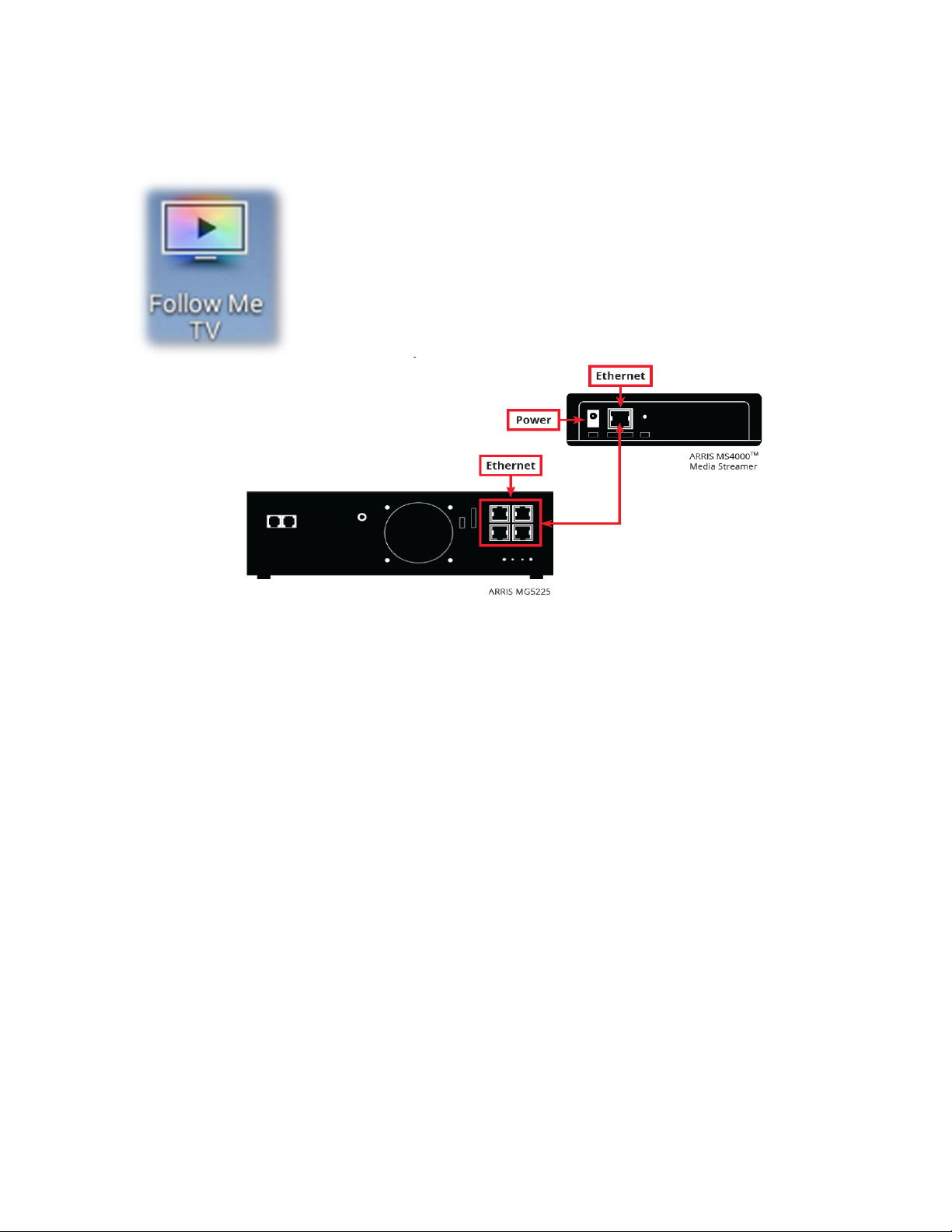
Hardware installation of the ARRIS MS4000 Media Streamer is quite simple.
Unpack the ARRIS MS4000, connect the device to an open Ethernet port on the
Maestro Gateway with the included Ethernet cable and then power the device.
The ARRIS MS4000 will take approximately 2-5 minutes to connect to the network.
Once online, hardware installation is complete.
Features and functionality of the ARRIS MS4000 Media Streamer are accessed VIA
either the Android or iOS (Apple) Follow Me TV Mobile Application Version 3.0 or
higher.
6
Light Sequencing
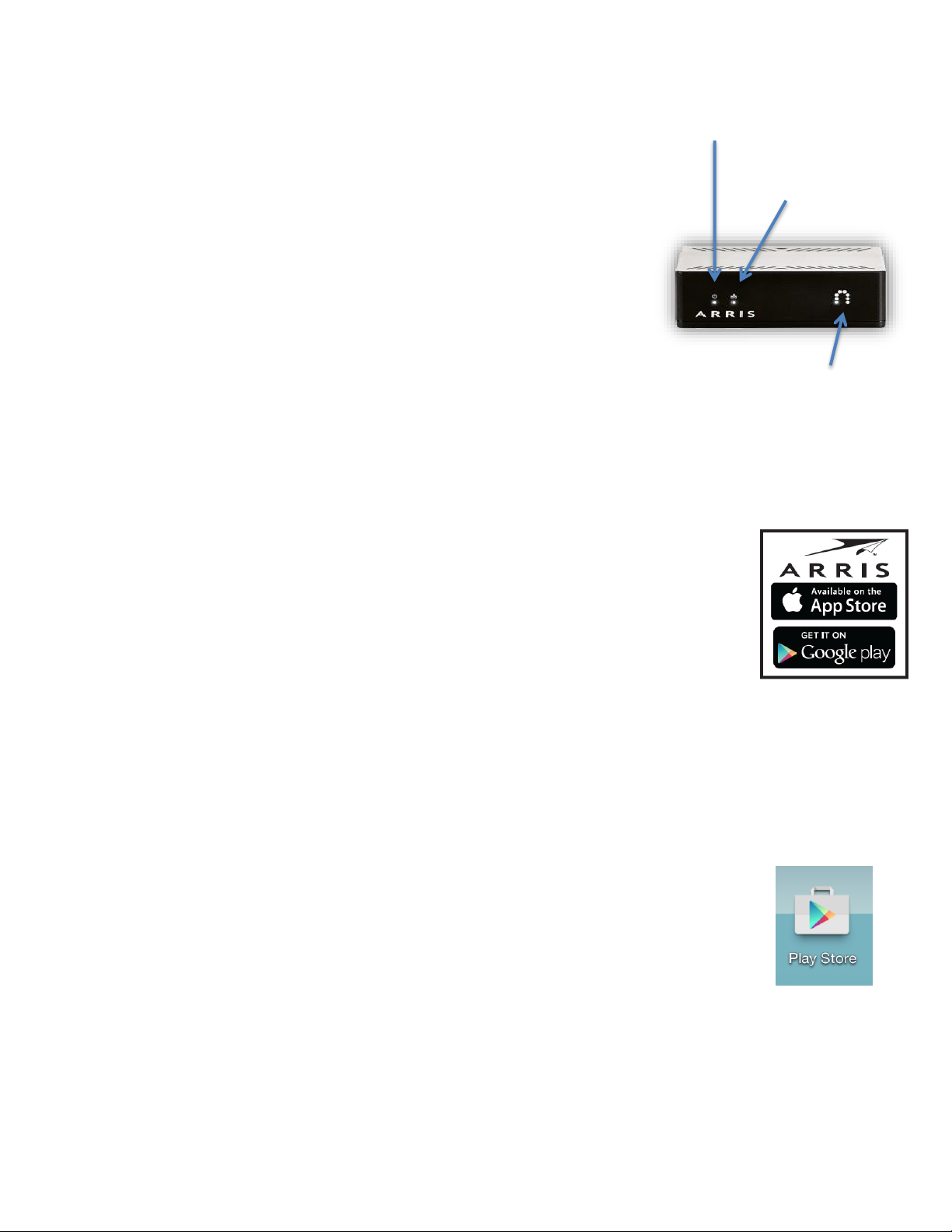
Power LED –Solid when connected to power
Network Connection –Flashing while acquiring a
connection, solid when successfully connected to the
Maestro Gateway
Streaming in Progress –Solid while streaming to a
mobile device
Note: If network connection continues to flash for more than five
minutes after connecting –reboot the gateway. Once completed,
power cycle the Media Streamer
Follow Me TV App Installation
The ARRIS MS4000 requires installation of the Follow Me TV Mobile Application.
Existing Eastlink Customers that are utilizing the Eastlink Maestro App on Apple
iOS products will be required to remove the Eastlink Maestro App and install the
ARRIS App.
We will now review how to install the Follow Me TV
Mobile Application on both an Android and iOS devices. It is
recommended that the customer download and install the application
to the point where pairing is required.
Android App Installation
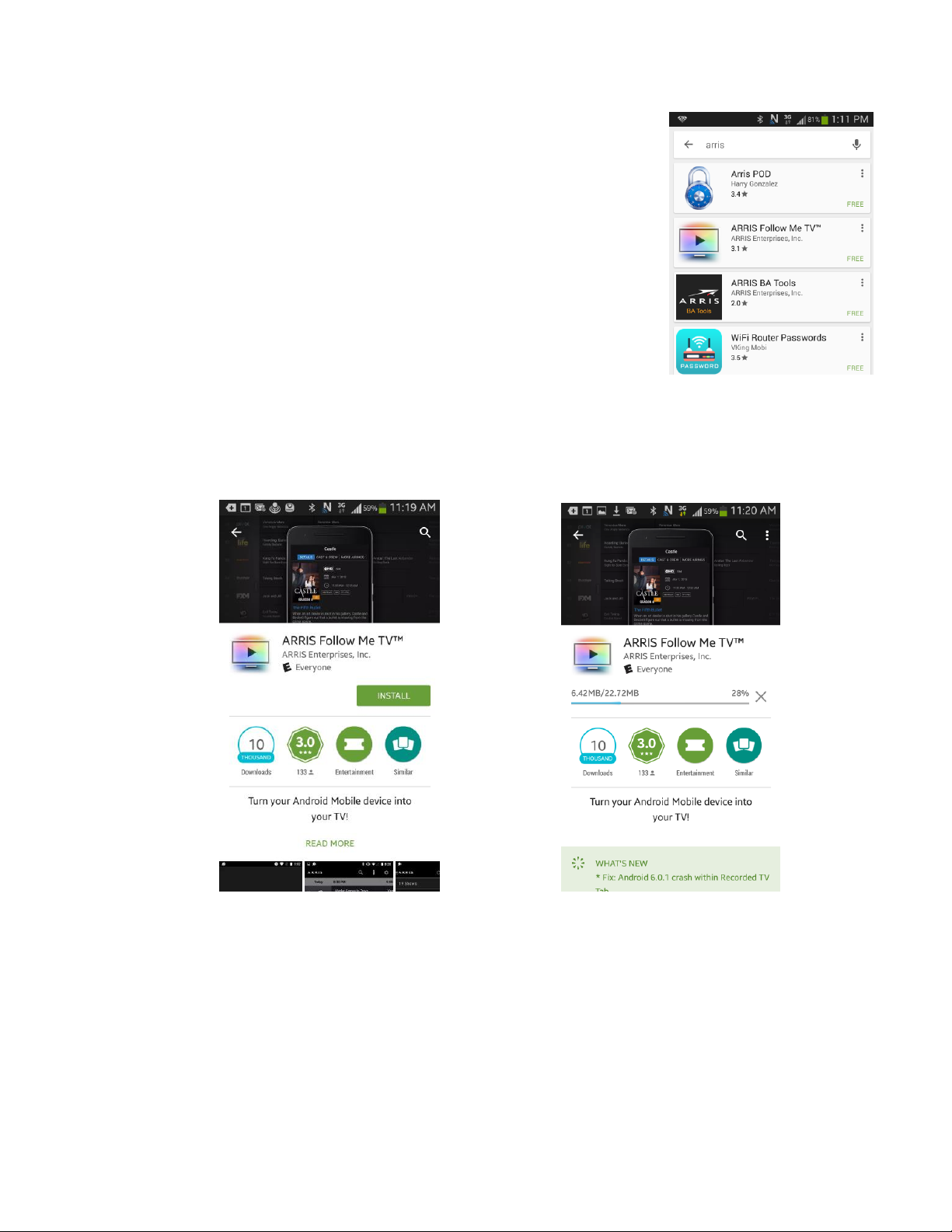
Open the Play Store on the Android device enter ARRIS in the search window and
select ARRIS Follow Me TV.
Note: Ensure that you are connected to the Maestro
Wi-Fi for App Installation and Pairing.
Power
Network
Connectio
n
Streaming
in progress
7
Failure to do so will result a failed installation while
pairing the App to the Media Player.
Select ARRIS Follow Me TV.
Select “Install”
The App will begin downloading/installing

8
Next, open the App from either the Play Store,
or from the application Icon.
You will be prompted to read and accept the
terms of use for the app. This must be
completed by the customer, as they are the
intended user of the application.
Adding a Media Player
On a Maestro Media Player browse to the settings card from the horizontal menu.
Scroll to “Eastlink Maestro” or if listed twice, to the top “Access to Media Player”.
Typically “Access to Media Player” will be listed twice if there are no devices paired to the
Maestro network. Once a device is paired, the top “Access to Media Player” entry in settings
will change to “Eastlink Maestro”.

9
Your choices in this settings menu are
“remove all”, “add” and “close”.
Select “Add”
A code will be displayed on the screen of the television.
Enter that code in the app and select “Connect”
10
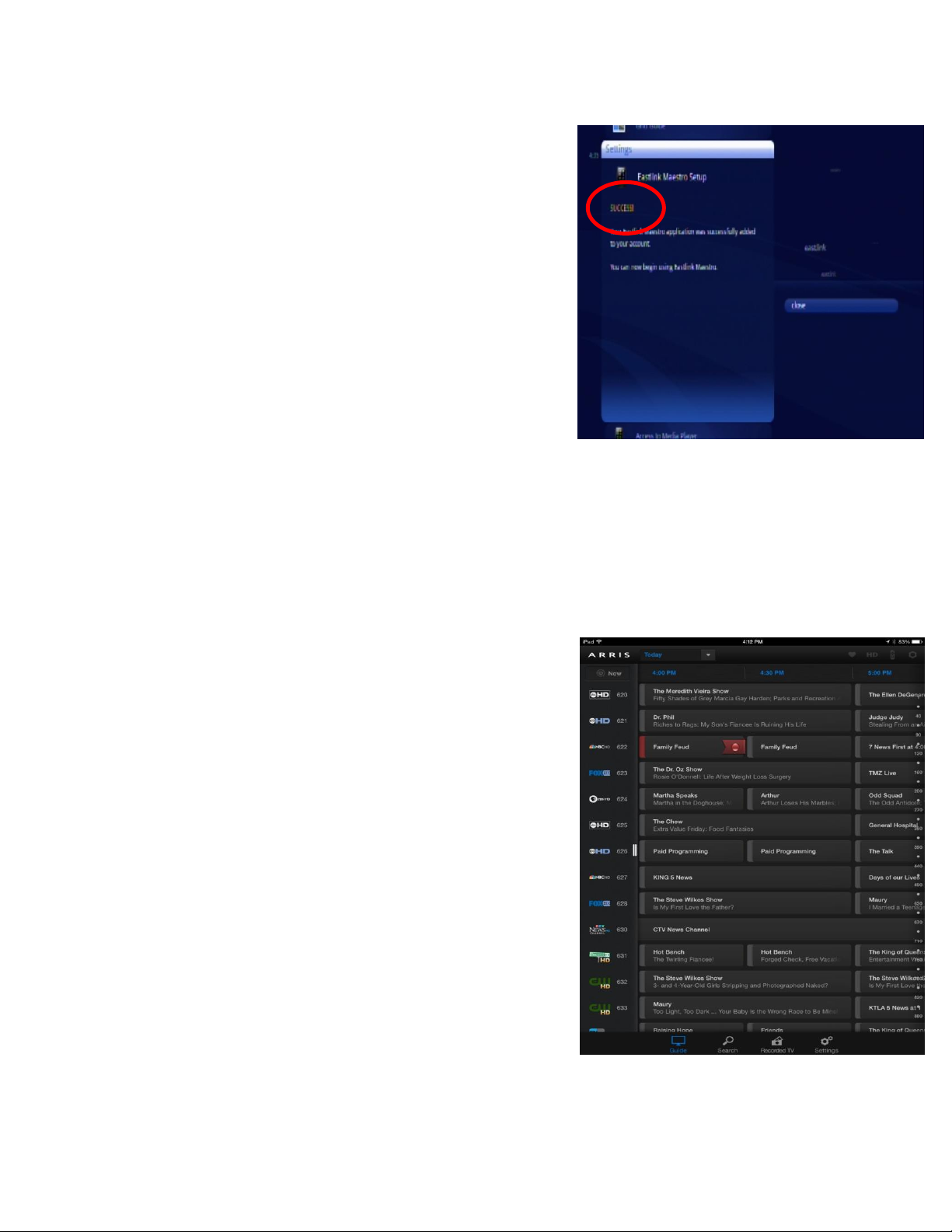
“SUCCESS” will be displayed on the television
screen.
The app will then begin to download guide data.
This may take a few moments for the first use.
The installation is now complete.
Indice


