
Element P303BT Manuale utente

Element P303BT User Guide I Page 1of 53
P303BT
Scanner User Manual
Rev 1.01

Element P303BT User Guide I Page 2of 53
Table of Contents
1 Getting Started..........................................................................................................................................4
1.1 About This Guide...............................................................................................................................................4
1.2 Barcode Scanning ..............................................................................................................................................4
1.3 Factory Defaults.................................................................................................................................................4
1.4 Firmware Version Number ................................................................................................................................ 4
2 Communication Interfaces........................................................................................................................5
2.1 Bluetooth Scanner Setting.................................................................................................................................5
2.1.1 Connect with Bluetooth Cradle...................................................................................................................5
2.1.2 Bluetooth Keyboard..................................................................................................................................... 5
2.1.3 Bluetooth serial port ...................................................................................................................................5
2.1.4 Country Keyboard Types..............................................................................................................................5
2.1.5 Convert Case................................................................................................................................................7
2.1.6 Input Method ..............................................................................................................................................7
2.1.7 Power Setting ..............................................................................................................................................8
2.1.8 Standby time ...............................................................................................................................................8
2.2 Bluetooth Cradle/Dongle Settings.....................................................................................................................8
2.2.1 Cradle Factory Defaults ...............................................................................................................................8
2.2.2 Baud Rate ....................................................................................................................................................8
2.2.3 Data Bit & Parity Check & Stop Bit ..............................................................................................................9
2.2.4 Cradle Country Keyboard Types................................................................................................................10
2.2.5 USB Interface.............................................................................................................................................11
2.2.6 USB COM Port Emulation ..........................................................................................................................11
2.2.7 Transmission rate......................................................................................................................................12
2.2.8 Transmission Mode ...................................................................................................................................12
2.2.9 Synchronous transfer mode ......................................................................................................................12
2.2.10 Asynchronous transfer mode ..................................................................................................................12
2.2.11 Mass storage mode .................................................................................................................................12
3 General Configuration.............................................................................................................................14
3.1 Trigger Mode ...................................................................................................................................................14
3.2 Presentation Mode..........................................................................................................................................14
3.3 Auto Sense.....................................................................................................................................................154
3.4 Inverse color ....................................................................................................................................................15
3.5 Illumination .....................................................................................................................................................16
3.6 Good Read Beeper...........................................................................................................................................18
3.7 Good Read Beeper Volume .............................................................................................................................18
3.8 Good Read Delay .............................................................................................................................................19
3.9 Reread Delay....................................................................................................................................................19
4 Data Formatting ......................................................................................................................................20
4.1 General Configuration ...................................................................................................................................200
4.2 Add Prefix ........................................................................................................................................................21
4.3 Add Suffix.........................................................................................................................................................22

Element P303BT User Guide I Page 3of 53
4.4 Clear All Prefix and Suffix.................................................................................................................................22
5 Symbologies ............................................................................................................................................23
5.1 General Setting................................................................................................................................................23
5.1.1 Enable/Disable All Symbologies ................................................................................................................23
5.2 Code 128..........................................................................................................................................................23
5.3 EAN-8...............................................................................................................................................................24
5.4 EAN-13.............................................................................................................................................................26
5.5 UPC-E...............................................................................................................................................................28
5.6 UPC-A...............................................................................................................................................................32
5.7 Interleaved 2 Of 5............................................................................................................................................34
5.8 Matrix 2 Of 5....................................................................................................................................................35
5.9 Industrial 2 Of 5...............................................................................................................................................36
5.10 Code 39..........................................................................................................................................................37
5.11 Coda Bar ........................................................................................................................................................39
5.12 Code 93..........................................................................................................................................................40
5.13 GS1-128 .........................................................................................................................................................41
5.14 Code 11..........................................................................................................................................................42
5.15 PDF 417..........................................................................................................................................................43
5.16 QR Code.........................................................................................................................................................44
5.17 Data Matrix....................................................................................................................................................45
5.18 Maxi code ......................................................................................................................................................45
5.19 Aztec..............................................................................................................................................................46
6 Appendix .................................................................................................................................................48
6.1 Appendix 1: AIM ID Table ................................................................................................................................48
6.2 Appendix 2: ASCII Table...................................................................................................................................49
6.3 Appendix 3: Digit Barcodes..............................................................................................................................53

Element P303BT User Guide I Page 4of 53
1Getting Started
1.1 About This Guide
This guide provides programming instructions for the Element 2D Barcode Reader. Users can configure the Element 2D
Barcode Reader by scanning the programming barcodes included in this manual.
1.2 Barcode Scanning
The Element 2D Barcode Reader features fast scanning and decoding accuracy. Barcodes rotated at any angle can still
be read with ease. When scanning a barcode, simply center the aiming beam or pattern projected by the Element 2D
Barcode Reader over the barcode.
1.3 Factory Defaults
Scanning the following barcode can restore the engine to the factory defaults.
Note: Use this feature with discretion.
Restore All Factory Defaults
1.4 Firmware Version Number
Scanning the barcode below can display the firmware version number.
Display The Firmware Version ( Cradle )
Display The Firmware Version ( Barcode Reader )

Element P303BT User Guide I Page 5of 53
2Communication Interfaces
2.1 Bluetooth Scanner Setting
Press the scanner`s button for 3s ,then it is powered on.
2.1.1 Connect with Bluetooth Cradle
STEP1:Scan the barcode stuck at the bottom of the cradle, wait for connection.
2.1.2 Bluetooth Keyboard
STEP1:Scan the barcode below to start a new connection. The scanner will be discoverable in 120s.
Bluetooth keyboard
STEP2:Set your personal laptop or tablet so it searches for other Bluetooth devices.
STEP3:Select the scanner name (named after 12 SN characters) on your device, the scanner will work as a keyboard.
2.1.3 Bluetooth serial port
STEP1:Scan the barcode below to start a new connection. The scanner will be discoverable in 120s.
Bluetooth serial port
STEP2:Set your personal laptop or tablet so it searches for other Bluetooth devices.
STEP3:Select the scanner name (named after 12 SN characters) on your device, the scanner will work as a keyboard.
2.1.4 Country Keyboard Types
Keyboard layouts vary from country to country. The default setting is U.S. keyboard.
If your interface is Bluetooth Keyboard, scan the Keyboard Country barcode below to change this layout.

Element P303BT User Guide I Page 6of 53
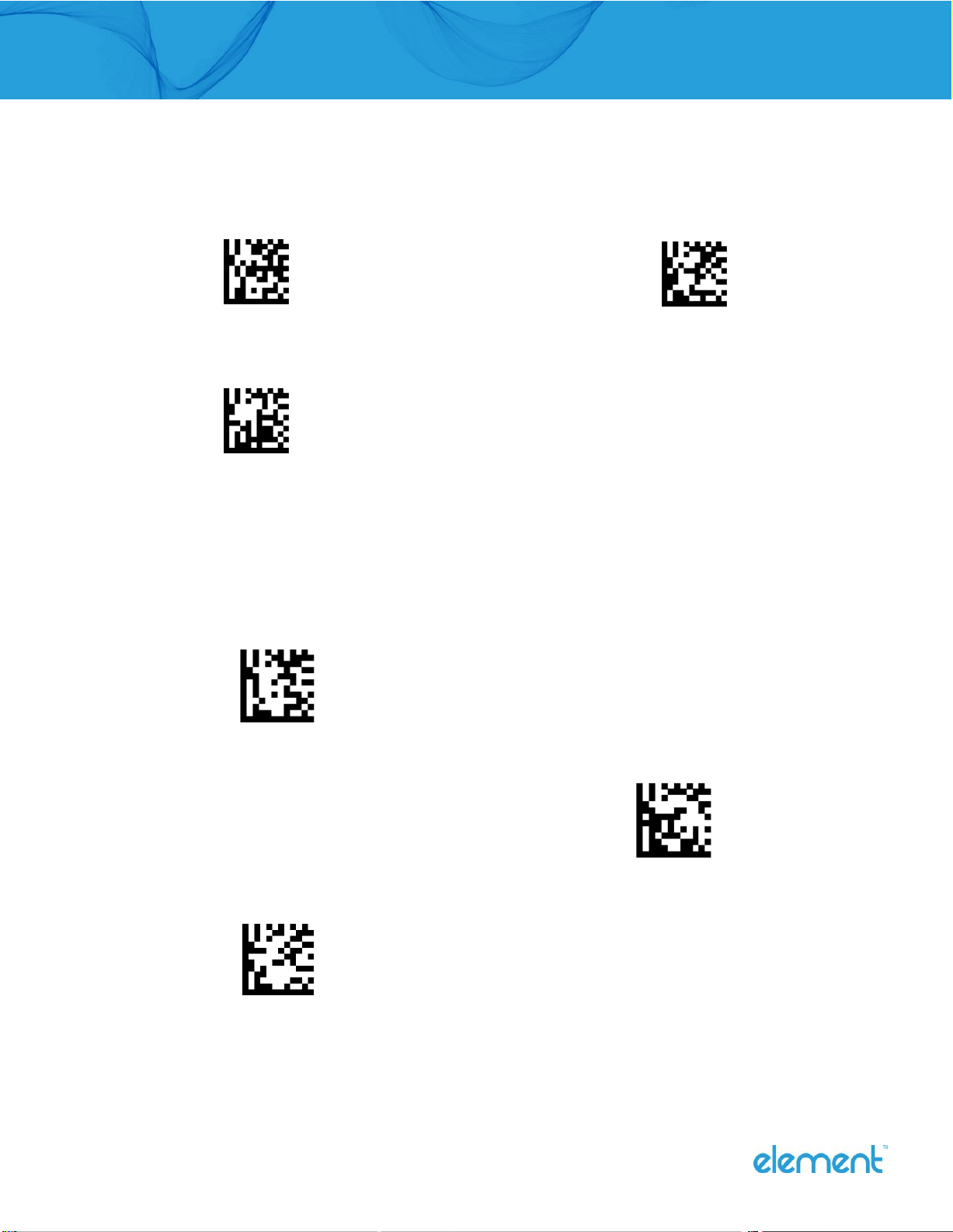
US(default)
Belgian
Finnish_Swedish
French
German
Italian
Swiss_German
British
Danish
Novwegian
Spanish
Element P303BT User Guide I Page 7of 53
2.1.5 Convert Case
Scan the appropriate barcode below to convert barcode data to your desired case.
No Case Conversion (Default)
Convert All To Upper Case
Convert All To Lower Case
2.1.6 Input Method
When a Bluetooth terminal connect with scanner, its virtual keyboard will disappear at once. You may need to scan the
barcodes below to switch input language into English.
Switch Input Method(Windows/Android)
Switch Input Method(iOS)
Popup/Hide Virtual Keyboard(iOS)

Element P303BT User Guide I Page 8of 53
2.1.7 Power Setting
Power Off
2.1.8 Standby time
The scanner will power off if no operation is done within the standby time.
1h
30min
10min
Never Power off
2.2 Bluetooth Cradle/Dongle Settings
Connect a scanner to Bluetooth cradle or dongle at first and then you can configure the cradle/dongle.
2.2.1 Cradle Factory Defaults
Scan the barcode below can restore the cradle to factory defaults.
Restore Cradle Factory Defaults
2.2.2 Baud Rate
Baud rate is the number of bits of data transmitted per second. Set the baud rate to match the Host
requirements.

Element P303BT User Guide I Page 9of 53
2400
4800
9600
19200
38400
57600
115200 (default)
2.2.3 Data Bit & Parity Check & Stop Bit
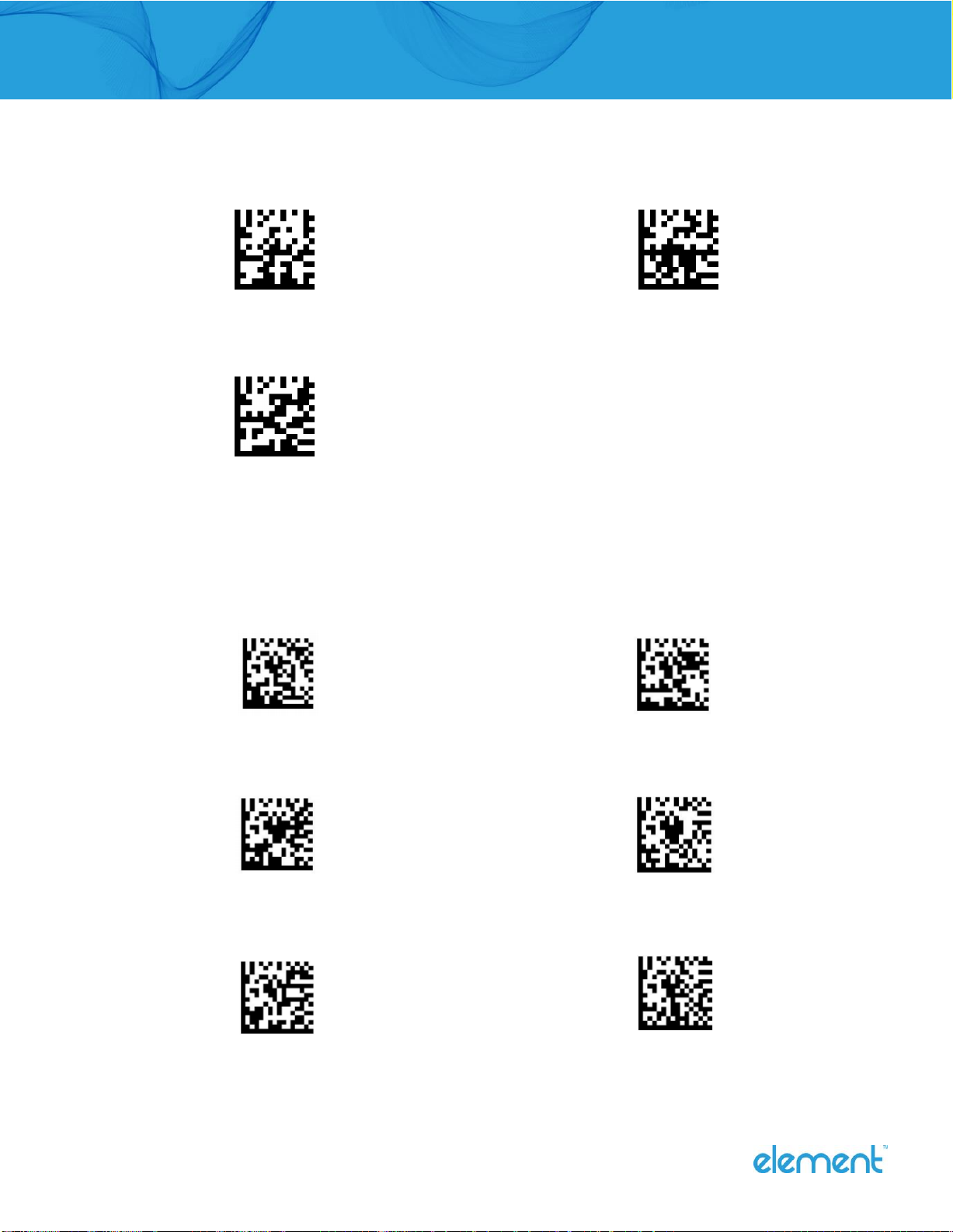
None Parity /7 Data Bits/1 Stop Bit
None Parity /8 Data Bits/1 Stop Bit (default)
Even Parity /8 Data Bits/1 Stop Bit
None Parity /7 Data Bits/2 Stop Bits
Element P303BT User Guide I Page 10 of 53
Even Parity /7 Data Bits/2 Stop Bits
Even Parity /7 Data Bits/1 Stop Bit
Odd Parity /7 Data Bits/1 Stop Bit
Odd Parity /8 Data Bits/1 Stop Bit
Odd Parity /7 Data Bits/2 Stop Bit
2.2.4 Cradle Country Keyboard Types
Keyboard layout varies from country to country, American keyboard is default, you can switch the Cradle/Dongle’s keyboard
types by scanning the follow barcode.
USA(default)
Belgian
Finnish_Swedish
French
German
Italian
Indice


