Page 9
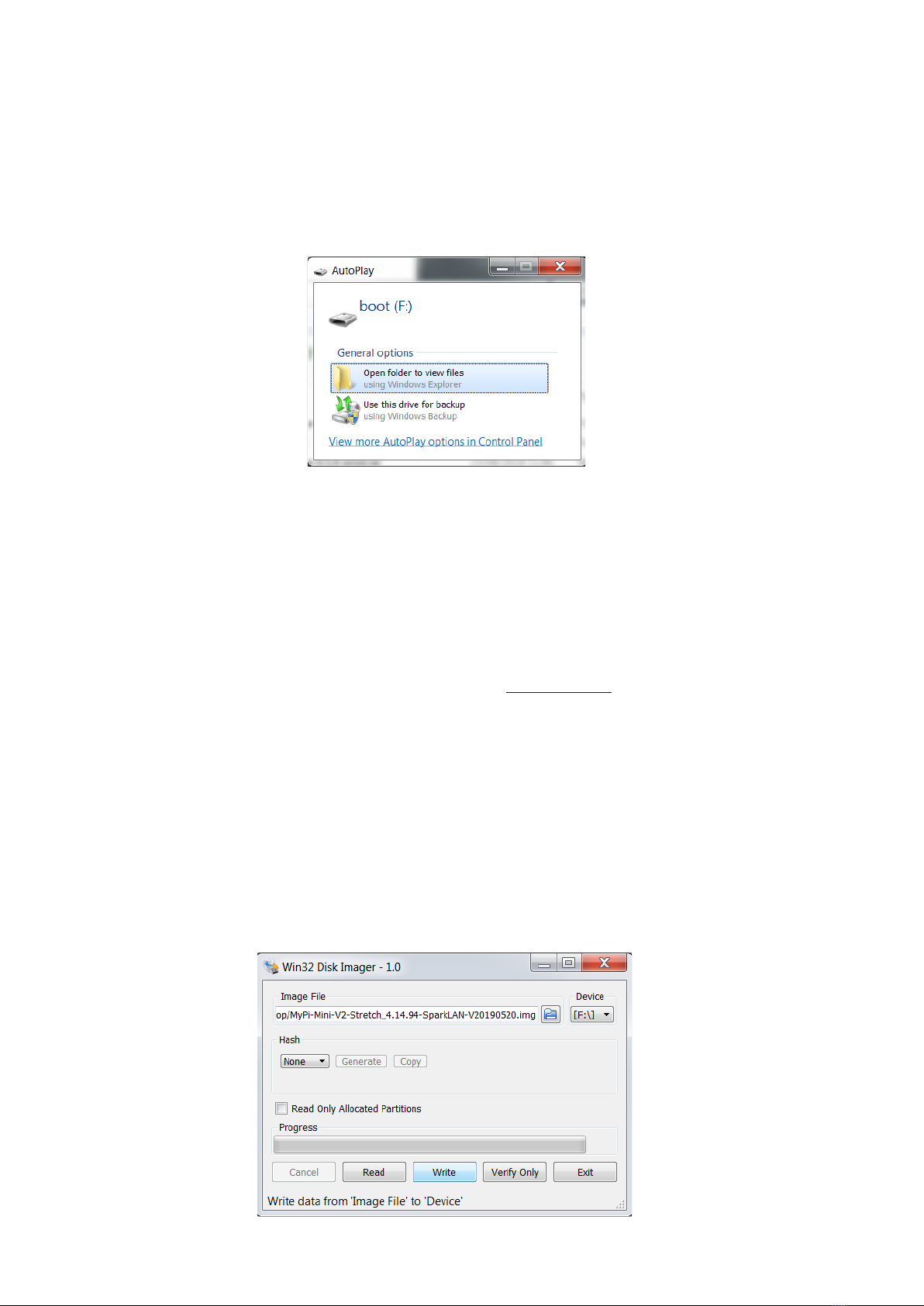
If the compute module eMMC already contains an OS Windows will recognise the FAT partition and
assign that (at least) a drive letter, this is useful in the event that a configuration error with the boot
files is made (e.g. dt-blob.bin or config.txt) and needs recovery actions to be performed.
After drive letter assignment Windows may indicate that partitions need scanning or fixing, these
can be ignored/cancelled.
There are a few different ways we can load on the OS, for simplicity we’ll cover using the
recommended OS writing software and process from the main Raspberry Pi website
This process writes a disk image, containing the partition table as well as both FAT boot partition and
Linux EXT partitions, over the entire disk.
The basic sequence we're following is :
1. Download the Win32DiskImager utility from this Download Link
2. Install and run the Win32DiskImager utility (You will need to run the utility as administrator,
right-click on the shortcut or exe file and select Run as administrator)
3. Select the OS image file you wish to write
4. Select the drive letter of the compute module in the device box (in our case F:) - Again note
that the disk image is a 1:1 of the entire disk (containing the partition table, FAT & EXT
partitions)
Be careful to select the correct drive; if you get the wrong one you can destroy the data on
the computer's hard disk!
5. Click Write and wait for the write to complete