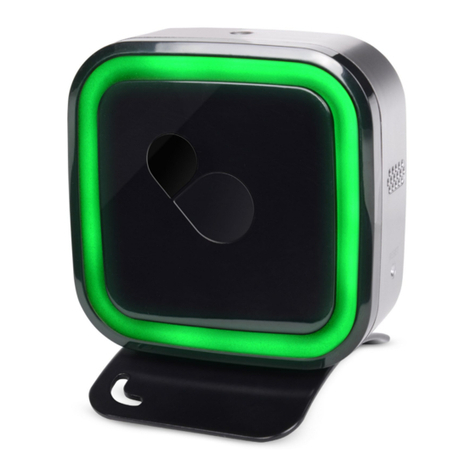
Initial Setup
1. Sign up to Emberpulse™ cloud
To enjoy the full experience of your Emberpulse™ you must create an account
at emberpulse.com or have an existing Emberpulse™ cloud login.
2. Plug in your Emberpulse™
• Plug the jack of the AC power adapter into the rear of the Emberpulse™.
• Plug the AC power adapter into a standard wall outlet, and ensure the
outlet is turned on.
• The pulse light should glow a magenta color.
3. Connecting your Emberpulse™ to Emberpulse™ cloud
To access your Emberpulse™, you must to connect it to your home’s
Internet router.
The Emberpulse™ can be connected to your home router via Ethernet
cable or Wi-Fi.
You can access Emberpulse™ cloud via an Apple or Android smartphone
or tablet, or via another computing device such as a notebook
or desktop computer.
3.1 Connect via cable
• Connect the supplied Ethernet cable between Emberpulse™ and your
home router.
• The pulse light will change from a steady magenta to a flashing
magenta to indicate successful internet connection. If this change does
not happen, check that your home router has an internet connection.
If accessing Emberpulse™ cloud using an Apple or Android smartphone
or tablet:
• Download the Emberpulse™ app from either the Apple Store (iOS) or
the Google Play store (Android).
• Ensure your smartphone or tablet has a connection to your home
Wi-Fi network.
6