
Emdoor EM-I20U Manuale utente

EM-I20U
USER MANUAL
Rugged Mobile Computing Solutions

March 2022
NOTE
The information in this manual is subject to change without notice.

Table of Contents
ⅰ
Chapter 1 Getting Started ..............................................................
Getting the Tablet Running .......................................................
Unpacking .............................................................................
Connecting to AC Power .......................................................
Turning On and Off the Tablet .............................................
Taking a Look at the Tablet .......................................................
Front Components ...............................................................
Rear Components .................................................................
Right-Side Components .......................................................
Left-Side Components .........................................................
Top Components .................................................................
Bottom Components ..........................................................
Chapter 2 Operating Your Tablet ...................................................
Using the Touchscreen ............................................................
Using Multi-touch Gestures ...............................................
Using Wireless Connections ....................................................
Using the WLAN ..................................................................
Using the Bluetooth Feature ..............................................
Chapter 3 Managing Power ..........................................................
AC Adapter ................................................................................
Battery Pack .............................................................................
Charging the Battery Pack .................................................
Checking the Battery Level ................................................
Low Battery ........................................................................
Replacing the Battery Pack ................................................
Power-Saving Tips ...................................................................
1
2
2
3
4
6
6
8
9
9
10
11
13
14
15
17
17
18
19
20
21
21
22
22
23
25

ⅱ
Chapter 4 Expanding Your Tablet ..................................................
Connecting Peripheral Devices ...............................................
Connecting a USB Device ...................................................
Connecting a USB Type-C Device ......................................
Connecting a Monitor .........................................................
Connecting an Audio Device ..............................................
Chapter 5 Using BIOS Setup .........................................................
When and How to Use ..............................................................
Menu Descriptions ...................................................................
Main Menu ..........................................................................
Security Menu ....................................................................
Boot Menu ..........................................................................
Save & Exit Menu ................................................................
Chapter 6 Care and Maintenance ..................................................
Protecting the Tablet ...............................................................
Using an Anti-Virus Strategy ..............................................
Taking Care of the Tablet .........................................................
Location Guidelines ...........................................................
General Guidelines .............................................................
Cleaning Guidelines ...........................................................
Battery Pack Guidelines ....................................................
Touchscreen Guidelines ....................................................
When Traveling ........................................................................
Chapter 7 Troubleshooting ..........................................................
Preliminary Checklist ..............................................................
Solving Common Problems ....................................................
Battery Problems ...............................................................
Bluetooth Problems ...........................................................
Display Problems ...............................................................
26
27
27
27
27
27
28
29
30
30
32
33
34
35
36
36
37
37
38
38
39
40
41
42
43
44
44
45
45

ⅲ
Hardware Device Problems ...............................................
Power Management Problems ..........................................
Software Problems .............................................................
Sound Problems .................................................................
Startup Problems ...............................................................
WLAN Problems ..................................................................
Restart the Tablet .....................................................................
46
46
47
47
47
48
49

Getting Started
Chapter 1
1
This chapter first tells you step by step how to get the tablet up and running.
Then, you will find a section briefly introducing the external components of
the tablet.
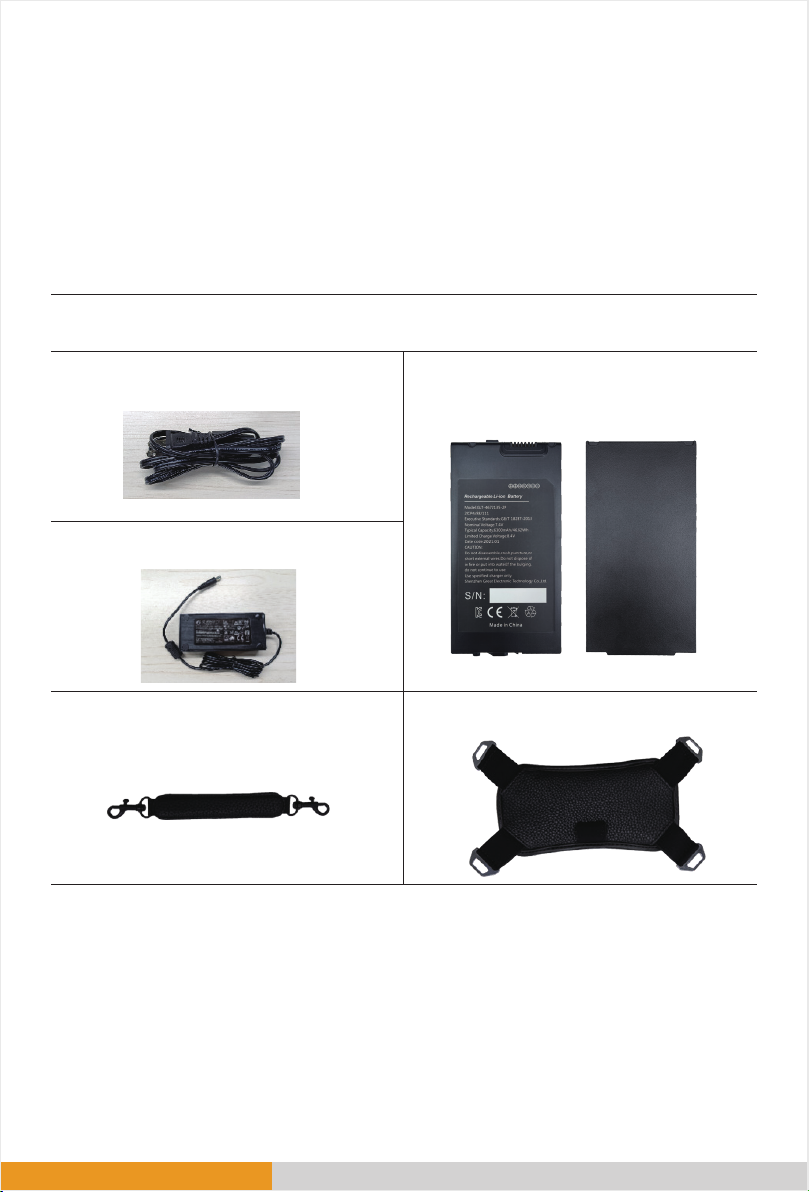
Unpacking
Getting the Tablet Running
2
After unpacking the shipping carton, you should find these standard items:
● I20U Rugged Tablet
● AC power cord ● Battery(Built-in)
● Carry handle ● Hand-strap
● AC adapter

3
Connecting to AC Power
CAUTION:Use only the AC adapter included with your Tablet. Using other AC
adapters may damage the Tablet.
NOTE:
● The battery pack is shipped to you in power saving mode that protects it from
charging/discharging. It will get out of the mode to be ready for use when you install
the battery pack and connect AC power to the Tablet for the very first time.
● When the AC adapter is connected, it also charges the battery pack. For
information on using battery power, see Chapter 3.
You must use AC power when starting up the Tablet for the very first time.
1. Open the DC port waterproof plug (Place the tablet flat on the desktop, left
position)
2. Plug the DC cord of the AC adapter to the power connector of the Tablet.
3. Plug the female end of the AC power cord to the AC adapter and the male end to an
electrical outlet.
4. Power is being supplied from the electrical outlet to the AC adapter and onto your
Tablet. Now, you are ready to turn on the Tablet.
DC port

4
Turning On and Off the Tablet
Turning On
2. Press the power button ( ) . The Windows operating system should start.
5
Turning Off
When you finish a working session, you can stop the system by turning off the power
or leaving it in Sleep or Hibernation mode:
* “Sleep” is the default result of the action. You can change what the action does
through Windows settings.
To... Do this...
Power off
(Shutdown) Click →[ Power]→[Shut down].
Sleep Use one of these methods:
● Press the power button.
● Click →[ Power]→[Sleep].
Hibernate By default, this option is not shown in the Start menu. If
you want to use the feature, set up accordingly in
Windows settings.
Indice
Altri manuali Emdoor Tavoletta

Emdoor
Emdoor EM-Q86 Manuale utente

Emdoor
Emdoor EM-T195 Manuale utente

Emdoor
Emdoor EM-Q75 Manuale utente

Emdoor
Emdoor EM-T895 Manuale utente

Emdoor
Emdoor EM-Q86 Manuale utente

Emdoor
Emdoor EM-I10J Manuale utente

Emdoor
Emdoor EM-I87J Manuale utente

Emdoor
Emdoor EM-Q865M Manuale utente

Emdoor
Emdoor EM-Q16 Manuale utente

Emdoor
Emdoor EM-Q16 Manuale utente

Emdoor
Emdoor EM-X14 Manuale utente

Emdoor
Emdoor EM-Q115M Manuale utente

Emdoor
Emdoor EM-I22J Manuale utente

Emdoor
Emdoor IP SYSTEMES EM-I10U Manuale utente

Emdoor
Emdoor EM-Q89 Manuale utente

Emdoor
Emdoor EM-I86 Manuale utente

Emdoor
Emdoor IP SYSTEMS Rugged EM-Q15 Manuale utente

Emdoor
Emdoor EM-I20J Manuale utente


