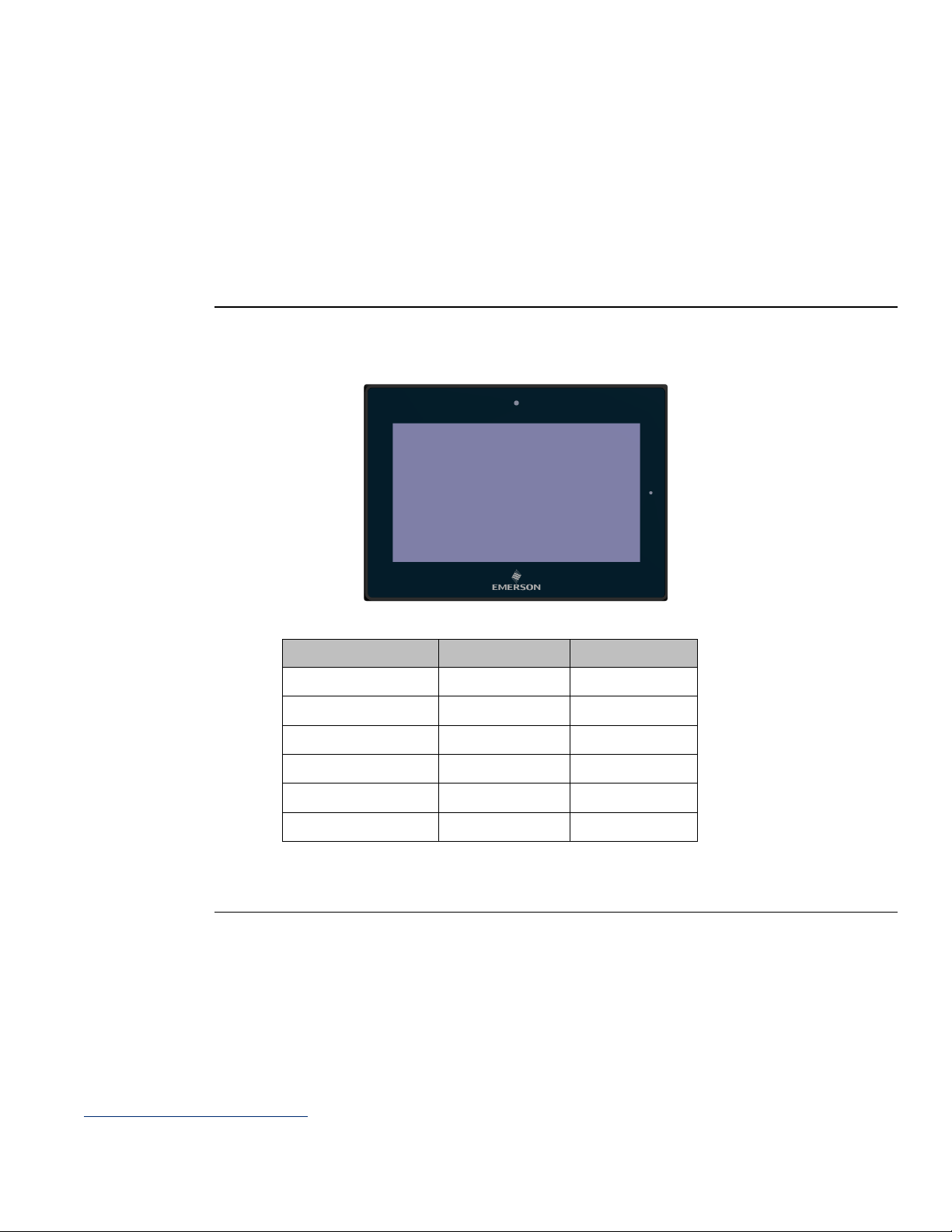
Emerson RXi Web Panel Manuale utente

Quick Start Guide
GFK-3073D
December 2020
RXi –Web Panel
QUICK START GUIDE

i RXi Web Panel Quick Start Guide GFK-3073D
Warnings and Caution Notes as Used in this Publication
WARNING
Warning notices are used in this publication to emphasize that hazardous voltages, currents, temperatures, or other
conditions that could cause personal injury exist in this equipment or may be associated with its use.
In situations where inattention could cause either personal injury or damage to equipment, a Warning notice is used.
CAUTION
Caution notices are used where equipment might be damaged if care is not taken.
Note: Notes merely call attention to information that is especially significant to understanding and operating
the equipment.
These instructions do not purport to cover all details or variations in equipment, nor to provide for every possible
contingency to be met during installation, operation, and maintenance. The information is supplied for informational
purposes only, and Emerson makes no warranty as to the accuracy of the information included herein. Changes,
modifications, and/or improvements to equipment and specifications are made periodically and these changes may or
may not be reflected herein. It is understood that Emerson may make changes, modifications, or improvements to the
equipment referenced herein or to the document itself at any time. This document is intended for trained personnel
familiar with the Emerson products referenced herein.
Emerson may have patents or pending patent applications covering subject matter in this document. The furnishing of
this document does not provide any license whatsoever to any of these patents.
Emerson provides the following document and the information included therein as-is and without warranty of any
kind, expressed or implied, including but not limited to any implied statutory warranty of merchantability or fitness for
particular purpose.

ii RXi Web Panel Quick Start Guide GFK-3073D
Table of Contents
Regulatory Information..............................................................1
Initial Setup ..............................................................................1
Environmental Conditions............................................................................................. 1
Intended Use ................................................................................................................ 1
Jumpers and Connectors Locations ............................................................................. 2
Setting Jumper Functions .................................................................................... 2
Socket Description .............................................................................................. 2
Connecting Input Power (24V DC-in) ............................................................ 2
LED Indicators Operation Status LEDs (Screen) ......................................................... 5
Ethernet Port Operation LEDs .............................................................................. 5
Configuration and Setup.............................................................6
Chromium Password Settings ...................................................................................... 6
Mounting Information................................................................7
Panel Mount ................................................................................................................. 7
Installation Steps .......................................................................................................... 8
Mounting to Web Panel ................................................................................................ 9
Mounting to Modular Display ........................................................................................ 9
VESA Mount ............................................................................................................... 12
Technical Support & Contact Information .................................16

1 RXi Web Panel Quick Start Guide GFK-3073D
Regulatory Information
The FCC requires the following note to be published according to the FCC guidelines:
NOTE: This device complies with part 15 of the FCC Rules. Operation is subject to the following two conditions: (1) This device may not cause
harmful interference, and (2) this device must accept any interference received, including interference that may cause undesired operation.
CAUTION
Changes or modifications not expressly approved by the party responsible for compliance could void the user's authority to
operate the equipment.
Industry Canada requires the following to be published: CAN ICES-3 (A)/NMB-3 (A)
Initial Setup
Environmental Conditions
Environmental conditions as identified in Section 1.1 shall be followed during installation and operation.
Intended Use
The RXi Web Panel is intended for use in industrial environments only. Adherence to supplied documentation is part of the
intended use. Installation, commissioning, and maintenance shall be carried out by qualified personnel.

2 RXi Web Panel Quick Start Guide GFK-3073D
Jumpers and Connectors Locations
Setting Jumper Functions
Before installing the Web Panel, please set the necessary functions following the chart below.
Note: To determine Pin 1 of the jumper and port, please observe the marking beside the plug. it will be marked as “1”, a
bolded line, or a “△”; see the welding plate on the backside, the square welding plate is Pin 1.
(1) Setting Jumper Functions (SW1)
SW1: 2bit switching ON/OFF, used to set the recording and the starting mode of the Motherboard.
SW1
ON
OFF
1.BOOT_MODE1_S
DOWNLOAD MODE
NORMAL MODE
2.BOOT_DEV
SD
DEFAULT
Figure 1: Jumper Function
Socket Description
Connecting Input Power (24V DC-in)
To connect to power, follow these steps:
1. Verify that the power cable is not energized.
2. Loosen the screw clamps on the mating power connector.
3. Strip the insulation from the power cables.
4. Secure the power cable to the mating connector, noting polarity, and tighten
the screw clamps. The torque for the attaching screws is 0.3 Nm (2.26 in-lb).
5. Apply dc power to the unit. During normal startup and operation, the LED status
indicator displays as follows:
•Solid amber while the RXi - Industrial Display unit is starting up
•Solid green during normal operation
6. Once power is applied, the unit begins initializing. The first thing to display is the splash screen.
Be sure to connect a DC power cord to this 3-pin power connector. Using a voltage out of the range may fail to boot the
system or cause damage to the system board.
Before connecting the Web Panel to other devices, please read this manual carefully first to prevent damage to the
Motherboard.

3 RXi Web Panel Quick Start Guide GFK-3073D
Power Socket (DC_IN1)
DC_IN1: (Conn. Header Socket, 3.5mm, 1 x 3PIN), used to provide 24V voltage for the system.
Figure 2: Power Socket
DC_IN1 Pin#
Signal
Pin1
FG
Pin2
DC_IN-
Pin3
DC_IN+
USB Socket (USB_OTG1/USB1)
USB_OTG1: Conn. Micro-USB, B-Type Female, SMD-5P With DIP 4pin, used to load system firmware
Figure 3: USB, LAN, and COM Ports
USB_OTG1 Pin#
Signal Name
1
5V_USB_OTG
2
USB_OTG_DN
3
USB_OTG_DP
4
USB0_ID
5
GND
USB1: Type A connector, supports USB Host.
USB1 Pin#
Signal Name
1
5V_USB_HOST1
2
USBDN_DM1
3
USBDN_DP1
4
GND

4 RXi Web Panel Quick Start Guide GFK-3073D
LAN Socket (LAN1)
LAN 1: Conn. I/O Port, RJ45, 1000M, provides a solid RJ45 Ethernet Dock.
Figure 4: LED Status Lights
1. Connecting Socket (COM1)
COM1: Conn. I/O Port, DB9, Male. Standard DB9 port, provide 1 route for RS232/422/485.
COM1 Pin#
RS232
RS422
RS485
1
NC
TXD-
DATA-
2
RXD
TXD+
DATA+
3
TXD
RXD+
NC
4
NC
RXD-
NC
5
GND
NC
NC
6
NC
NC
NC
7
NC
NC
NC
8
NC
NC
NC
9
NC
NC
NC

5 RXi Web Panel Quick Start Guide GFK-3073D
Debug Socket (DEBUG1)
DEBUG1: Conn. 1.25mm, (DF14 with pointing) SMD-4P, used for debugging information.
DEBUG Pin#
Signal Name
1
3P3V_S0_IO
2
UART1_TXD_DEBUG
3
UART1_RXD_DEBUG
4
GND
SD-Card Socket (SD1)
SD1: Socket, Micro SD/TF Card, 9pin, SMD, supports Micro SD/TF Card devices.
BAT1 Socket (BAT1)
BAT1: BAT Socket, BS-10-A1B0J001, 20mm SMT, supports non-chargeable batteries. CR-2032
Backlight Board Socket (BTB_MAIN_TB572B_1)
BTB_MAIN_TB-572B_1: Conn. Female, WCON, 2243-225M3CUT, 2 x 25P, 2.00mm, 180°, H=4.35, 10u”, SMD-50P, TB-572B
Backlight Board Socket.
LED Indicators
Operation Status LEDs (Screen)
All RXi Industrial Displays have a tri-color LED built into the screen that provides a visual indication of the
operation status.
LED State
System State
Amber, Solid
Operating system starting
Green, Solid
Normal operating state
Red, Blinking
CPU over temperature 90C
Off
Power not applied to the unit
Ethernet Port Operation LEDs
Figure 5:Ethernet Port LEDs

6 RXi Web Panel Quick Start Guide GFK-3073D
Configuration and Setup
Chromium Password Settings
The user/root default password is EMrootroot. Here are instructions to change the password.
1. Click the user password icon
Figure 6: User Password Icon
2. Enter the default (old) and new password then click the Set user password or Set root password button to
submit the new password.
Figure 7: Set User Password

7 RXi Web Panel Quick Start Guide GFK-3073D
Mounting Information
Panel Mount
The RXi Web Panel can be panel-mounted as presented in the section entitled Installation Steps.
A Type 4, Type 4X, or IP 66 rating is achieved when mounted to the flat surface of a sufficiently rated enclosure. Please follow
the instructions in the section entitled Installation Steps.
Panel Thickness: 16
1
to 7 Gauge (1.6 to 5 mm)
Figure 8: Panel Cutout Dimensions
Width
Height
Display Size (in)
Width (mm)
Height (mm)
7
183.5
128.5
10
255.5
174
12
317
214.5
15
398
245.5
19
482
297
24
581
360
All panel cutout measurements should be within ±0.5 mm.
Values presented are width and height only.
1
For IP66 installations of 12-inch displays (IC758CSW12SCREEN-A and IC758COW12SCREENSLR-A) use a 14 to 7 gauge (2 to 5 mm) thick panel.
Indice
Altri manuali Emerson Pannello touch

Emerson
Emerson RXi Manuale utente

Emerson
Emerson RXi Manuale utente

Emerson
Emerson Rosemount 752 Manuale utente

Emerson
Emerson RXi Manuale utente

Emerson
Emerson Rosemount 751 Manuale utente

Emerson
Emerson Site Supervisor 10.1 Manuale utente

Emerson
Emerson RXi Manuale utente

Emerson
Emerson Rosemount 752 Manuale utente

Emerson
Emerson Rosemount 752 FOUNDATION Manuale utente

Emerson
Emerson RXi Manuale utente