
Empire M908HC Manuale utente

1
M908HC Tablet
User Guide
a. ESC: Return
b. Menu: Display menu options.
c. Home: Go to the Home Screen.
d. SEARCH– Go to Google Search home page
e. Built-in Camera
f. USB host
g. Touch Screen
h. Power – long press to turn on or off the unit; short press
switch between standby mode and active mode.
i. VOL+/-
j. Built-in Speakers
k. MicroSD card Slot
l. Earphone socket – connects to stereo earphones.
m. Built-in Microphone/ Reset pin hole
n. USB Port
o. HDMI jack
p. DC-IN port – connects to any standard electric source
through the provided AC adaptor.
This manual may not reflect all your actual operation with the device,
and is used only for reference. All information is subject to change
without prior notification. Refer to actual operation for detailed
information
i
2
Charging Battery
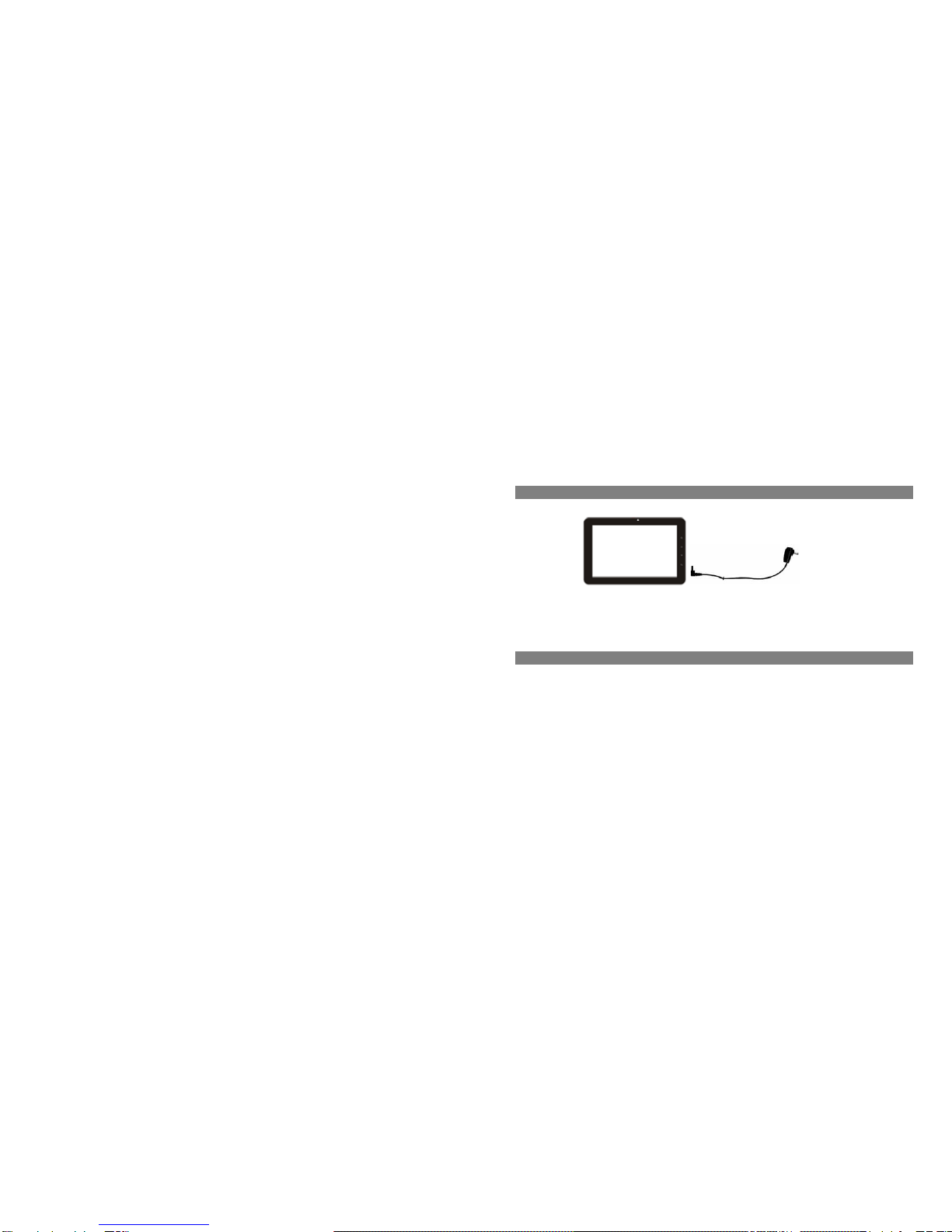
Plug the AC adaptor to any standard wall outlet and the DC-IN port of the Tablet.
It takes about 5 hours to fully charge the battery.
You can operate the device even when it is being charged. But for extended battery life, it is suggested NOT to use the device
when it is charging.
It is recommended to charge the battery fully before you use the device for the first time.
For maximum performance, lithium-ion batteries need to be used often. If you don’t use the device often, be sure to recharge the
battery at least once per month.
Transferring Files
(1) Connect the device to a computer with the supplied USB cable.
(2) The device will show “USB connected” and ask you to “turn on the USB storage” if you want to copy file
between the computer and the SD card on the device.
(3) Tap “Turn on USB storage”, the device will show “ USB storage in use”. It means that the USB storage
device is ready for transferring files now.
(4) On the computer two more removable disks are added, one refers to the internal memory of the tablet, and

3
the other the SD card memory. You can copy files between the computer and the disk standing for the SD
card memory.
(5) When you have finished coping files, select “Turn off USB Storage” to disconnect the device from computer.
(6) Disconnect the device from the PC safely.
The pre-installed applications and Android OS occupy a considerable part of capacity – nearly more than 1GB, it is normal
that you see huge difference between available memory space and total capacity.
Home Screen
Ebook Reader / Applications
/Setting shortcuts
Home Screen
Setting Widget
Google Search bar

4
Top bar
The Extended Home Screen
Slide your finger horizontally on the screen to go to the left or right panel of the extended Home Screen.
Customizing the Home screen items
To add a Home Screen item (shortcuts, widgets, folders etc.), tap on the Menu icon and then select “Add”
. You can also hold your finger on the screen and then choose an item from the list.
To move a Home Screen item, hold your finger onto it until it is highlighted, then drag it to the desired location,
Status icons: WiFi
connection and battery
Time
Return
Go to the
Home Screen
Drag the top bar
downwards to display
the notification messa
g
e
VOL - / +
Display menu
options

5
and release it.
To remove a Home Screen item, hold your finger onto it until it is highlighted, drag it to the recycle bin which
turns from the Application Tab, and then release your finger.
Changing the wallpaper
From the Home Screen, tap on the Menu icon , a list of options appears. Tap on “Wallpaper” and then
choose a picture as the desktop wallpaper.
Changing the System Settings
From the Home Screen, tap on the Menu icon , and then tap on “Settings” .Choose a category:
“Wireless & Networks”, “Sound & Display”, “Date & Time”, etc. For more information on the different settings,
see the System Settings section.
Unlocking the Screen
The screen will be locked after the device is idle for a few seconds. You need to unlock the screen by dragging
the lock icon upward before you continue to use the device.
Connecting to the Internet
To access the Internet, first of all, you need to configure a wireless network. For the configuration procedure to
work, you need to be in a Wi-Fi zone that will allow you to connect to it. Every time Your Tablet is in range of a
network that you have already configured once, it will attempt to make a connection.

6
(1) Tap the Setting icon in the Home Screen.
(2) Tap “Wireless & Networks”.
(3) Tap on the “Wi-Fi” setting to turn it on.
(5) Select “Wi-Fi settings”. Your Tablet will scan automatically for available WiFi networks and display
them. The list of available networks shows all the wireless networks in range of your device.
(6) Choose a network from the list and then tap “Connect” to connect. Some network may be secured with
password, enter the password before connecting. If the connection is successful, the message Connected
to…(WiFi Network Name) will appear under the WIFI Setting.

7
Using the Touch Screen
When watching a video or listening to music, you can tap
the progression bar to go directly to a different location in
the video or song. You can also use your finger to drag
the cursor in the progression bar to another location in the video or song.
In the file browsers (File, Music, Video, Photo, etc.), you can drag your finger
up and down to scroll the file list up and down.
In the Web browser, you can scroll up and down by tapping on the page and dragging it up or down (be
careful not to tap a link until you are ready!).
Tap the link to open the page.
Using the Virtual Keyboard
Tapping on any text input field can open the virtual board. With the virtual keyboard, you can enter a website
address or any text required.
Caps Lock
Numbers and Symbols
Holding your finger on this
button can change the Input
Method. Space
Backspace
Enter

8
Playing Multimedia Files
(1) In the Home Screen, tap on the Application Tab to
display all applications.
(2) Tap the application icons for music, video or photo to open
the corresponding application.
In the Video or Photo Mode, tapping anywhere on the screen can display or hide the on-screen toolbar.
Some multimedia files may not play properly since their encoding format may not be supported by the device.
Managing 3rd Party Applications
Your Tablet provides support to many useful third-party applications. You can purchase the applications to add
more functions to your device. They are available online at the Internet or directly on your product.
Install Applications
(1) Download the installation file to your computer. Make sure the file is in format of .apk which is supported by
your Tablet system.
(2) Connect your Tablet to computer with the USB cable.
(3) Copy the installation file to your Tablet.
(4) Disconnect your Tablet form the computer.
(5) Turn on your Tablet and enter the file explorer mode with the Explorer.
(6) Locate the installation file and open it.
(7) Follow the on-screen instructions to install the application.
(8) Once the application is installed successfully, you can find it in the application tab.

9
Uninstall Applications
(1) Go to the menu “Settings”“Applications”“Manage Applications”.
(2) Tab on the application that you want to uninstall.
(3) Tab on “Uninstall” to uninstall the application.
You cannot uninstall the preloaded applications.
Some of the applications developed for Android mobile might not run properly in the Tablet. Please consult the respective
software developer for further information.
Reading E-Books
In the Home Screen, tap an e-book to start reading.
Tapping on the Left Arrow or Right Arrow can scroll left or right though
the e-books.
Tap “History” or “My Library” to open your library. In the library, tap the ebook that
you want to read, and then tap Continue Read to start reading.
In the history or e-book library, you can sort e-books by title, author or file size by
tapping on Title, Author or Size.
To page up or down, slide your finger on the screen left and right.
Make sure your e-books are in format supported by the device. Supported formats are
PDF, EPUB, TXT, FB2, RTF, PDB.
Book covers for PDF, TXT, FB2, RTF and PDB files are all displayed the same since these files have no cover data usually.

10
Download e-books with the Adobe Digital Edition (ADE) via PC
Once you have purchased e-books online, you need to transfer them to your Tablet using the Adobe Digital
Editions software which allows you to view and manage e-books protected by
DRM license.
1. Access the website http://www.adobe.com/products/digitaleditions/, and then
install the Adobe Digital Edition software following the instructions online.
2. Authorize your computer with your Adobe ID and Password.
3. Activate your Tablet.
Connect your Tablet to computer with the USB cable and start up the Adobe
Digital Editions. Click “Authorize Device” to authorize your Tablet with your
Adobe ID and Password.
The Adobe ID can be used only for six times. It should expire after 6 tries of
authorizing device. Later on, you need to delete the expired ID by pressing CTRL
+SHIFT+D on the computer keyboard and then get a new one.
The device remembers the ebooks downloaded with the latest Adobe ID only, and will
overwrite the eBooks downloaded with the previous Adobe ID.
4. Download DRM-protected PDF files to your computer.
Indice
Altri manuali Empire Tavoletta


