Emtec Connect Manuale utente

USER GUIDE
FOR ANDROID DEVICES
Compatibility: Android™ 2.3 or higher

2
1. Overview.......................................................................................................................................... 4
2. Install and Set Up............................................................................................................................. 4
2.1. Download Emtec Connect App.................................................................................................... 4
2.2. Connect your Wi-Fi HDD to your smartphones/ tablets (no Internet connection required)...... 5
2.3. Charge your Wi-Fi HDD................................................................................................................ 5
3. Main interface ................................................................................................................................. 6
3.1. Home page .................................................................................................................................. 6
3.2. Access to the files of Wi-Fi HDD/ smartphone/ tablet................................................................ 7
3.3. Videos/ Photos/ Music/ Documents Gallery............................................................................... 8
3.4. Play movie/ video ........................................................................................................................ 9
3.5. Listen to music............................................................................................................................. 9
3.6. View pictures ............................................................................................................................. 11
3.7. View documents........................................................................................................................ 12
3.8. Download/upload files .............................................................................................................. 12
3.9. Share files .................................................................................................................................. 13
4. Settings .......................................................................................................................................... 14
4.1. Configuration............................................................................................................................. 14
4.1.1. Wi-Fi settings......................................................................................................................... 15
4.1.2. LAN setting ............................................................................................................................ 17
4.1.3. Internet settings/ Router function ........................................................................................ 19
4.1.4. System settings...................................................................................................................... 20
4.2. Cache ......................................................................................................................................... 24
4.3. Language ................................................................................................................................... 24
4.4. About......................................................................................................................................... 25
4.5. Log out....................................................................................................................................... 25
5. Dropbox......................................................................................................................................... 25
6. Back-up.......................................................................................................................................... 27
6.1. Contact back-up......................................................................................................................... 27
6.2. Phone back-up (Video & photos) .............................................................................................. 28

3
WARNING!
To avoid damage or malfunction:
Do not expose the product to excessive heat caused by heating equipment or direct sunlight.
Do not drop the product or allow objects to fall on your device.
Do not allow the product to be submerged in water. Do not expose device to water, as water
entering the set may cause major damage.
Avoid damp environments.
Protect the device against electromagnetic sources.
Back up your files. Ensure that you retain the original files you have downloaded to your
device. EMTEC is not responsible for any loss of data if the product becomes damaged or not
readable / legible.
Do not use any cleaning agents containing alcohol, ammonia, benzene, or abrasives as these
may harm the product.
About operating and storage temperatures:
Best operating conditions: 41° to 104°F (5°C à 40°).
Technical Support:
Online assistance:
support@emtec-international.com
https://twitter.com/EMTEC_Support

4
1. Overview
2. Install and Set Up
2.1. Download Emtec Connect App
Download “Emtec Connect” application on Google Play Store.
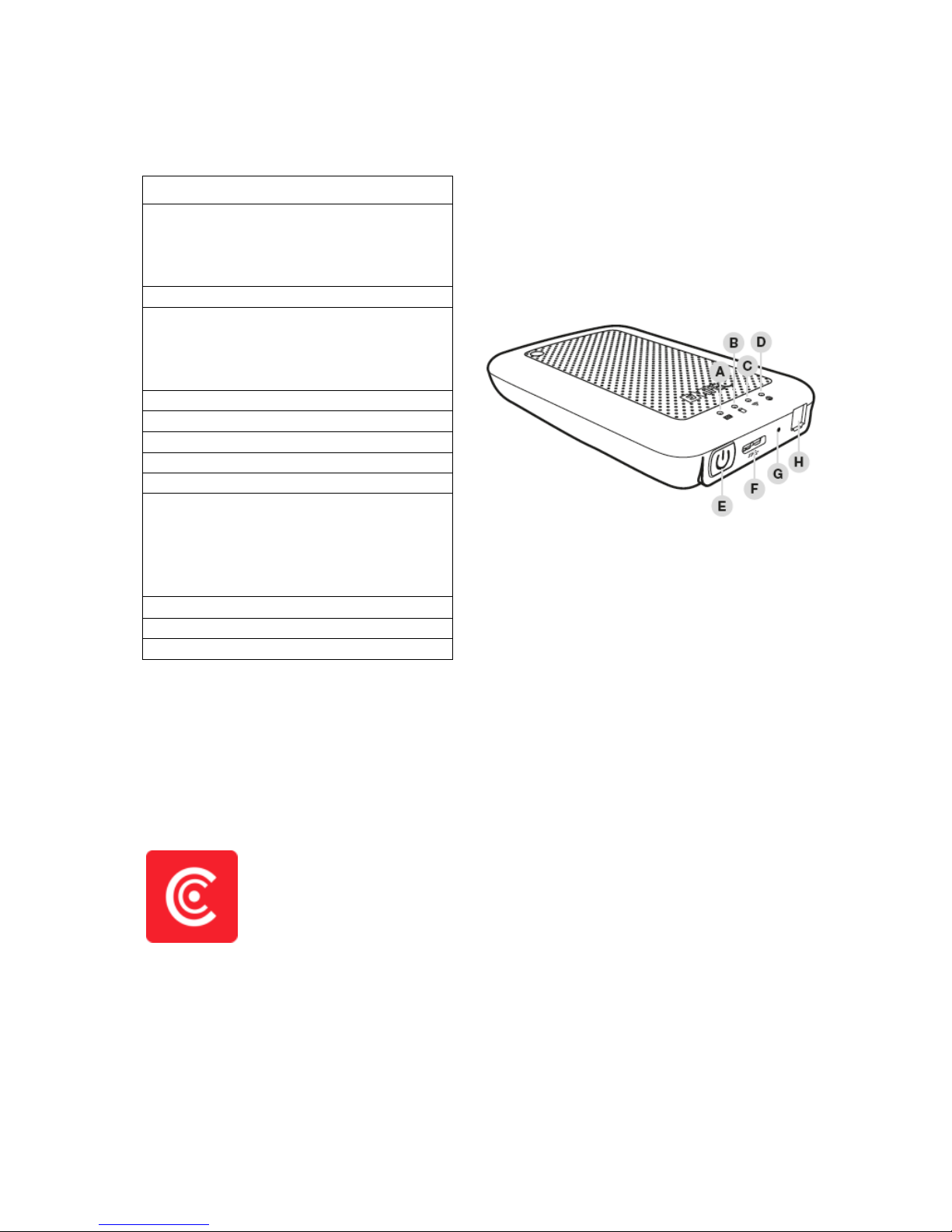
A. Battery level LED
Red: Low battery
Flashing Green: Charging
Solid Green: Drive On
Off: Battery full or Drive Off
B. HDD read/write LED
White: Stand-by
Flashing White: Read/Write
(LED is blue when the device is connected at
a USB3.0 port)
C. Wi-Fi LED
Blue: Wi-Fi ready
D. Internet LED
Green: connected to Internet
E. Power Button
Press and hold for 2 seconds to power
on/turn off the device.
On: Wi-Fi HDD mode.
Off: Synchronization mode (The HDD works
as a standard portable HDD).
F. USB 3.0 Port
G. Reset
H. Ethernet port (RJ45)

5
2.2. Connect your Wi-Fi HDD to your smartphones/ tablets (no Internet connection
required)
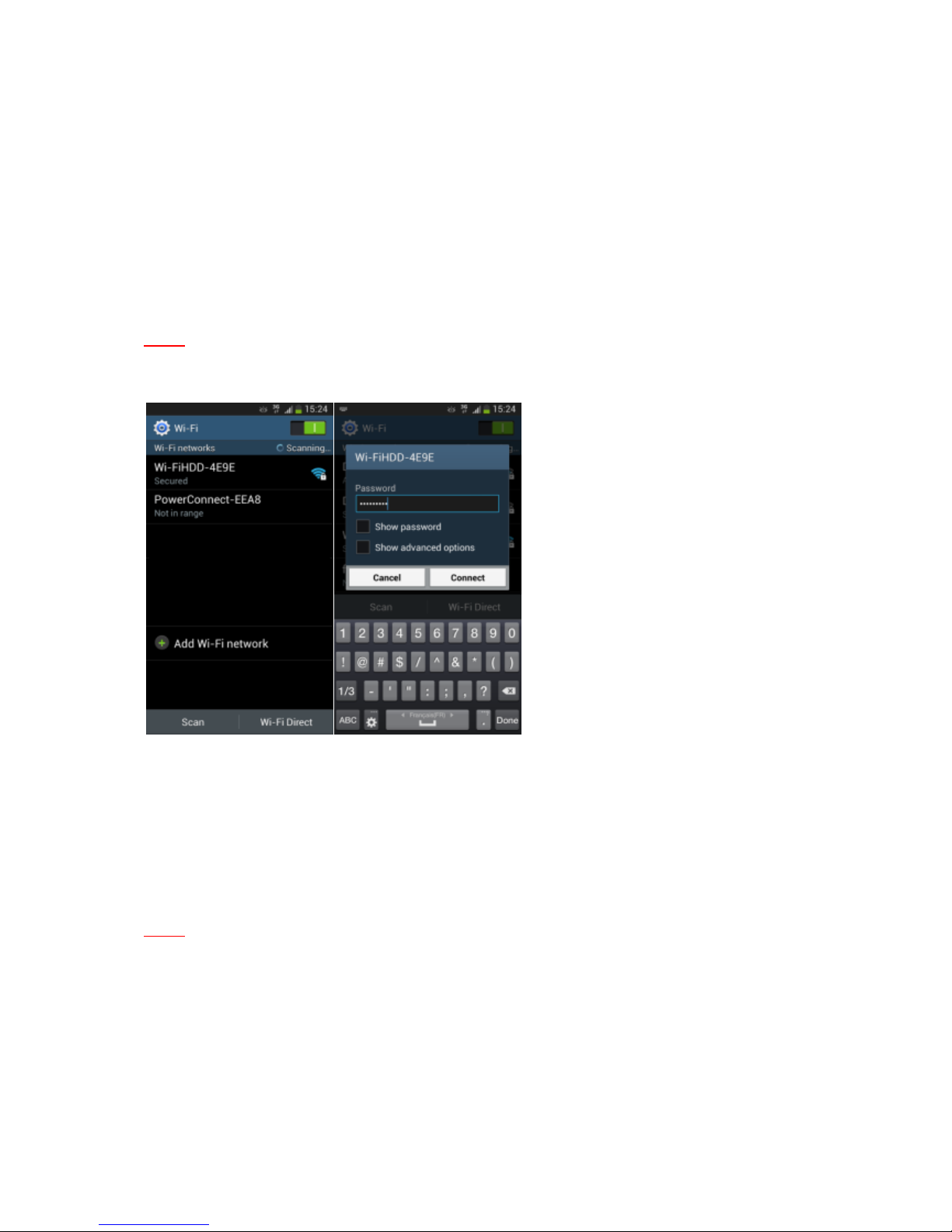
1. Turn-on your Wi-Fi HDD P600. Once the Wi-Fi blue LED stops flashing, the Wi-Fi function is ready.
2. Go to Wi-Fi settings on your smartphone/ tablet and activate your Wi-Fi connection. Then choose
the name of your Wi-Fi HDD in the network list.
3. Enter the password (default: EMTEC4567).
Note: The device will remember the password and you will not need to enter it again a second time.
4. When the connection is established, open Emtec Connect app to enjoy your files.
2.3. Charge your Wi-Fi HDD
Connect the included USB 3.0 cable into any available USB port on your computer. The battery LED
will start flashing while it is charging and will turn off once it is fully charged. You may use any Power
Adapter (not included) with 5V/2.1A charging current to charge the product.
Note: In Wi-Fi HDD mode, Wi-Fi function works when the battery is charging. Just turn on the Wi-Fi
HDD before you start charging.

6
3. Main interface
3.1. Home page
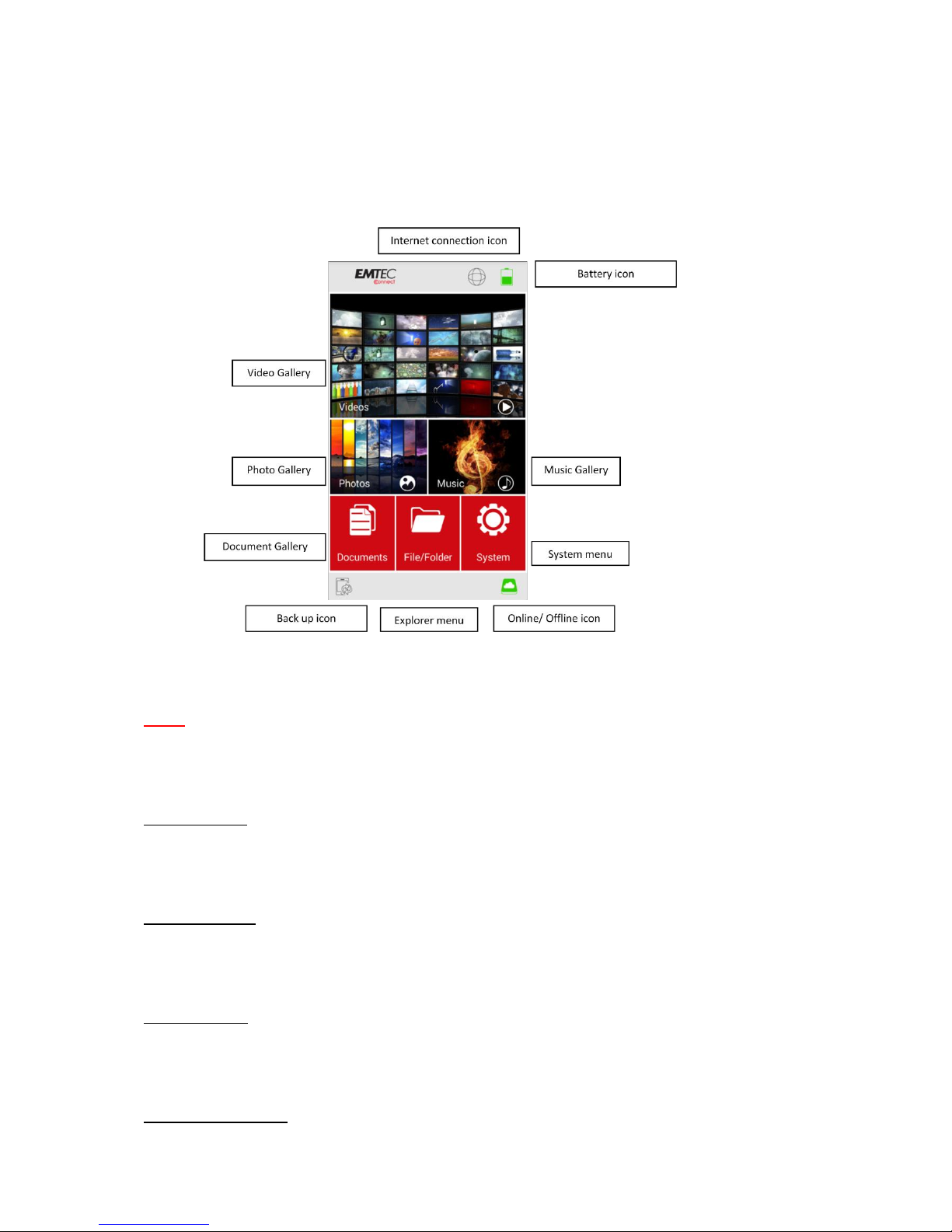
Note: Once your smartphone/ tablet is connected with your Wi-Fi HDD, the “Online” pictogram will
be green.
Video Gallery:
Allows you to see and manage all the videos available on the Wi-Fi HDD and your smartphone/
tablet.
Photos Gallery:
Allows you to to see and manage all the photos available on the Wi-Fi HDD and your smartphone/
tablet.
Music Gallery:
Allows you to to see and manage all the music available on the Wi-Fi HDD and your smartphone/
tablet.
Documents Gallery:

7
Allows you to to see and manage the documents available on the Wi-Fi HDD and your smartphone/
tablet.
System menu:
Access to all the settings of your Wi-Fi HDD.
Explorer menu:
Allows you to manage and upload/download files (copy/paste, new folder…) from your smartphone/
tablet to your Wi-Fi HDD or from your Wi-Fi HDD to your smartphone/ tablet.
3.2. Access to the files of Wi-Fi HDD/ smartphone/ tablet
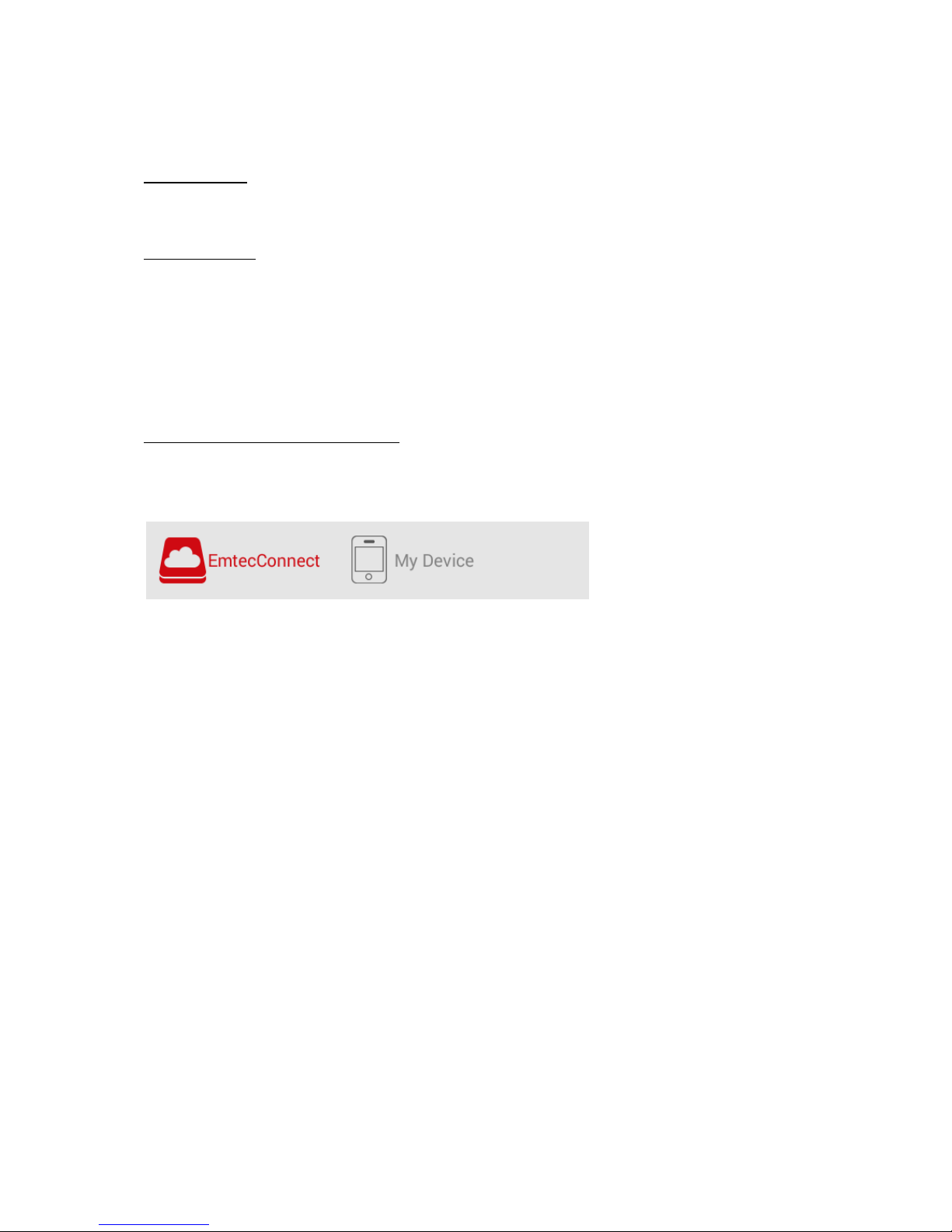
Emtec Connect / My Device access:
Select file location by clicking on “EmtecConnect" (your Wi-Fi HDD) or "My Device" (your
smartphone/ tablet).

8
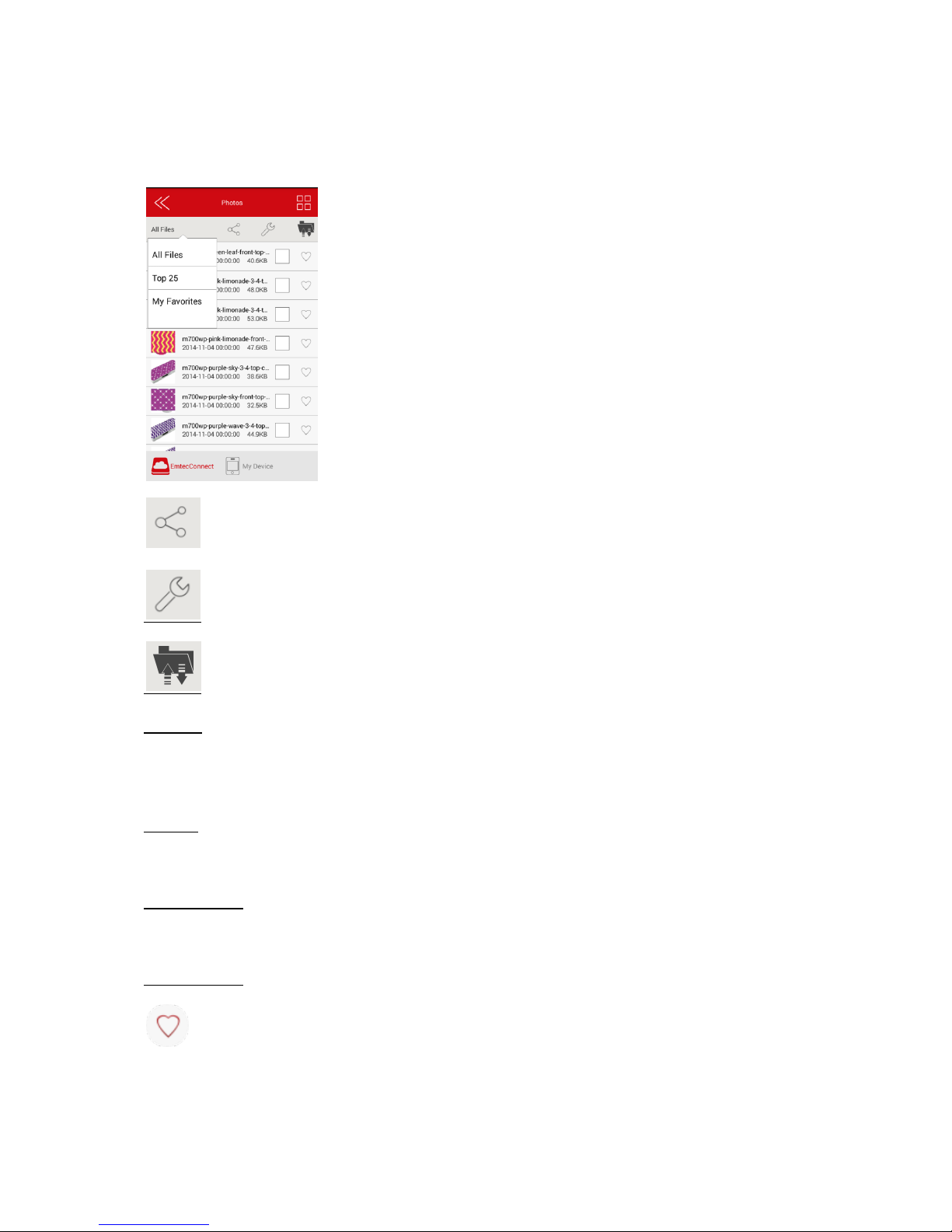
3.3. Videos/ Photos/ Music/ Documents Gallery
Share menu
Tool menu
Transfer status
All files:
Manage all the files available (Videos/ Photos/ Music/ Documents) on your Wi-Fi HDD or
smartphone/ tablet.
Top 25:
Show the 25 Videos/ Photos/ Music/ Documents you look at most often.
My Favorites:
Shows your favorite Videos/ Photos/ Music/ Documents.
Favorite icon:
Click on the Favorite icon to add the file in “My Favorites” section.

9
DLNA/ Digital Media Sharing:
Click on the TV icon to display on your TV (in Share menu).
3.4. Play movie/ video
Note: The videos will be opened in a third party app available on your smartphone/ tablet. If no
movie player is available on your smartphone/ tablet, you can download one on Google Play. Many
movie players are available for free.
To play a video, you can go in the “Videos” gallery or in Explorer.
Just click and hold on the video you want to play and choose the movie player you desire to see the
video with.
3.5. Listen to music
To listen to music, you can go in the “Music” gallery or in Explorer.
Note: Compatible files: mp3. Other files will be opened in a third party app available on the Android
device. If no music player is available on your smartphone/ tablet, you can download one on Google
Play. Many music players are available for free.
Simply locate the music file that you would like to play. Click on the file and your music will
automatically play.

10
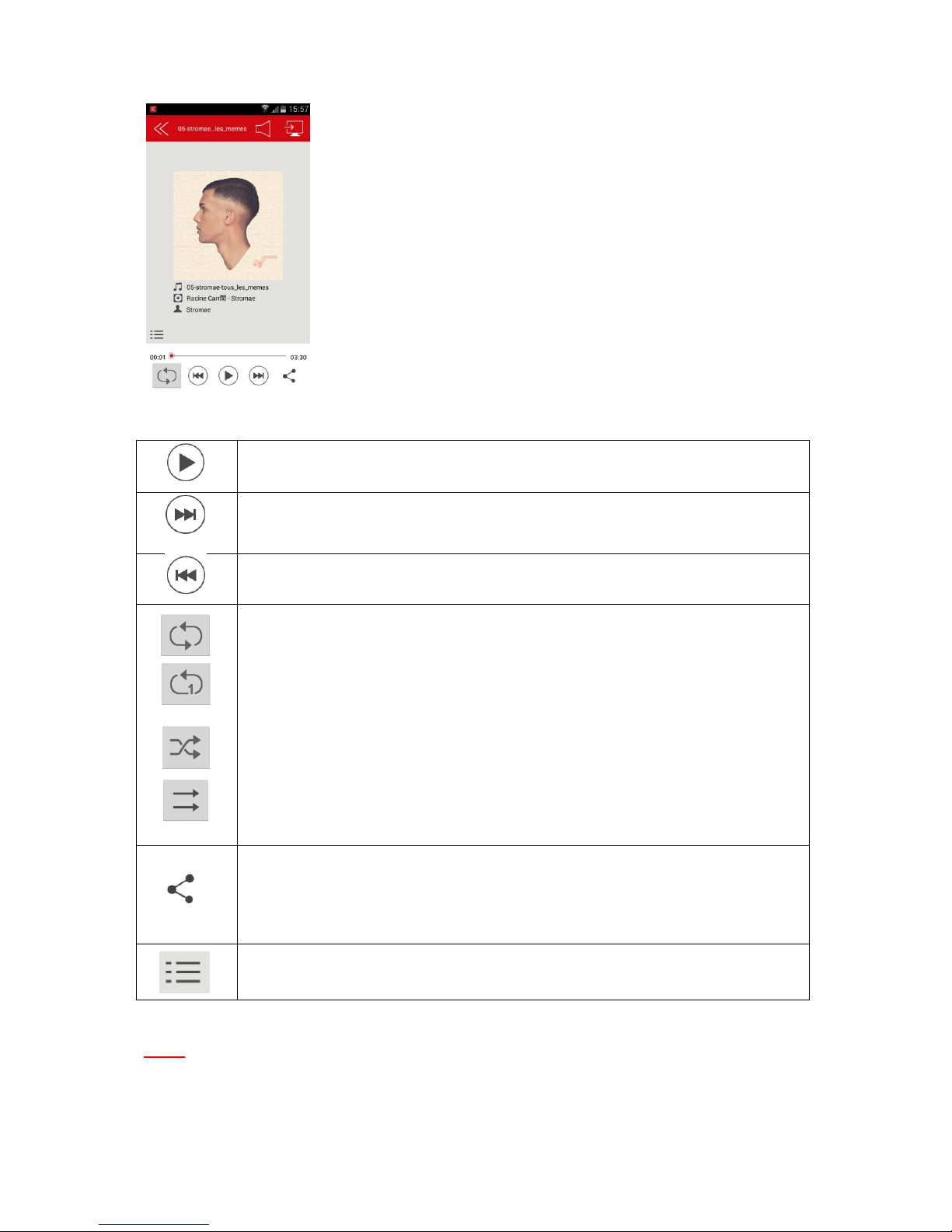
Note: You can exit the Music Player Interface at any time and will continue to play the music or
audio file in the background.
Play / Pause button
Forward button
Backward button
Repeat all songs
Note: Click on this icon to select the other functions below
Repeat current song
Shuffle mode
Play current playlist and then stop
Share button:
Facebook: Share on Facebook
Email: Send by email
Favorite: Add to “My Favorites”
Other songs in the file
Indice
Altri manuali Emtec Magazzinaggio

Emtec
Emtec SSDX200 Istruzioni operative originali

Emtec
Emtec SSD Power Plus X160 Manuale utente

Emtec
Emtec SSD Power Plus X150 Manuale utente

Emtec
Emtec X200 Manuale utente

Emtec
Emtec Portable HDD USB 3.0 Wi-Fi Manuale utente

Emtec
Emtec M400 Manuale operativo e di manutenzione

Emtec
Emtec Photo Cube Photo Cube 160GB Manuale utente

Emtec
Emtec S510 Manuale del proprietario

Emtec
Emtec POWER PLUS Series Manuale utente