Enable-IT 8440 Manuale utente

All Rights Reserved ©1997 - 2015 ENABLE-IT™- Proprietary and Confidential
Copyright © 1997-2015 Enable-IT, Inc. All rights reserved. No part of this documentation
may be reproduced in any form or by any means or used to make any derivative work (such
as translation, transformation, or adaptation) without written permission from Enable-IT, Inc.
Enable-IT, Inc. reserves the right to revise this documentation and to make changes in
content from time to time without obligation on the part of Enable-IT, Inc to provide
notification of such revision or change.
Enable-IT, Inc. provides this documentation without warranty, term, or condition of any kind,
either implied or expressed, including, but not limited to, the implied warranties, terms or
conditions of merchantability, satisfactory quality, and fitness for a particular purpose.
Enable-IT, Inc may make improvements or changes in the product(s) and/or the program(s)
described in this documentation at any time.
If there is any software on removable media described in this documentation, it is furnished
under a license agreement included with the product as a separate document, in the hard
copy documentation. If you are unable to locate a copy, please contact Enable-IT, Inc. and a
copy will be provided to you.
UNITED STATES GOVERNMENT LEGEND
If you are a United States government agency, then this documentation and the software
described herein are provided to you subject to the following:
All technical data and computer software are commercial in nature and developed solely at
private expense. Software is delivered as "Commercial Computer Software" as defined in
DFARS 252.227-7014 (June 1995) or as a "commercial item" as defined in FAR 2.101 (a)
and as such is provided with only such rights as are provided in Enable-IT, Inc's standard
commercial license for the Software.
Technical data is provided with limited rights only as provided in DFAR 252.227-7015 (Nov
1995) or FAR 52.227-14 (June 1987), whichever is applicable. You agree not to remove or
deface any portion of any legend provided on any licensed program or documentation
contained in, or delivered to you in conjunction with, this User Guide.
Unless otherwise indicated, Enable-IT, Inc registered trademarks are registered in the United

Enable-IT 8440 Wireless
Access Point Router
User Manual!
!
!
!
All Rights Reserved ©1997 - 2015 Enable-IT, Inc. Page !of !218

CONTENTS
ABOUT THIS GUIDE 4
PRODUCT OVERVIEW 5
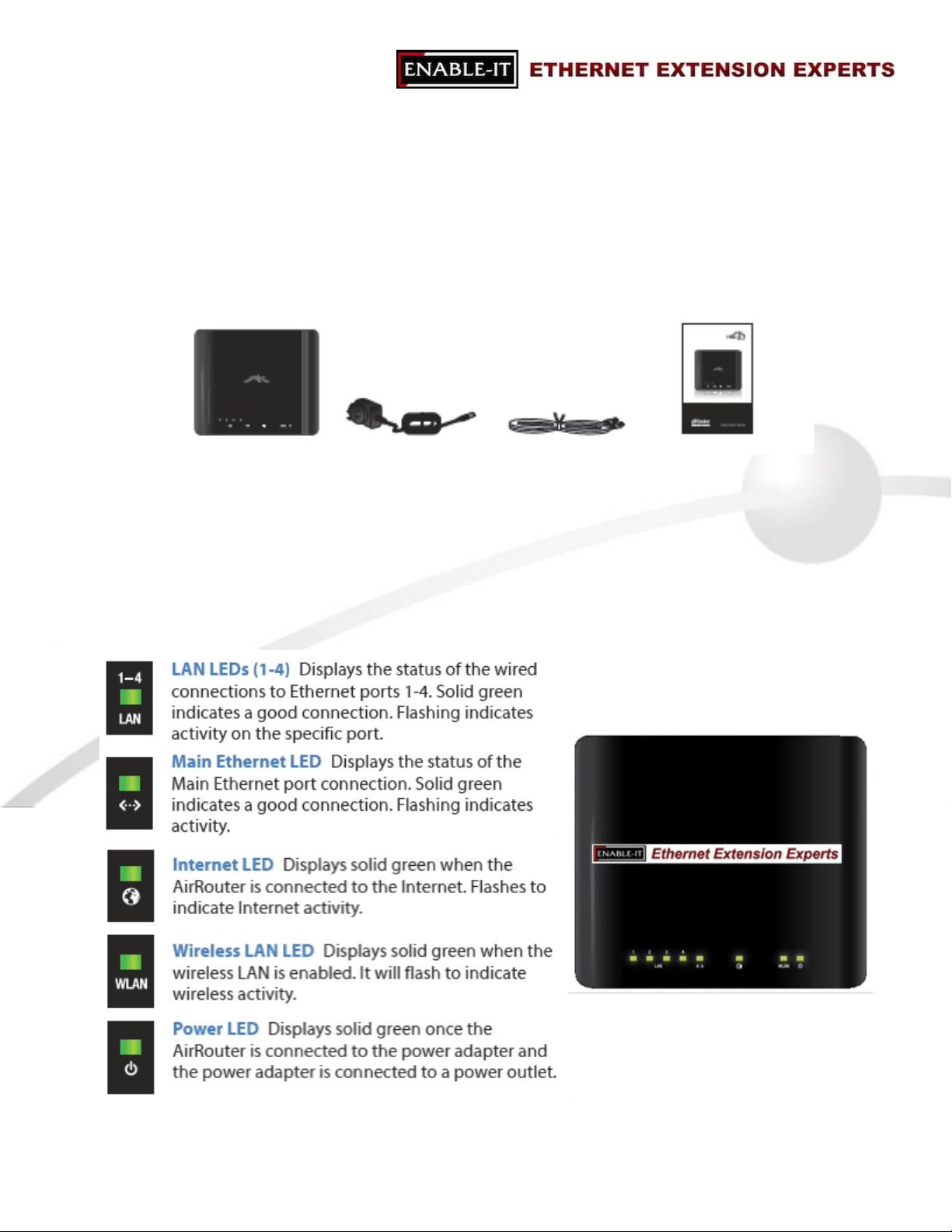
PACKAGE CONTENTS 5
SYSTEM REQUIREMENTS 5
TOP VIEW 5
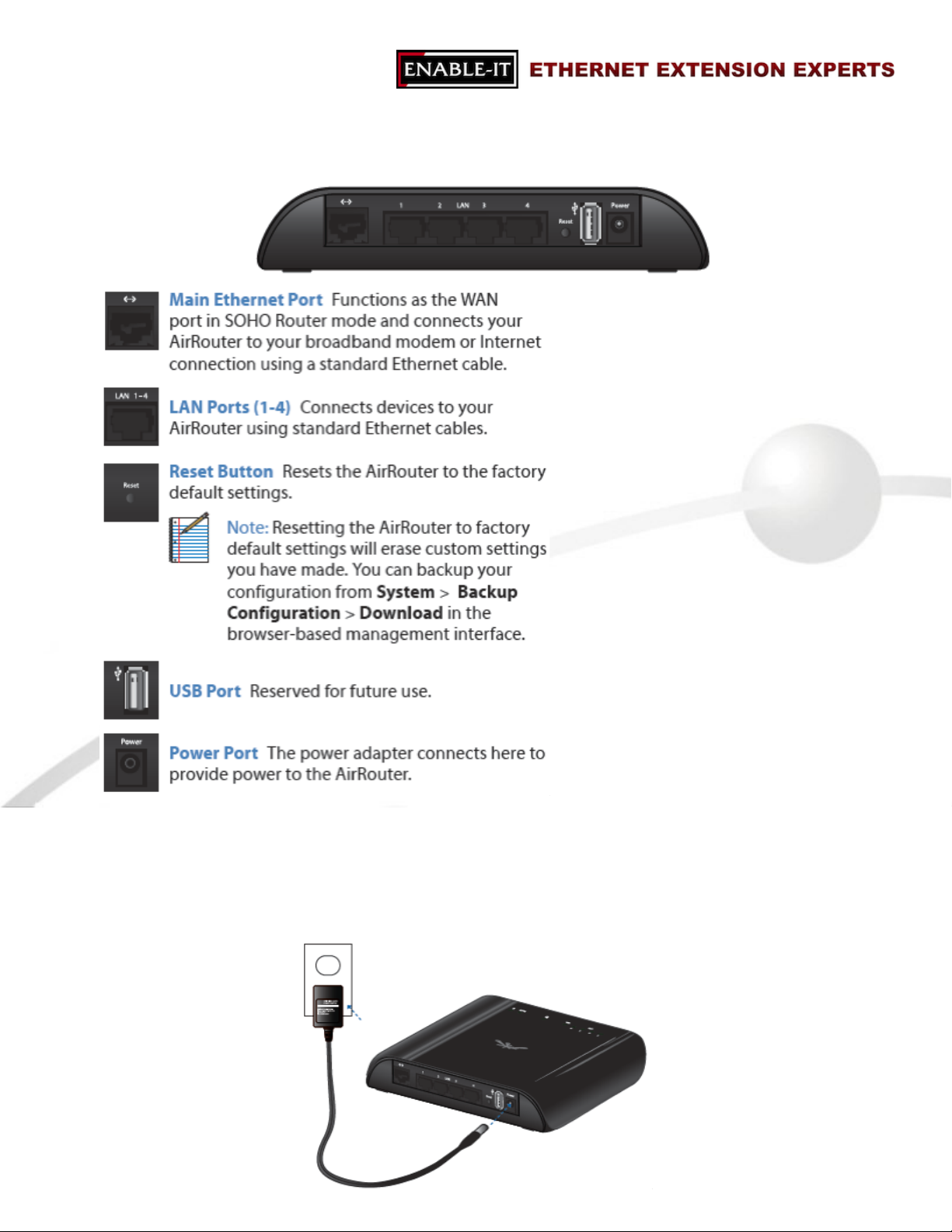
REAR VIEW 6
HARDWARE INSTALLATION 6
CONNECTING AWIRELESS CLIENT TO THE AIRROUTER 9
NAVIGATION 10
MAIN 11
STATUS 12
MONITOR 13
THROUGHPUT 13
STATIONS 14
STATION INFO 14
AP INFORMATION 15
TECHNICAL SUPPORT 16
RETURNING PRODUCTS FOR WARRANTY REPAIR 16
ENABLE-IT LIMITED WARRANTY 16
CONTACT US 18
All Rights Reserved ©1997 - 2015 Enable-IT, Inc. Page !of !318

ABOUT THIS GUIDE
This guide provides all the information needed to install and use the Enable-IT
8440 Wireless Access Point Router. This guide is intended for use by technicians
who are responsible for installing and setting up network equipment.
Consequently, it is assumed that the installer has a basic working knowledge of
LANs (Local Area Networks) and voice telecom wiring.
If the information in the release notes that are shipped with your product differs
from the information in this guide, follow the instructions in the release notes.
Most user guides and release notes are available in Adobe Acrobat
Reader Portable Document Format (PDF) or HTML on the Enable-IT World Wide
Web site: http://www.ethernetextender.com/manuals/8440Manual.pdf!
All Rights Reserved ©1997 - 2015 Enable-IT, Inc. Page !of !418

PRODUCT OVERVIEW
Thank you for purchasing the Enable-IT 8440 Wireless Access Point Router!
Package Contents
System Requirements
•Microsoft Windows XP, Windows Vista, Windows 7, Linux, or Mac OS X
•Java Runtime Environment 1.6 (or above) for the AirView utility
•Web Browser: Mozilla Firefox, Apple Safari, or Microsoft Internet Explorer
Top View
All Rights Reserved ©1997 - 2015 Enable-IT, Inc. Page !of !518
Enable-IT 8440 Power Adapter Ethernet Cable Quickstart Guide

Rear View
Hardware Installation
1. Connect the power adapter to the port labeled Power on the Enable-IT 8440.
Connect the other end of the power adapter to a power outlet.
All Rights Reserved ©1997 - 2015 Enable-IT, Inc. Page !of !618

2. Connect an Ethernet cable to Ethernet port 1.
3. Connect the other end of the Ethernet cable to your computer.
4. Launch your Web browser and type http://192.168.1.1 in the address field and press
enter (PC) or return (Mac).
All Rights Reserved ©1997 - 2015 Enable-IT, Inc. Page !of !718

5. The login screen will appear. Enter ubnt in the Username and Password fields and
click login.
6. The AirOS interface will
appear. Go to the Wireless tab.
7.Customize your
wireless network and secure your network by entering the basic wireless network
information:
•Enter a name for
All Rights Reserved ©1997 - 2015 Enable-IT, Inc. Page !of !818

your wireless network in the SSID field.
•Select the type of security that you want to use for your wireless network from
the Security drop-down.
•Enter a passphrase in
the WPA Preshared Key field. You can click the Show option to see the
characters that you are typing.
•Click Change. You will be prompted to apply the changes. To proceed, click
Apply.
8. If necessary, disconnect the power and Ethernet cables to move the router so that you
can connect it to your Internet connection.
9. Connect an Ethernet cable from your broadband modem or other Internet connection
to the port labeled ßà on the back of the Enable-IT 8440.
Now you basic router installation
is complete. Next step is connecting a wireless client to the Enable-IT 8440 Router.
Connecting a Wireless Client to the Enable-IT 8440 Wireless Router
Windows
1. Go to Connect to Network.
•Windows 7 Right-click on the Network icon.
•Windows Vista Go to Start > Connect To.
•Windows XP Right-click the Wireless Network icon in the System Tray (lower
right corner of the screen) and then click View Available Wireless Networks.
2. Select the wireless network (SSID) that you entered in the SSID field in step 7 bullet
point 1 and then click Connect.
3. Type the passphrase that you entered in the WPA Preshared Key field in step 7 bullet
point 3 and click OK or Connect.
4. Launch your web browser to begin browsing the web.
All Rights Reserved ©1997 - 2015 Enable-IT, Inc. Page !of !918

Mac
1. Click the AirPort icon in the menu bar (top side of the screen).
2. Select the wireless network (SSID) that you entered in the SSID field in step 7 bullet
point 1.
3. Type the passphrase that you entered in the WPA Preshared Key field in step 7 bullet
point 3 and click OK.
4. Once connected the AirPort!icon will change from gray to solid black. The number
of black lines indicates the signal strength. Launch your web browser to begin
browsing the web.
AirOS™
AirOS™ is an advanced operating system that is capable of powerful wireless and
routing features. AirOS is built upon a simple and intuitive user interface. AirOS allows you to
maximize the wireless performance of Enable-IT products which are based on IEEE
802.11af.
To access the interface, perform the folling steps:
1. Launch your Web browser and type http://192.168.1.1 in the address field and press
enter (PC) or return (Mac).
2. The login screen will appear.
Enter ubnt in the Username and Password field and click Login.
Navigation
The interface contains six main tabs:
•Main The Main tab displays AirRouter status information and provides network
monitoring links.
•Wireless The Wireless tab allows you to configure the wireless mode, the basic
wireless settings and the wireless security settings for the AirRouter.
•Network The Network tab covers the configuration of the network operating mode, IP
settings, packet filtering routines and network services.
•Advanced The Advanced tab settings are available for additional wireless interface
controls. The AirMax feature and advanced wireless settings can be configured in this
tab. The Advanced tab also includes advanced Ethernet and traffic shaping settings.
•Services The Services tab contains controls for system management services like
SNMP, NTP, System Log, Ping Watchdog and SSH/Telnet server.
All Rights Reserved ©1997 - 2015 Enable-IT, Inc. Page !of !10 18
Indice
Altri manuali Enable-IT Router di rete
Manuali Router di rete popolari di altre marche

NETGEAR
NETGEAR FS526T - Switch Manuale utente

Korenix
Korenix JetNet 5710G Series Manuale utente

Automated Logic
Automated Logic ZN551 Manuale del proprietario

Cisco
Cisco ASR 1000 Series Manuale dell'operatore

EnGenius
EnGenius ESR-9710 Manuale utente

Cisco
Cisco 805 Series Istruzioni operative e di sicurezza