
ENER-J IPC1014 Manuale utente

CAMERA 360º
User Manual
PANORAMIC VR IP
EN
Panoramic VR IP Camera 360º
1
1. Please turn on WI-FI connection on your mobile device before setup.
2. The camera will not work on a 5Gz wireless standard at this time. If you
have a dual-band router, be sure to segregate your wireless channels and
connect the camera to the 2.4Ghz channel.
3. Please make sure the router signal is stable (place IP camera close to your
router for rst connection is recommended.
Step 1: Download the Yoosee App (Yoosee Only)
Step 2: Register the User ID by Email Account is recommended.
Step 3: Power on the IP Cam: (Start To Conguration) Sound will be sent
by the IP Camera, except the outdoor IP camera. If not, please
check the Reset information below on FAQ. After hearing the
Sound, user should take the following step as soon as possible, or
device system will turn to ‘Resting State’.
Step 4: Connect the IP Camera to internet: Place IP Camera close to your
router for rst connection is Recommended, good signal will speed
up the connection.
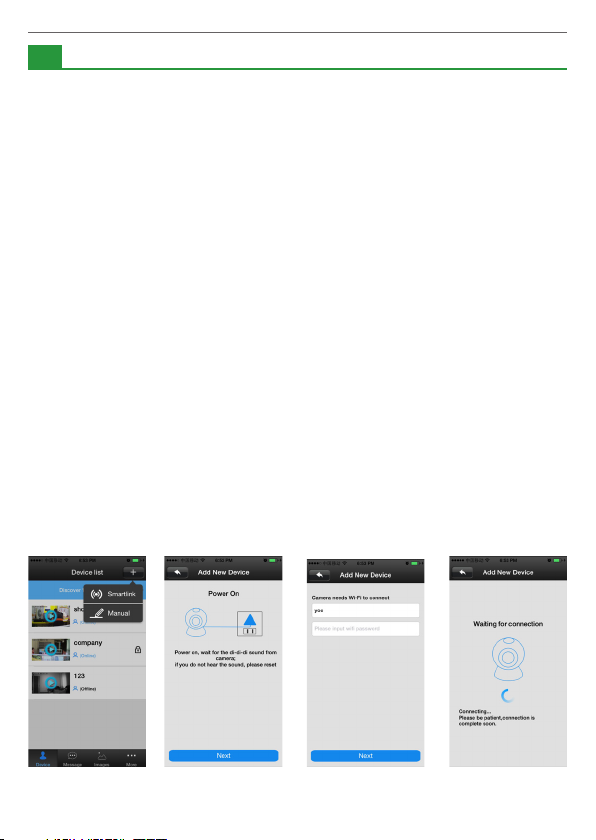
1) WI-FI Connection: open the Yoosee software, click “Device”, choose
the “+” button, choose “Smartlink”, click next and then choose
the WI-FI and WI-FI password you need, click the “next” again,
connect the device.
1Setup Notice
Setup Process:
Panoramic VR IP Camera 360º
2
2) Wired connection: after the camera powered on, connect one end
of the cable to the camera, the other end to the router LAN port
(please be sure the router open the DHCP function), the network
light will be normally on after connection successfully.
Step 5: Add The Camera Through The WI-FI or Wired Network.
1) Through WI-FI: The camera will be connected to your mobile
device automatically once user has nished step 4.
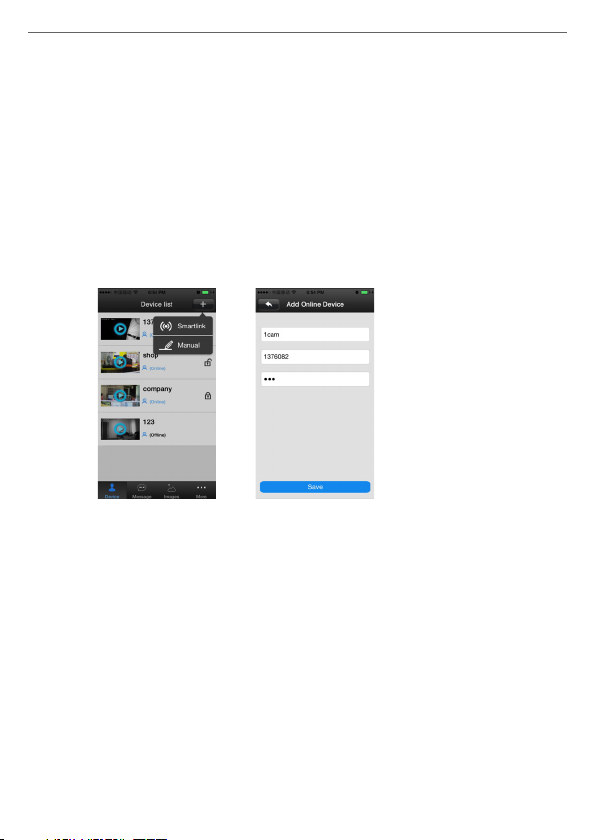
2) Add device manually On the device interface of the Yoosee
software, clickthe “+”, Fill up the needed information. Device name,
ID and Password are at the bottom of the IP Camera.
FAQ About Setup:
1. Q. Power on the IP Cam: (Start To Conguration) Sound will be sent by
the IP Camera. If not, the IP Camera may not be connected to the WI-FI
mode successfully.
A: There are two ways to x the problem.
Solution 1: Unplug the power cord and plug it again in seconds:
It will wake up the IP Camera system, which becomes more efcient to
recognize and accept the router around it.
After hearing Start To Conguration Sound, please try it connect it again
by WI-FI or Wired Network.
Panoramic VR IP Camera 360º
3
Solution 2:
Reset:
Reset can be helped to boost the IP Camera system, which become more
efcient to accept the unknown router and connect it.
Reset will erase all user Settings: including WI-FI information, access
password, alarm information, arming zones information.
How to reset:
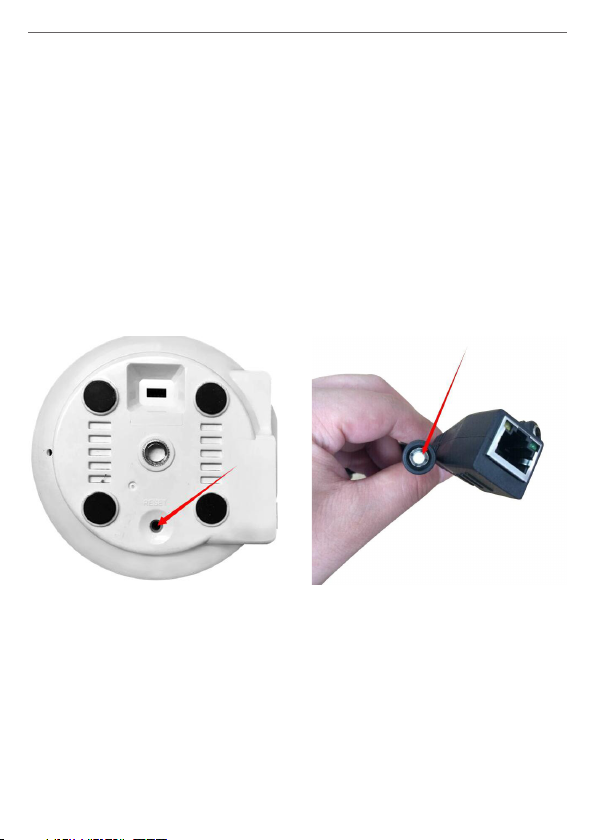
Find the reset hole at the bottom of the device, and then use needle to
insert it, press it more more than three seconds after hearing “di” sound,
when hearing ‘Reset to be defaulted setting’ sound or the sound like “draw
the sword”, reset successfully.
After the reset, user can start to connect it by WI-FI or Wired Network.
2. Q: Forget the Password of the Account and can not receive any
notications/link by email from Yoosee?
A: Please check the Email Setting, to make sure it has opened SMTP
function. SMTP is used to allow us to receive the message or notication
from the third party like yoosee or other apps.
• The indoor IP camera’s reset key is
on the bottom.
• The outdoor IP camera’s reset key
is in the cable.
Panoramic VR IP Camera 360º
4
1. Mobile phone software download:
1) IOS user can download and install Yoosee in Apple ofcial shop.
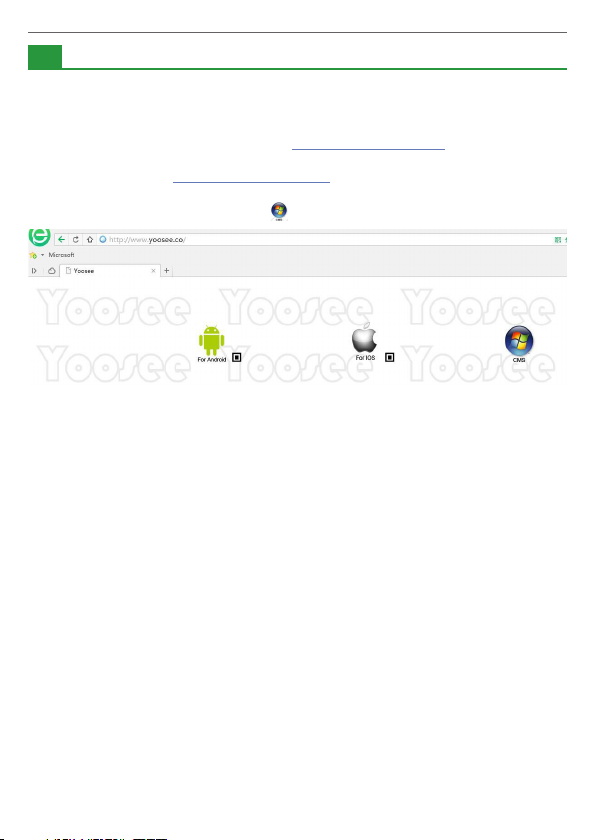
2) Android user can enter website: http://www.yoosee.co, download and
install Yoosee.
3) Also can input http://www.yoosee.co/ in the explorer to download it in
PC, Android version and IOS version can scan the QR code to download
the software directly PC click to download directly.
2. Mobile phone network connection:
There are two ways for connecting device to network.
1) Wired connection: after the camera power on, connect one end of
the cable to the camera, the other end to the router LAN port (please
be sure the router open the DHCP function), the network light will be
normally on after connection successfully.
2) WI-FI connection: The users can follow the below ways if they wants
to start using WI-FI to get connection with the camera when the
camera is wired connection.
A. Open Yoosee software,
1) Choose “device”, click device name, choose settings.
2) Choose “network settings”
3) (Please don’t choose “WI-FI” directly at the moment)
the following will search all of the WI-FI signal near it
automatically, choose your WI-FI ID.
4) Input WI-FI password, open WI-FI successfully.
--The Mobile phone software operation
2Product Information

Panoramic VR IP Camera 360º
5
B. Set WI-FI by “Smartlink”, details refer to 3. add device on mobile
phone (2),
3. Add device on mobile phone:
How to add the device to device list:
1) In the device list inter face of the “Yoosee” software, when the camera is
in network and the phone is in the same WI-FI, both of them are in one
LAN, the software will nd all the devices automatically, and only need
choose, add and set the access password is ok.
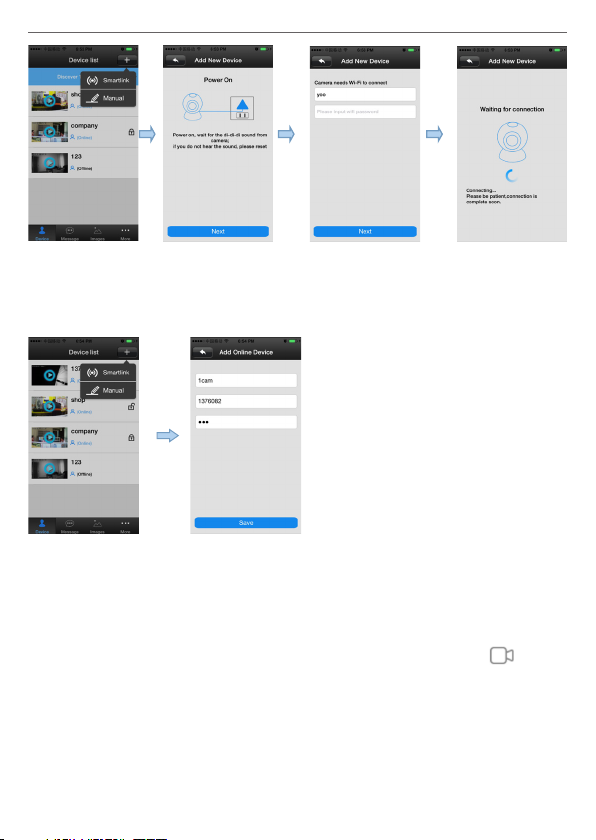
2) Smartlink: open the Yoosee software, click “Device”, choose the “+”
button, choose “Smartlink”, click next and then choose the WI-FI and
WI-FI password you need, click the “next” again, connect the device.
Note: If you do not hearing the prompt tone when camera start
normally, please reset the camera and connect it again. Except outdoor
camera, it is no prompt sound.
Panoramic VR IP Camera 360º
6
3) Add device manually: On the device interface of the Yoosee software,
click the “+” , Fill up the needed information. Device name, ID and
Password are at the bottom of the IP Camera.
4) The video settings of mobile phone:
1) Video: This device supports (upto) 64GB MicroSD card, if need record
video, please insert the memory card at rst, and then open the Yoosee:
click Device > Record settings -> Record Type, user can choose record
video manually, alarm video, timing video. Click the button “ ” to
playback the record.
Note: Please make sure the MicroSD card is genuine licensed, or it may
can not be recognized, even will damage the camera. If your didn’t
insert a MicroSD card in the camera, you can only watch the real time
online video.

Panoramic VR IP Camera 360º
7
How to insert the MicroSD card in the outdoor IP camera?
Please unscrew the 3 screws, and open the case, then you will see the card
slot. Details please refer to the following pictures.
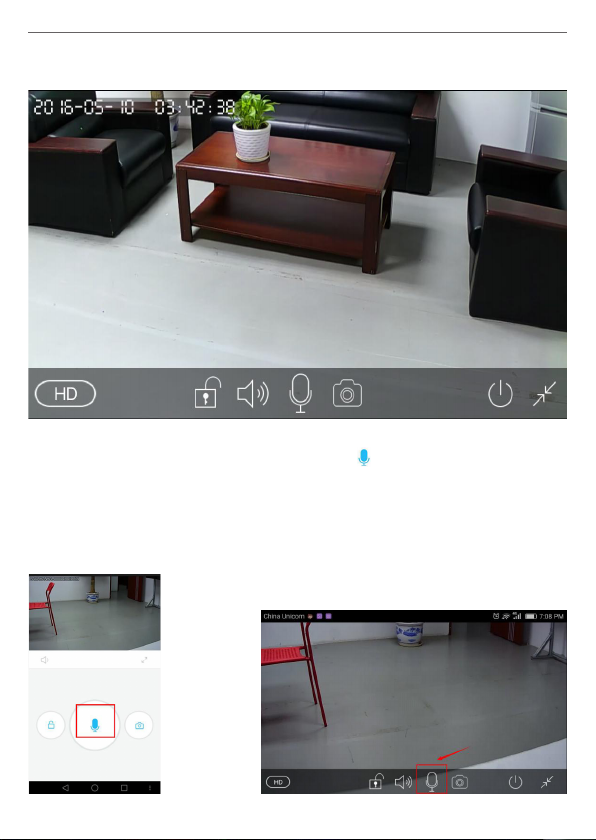
2) There are 3 real time video watching modes you can choose as the
following operation.
A. LD mode: Video effect so so, stable network speed is OK.

Panoramic VR IP Camera 360º
8
B. SD mode: Better video effect than the LD mode, requires good and
stable network speed.
Panoramic VR IP Camera 360º
9
C. HD mode: Best video effect, requires fast and stable network speed, or
the video effect will not smooth.
3) Two-way Audio function: when you want to talk with someone who is
beside the camera, you can press on the “ ”, then your voice can send
by the microphone. If you nd you or the one beside the camera can
not hear clearly, that means the network speed is not good, you need
to check the the network is stable or not.
Note: Outdoor IP camera do not support Two-way Audio & remote Pan/
Tilt control (Pan: 355° & Tilt: 90°).
Or
Indice


