
Entry-Level 4 Channel Network Video Recorder Manuale utente

Entry-Level 4 Channel
Network Video Recorder
User’s Manual v1.7.5
EN/M175/11162011/001

4 Channel (Basic)
Network Video Recorder
User’s Manual
English
2
Table of Contents
System Requirements 4
Product Description 5
Hardware Illustration 6
Hard Drive Installation 7
Connect to the NVR 8
1. Live View 13
1.1 Retrieve camera’s video stream 14
1.2 Retrieve camera’s status 14
1.3 Perform Sequence Viewing 15
1.4 PTZ Control 16
1.5 Perform PTZ Preset Viewing 17
1.6 Live Video Control Buttons 19
1.7 Change Web UI Display Language 22
1.8 Live View through iPhone 23
1.9 Live View through Blackberry Phones 27
2. Playback 32
2.1 Methods to Search Playback Videos 33
2.2 Export Playback Videos to AVI Files 36
2.3 Play Exported AVI Videos With NVR Media Player 39
2.4 Open Event Snapshot Images with NVR Media Player 40
3. System Setup 41
3.1SystemCongurations 41
3.1.1 Network Settings 41
3.1.2 DDNS Service 43
3.1.3 Time and Date 49
3.1.4 User Account 50
3.1.5 Group Privilege 51
3.1.6 Disk Setup 53
3.2ChannelCongurations54
3.2.1 Add a Camera 54
3.2.2 OSD Settings 57
3.2.3 PTZ Preset Settings 58
3.2.4 PTZ Preset Sequence 60
3.2.5 E-Map Setting 61
3.2.5.1 Local Map Setting 63
3.2.5.2 Google Map Setting 64
3.3EventCongurations 65
3.3.1 General Settings 65
3.3.2 Event Servers 61
3.3.3 Event Triggers 71
3.4RecordingCongurations 73
3.4.1 General Settings 73
3.4.2 Schedule Recording 75

4 Channel (Basic)
Network Video Recorder
User’s Manual
English
3
3.5 System Options 76
3.5.1 Device Information 76
3.5.2 Logs and Reports 77
3.5.3 Maintenance 77
Reboot the NVR 78
RebootNVRAtaSpecicTimeAutomatically79
Firmware Upgrade 80
Reset the NVR to Factory Default 82
3.5.4 Disk Status 83

4 Channel (Basic)
Network Video Recorder
User’s Manual
English
4
System Requirements
The following are minimum system requirements for the system to op-
erate Embedded Network Video Recorder (ENVR):
Operating System
Microsoft® Windows® 2000 Professional, Windows® XP Professional
(32 bit) or Windows® Server 2003 (32 bit)
Browser
Microsoft Internet Explorer 6 or above
CPU
Minimum Intel® Pentium® 4 2.4 GHz or higher (Dual Core is recom-
mended)
RAM
Minimum 1 GB of RAM, 2GB or above is recommended
Network
Minimum 10/100 Ethernet (Gigabit Ethernet is recommended)
Graphics Adapter
AGP or PCI-Express, minimum 1024×768, 16 bit colors.
(We highly recommend to work above the 1024 x 768 resolution to get
the full experience of the software)
• MakesureyourdisplayDPIsettingissettodefaultat96DPI
• TosetDPIvalue,right-clickondesktop,choose“Settings”tab>>“Ad-
vanced”>>“General”
Contents Inside the Installation CD
• Adobe Acrobat Reader
• NVR Search Utility
• User’s Manual
• Quick installation Guide
• Datasheet

4 Channel (Basic)
Network Video Recorder
User’s Manual
English
5
Product Description
The NVR designed for use within a surveillance system, and performs
recordings and playbacks pictures from network cameras in the
system. It is designed for small scale applica-
tions such as retail store. Up to 4 cameras can be connected via a net-
work and it is possible to record their camera pictures. It is possible
to perform the settings or operate the NVR using a web browser in-
stalled on a PC connected to a network and live videos can be viewed
on major mobile devices through its web browser. Recorded video can
be played back from remote site by a PC. The NVR is compatible with
most major brand cameras and its ability to automatically search and
ndtheavailablecamerasonthenetworkcangreatlyreducetheuser’s
effort when confguring the system.
• Two-way Audio
• Smart Camera Search
• Mobile Devices Remote Monitoring
• Pure Web Based Administration
• Manage up to 4 Network Cameras
• Compatible with Major Brand Cameras
• High Quality Live/Playback Video
• Export Playback Videos to AVI
4 Channel (Basic)
Network Video Recorder
User’s Manual
English
6
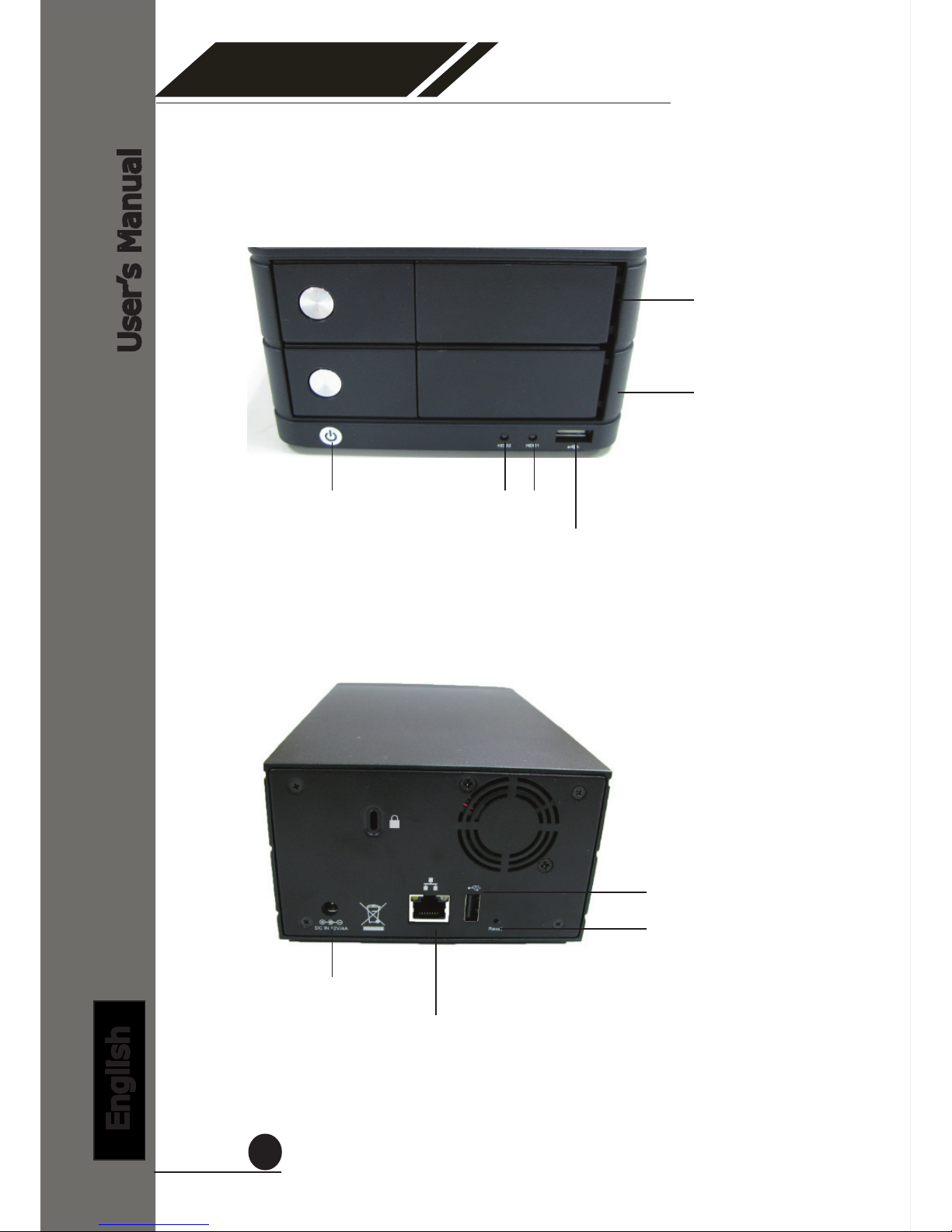
Hardware Illustration
(Front)
(Rear)
HDD Tray
HDD Tray
Power button
and LED
HDD LEDs
USB Connector
Power jack
Ethernet jack
USB connector
Reset/Restart but-
ton

4 Channel (Basic)
Network Video Recorder
User’s Manual
English
7
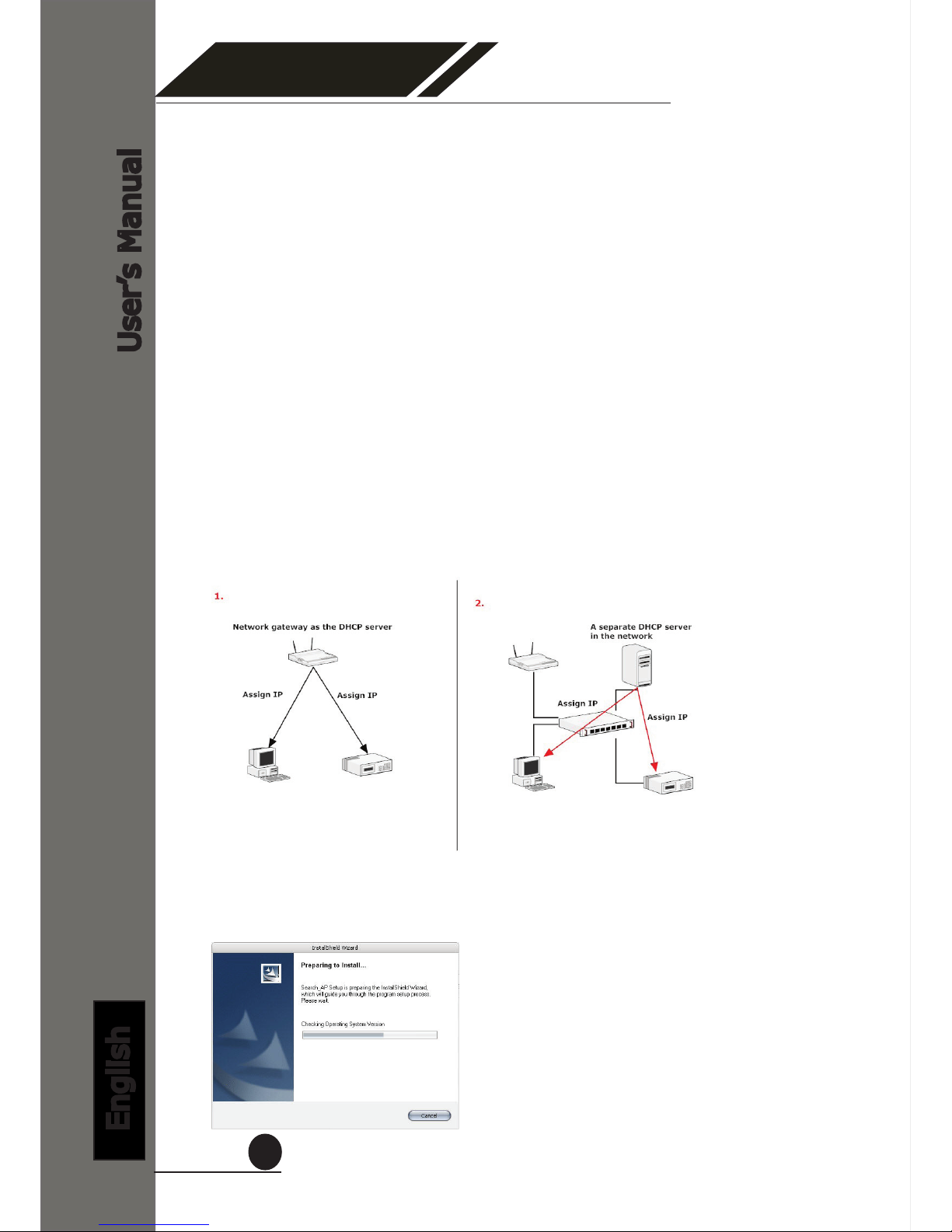
1. Push the silver button to
release the HDD tray
2. Pull out the HDD tray
3. Place the HDD on the tray
and secure the HDD with the
screws at the bottom (as illus-
trated)
4. Push the tray back in the
unit and press down the black
bar to secure the tray
HDD Installation
4 Channel (Basic)
Network Video Recorder
User’s Manual
English
8
Connect to the NVR
There are various ways you can connect to the NVR and below are
the suggested methods for network setup:
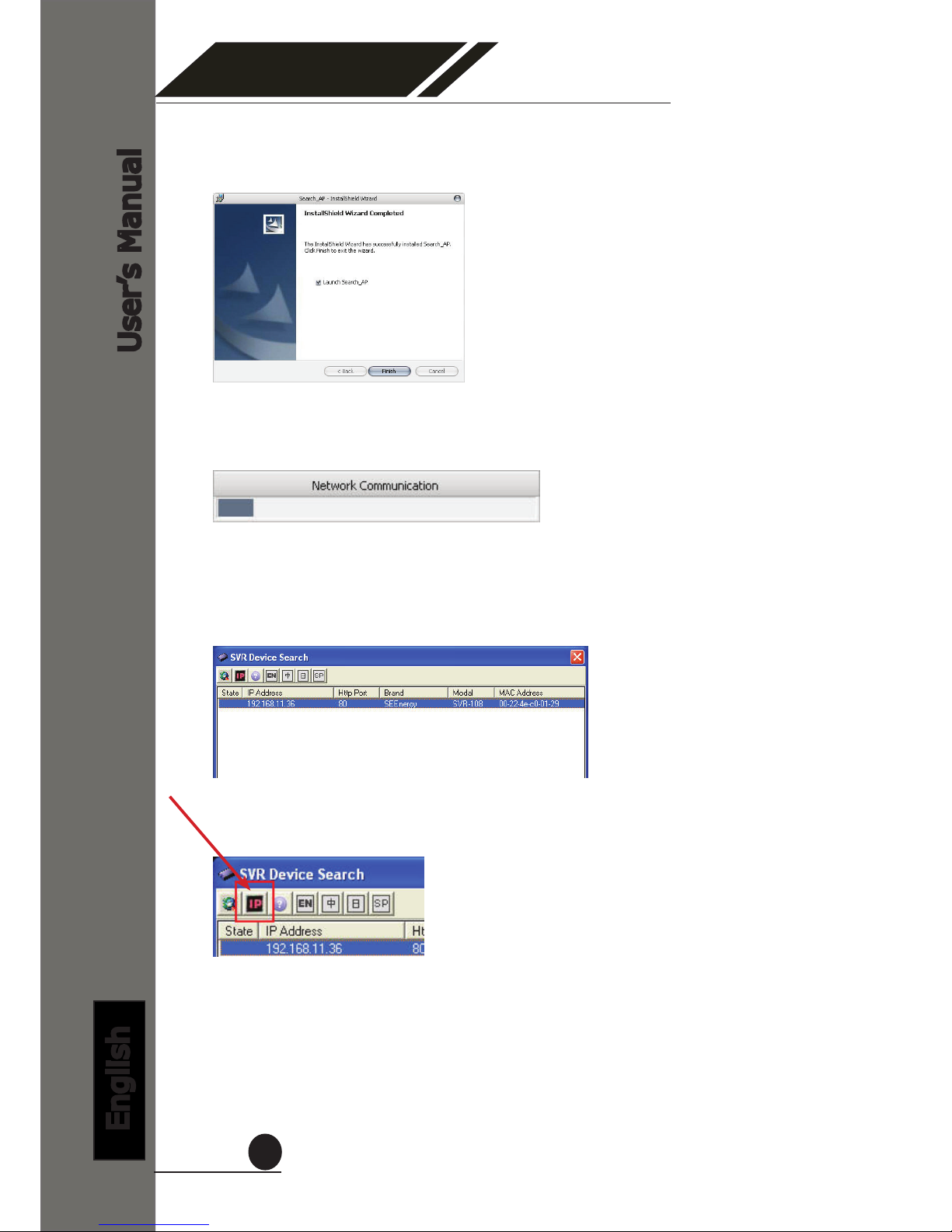
• The NVR is placed in a network with a DHCP server: Connect to
the NVR by using “Smart Device Search” Utility.
• The NVR is placed in a network without DHCP server (or you are
connecting to it directly): Access the NVR with its default IP.
Use NVR Search Utility
To begin, launch the “NVR Search” utility from the CD and proceed
with the installation.
When the NVR is on a corporate network, or a local area network
where a DHCP server is already present. Run the “Smart Device
Search” utility from a computer which is also on the same network
and locate the NVR via its IP address assigned by the top-level DHCP
server.
4 Channel (Basic)
Network Video Recorder
User’s Manual
English
9
Once the installation is complete, check the “Launch the Search AP”
option and click “Finish”:
The search should start automatically and its status should be dis-
played:
The NVR should be located and its IP address should be displayed:
Double-click on it and the program should automatically access the
NVR’s web administration page from your default browser
You may change NVR’s IP address by click on the button highlighted
below.

4 Channel (Basic)
Network Video Recorder
User’s Manual
English
10
You should be prompted for the NVR’s username and password. En-
ter its default username “admin” and password “admin” and then
click”OK” to enter the system
You will be prompted for the NVR’s login information before proceeding
to change device’s IP address.
You may click on the button highlighted below to perform search again.
Or double-click on any of the search results to access NVR’s web ad-
ministration page
perform search again access NVR’s web administration page
Indice


