
Envic ESW-01 Manuale utente

Smart Watch
User Guide
Please read the manual before use.
The information in this document won't be modified or
extended in accordance with any notice.
The watch should be charging 2 hours at least before use.
1. Product specs
Model:ESW-01
2G GSM/GPRS 850/900/1800/1900 with micro SIM
Memory:RAM 16MB+ ROM 8MB, support micro SD up to 32GB
Capacitive touch IPS screen 1.54” 240*240 pixel
Bluetooth version 4.0
Camera 0.3MP
Function: mobile phone, SMS, anti-lost, alarm, music player,
camera, video player, pedometer, sleep monitor, sedentary reminder,
Information notification (Gmail, Facebook, and so on)
Battery Lithium-ion 3.7V 300mAh
2. Product details:
2.1 Product details
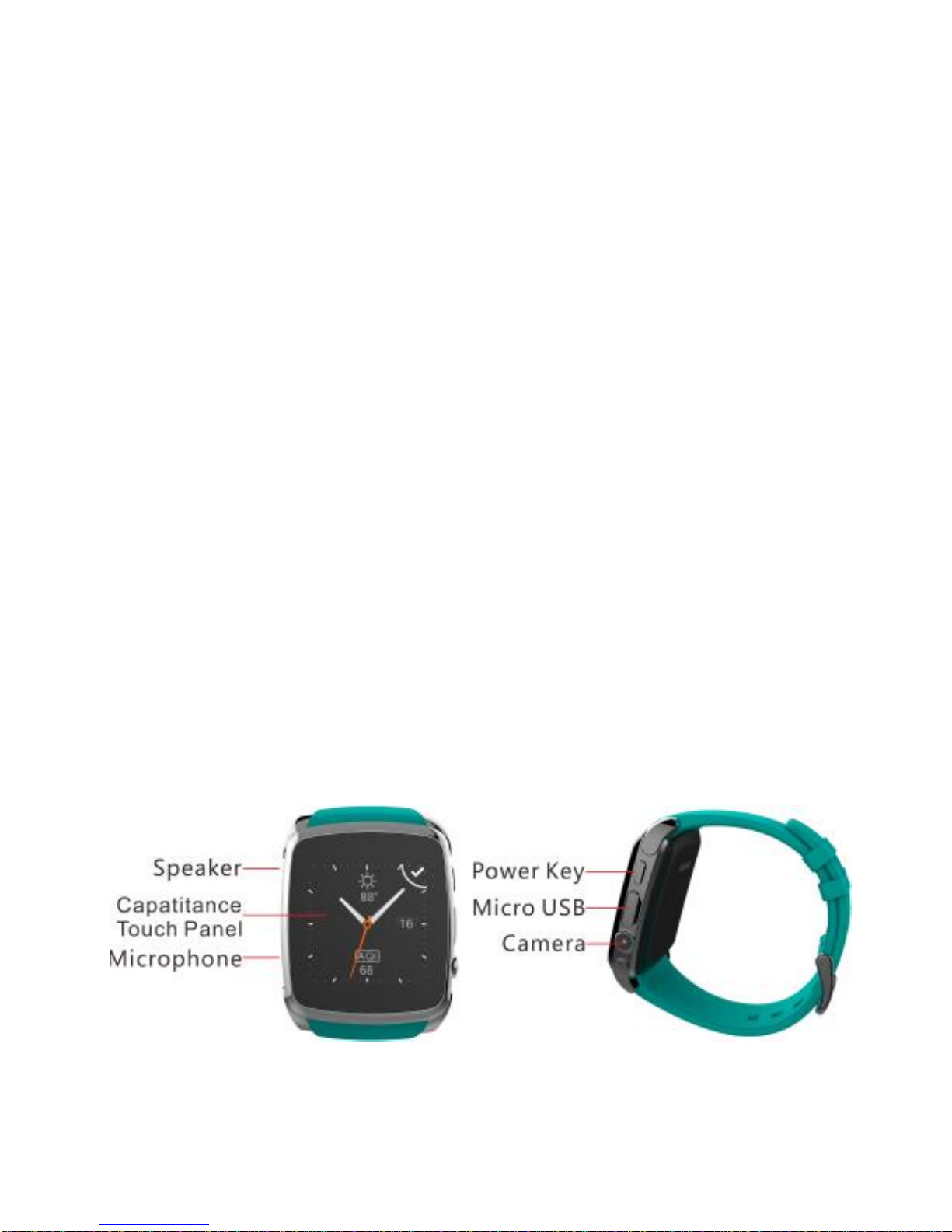
Power button: Power On/Off;Awaken/turn off screen;Back to main
menu
Touch screen: each function (main menu) will be shown and

displayed on capacitive touch screen.
USB port: Charging/Data;

SD and SIM:Install micro SD card and micro SIM card
Install battery
2.2 Products quick into

You can enter into next page by sliding screen up, and return to last
page by sliding screen down; enter into the sub-menu after clicking
selected menu, and return to upper menu after sliding from left to right. It
is will be in mistake for a click if the drag distance too short.
2.3 Clock Display
Setting method:
Method 1: Power on, when the phone in clock mode, please long press
middle screen and set different clock interfaces if you like.
Method 2: Power on, Main menu: settings--clock—clock type; choose the
clock mode if you like.
3. Product quick use
3.1 Download and install the Sync software.
Search Fundo WearAPP inApple Store, down load the APP and install it in

your iphone.
Search Fundo Wear APP in Google Play Store, down load the APP and
install it in your android phone.
This APP only use for the Sync between watch and phone, will not take your
data service.
If you already download the related software, please check the version and
use the newest related software in order to ensure all function normal use.
Please update the software when it has new one.
3.2 Use the Sync software
(Smart phone) Open Fundo Wear APP –Enable Notification–OK–Enter
into Notification access, enabled this service.(please choose “sure” when shown
a warning notices )
(Smart phone) Setting -- Accessibility—Enter into Fundo Wear
(service),enabled this service.(please choose “sure” when shown a warning
notices )the application runs on the background automatically and sync
function will be switched on as below:

Open Fundo Wear APP; select your Personal or System application in
Notify application.
Telephone service is including SMS, incoming call and seek watch.
Notice:
Please don’t shut the Bluetooth notify service when you are
clearing software by background or close background application
software. It will affect the Sync function between watch and phone
if shut it.
3.3 Bluetooth Connection and Sync function
3.3.1 from phone to watch
Phone setting—turn on the Bluetooth --search for devices,please click pair
device when found ESW-01(turn on the Bluetooth at first),and also choose

‘’yes ”in your mobile phone, paired done.
Please choose “sure” when there is phone book request , meanwhile you’d
better choose” no remind again”, this is convenience when you connect next
time( without remind again),
Notice: The Sync software can open in sync APP already installed and
Accessibility, the mobile will show Bluetooth connected done after 2-5min;the
watch will inform you the time of Sync with phone, than the Sync switched on.
The message will sync to you watch when it incoming to mobile .
3.3.2 From watch to phone
Settings on ESW-01—BT settings—Power on, and then BT
connection—search new device—found your smart phone (such as iPhone) --
connect. The processes of next are same with 3.3.1
3.3.3 Only for iPhone, you must do more as below
Open Fundo Wear APP ,click +button and then click Bluetooth button, search
for devices,please click pair device when found ESW-01, and choose ‘’pair ”in
your iPhone, paired done again only for iPhone.

3.4 Base function
3.4.1 Message
Sync phone or watch message.
3.4.2Calls records
You can check your phone call records after you connect with the
Bluetooth.
Shown all records including miss call, dialed calls and receive call; You can
check the date, time and phone number of the miss call after you choose it,
but only can call this number.
3.4.3 BT connection
Paired devices from smart watch
3.4.4 Remote notifier
When there is SMS, incoming messages from QQ and other applications on
the connected phone, the watch phone will alert you to read them.
3.4.5 Remote cameras
Use phone camera take photos, but remote by watch, its need switch on
the camera of phone in advance.
3.4.6 Find my device
Watch seek phone .
3.4.7Setting
3.4.8 Pedometer
It can be adopted as a tool to avoid insufficient or excessive exercise by
measuring calories or calories consumption based on collected data, such as
number of steps, distance, speed, time, etc., to control exercise.
If you want return to main menu but keep pedometer during the exercise,
please press the power button.
3.4.9 Sleep monitor
Show your sleep quality base on your sleep times.
3.4.10Sedentary remind
Indice


