
ESN WR62 Manuale utente

(1)
Expresso Satellite Navigation, Inc.
824 Lincolnway, 3rd Floor
La Porte, IN 46350
Phone: (219) 476-3360
Toll free: (866) 691-1350
www.golfesn.com
International:
Australia toll free (855) 770-5990
New Zealand toll free (855) 770-5991
United Kingdom toll free (855) 770-5992
Ireland toll free (855) 770-5993
Easygreen AB (Sweden)
+46 (0) 8 22 65 65
Date: July 2012
Version: UMWR62R5
Congratulations on your purchase of the Expresso WR62. This manual was created
to quickly guide you through the many functions of your device, and to assist you with
the initial setup thereof. Please take a few minutes to read through the manual,
after which you may begin using your WR62 and enjoying its many features. Also,
please visit us on the web at www.golfesn.com to register your device and for
support help.
The WR62 comes with a premium clasp and resizable band. The band will need to
be custom fitted. It is recommended that you seek assistance from a local jeweler or
watch store in resizing the band. It is also advisable to resize the band slightly loose
to accommodate for minor wrist expansion.
Welcome
All rights reserved. Except as expressly provided herein, no part of this manual may be reproduced, copied, transmitted,
disseminated, downloaded, or stored in any storage medium, for any purpose without the express prior written consent
of Expresso Satellite Navigation, INC. Information in this document is subject to change without notice. Expresso
reserves the right to change or improve its products and to make changes in the content without obligation to notify any
person or organization of such changes or improvements. Visit www.golfesn.com for current updates and supplemental
information concerning the use and operations of this and other Expresso Satellite Navigation, Inc. products.

(2)
Computer Requirements
• The WR62 is ready to use out of the box without the requirement of any additional
software or hardware; however, a computer and internet access are required in order
to receive course updates. Compatible operating systems include:
- PC (Windows 7, Windows Vista, Windows XP) **Windows is a registered trademark
of Microsoft Corporation in the United States and other countries.
- Mac (OS X, version 10.6 INTEL or newer) **Mac and Mac OS are trademarks
of Apple Inc, registered in the USA and other countries.
• In order to receive course updates from iGolf.com, please ensure that Java is installed
and up to date on your PC or Mac.
• When connected to your computer, if you see any unusual messages pop-up about the driver
or hardware, please register your WR62 at iGolf.com and follow the instructions on the screen.
(3)
Package Includes
1 USB Cable
1 WR62 Designer Golf GPS Watch
1 WR62 Quick Start Guide
(1)
Congratulations on your purchase of the Expresso WR62. This Quick Start Guide was created
to quickly guide you through the many functions of your device, and to assist you with the
initial setup thereof. Please take a few minutes to read through the Quick Start Guide, after
which you may begin using your WR62 and enjoying its many features. A full user manual is
available for download here: http://www.golfesn.com/manuals
If you normally do not wear a watch, ESN recommends practicing your swing at a driving range
while wearing the WR62 to grow accustomed to golfing while wearing a wristwatch.
The WR62 comes with a premium clasp and resizable band. The band will
need to be custom fitted. It is recommended that you seek professional
assisitance in resizing the band. It is also advisable to resize the band a
little bit on the loose side to accomodate for minor wrist expansion.
Welcome
Date: 03.19.2012
Version: QSGWR62R1

(4)
Table of contents
Care & Maintenance..........(5)
Charging Battery...............(6)
WR62 Overview..................(7)
Features..............................(8)
Play Golf Overview.........(9)
Play Golf Functions......(10)
Golf Demo.....................(11)
Stopwatch....................(12)
Timer.............................(13)
Alarm...........................(14)
Odometer.....................(15)
Location........................(16)
GPS Status...................(17)
Settings............................(18)
Time/Date................(19-20)
Sound...........................(21)
Units.............................(22)
System Reset..............(23)
About...........................(24)
Troubleshooting
& FAQs.......................(25-29)
FCC Statement................(30)
iGolf Hazard Glossary......(31)
Warranty...........................(32)
(5)
Care & Maintenance
The WR62 is durable and waterproof. In order to utilize the features, it is
advisable to use the watch in accordance with the following guidelines:
• Avoid exposing the watch to extreme conditions for a prolonged period
of time.
• Avoid severe impacts on the watch.
• You may clean the watch occasionally with a soft and damp cloth.
• Brush the clip contacts at the bottom of the watch regularly. Dirt build-up
on the surface of the contact points may affect normal charging and
data transfer. (*Note: Use a soft-bristled brush. Hard bristles or wire
brushes may leave scratches on the watch).
• DO NOT expose the watch to strong chemicals such as gasoline and
alcohol, as they will damage the watch.
• Store the watch in a dry place when it is not in use.
(6)
Charging Battery
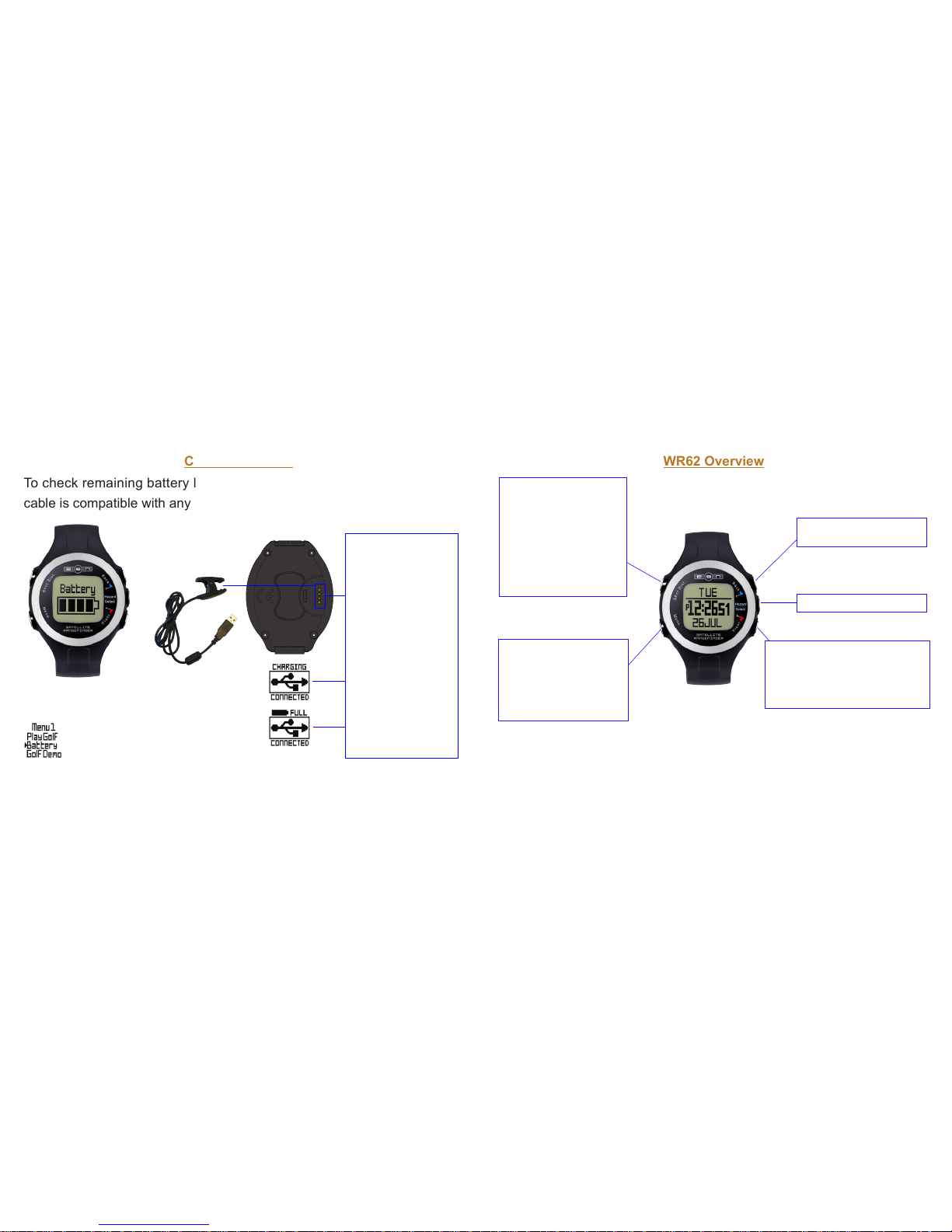
To check remaining battery life, select “Battery” from Menu 1. The USB
cable is compatible with any type of USB port, including A/C chargers.
To recharge the
battery, attach the
4-pin end of the
USB cable to the
receptors and
connect to your
computer. The
screens to the
left indicate the
connection and
battery status.
*Note: It is estimated that
charging from empty to full will
take 2-3 hours. Using GPS
functions deplete the battery
at a faster rate than non-GPS
functions.
(7)
WR62 Overview
• Press and hold to power on/off
(Powers off from Time Screen only)
• Scroll down through menu items
• Scroll up through menu
items
• Select menu items
*
*
*
*
Press and hold all four “corner” buttons to perform a hardware reset. This will reboot the watch and restore all
default settings. Time will be reset to 12:00 pm when a hardware reset is performed.
*
• Press once for Main Menu
options
• Press to exit Main Menu or
to return to previous Menus
from Sub-Menus
• Enable backlight with a
single push
• Press and hold to enable
Night Mode (backlight
remains on).
• Disable Night Mode with a
single quick push
Features
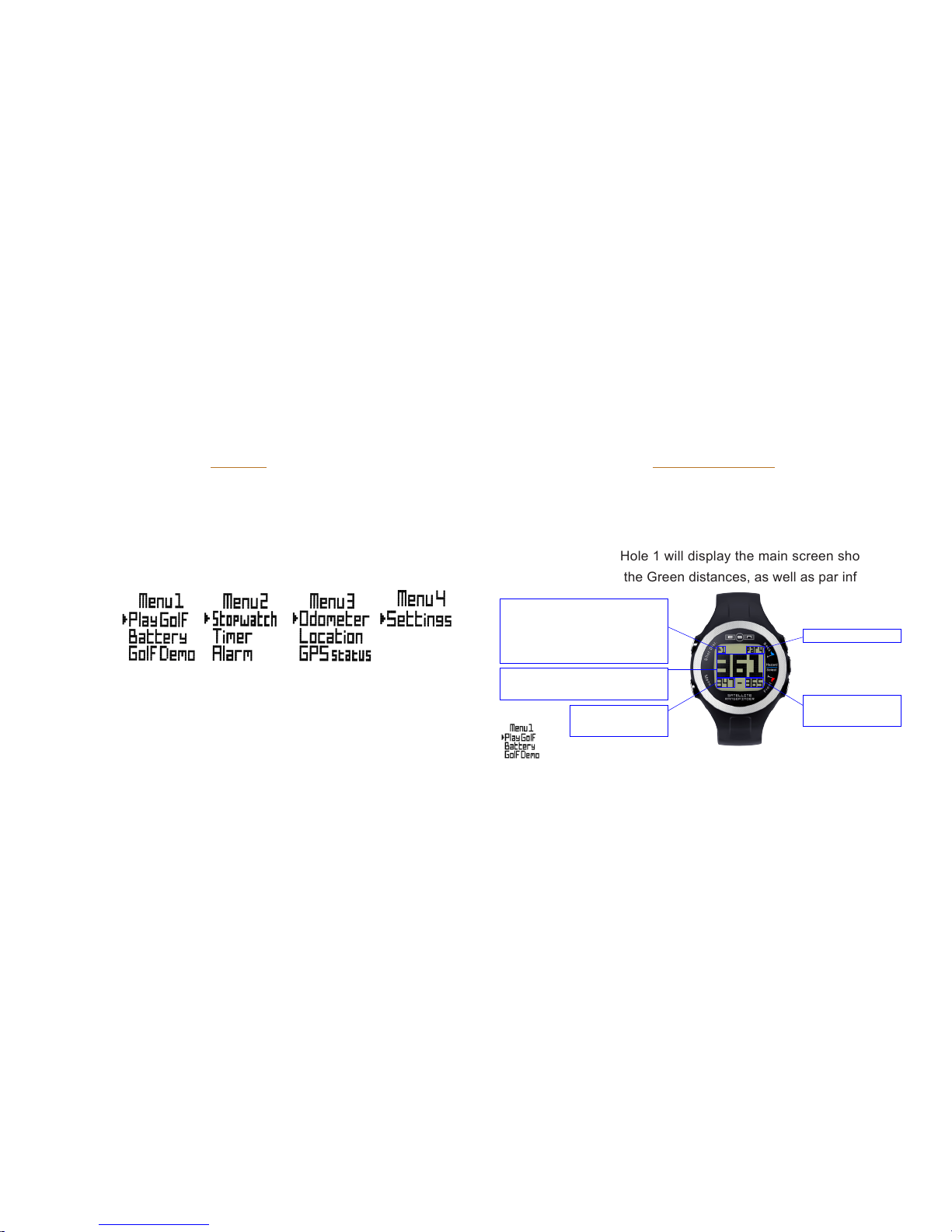
The WR62 is preloaded with many great applications. To access these,
power the watch on and select the “Menu” button. Scroll through the
menu options using the “Front” and “Back” buttons. Select the feature
you wish to use by pushing the “Hazard/Select” Button.
Play Golf *
Golf Demo
Stopwatch
Timer
Alarm
Odometer*
Location*
GPS Status*
* GPS Feature – These features require satellite signal.
To ensure reception, make sure you are outdoors away from
tall buildings and trees, with a clear view of the sky.
Play Golf Overview
After selecting “Play Golf” from menu 1, the WR62 will search for
satellite signal. Once signal has been acquired, the WR62 will display a
list of local courses. Scroll the list using the “Back” and “Front” buttons,
and select your course using the “Hazard/Select” button. When you
select your course, Hole 1 will display the main screen showing Front,
Center, and Back of the Green distances, as well as par information.
Hole Number: The hole #
will automatically advance
as you play the course
Front of the
Green Distance
Back of the
Green Distance
Center of the Green
Distance
Par Information
(9)(8)
(10)
Play Golf Functions
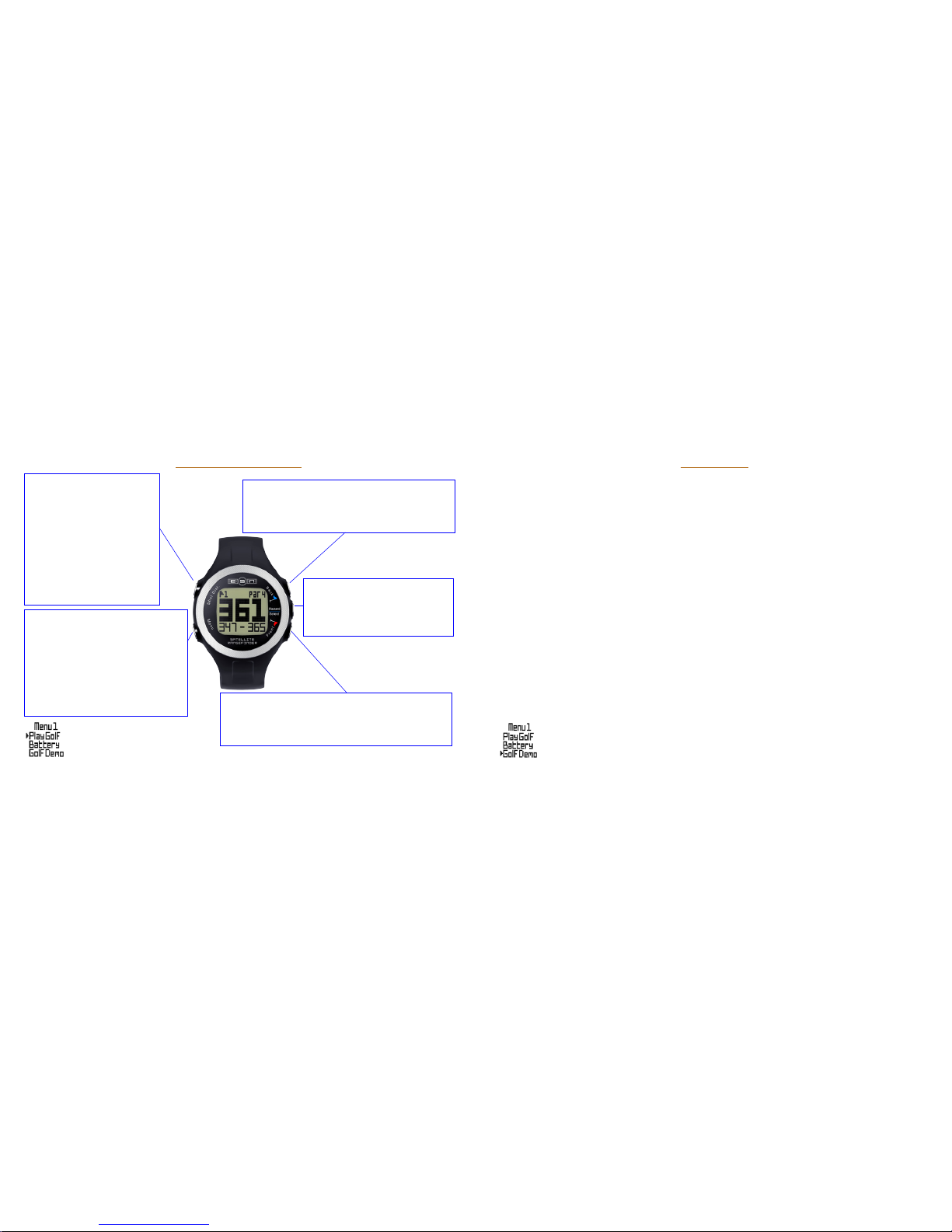
Track Shot Distance
Pressing the Shot Dist.
button will set Point A (where
you are standing) to 0. After
walking to your ball (Point
B), the WR62 will display the
distance between Point A
and Point B in a straight line.
Press Select, Front, or Back
to exit Shot Distance.
View Golf Menu Options
The Golf Menu allows you to view
the time, manually change holes,
change the units of measurement
(yards or meters), exit the game, or
select Men’s or Women’s tees (for
Par purposes only). Distance to Front of Green
Pressing this button will display the distance to the
front of the green for 10 seconds.
Distance to Back of Green
Pressing this button will display the distance to
the back of the green for 10 seconds.
Hazard Distances
Pressing this button will display
the distances to key hazards for
10 seconds.
(11)
Golf Demo
The Golf Demo provides an overview of the functionality of
Play Golf mode without acquiring satellite signal. It will display
sample screens of the main Front, Center, Back (FCB) screen,
Shot Distance, Hazard Distances, Back of the Green, and Front
of the Green Screen. Bring up the Golf Menu and select “Exit
Game” to exit the Golf Demo.
*Note: “Change Hole” and “Yds/Mtrs” are non-functional in the
Golf Demo.
See page 11 for overview of button functionality for the Golf Demo.
(12)
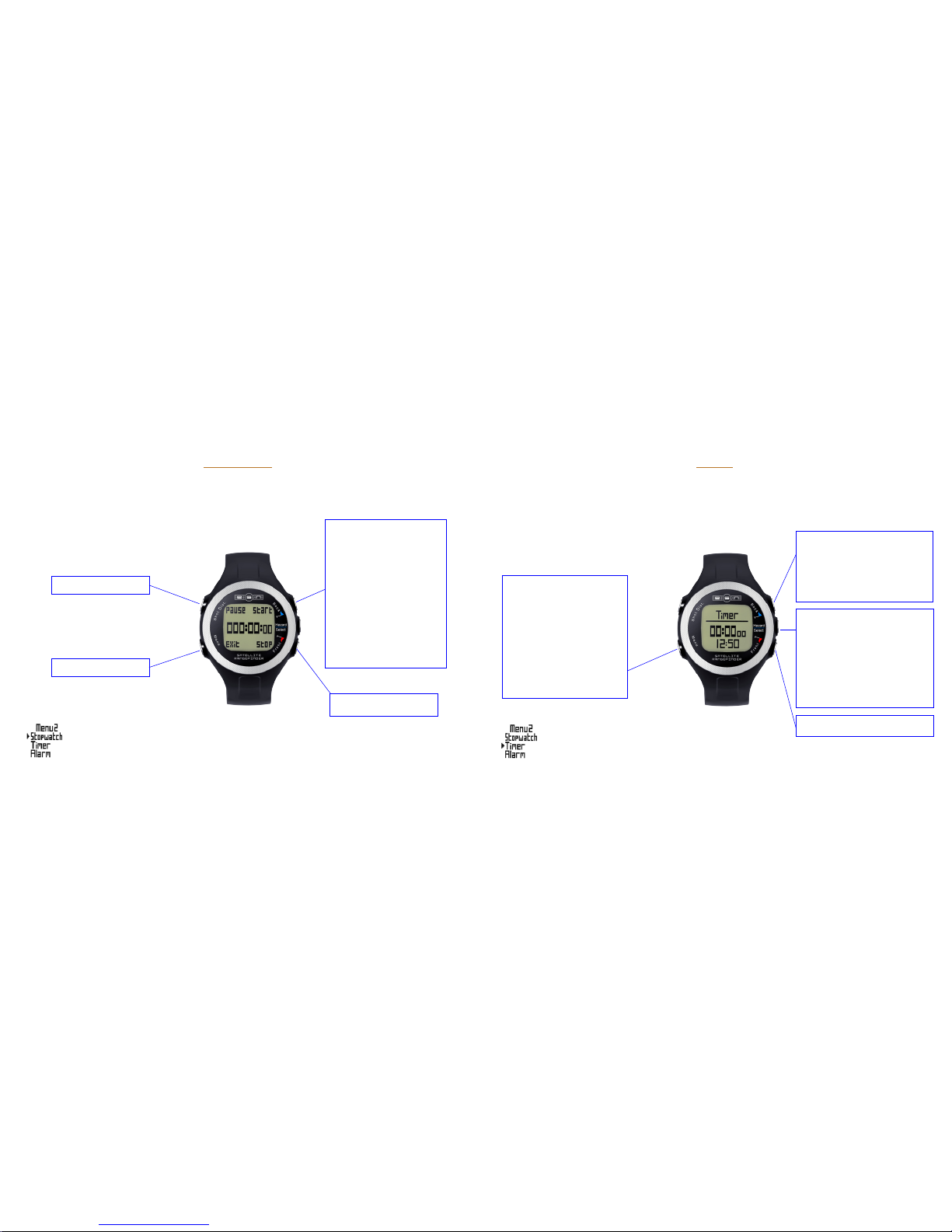
Stopwatch
Exit Stopwatch
Exit Stopwatch
Stop Stopwatch
A useful and convenient stopwatch feature is included in
the WR62.
Start Stopwatch
Restart time when
paused
When time is
stopped, pressing
restarts time from 0
(13)
Timer
Toggle Time Up
Activate timer from
main Timer screen
Toggle Time Down
The WR62 timer function works like a kitchen timer. Set
the desired time, and an alarm will sound when time
expires.
Activate elds to
adjust time
Toggle between elds
(Hours/Minutes/
Seconds)
Exit Timer when no
elds are active
Return to main
Timer screen once
all elds are set
accordingly
(14)
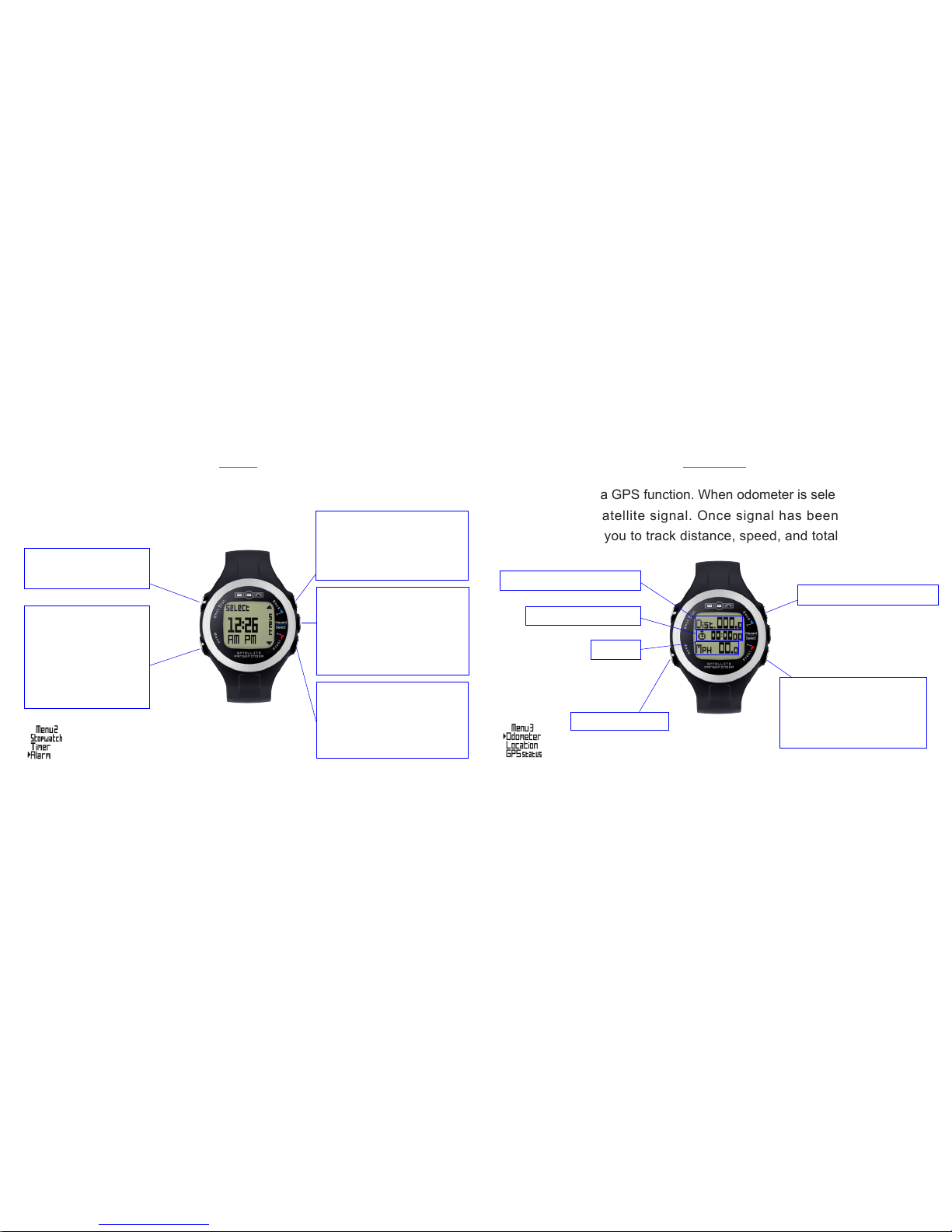
Alarm
The WR62 features a standard alarm clock function.
Exit Alarm when no
elds are active
Enable Alarm once
all elds are set
accordingly
Enable/Disable
saved Alarm
Toggle time up on Hours/
Minutes
Cycle between AM/PM
Activate elds to adjust
time and AM/PM
Toggle between elds
(Hours/Minutes/AM/PM)
Toggle time down on
Hours/Minutes
Cycle between AM/PM
(15)
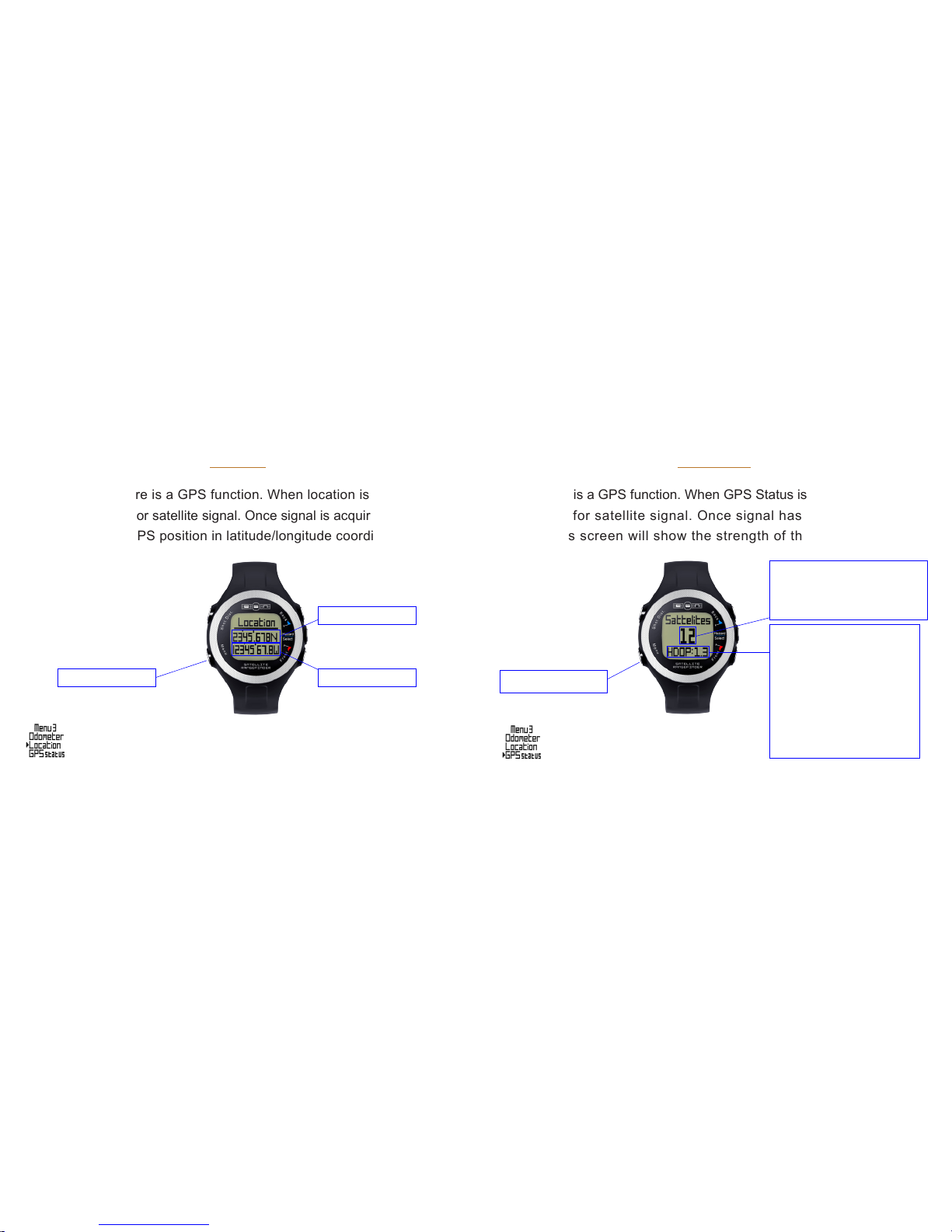
Odometer
The odometer is a GPS function. When odometer is selected, the WR62
will search for satellite signal. Once signal has been acquired, the
odometer allows you to track distance, speed, and total activity time.
Start time / Pause time
Reset Time and
Distance to zero (these
settings will only reset
when time is paused)
Exit Odometer
Total distance traveled
Total time elapsed
Speed
(16)
Location
The location feature is a GPS function. When location is selected, the
WR62 will search for satellite signal. Once signal is acquired, the WR62
will display your GPS position in latitude/longitude coordinates.
Exit Location Longitude
Latitude
(17)
GPS Status
GPS Status is a GPS function. When GPS Status is selected, the WR62
will search for satellite signal. Once signal has been acquired, the
GPS Status screen will show the strength of the signal.
Exit GPS Status
This number indicates the
amount of satellites the
WR62 is locked onto
Horizontal Dilution of
Precision. This number
is indicative of the
precision of the x on
position. The lower
the number, the more
precise the position x,
below 2.0 is best.
Indice


