
EVIKA Amati.linea Manuale utente

A player, amplier, media server and speakers in one unit:
Quick Start Manual
Music from any source: smartphone, tablet, computer, Internet, TV, CD/DVD- players, USB flash
drives, in-built memory and network storage. Including music on the air: AirPlay and DLNA
Amplier: HD-quality sound in the format of ”speakers on the shelf” — up to 24 bit and 96 kHz
(a standard CD offers 16 bit and 44 kHz). Includes optimisation for digital sources for maximum
quality in playing music from mobile devices. Supports all possible audio formats: (LOSSLESS,
AAC, WMA, МРЗ, FLAC, AIFF)
Media server: built-in HDD for storing audio les
Controlling the speakers from mobile devices: built-in web application
Amati.linea Stereo System

CONTENTS
INCLUDED PARTS
LAYOUT
AUDIO SYSTEM CONNECTION DIAGRAMS
SETTING UP
ACCESSING THE CONTROL INTERFACE
MAIN CONTROL WINDOW
AUDIO PLAYER AND AUDIO LIBRARY WINDOW
QUICK SETUP WINDOW
PLACING FILES ON THE SPEAKERS’ INTERNAL MEMORY
4
5
6
7
9
13
14
15
16
Additional equipment for comfortable operation (not included in package)
Подключение колонок к локальной сети ........................................................................................................................9
How to nd the speakers’ IP address......................................................................................................................................9
Conguring IP address reservation Conguring IP address reservation................................................................12

CONTROLLING THE SPEAKERS USING THE
APPLE REMOTE CONTROL
SYSTEM SETUP
OR QUICK SETUP WINDOW
DIRECT CONNECTION TO COMPUTER
FIRMWARE UPGRADE
KNOWN PROBLEMS AND TROUBLE SHOOTING SOLUTIONS
TECHNICAL SPECIFICATIONS
34
36
39
40
42
43
PLAYING MUSIC FROM EXTERNAL DEVICES
PLAYLIST MANAGEMENT
18
31
Playing music from a usb flash drive or usb hdd........................................................................................................18
Playing music from mobile devices or a computer (using airplay)......................................................................18
Playing music from mobile devices or a computer (via lan or wi- connection) using a dlna, upnp...
...
19
Playing from external audio sources (connected via s/pdif and/or toslink)
.......................................................
29
Automatically generated playlists (Albums, Artists, Genres)....................
.........................................................
.......
31
Current playlist......................................................................................................................................................
............
....
...........32
User’s playlists................................................................................................................................
.......
.......................
..............
.33
Playlist creation ...............................................................................................................................................................
............
33
Description..........................................................................................
.....
......................................................................................34
If Control Using The Remote Doesn’t Work..................................................................................
................
.....................34
Connecting The Remote To Apple Devices........................................................................................................................35
Quick setup tab................................................................................................................................................................
.............
36
Audio tab.........................................................................................................................................................................................36
Services tab....................................................................................................................................................................................37
Tools tab..........................................................................................................................................................................................38

4
INCLUDED PARTS
Additional equipment for comfortable operation (not included in package)
- Wi-Fi router for your Internet network (if it does not currently have one);
- USB Flash drive, as the optimal means of storage for your music library;
- Apple Remote (the speakers can be controlled using Apple Remote);
- Toslink and miniToslink optical cables and an S/PDIF coaxial cable as one of the best ways to plug in external devices
(CD, DVD, Blu-ray, computer etc.);
56
34
12
Acoustic speaker with built-in player Acoustic speaker
2x1.5 mm2 OFC 2 meter audio cable
Ethernet cablePower supply unit
TotoLink N150USM Wi-Fi adaptor

5
LAYOUT
Indicators
Ethernet RJ-45
USB port
IR receiver
Reset button
(reset to factory defaults)
Power port
Subwoofer
output
TOSLINK
S/PDIF
Speaker
Phase inverter,IR
Audio cable
connectors
6
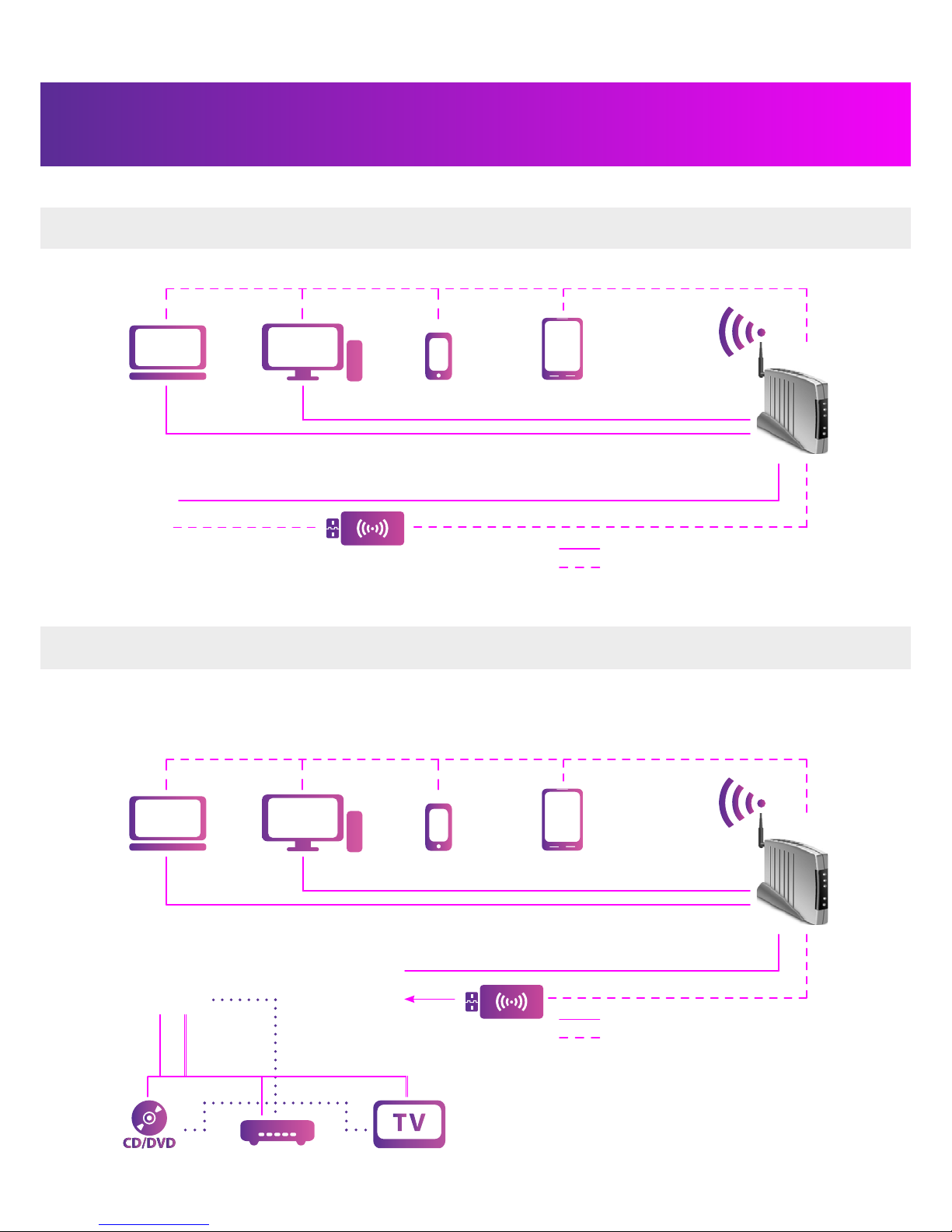
AUDIO SYSTEM CONNECTION DIAGRAMS
DIAGRAM OF SPEAKER CONTROL DEVICES
DIAGRAM OF CONNECTION TO EXTERNAL AUDIO SOURCES
Wi-Fi adaptor
W i - F i a d a p t o r
wireless Wi-Fi connection
wireless Wi-Fi connection
wired LAN connection
wired LAN connection
Attention: for the speakers to play audio from devices connected via LAN or Wi-Fi, you must congure a DLNA server or
AirPlay (depending on the operating system) on the devices.

7
Place the speakers where they are to be installed
Connect the speakers to each other
SETTING UP
When placing the speakers in a room, do not install
them in corners. This can signicantly decrease the
sound quality. Try to place the speakers in the centre
of a wall.
recommended position
not recommended position
1. Unscrew the connector pin by turning it counter-
clockwise on one speaker
2. Connect the audio cable to the connector based
on colour (red cable to red connector, silver cable to
black connector)
Important: before connecting the audio cable to
the speaker, you must remove the insulation from
the end of the cable
3. Screw in the connector pins by turning them
clockwise. Tighten the pin to ensure that the audio
cable is securely fastened
4. Repeat steps 1-3 to connect the audio cable to
the other speaker or directly to the computer.
Important: the speakers and their control devices (smartphone, tablet, computer, TV etc.) must be connected
in a single local network. This is the only way all the devices in the system can “see” each other. To do this, you
will need to connect the devices to a router (not included) via Wi-Fi or Ethernet.
Note: you can also connect the speakers through Wi-Fi by plugging a Wi-Fi adaptor into the speakers’ USB port.
Attention: we recommend using an Ethernet cable to connect the speakers, as Wi-Fi can cause delays and
pauses in audio playback during high network loads.
1.5 -2 metres
— up to 50 centimetres
1
2
3
Connect an Ethernet cable to the speaker’s 100BaseTX Ethernet port

8
5
6
7
1. Plug the cable of the power supply unit into the speaker
Attention: if you are using a power supply unit that did not come included with this audio system, ensure that
its polarity and parameters correspond to the requirements (see the “Basic technical parameters” section)
2. Plug the power supply unit into a socket
If the indicators do not begin to flash, check that the router is turned on and that the second end of the
Ethernet cable is connected to it from the speaker.
4
Connect the Ethernet cable to a port on your router/gateway
(not included)
Connect the power supply
After the power supply is connected, the yellow and green
network indicators will begin to flash (Ethernet)
The speakers are ready for use. Please familiarise yourself
with the “Accessing the control interface” section

9
ACCESSING THE CONTROL INTERFACE
To access the stereo system’s control interface, you must enter the IP address of the device (the speaker) in your browser’s
address bar on your mobile device and press the “Go” button.
Recommended browsers: Google Chrome, Mozilla Firefox, Apple Safari
The steps described below should be performed once during the initial system conguration, during which the speak-
ers’ IP address is congured and an application icon appears on your device’s desktop which you will later be able to
press to gain instant access to the speakers.
Two ways are possible for connecting the speakers: to a local network or direct connection to a computer with an Ethernet
cable.
Connection of the speakers to a local network is recommended. It is a bit more difcult to set up, but it enables you to fully
realize the entire potential built in to the Amati.linea system. Connecting the speakers this way makes it possible to play
back music from practically any computer and practically any gadget in the same network as the speakers.
Direct connection to the computer is the simpler way to connect the system, but it strictly limits the capability of the
speakers to play back sound from various sources. This is why it is recommended to connect the speakers to the local
network using a router/gateway. For details on direct connecting, see the section “Direct connection to a computer”.
Connecting speakers to a local network
You will need to assign the IP address of the speakers (the procedure is described below) and it is also recommended that
you set up a reserve IP address for the speakers (see section “Setting up a reserve IP address”.
To nd the IP address, we recommend you use a network IP address scanning program.
The methods of nding the IP address using these programs
are shown below. You can download the installation les
for these programs for free from the developer’s site or in
the online application stores (Google Play, Apple App Store)
corresponding to your operating system.
Examples of programs are shown on the table on the right.
HOW TO FIND THE SPEAKERS’ IP ADDRESS
ОС Программа
Windows SoftPerfect Network Scanner
Android Network Scanner
MacOS IP Scanner
iOS Discovery

10
1. Click the button to automatically detect the network’s IP address
range (Auto Detect)
2. A conguration window will open
3. Select one of the address lines with a single click
4. Press the “OK” button
5. Press the “Start Scanning”
6. Wait for the scanning process to nish and the progress line to
reach the end
7. When the scan ends, the program will show you a table of IP
addresses belonging to the devices connected to the network
The speakers are usually called “Amati. linea” in the “Host Name”
column. If this name is not in the list, then the speakers’ IP is likely
to be the last in the list. If this is not the case, you must nd the
speakers’ IP by testing the addresses: copy one of the IP addresses
at a time into your browser’s address bar and press “Enter” until the
browser displays the speakers’ control interface.
Launch the program
SOFTPERFECT NETWORK SCANNER
1
2
3
4
5
6
7
Attention:
Write down the device’s MAC address – you will need it to set up IP address reservation.
1. Press the “Scan” button to start scanning the network
2. Wait for the scan to nish. When the process nishes, the program will display
the message “Scan nished!”
3. When the scan ends, the program will show you a table of IP addresses belong-
ing to the devices connected to the network
The speakers are usually called “Amati. linea” in the list. If this name is not in the
list, then the speakers’ IP is likely to be the last in the list.
Launch the program
If this is not the case, you must nd the speakers’ IP by testing the addresses:
Copy one of the IP addresses at a time into your browser’s address bar and press “Enter” until the browser displays the
speakers’ control interface.
Attention: Write down the device’s MAC address (shown directly below the IP address) – you will need it to set up IP address
reservation.
8. Copy the IP address into your browser’s address bar and press the “Go” button
Due to the fact that the IP address is usually set dynamically, meaning it changes whenever the device turns on, we recommend
setting up IP address reservation (to prevent the device’s IP address from changing). This will allow you to avoid going through
the process of nding the device’s IP address again in the future. See the “Conguring IP address reservation” section.
NETWORK SCANNER
1
2
3
4
Indice


