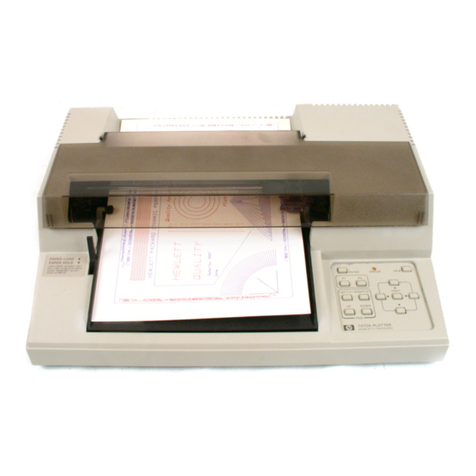
Evil Mad Scientist axidraw Manuale utente

User Guide
Personal Writing and Drawing Machine
AxiDraw Version 2.0
Guide Revision: 2.1, June 30 2016

2
0. This guide is a work in progress!
Welcome to AxiDraw!
You’re one of the first to get one of our new personal writing and drawing machines. This
guide is here to help you get started. There is a lot here–covering how you set up and use
the machine, and pointing you about where to go from here.
However, this guide is still a work in progress, and we want to ask you to please check back
soon for the latest version.
We are planning several additions to this guide in the coming months, both adding clar-
ifications in response to feedback, and adding some additional sections that are already
planned. We are planning additional sections on performance tuning, specific work flows,
and hope to add more concrete examples and videos as well.
(We are also likely to have a new software version or two in the next month as we get more
reports from the field. The current software version, as of this writing is v1.0.2)
You can download the latest version of this at http://axidraw.com/guide
Look at the front cover of the guide to find the date and version number of the guide that
you are looking at.

3
Contents
0. Hey there early adopter!............................................. 2
1. Introducing the AxiDraw.............................................. 5
1.1 Credits and History:....................................................... 5
2. Checking out your AxiDraw........................................ 6
2.1 What comes with the machine..................................... 6
2.2 AxiDraw Anatomy........................................................ 6
2.2 Handling the AxiDraw..................................................8
3: Overview: Getting Started with AxiDraw..................8
4: Software for AxiDraw.................................................. 9
4.1 Installing software ......................................................... 9
4.2 Inkscape and the extensions........................................ 9
4.3 Aside: Alternative software and APIs ........................ 9
5: The Home Corner ...................................................... 10
6: Workholding .................................................................11
6.1 Printing on with large workpieces ...............................11
6.2 Workholding with the Clip Easel.................................11
6.3 Moving beyond the Clip Easel ...................................12
7: Connecting Power and USB ......................................13
8: Pens and Getting Ready for Printing ...................... 14
8.1 Pen choices.................................................................. 14
8.2 Setting the pen angle................................................. 14
8.3 Inserting a pen.............................................................15
8.4 Pen up and pen down positions..................................16
8.5 Positioning your paper................................................18
8.6 Summary.................................................................... 20
9: Plotting with the AxiDraw ........................................20
9.1 Making your first plot ................................................ 20
9.2 Pausing, resuming, and canceling plots ....................23
9.3 Plotting with multiple layers and colors ...................24
9.4 Basic speed control ....................................................26
9.5 Pen lift speeds............................................................. 27
9.6 Advanced options.......................................................28
9.7 AxiDraw Manual Controls .........................................29
9.8 Plotting away from home...........................................31
10: Designing for AxiDraw ............................................32
10.1 General considerations .............................................32
10.2 Visualizing paths in your document........................33
10.2 Working with standard fonts ...................................33
10.3 Single stroke fonts & Hershey Text ........................35

4
10.4 Filling .........................................................................36
11: Maintenance and troubleshooting........................... 37
11.1 The hex wrenches........................................................37
11.2 Lubrication.................................................................. 37
11.3 Belt tension ................................................................37
11.4 Loss of position .......................................................... 37
11.5 Service, repair, and parts support.............................38
12. AxiDraw Tips and Tricks ...........................................38

5
1. Introducing the AxiDraw
The AxiDraw is a simple, modern, precise, and versatile pen plotter, capable of writing or
drawing on almost any flat surface. It can write with your favorite fountain pens, perma-
nent markers, and other writing implements to handle an endless variety of applications.
Its unique design features a writing head that extends beyond the machine, making it
possible to draw on objects bigger than the machine itself.
The AxiDraw is an extremely versatile machine, designed to serve a wide variety of ev-
eryday and specialized drawing and writing needs. You can use it for almost any task that
might normally be carried out with a handheld pen.
It allows you to use your computer to produce writing that appears to be handmade, com-
plete with the unmistakable appearance of using a real pen (as opposed to an inkjet or
laser printer) to address an envelope or sign one’s name. And it does so with precision
approaching that of a skilled artist, and — just as importantly — using an arm that never
gets tired.
1.1 Credits and History:
While new to most of the world, the AxiDraw project has been active since 2014, when it
was first created by Dr. Lindsay Robert Wilson of IJ Instruments Ltd. in the UK.
Early AxiDraw units had a dierent design. It was
a smaller format pen plotter with a chassis made
from machined Delrin plastic. It had two indepen-
dent timing belts, one driven by a stepper motor
on the base, and the other by a stepper motor on
the moving carriage. For software, it used a mod-
ified version of the WaterColorBot driver devel-
oped at Evil Mad Scientist Laboratories.
In 2015, Wilson began collaborating with Windell Oskay and Lenore Edman of Evil Mad
Scientist Laboratories towards a new AxiDraw model – now before you –that would be
principally designed and manufactured in the USA.
The new AxiDraw was enlarged to reach
twice the travel area, to cover a full page
of A4 or US Letter paper. Its geometry
was changed to use a single drive belt, with
two larger stepper motors stationary on the
base. Its major components would now be
made of aluminum (machined or stamped
and folded), and the new pen holder could
be mounted vertically or at 45° to the paper.
AxiDraw, 2014
New AxiDraw, 2016

6
2. Checking out your AxiDraw
1. The AxiDraw itself (Ready to use)
2. Clip Easel and binder clips (4)
3. USB cable
4. Hex drivers, including 5/64”, 3/32”, and 1/8”
5. Plug-in power supply. (9 V, 1.5 A, worldwide input)
6. Not shown: Rubber bands
Let’s also look at what the dierent parts of the machine are called.
We will refer to many of these parts by their names elsewhere.
5. Power supply
3. USB Cable
2. Clip Easel
(Binder clips)
1. AxiDraw
4. Hex drivers
Pen holder
Base (left)
Base (right)
Cable Guides
(not handles!)
Carriage (X-axis part)
2.2 AxiDraw Anatomy
2.1 What comes with the machine
Here are the parts that come
with the AxiDraw:

7
Pen holder
§2.2, AxiDraw anatomy, continued:
Top View
Detail: Left Base
Carriage (Y-axis part)
X Shafts
Wire conduit
Wire conduit
Base Block (left)
Rubber Feet
USB Port
Pause Button
(aka “PRG” button)
Power
Jack
Stepper motor
“EBB”
Control board
Y Shafts
Timing belt
Y Tail Block

8
§2.2, AxiDraw anatomy, continued: Detail: Pen holder
Pen-lift
servo motor
Vertical slide
Thumbscrew
Pen Clip
Pen Clip
Screws
Y Tie Block
Vertical shafts
Y Shafts
Belt
2.2 Handling the AxiDraw
1). Lifting: Lift AxiDraw by the base blocks, or by the stepper motors or X shafts if
necessary. Do not lift by the cables, cable guides, or pen holder.
2). Heat: Please note that the two stepper motors may get warm. This is normal, but
it is helpful to be aware of it. They should not get too hot to touch.
3: Overview: Getting Started with AxiDraw
In brief, here are the steps to getting started with the AxiDraw:
1) Install the software.
2) Open or create the artwork that you would like to print.
3) By hand, move the carriage to the upper-left Home Corner.
4) Connect power and USB cables.
5) Check pen-up and pen-down heights.
6) Set up your pen and paper.
7) Begin plotting from within the AxiDraw software.
Part 4 of this guide goes through the first item on the list: Installing the software. Parts
5 through 8 go through setting up your AxiDraw for use. Part 9 walks through making
your first plot, and various options available while plotting. Part 10 talks about designing
for AxiDraw. It is followed by sections on various tips and tricks for using your machine.

9
4: Software for AxiDraw
4.1 Installing software
You will need to install software on your computer to operate the AxiDraw.
Current instructions and download links are available at: http://axidraw.com/sw
From there, follow the directions specific for your operating system.
• For Mac and Windows computers, there are easy installers that you can download.
• For Linux, one or more manual steps are required.
Installation instructions are updated from time to time as operating systems change.
The software that you will install includes Inkscape, the superb (and free) drawing pro-
gram, and a set of extensions that operate the AxiDraw from within Inkscape.
4.2 Inkscape and the extensions
Once you have installed the software, launch Inkscape.
The AxiDraw software may be found in the Extensions > AxiDraw submenu of Inkscape.
All machine control is performed from within the “AxiDraw Control” panel. (A second
extension, Hatch Fill, is provided as well, to help with filling in shapes.)
4.3 Aside: Alternative software and APIs
RoboPaint is an alternative driver software available for painting and drawing robots.
It currently requires a separate install process, but does support AxiDraw.
For more, please see information about RoboPaint at http://axidraw.com/docs
Programming is not required to operate the AxiDraw. However, all of our software
is open source. And, if you would like to program it or remotely send data to it, we
do have interfaces and documentation available.
For more, see the section titled “For Developers” at http://axidraw.com/docs

10
5: The Home Corner
Before you start plotting, the pen holder must be moved to the Home Corner. This is as
far left and as far back as it will go: where the pen holder is closest to the left base (with
the AxiDraw logo, and the USB port).
AxiDraw Logo
Home
Corner
When a plot finishes, the AxiDraw will return to its Home Corner automatically, leaving it
ready for the next plot.
Slide the carriage to the Home Corner by
hand. You can move it diagonally by holding
the Y Tie Block, which is the black block just
behind the pen holder. Do not push the pen
holder directly.
The carriage can only be moved when the power to the motors is o. If it does not move
easily, turn o the motors so that you are not trying to force them. To do so, use the
“Raise pen, turn o motors” command in the Setup tab of AxiDraw Control (see page
16). If necessary, you can also physically disconnect the AxiDraw from power.
Indice