
EXP Computer Game Traveler Manuale utente

1
TABLE OF CONTENT
INTRODUCTION............................................................................................................2
REQUIREMENTS...........................................................................................................2
HARDWARE INSTALLATION .......................................................................................2
SOFTWARE INSTALLATION FOR WINDOWS 95/98..................................................3
THE EARLIER VERSIONS OF WINDOWS 95 INSTALLATION...................................3
WINDOWS 95 OSR2 INSTALLATION ..........................................................................5
WINDOWS 98 INSTALLATION.....................................................................................7
USING GAME TRAVELER PLUS/MIDI TRAVELER CARD .........................................9
UPGRADING..................................................................................................................9
THE EARLIER VERSIONS OF WINDOWS 95............................................................10
WINDOWS 95 OSR2....................................................................................................11
WINDOWS 98...............................................................................................................12
SOFTWARE INSTALLATION FOR DOS/WINDOWS 3.1...........................................13
AUTOMATIC INSTALLATION.....................................................................................13
MANUAL INSTALLATION...........................................................................................13
SOFTWARE INSTALLATION FOR WINDOWS NT 4.0..............................................14
USING AN EXTERNAL MIDI DEVICE (FOR GAME TRAVELER
PLUS/MIDI TRAVELER CARD MODEL ONLY) .........................................................15
GAME CONTROLLER/JOYSTICK CALIBRATION....................................................16
TROUBLE SHOOTING................................................................................................17

2
INTRODUCTION
This manual describes how to install and operate the following PCMCIA
cards:
1. Game Traveler Plus (Supports MS SideWinder Force Feedback)
2. MIDI Traveler (Supports Musical Instrument Digital Interface)
3. Game Traveler
The system requirements and the hardware installation apply to all three
cards. You will need to choose the appropriate driver to enable each card
and its function.
REQUIREMENTS
•To use your GAME TRAVELER PLUS/MIDI TRAVELER Card or
GAME TRAVELER Card, your computer must be equipped with a
PCMCIA 2.1 compliant socket.
•The I/O address 200-207 needs to be available in your computer. Check
your system BIOS or Device Manager (if you have Windows 95/98) for
any reference to Game port/Joystick. If the device exists, we
recommend you disable such a device.
HARDWARE INSTALLATION
1) Locate the PCMCIA socket, which is usually on one side of the
computer.
2) Align the GAME TRAVELER PLUS/MIDI TRAVELER Card or
GAME TRAVELER Card with the arrow sign pointing to the
computer’s socket. (Please note that the card is keyed to guide for
proper insertion.)
3) Slowly insert the GAME TRAVELER PLUS/MIDI TRAVELER Card
or GAME TRAVELER Card into the socket and press firmly until the
PCMCIA Game connector is seated.
4) Connect the GAME TRAVELER PLUS/MIDI TRAVELER Card or
GAME TRAVELER Card to a GamePad or joystick.
5) If you are using the GAME TRAVELER PLUS/MIDI TRAVELER
Card, you may also connect to your MIDI keyboard through the MIDI
cable (not included). Refer to the later section on “Using the External
MIDI Device” for further information.
3
SOFTWARE INSTALLATION FOR WINDOWS 95/98
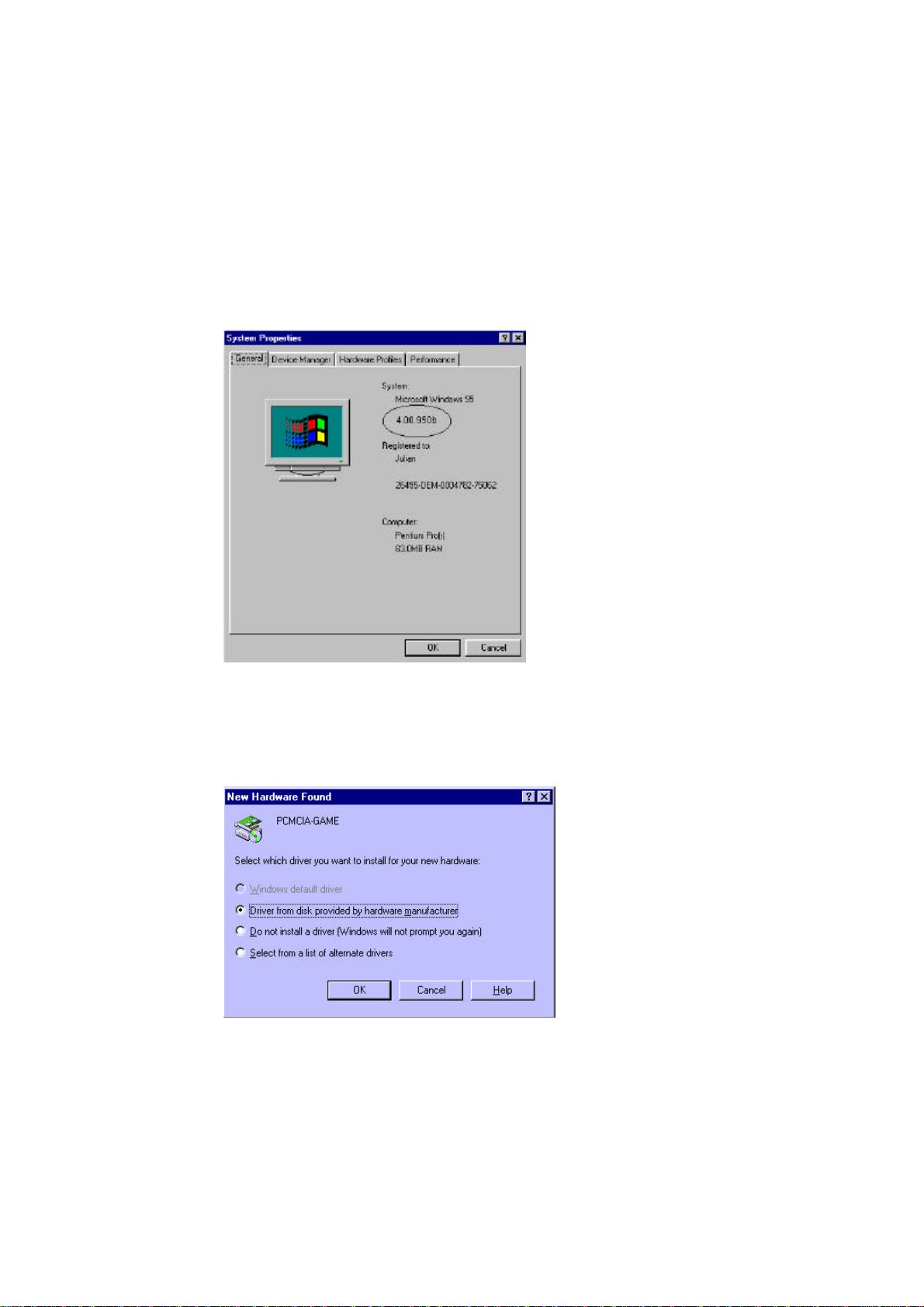
Before proceeding with following installation, check the version of your
Windows 95. Go to My Computer, click on Control Panel, and select
System to check the version of your Windows 95 as the following screen
displays.
For Earlier Versions of Windows 95 Installation
If your Windows 95 is an earlier version, i.e. 4.00.950 or 4.00.950a, the
following screen will appear when you are inserting the GAME TRAVELER
PLUS/MIDI TRAVELER Card or GAME TRAVELER Card into your
computer for the very first time.
Select “Driver from disk provided by hardware manufacturer” and click OK,
Windows 95 will then prompt you to insert the manufacturer’s installation
disk. Insert the GAME TRAVELER PLUS/MIDI TRAVELER Card or

4
GAME TRAVELER Card device driver disk into your floppy drive. Specify
the directory as A:\ and click OK. Follow the on-screen instructions to
continue. All the remaining installation will proceed automatically. The
device driver selection will depend on your card type and the device
attached to the card.
GAME TRAVELER PLUS/MIDI TRAVELER Card
A dialog box will appear for you to select from three models of the GAME
TRAVELER PLUS/MIDI TRAVELER Card.
The default setting is “PCMCIA GAME/MIDI-for Joystick and MIDI”. This
setting supports both joystick and MIDI functions. Click OK if you want to
install the device drivers for Joystick and MIDI.
The “New Hardware Found” dialog box will appear again. Select “Driver
from disk provided by hardware manufacturer”, and click OK. Windows 95
will prompt you to insert the manufacturer’s installation diskette. Specify the
directory as A:\ and click OK. The remaining installation will proceed
automatically.
GAME TRAVELER Card
The “Select Device” dialog box will appear after you choose “Driver from
disk provided by hardware manufacturer”, whichever matches your card.
Select PCMCIA Game card or PCMCIA Game card (G2) to match your
card. Click OK. The remaining installation will proceed automatically.

5
Windows 95 OSR2 Installation
If your Windows 95 is version 4.00.950b, i.e. OSR2, the following screen
will appear. If insert the GAME TRAVELER PLUS/MIDI TRAVELER
Card, or GAME TRAVELER Card into computer for the very first time.
Note: If you insert the Game Traveler Plus/MIDI Traveler card the display will be
GAME/MIDI.
GAME TRAVELER PLUS/MIDI TRAVELER Card
1. Insert the GAME TRAVELER Plus/MIDI Traveler Card device driver
diskette into floppy drive, and click Next button. The following dialog
box will appear.
2. Click the Finish button.
3. The “Update Device Driver Wizard” dialog box will appear again.
Select Next to continue, as another “Update Device Driver Wizard”
dialog box will appear, then select Finish to proceed.
4. All the remaining installation will proceed automatically.

6
GAME TRAVELER Card
1. If you have the Game Traveler card, insert the device driver diskette
into floppy drive and click Next button. The following dialog box will
appear.
Note: The actual display for you card may be different because of the card revision.
2. Click the finish button.
3. Follow the on screen dialog box to finish the installation.

7
Windows 98 Installation
The “Add New Hardware Wizard” screen will appear when you are
inserting the GAME TRAVELER PLUS/MIDI TRAVELER Card or GAME
TRAVELER Card for the very first time. Click Next to continue.
GAME TRAVELER PLUS/MIDI TRAVELER Card
1. When the next dialog box appear, select “Search for the best driver for
your device”. And click Next
2. Windows 98 will prompt you to specify the device driver’s location as
the following screen will appear. Insert the GAME TRAVELER
PLUS/MIDI TRAVELER Card device driver diskette into the floppy
drive. Select Floppy disk drives and click Next.
3. Windows will then prompt you that the driver is found, click Next to
continue.

8
4. Windows will then start to install the driver. Click Next to continue.
5. Click Finish to complete the installation.
GAME TRAVELER Card
If you are inserting the GAME TRAVELER Card, another “Add New
Hardware Wizard” dialog box will appear. Repeat the above installation
procedure from Step 1 to Step 5.
Note: The actual display for you card may be different because of the card revision.
If Windows prompts you with any dialog box for a Version Conflict like the
figure illustrated below, just click Yes to continue.

9
USING GAME TRAVELER PLUS/MIDI TRAVELER CARD
In Windows 95/98 environment, the GAME TRAVELER PLUS/MIDI
TRAVELER Card can connect with
1) Regular joysticks,
2) Microsoft Force Feedback joystick.
3) A MIDI device: such as a MIDI keyboard.
Therefore, three device driver models are provided for selection;
1) PCMCIA GAME/MIDI - for Joysticks and MIDI. (Default)
2) PCMCIA GAME/MIDI - for MS Force Feedback joysticks
3) PCMCIA GAME/MIDI - for Normal joystick
The default model is “PCMCIA GAME/MIDI for Joysticks and MIDI”
which supports all the above mentioned devices. This model can support the
MIDI IN/MIDI OUT function, but will take up an IRQ resource that can not
be shared by other devices. Therefore, if any IRQ conflicts occur in your
system, or you don’t need to use the GAME TRAVELER PLUS/MIDI
TRAVELER Card to connect to an external MIDI keyboard, you can change
to the other two models as described below.
CHANGING MODEL
If you want to change to a different model of GAME TRAVELER
PLUS/MIDI TRAVELER Card other than the already installed, perform the
following procedure for the other model.
1. Insert the GAME TRAVELER PLUS/MIDI TRAVELER Card into
your system.
2. Go to My Computer.
3. Select Control Panel
4. Double click System
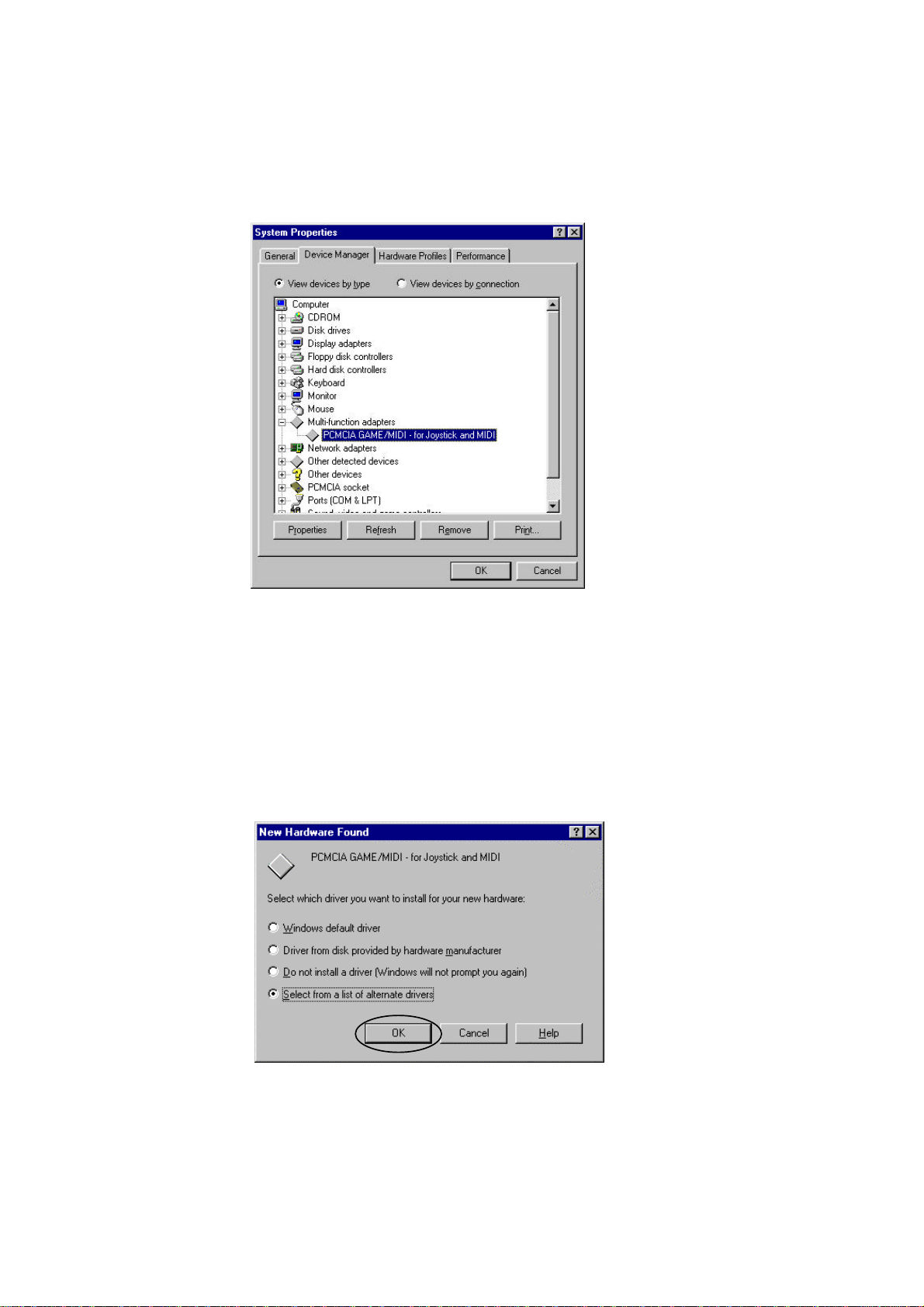
5. Select Device Manager Tab.
6. Double click on “Multi-function adapters”. The following dialog box
will appear.
10
According to your version of your Windows 95 or Windows 98, perform the
following procedures to continue.
For Earlier Versions of Windows 95
1. Select “PCMCIA GAME/MIDI for Joystick and MIDI” from the
Device Manager, and click the Remove button. Then click the OK
button to exit.
2. Remove the GAME TRAVELER PLUS/MIDI TRAVELER Card from
your PCMCIA socket. Re-insert your GAME TRAVELER
PLUS/MIDI TRAVELER Card. When the following screen prompts,
“Select from a list of alternate drivers”, comes up, click OK.
Questo manuale è adatto per i seguenti modelli
2
Indice
Manuali Hardware per computer popolari di altre marche

EMC2
EMC2 VNX Series Manuale del proprietario

Panasonic
Panasonic DV0PM20105 Manuale utente

Mitsubishi Electric
Mitsubishi Electric Q81BD-J61BT11 Manuale utente

Gigabyte
Gigabyte B660M DS3H AX DDR4 Manuale utente

Raidon
Raidon iT2300 Manuale utente

National Instruments
National Instruments PXI-8186 Manuale utente


