Ezviz HB3-B2 Manuale utente

COPYRIGHT © Hangzhou EZVIZ Software Co., Ltd. ALL RIGHTS RESERVED.
Any and all information, including, among others, wordings, pictures, graphs are the properties of
Hangzhou EZVIZ Software Co., Ltd. (hereinafter referred to as “EZVIZ”). This user manual (hereinafter
referred to as “the Manual”) cannot be reproduced, changed, translated, or distributed, partially or
wholly, by any means, without the prior written permission of EZVIZ. Unless otherwise stipulated,
EZVIZ does not make any warranties, guarantees or representations, express or implied, regarding to
the Manual.
About this Manual
The Manual includes instructions for using and managing the product. Pictures, charts, images and
all other information hereinafter are for description and explanation only. The information contained
in the Manual is subject to change, without notice, due to firmware updates or other reasons. Please
find the latest version in the ™ website (http://www.ezviz.com).
Revision Record
New release – January 2022
Trademarks Acknowledgement
™, ™, and other EZVIZ’s trademarks and logos are the properties of EZVIZ in various
jurisdictions. Other trademarks and logos mentioned below are the properties of their respective
owners.
Legal Disclaimer
TO THE MAXIMUM EXTENT PERMITTED BY APPLICABLE LAW, THE PRODUCT DESCRIBED, WITH
ITS HARDWARE, SOFTWARE AND FIRMWARE, IS PROVIDED “AS IS”, WITH ALL FAULTS AND ERRORS,
AND EZVIZ MAKES NO WARRANTIES, EXPRESS OR IMPLIED, INCLUDING WITHOUT LIMITATION,
MERCHANTABILITY, SATISFACTORY QUALITY, FITNESS FOR A PARTICULAR PURPOSE, AND
NON-INFRINGEMENT OF THIRD PARTY. IN NO EVENT WILL EZVIZ, ITS DIRECTORS, OFFICERS,
EMPLOYEES, OR AGENTS BE LIABLE TO YOU FOR ANY SPECIAL, CONSEQUENTIAL, INCIDENTAL, OR
INDIRECT DAMAGES, INCLUDING, AMONG OTHERS, DAMAGES FOR LOSS OF BUSINESS PROFITS,
BUSINESS INTERRUPTION, OR LOSS OF DATA OR DOCUMENTATION, IN CONNECTION WITH
THE USE OF THIS PRODUCT, EVEN IF EZVIZ HAS BEEN ADVISED OF THE POSSIBILITY OF SUCH
DAMAGES.
TO THE MAXIMUM EXTENT PERMITTED BY APPLICABLE LAW, IN NO EVENT SHALL EZVIZ’S TOTAL
LIABILITY FOR ALL DAMAGES EXCEED THE ORIGINAL PURCHASE PRICE OF THE PRODUCT.
EZVIZ DOES NOT UNDERTAKE ANY LIABILITY FOR PERSONAL INJURY OR PROPERTY DAMAGE AS
THE RESULT OF PRODUCT INTERRUPTION OR SERVICE TERMINATION CAUSED BY: A) IMPROPER
INSTALLATION OR USAGE OTHER THAN AS REQUESTED; B) THE PROTECTION OF NATIONAL OR
PUBLIC INTERESTS; C) FORCE MAJEURE; D) YOURSELF OR THE THIRD PARTY, INCLUDING WITHOUT
LIMITATION, USING ANY THIRD PARTY’S PRODUCTS, SOFTWARE, APPLICATIONS, AND AMONG
OTHERS.
REGARDING TO THE PRODUCT WITH INTERNET ACCESS, THE USE OF PRODUCT SHALL BE WHOLLY
AT YOUR OWN RISKS. EZVIZ SHALL NOT TAKE ANY RESPONSIBILITES FOR ABNORMAL OPERATION,
PRIVACY LEAKAGE OR OTHER DAMAGES RESULTING FROM CYBER ATTACK, HACKER ATTACK,
VIRUS INSPECTION, OR OTHER INTERNET SECURITY RISKS; HOWEVER, EZVIZ WILL PROVIDE
TIMELY TECHNICAL SUPPORT IF REQUIRED. SURVEILLANCE LAWS AND DATA PROTECTION
LAWS VARY BY JURISDICTION. PLEASE CHECK ALL RELEVANT LAWS IN YOUR JURISDICTION
BEFORE USING THIS PRODUCT IN ORDER TO ENSURE THAT YOUR USE CONFORMS TO THE
APPLICABLE LAW. EZVIZ SHALL NOT BE LIABLE IN THE EVENT THAT THIS PRODUCT IS USED WITH
ILLEGITIMATE PURPOSES.
IN THE EVENT OF ANY CONFLICTS BETWEEN THE ABOVE AND THE APPLICABLE LAW, THE LATTER
PREVAILS.

Table of Contents
Overview ��������������������������������������������������������������������������������������������������1
1� Package Contents ���������������������������������������������������������������������������������������������������������������������������������������� 1
2� Basics ���������������������������������������������������������������������������������������������������������������������������������������������������������� 2
Setup �������������������������������������������������������������������������������������������������������3
1� Get the EZVIZ App ���������������������������������������������������������������������������������������������������������������������������������������� 3
2� Power on the Camera ����������������������������������������������������������������������������������������������������������������������������������� 4
3� Power on the Base Station���������������������������������������������������������������������������������������������������������������������������� 4
4� Connect the Base Station to the Internet ������������������������������������������������������������������������������������������������������ 5
5� Add the Base Station to EZVIZ���������������������������������������������������������������������������������������������������������������������� 5
6� Pair Base Station with Camera(s) ����������������������������������������������������������������������������������������������������������������� 6
Camera Installation ����������������������������������������������������������������������������������6
1� Installation Location������������������������������������������������������������������������������������������������������������������������������������� 6
2� Installation Steps ����������������������������������������������������������������������������������������������������������������������������������������� 7
View Your Device �������������������������������������������������������������������������������������9
1� Live View������������������������������������������������������������������������������������������������������������������������������������������������������ 9
2� Settings ����������������������������������������������������������������������������������������������������������������������������������������������������� 10
EZVIZ Connect����������������������������������������������������������������������������������������11
1� Use Amazon Alexa�������������������������������������������������������������������������������������������������������������������������������������� 11
2� Use Google Assistant ��������������������������������������������������������������������������������������������������������������������������������� 11
FAQ ��������������������������������������������������������������������������������������������������������12
Initiatives on the Use of Video Products �������������������������������������������������13

1
Overview
1� Package Contents
Base Station (x1) *Camera Power Adapter (x1)
(for base station)
USB Cable (x1) Ethernet Cable (x1) *Drill Template
(for camera)
*Screw Base
(for camera)
*Mounting Plate
(for camera)
*Screw Kit
(for camera)
Regulatory Information (x1) Quick Start Guide (x1)
• The number of cameras and their accessories depends on how many cameras are included in the
package you purchase.
• You can also purchase camera seperately as needed.
• The power adapter's appearance is subject to the actual one you have bought.

2
2� Basics
Camera
Loudspeaker
RESET Button
Power Port
(Behind the cover)
Turn up the Cover
Name Description
RESET Button • Power on: Press and hold for 2 seconds in shut-down state.
• Resetandgetreadyforpairing:Pressandholdfor4seconds.
• Power off: Short press the button 3 times within 1 second.
Power Port For charging the camera.
LED Indicator
Spotlight
PIR
Lens
Photoresistor
Spotlight
Name Description
LED Indicator Solid Blue:
Camera starting up or being live viewed in the EZVIZ app.
Fast-flashing Blue: Camera ready for pairing./Pairing in progress.
Slow-flashing Blue: Camera working properly.
Slow-flashing Red: Network exception.
Fast-flashing Red: Camera exception.
Solid Green: Camera fully charged.
Slow-flashing Green: Charging.

3
Base Station
LED Indicator
SYNC Button Micro SD Card Slot
Loudspeaker
Power Button
Network Indicator
Power Port
Ethernet Port
Reset Button
Name Description
SYNC Button
(SIREN OFF)
• Short press to turn off the siren when an alarm occurs.
• Pressandholdfor2secondstostartpairingwiththecamera(Pairingcan
last up to 2 minutes).
Power Port For powering up the base station.
LED Indicator Solid Blue: The base station is not connected to the Internet.
Flashing Blue: The base station is pairing with the camera.
Solid Red: Micro SD card error.
Flashing Red: An alarm occurs.
Solid Green: The base station works properly.
Solid White: Restore factory settings successfully.
Power Button Press to connect or cut off power.
Network Indicator Solid Green: The Ethernet cable is connected.
Reset Button Press and hold for 4 seconds to restart and reset all parameters to default.
Micro SD Card
(sold separately)
Initialize the card in the EZVIZ app before using it.
Recommended compatibility: Class 10, maximum space 256GB.
Setup
1� Get the EZVIZ App
-Connect your mobile phone to Wi-Fi (suggested).
-Download and install the EZVIZ app by searching “EZVIZ” in the App Store or Google PlayTM.
-Launch the app and register an EZVIZ user account.

4
EZVIZ App
If you have already used the app, please make sure that it is the latest version. To find out if an update is available, go to
the app store and search for EZVIZ.
2� Power on the Camera
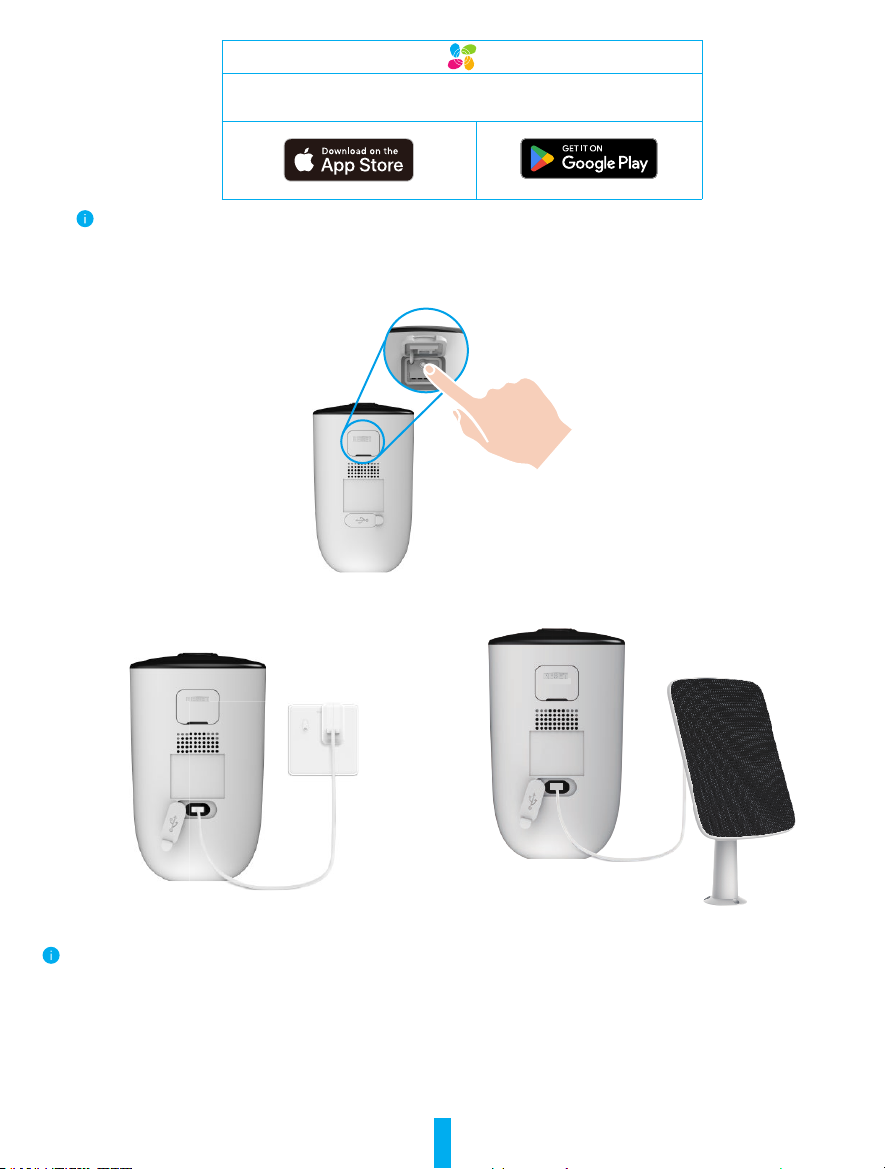
In the shutdown state, press and hold the Reset Button for 2 seconds to power on.
If the camera is out of battery, connect it to power outlet with the power adapter for charging (5V 2A).
Charging with power adapter Charging with solar panel
• Both of the power adapter (5V 2A) and solar panel need to be purchased separately.
• Remove the camera from the wall before charging.
• Please do not charge the camera when the temperature exceeds 45 degrees or below 0 degrees.
• It is not allowed to charge the camera with power adapter outdoors.
• When charging, the camera will be automatically turned on.
• For better weatherproof, always keep the charging port covered with the rubber plug after charging the battery.

5
3� Power on the Base Station
Connect the base station to power outlet with the power adapter (12V 1A).
Power Adapter
Outlet
4� Connect the Base Station to the Internet
Connect the base station to an open LAN port on your router with Ethernet cable.
Ethernet Cable
Please make sure the router can access the Internet.
5� Add the Base Station to EZVIZ
1. Login to the EZVIZ App.
2. On the Home screen, tap “+” on the upper-right corner to go to the scan QR code interface.
3. Scan the QR code on bottom of the base station or manually enter the serial number to add the base station.
4. FollowtheEZVIZappwizardandvoiceprompttonishnetworkcongurationofthebasestation.
5. When the base station is added to your EZVIZ account successfully, tap “Next” button to link camera(s) to your base

6
station.
6� Pair Base Station with Camera(s)
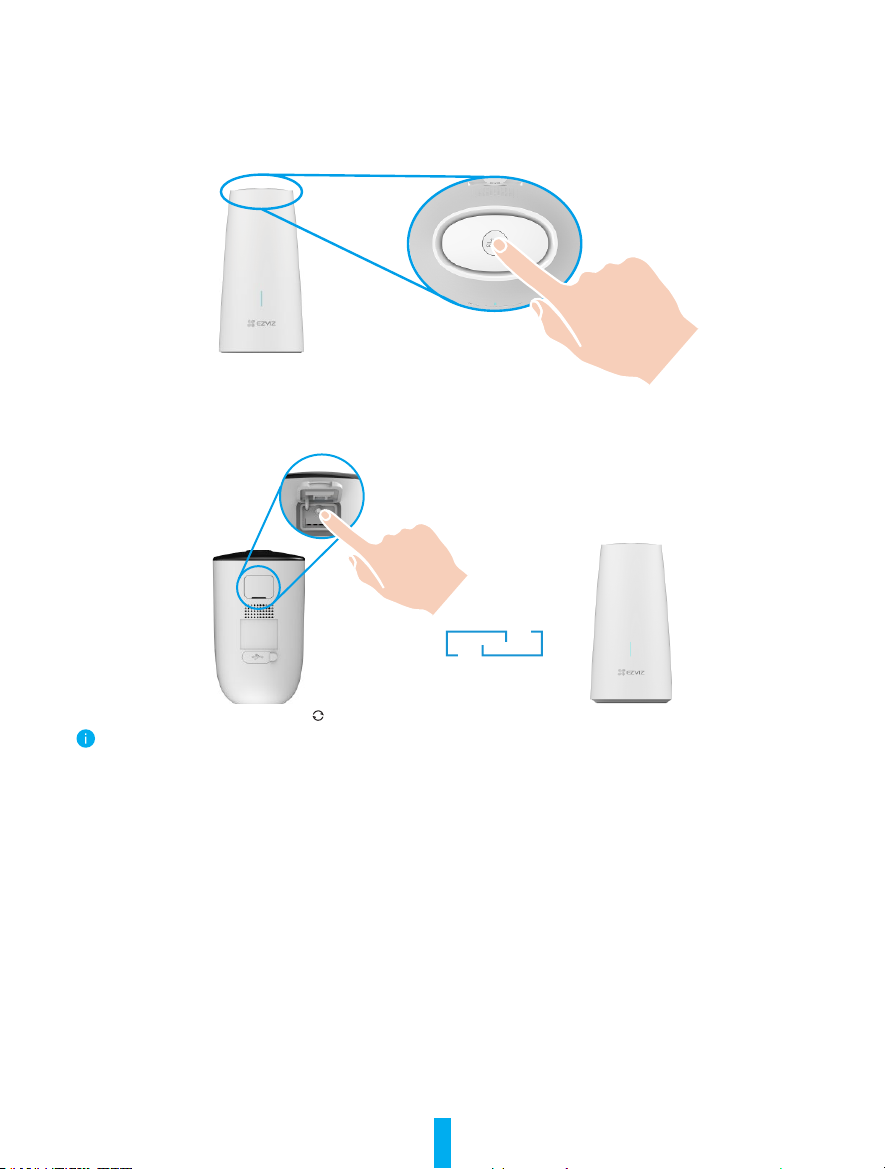
1. PressandholdtheSYNCButtononthebasestationfor2seconds.TheLEDindicatorwillashblue.
2. Place the camera 1 to 3 ft (30 to100 cm) from the base station. Press and hold Reset Button on the camera for
4seconds.TheLEDindicatorwillfastashblue.
3. Wait for about 120 seconds, and tap to refresh the current page on the EZVIZ app.
ThecameraLEDindicatorslow-ashingredindicatesthepairinghasfailed,andyoucanrepeatabovestepstotryagain.
Camera Installation
1� Installation Location
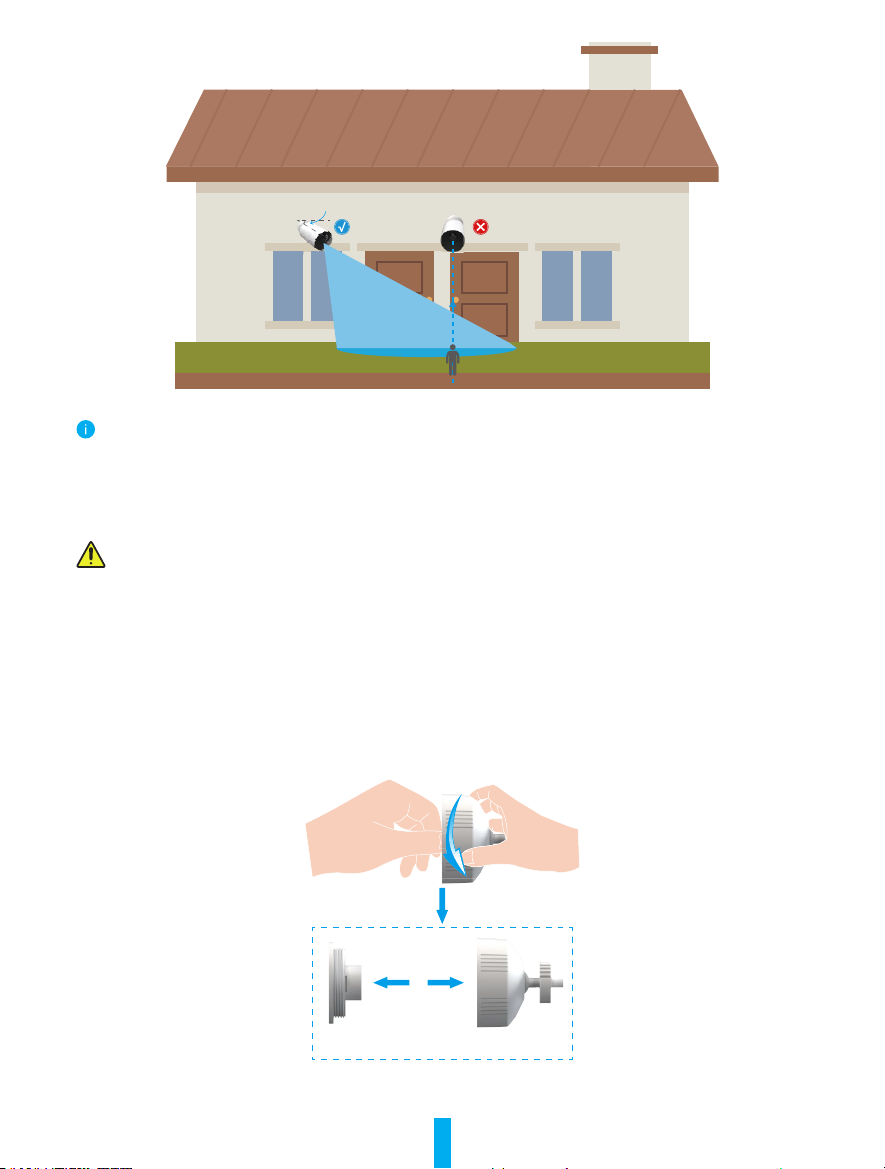
Choosealocationwithaclear,unblockedeldofviewandwithagoodwirelesssignaltothecamera.Pleasekeepthefollowing
tips in mind:
• Make sure the wall is strong enough to withstand three times the weight of the camera.
• Recommended installation height: 7-10 ft (3 m) above the ground.
• Recommended installation angle: Tilt down 20 degrees.
• Makesurethatside-to-sidetrafccrossescamera’seldofview.Thecamera’smotionsensorismuchmoresensitivetoside-
to-sidemovementacrossitseldofviewthantomovementdirectlytowardorawayfromthecamera.

7
20°
Limited by PIR detection technology, the camera may fail to detect motion when environment temperature is close to
human body temperature or someone approaches the PIR sensor vertically.
• It is recommended to set detection sensitivity on the EZVIZ app when selecting location. Thus you can verify if motion can be
detected in the camera’s placement and adjust the sensitivity based on the size and distance of detected object.
Important Notes on Reducing False Alarms:
• Do not install the camera under strong light conditions, including sunshine, bright lamp lights, etc.
• Donotplacethecameranearanyoutlets,including theairconditionervents,humidieroutlets,theheattransfer
vents of projectors, etc
• Do not install the camera at places with strong wind.
• Do not install the camera in front of a mirror.
• Keep the camera at least 1 meter away from any wireless devices, including Wi-Fi routers and phones in order to avoid
wireless interference.
2� Installation Steps
1. Pleaseseparatethemountingplatefromthescrewbaserst.
Mounting Plate Screw Base
2. Removetheprotectivelmfromthelens.
3. Placedrilltemplateontoacleanandatsurface.
4. (For cement wall only) Drill screw holes according to the template, and insert anchors.

8
5. Use screws (PA4×25)toxthemountingplateaccordingtothetemplate.
6. Rotate the screw base to the mounting plate.
7. Mount the camera to the base.
Mounting Plate
Anchor
Drill Template
Screw
Screw Base
Camera
Questo manuale è adatto per i seguenti modelli
1
Indice
Altri manuali Ezviz Telecamera di sicurezza

Ezviz
Ezviz CTQ3N Manuale utente

Ezviz
Ezviz EB3 Manuale utente

Ezviz
Ezviz CSBC1-B Manuale utente

Ezviz
Ezviz C6W Manuale utente

Ezviz
Ezviz C6T Manuale utente

Ezviz
Ezviz H4 Manuale utente

Ezviz
Ezviz C2C-FHD Manuale utente

Ezviz
Ezviz C1C Manuale utente

Ezviz
Ezviz C8C Lite Manuale utente

Ezviz
Ezviz CSH81H3 Manuale utente