
Ezze Mobile Tech SL900 Manuale utente

1
Contents
FOR YOUR SAFETY...................................2
UNPACKING................................................4
YOUR PHONE.............................................5
GETTING STARTED .................................15
GENERAL FUNCTIONS ...........................20
IN-CALL OPTIONS ...................................27
USING PHONEBOOK...............................30
TEXT INPUT..............................................33
MENU MAP................................................41
MENU FUNCTIONS ..................................44
1. Phonebook.......................................44
2. Messages .........................................48
3. Call History.......................................58
4. Settings ............................................61
5. Multimedia........................................78
6. Fun....................................................91
7. Tools.................................................94
8. Services..........................................101
9. File Manager...................................103
SIM AT SERVICE.....................................107
SOLVING PROBLEMS............................108
USING BATTERIES ................................110
SAFETY INFORMATION.........................112
GLOSSARY.............................................116

2
For Your Safety
For your safety, please refer to the guideline prior
to using the phone. Failure to comply with the
guideline may cause malfunctions or hazardous to
user.
Road Safety Comes First
Please be careful not to use the phone while
driving. In case you need to use the phone, please
pull over your vehicle first. In some countries, it is
illegal to use a wireless phone while driving. Also, it
is recommended to avoid using a mobile phone
while refueling at a gas station
Switch off in Aircraft
Mobile phones may cause interference to the
aircrafts. Please make sure the phone is switched
off while in the airplanes.
Respect Special Regulations
Please follow special regulations in any areas
where it is suggested. It is recommended to switch
off your phone whenever it is illegal to use, or
when it may cause interferences, such as hospitals.
Interference
All mobile phones may be subject to radio
interference, which may affect the performance
during calling and receiving.
Qualified Service
It is highly recommended to have a repair service
by qualified service personnel. Use only the
approved accessories and batteries.
Use Properly
Use only in the normal position (hold to the ear).
Avoid unnecessary contact with the antenna when

3
the phone is switched on.
Emergency Calls
When making an emergency calls, please ensure
that the phone is switched on and is in service.
Enter the emergency number (Official Emergency
Number or another official emergency number) and
press the [Send Key]. Inform your current location.
Do not end the call until given permission to do so.
You may end the call by pressing the [End Key].
4
Unpacking
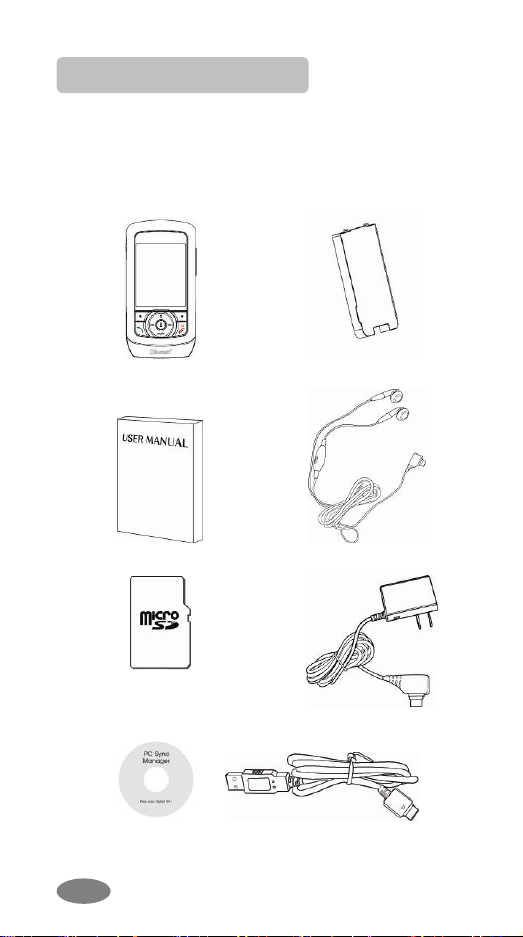
Thank you for purchasing this product. Please
check the product contents to see if you have all
the available items as below. (*Images may vary from
the actual product in your package.)
Handset
Battery
Manual
Ear/Microphone
micro SD (T-Flash) Card
(optional)
Traveler’s Charger
PC Sync Manager CD &
USB Data Cable

5
Your Phone
Phone Layout

6
Key Definition
Soft Keys
Performs functions identified by
left/right display prompt.
Right button: Cancels numbers &
letters when you make a call or
input letter for phonebook,
message or WAP.
Speaker Phone (Optional)
Right button: Starts and stops the
“Speaker Phone” mode during a
voice call.
Navigation Keys
Scrolls through the menu options.
Moves the cursor up and down in
the normal editing mode.
Moves the cursor to left and right in
all editing mode.
Send Key
Dials or answers a call.
Recalls the last 10 numbers in the
idle mode.
Power on/off Key & End Key
Ends a call.
Switches the phone on and off.
(press this key and hold)
Cancels your input in the menu
facility and returns to the idle mode.
Alphanumeric Keys
You may enter numbers, letters and
special characters.
It changes camera settings in
camera mode.
Special Function Keys
Enters Special Characters /
Performs Various Functions

7
Side Key(On the right side of your
phone)
Adjusts the Keypad Tone volume in
idle mode.
Flashes light on or off in idle mode
by pressing and hold the key.
Adjusts the earpiece volume during
a call by pressing briefly.
Starts “voice recording” during a
call by pressing and hold the side
key (up). Stops “voice recording” by
pressing and holding down the side
key.
Adjusts the Audio Player volume.
Moves through months in calendar
mode.
Shortcuts Left: Accesses to “Message”
Right: Accesses to “Shortcuts”
Up: Accesses to “Bluetooth”
Down: Accesses to “Music”
from an idle mode
You may dedicate the left
navigation key for favorite menu in
‘Dedicated key’ setting menu
(Menu > 4.Settings > 1.Phone
Setup > Display Settings)
WAP Key
Accesses to WAP menu (press
shortly), and launch WAP browser
(press and hold).
Camera Shutter
In camera and video preview mode,
works as a shutter.

8
Camera Hot Key (side)
Press and hold to start the camera
preview mode.
In camera and video preview mode,
works as a shutter.
To select the “Keypad Lock” option
menu, press this key and hold.
Switches Main LCD preview mode
and Sub LCD preview mode.
To activate the “Silent Mode”
option, press this key and hold.
Flips the camera and video
preview; use it when you swivel the
camera.

9
Icons
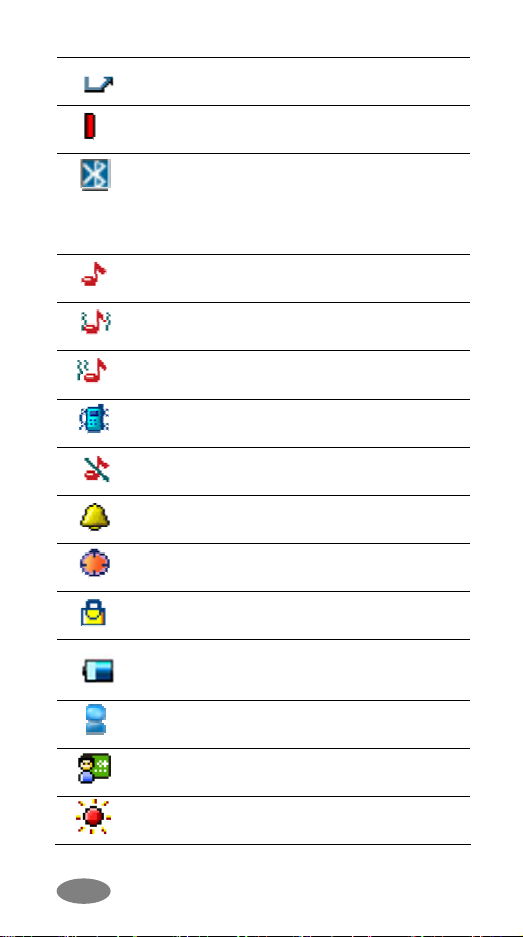
Icon Description
Signal Strength: Shows the strength
of the receiving signal. The greater the
number of bars, the better the signal
strength.
GPRS: Shows the strength of the
receiving GPRS signal.
The greater the number of bars, the
better the signal strength.
GPRS Connect: Appears when you
connect to GPRS.
Roaming: Appears when the phone is
roaming.
L1, L2: Some SIM cards support two
phone numbers and you can switch the
number (line) with this feature. The
phone will display this icon when you
set a line.
Missed Calls: Appears when there is
missed call(s).
New Message: Appears when a new
incoming text message is arrived and
unread.
MMS Unread: Appears when a new
MMS message is arrived and unread.
MMS Busy: Appears when MMS is
busy, such as receiving and sending a
message.
Broadcast Message: Appears when
Broadcast Message receive mode is
active..
WAP Mail: Appears when WAP mail is
arrived.
Call Barring On: Appears when the
call barring mode is active.
10
Call Forward: Appears when the call
forward mode is active.
IrDA: Appears when the IrDA port is
activated.
Bluetooth: Appears when the
Bluetooth power is on. It has to be on,
if you want to use the Bluetooth
function. When you finish using, turn
off the Bluetooth power.
Ring: Appears when the Ring mode is
active.
Vibrate and Ring: Appears when the
Vibrate and Ring mode is active.
Vibrate then Ring: Appears when the
Vibrate then Ring mode is active.
Vibrator On: Appears when the
Vibration mode is active.
Silent Mode: Appears when the silent
mode (manner mode) is active.
Alarm On: Appears when you set the
alarm.
Stopwatch: Appears when you set the
stopwatch.
Lock: Appears when you set the
phone lock.
Battery Strength: Shows the level of
your battery. The more bars you see,
the more
p
ower
y
ou have left.
General: appears when you set the
Sound & Light profile as General.
Meeting: appears when you set the
Sound & Light profile as Meeting.
Outdoor: appears when you set the
Sound & Light profile as Outdoor.
Indice
Altri manuali Ezze Mobile Tech Telefono cellulare

Ezze Mobile Tech
Ezze Mobile Tech EZ900 Manuale utente

Ezze Mobile Tech
Ezze Mobile Tech SLT100Q Manuale utente

Ezze Mobile Tech
Ezze Mobile Tech MP100 Manuale utente

Ezze Mobile Tech
Ezze Mobile Tech SLT100 Manuale utente

Ezze Mobile Tech
Ezze Mobile Tech SL599 Manuale utente

Ezze Mobile Tech
Ezze Mobile Tech EZ600 Manuale utente


