Feixun FWR-714N Manuale utente


Copyright Statement
Feixun is the registered trademark of Shanghai Feixun Communication Co.,Ltd. Other
trademark or trade name mentioned herein are the trademark or registered trademark of the
company. Copyright of the whole product as integration, including its accessories and software,
belongs to Shanghai Feixun Communication Co.,Ltd. Without the permission of Shanghai
Feixun Communication Co.,Ltd., individual or party is not allowed to copy, plagiarize, imitate or
translate it into other languages.
All the photos and product specifications mentioned in this manual are for references only, as
the upgrading of software and hardware, there will be changes. And if there are changes, Feixun
is not responsible for informing in advance. If you want to know more about our products
information, please visit our website at www.feixun.com.cn

Table of Contents
i
300Mbps Wireless N Rouer
CONTENTS
Introduction………………………………………………………………………………… 1
Product Overview……………………………………………………1
Main Features ………………………………………………………3
Installation…………………………………………………………………………………… 5
Physical Connection …………………………………………………5
Configure the Computers IP Address ………………………………5
Setup Wizard…………………………………………………………8
Router Configuration …………………………………………………………………11
Basic Setting ……………………………………………………… 11
WAN Interface Settings ……………………………………………………… 11
Wireless Settings …………………………………………………………… 12
Wireless Security Settings …………………………………………………… 13
Expert Setting …………………………………………………… 14
Network Settings …………………………………………………………… 15
Operating Mode…………………………………………………………… 15
LAN Interface Settings …………………………………………………… 16
WAN Interface Settings …………………………………………………… 16
PPTP VPN Server…………………………………………………………… 16
MAC Address Cloning……………………………………………………… 17
Wireless Settings …………………………………………………………… 18
Basic Settings ……………………………………………………………… 18
Wireless Security Settings ………………………………………………… 18
Wireless MAC Address Filtering …………………………………………… 18
Advanced Wireless Settings ……………………………………………… 19
Wireless Client List ………………………………………………………… 20
WPS Settings ……………………………………………………………… 20
WDS Settings ……………………………………………………………… 21
DHCP Server ………………………………………………………………… 23

Table of Contents
ii
300Mbps Wireless N Rouer
DHCP Service ……………………………………………………………… 23
Static Address Allocation ………………………………………………… 24
DHCP Client List …………………………………………………………… 24
Forwarding Rule……………………………………………………………… 24
Port Forwarding …………………………………………………………… 25
Port Triggering Settings…………………………………………………… 25
DMZ Host ………………………………………………………………… 27
UPnP Settings……………………………………………………………… 28
Multicast Forwarding Settings …………………………………………… 28
Security Options……………………………………………………………… 28
Security Settings…………………………………………………………… 28
Advanced Security Settings ……………………………………………… 29
LAN Web Management …………………………………………………… 30
Remote Web Management ……………………………………………… 30
Access Control ……………………………………………………………… 31
MAC/IP/Port Filter Settings ……………………………………………… 31
Web URL Filtering ………………………………………………………… 31
Routing Settings……………………………………………………………… 32
Static Routing Table ……………………………………………………… 32
Dynamic Routing Settings ………………………………………………… 32
IP Bandwidth Control………………………………………………………… 33
IP Bandwidth Control Settings …………………………………………… 33
IP Bandwidth Control List ………………………………………………… 33
Dynamic DNS Settings ……………………………………………………… 34
System Tools ………………………………………………………………… 34
Network Time Settings …………………………………………………… 35
Diagnosis Tools …………………………………………………………… 35
Load Default Settings……………………………………………………… 37
Export and Load Settings ………………………………………………… 37
Reboot …………………………………………………………………… 37
System Settings …………………………………………………………… 38

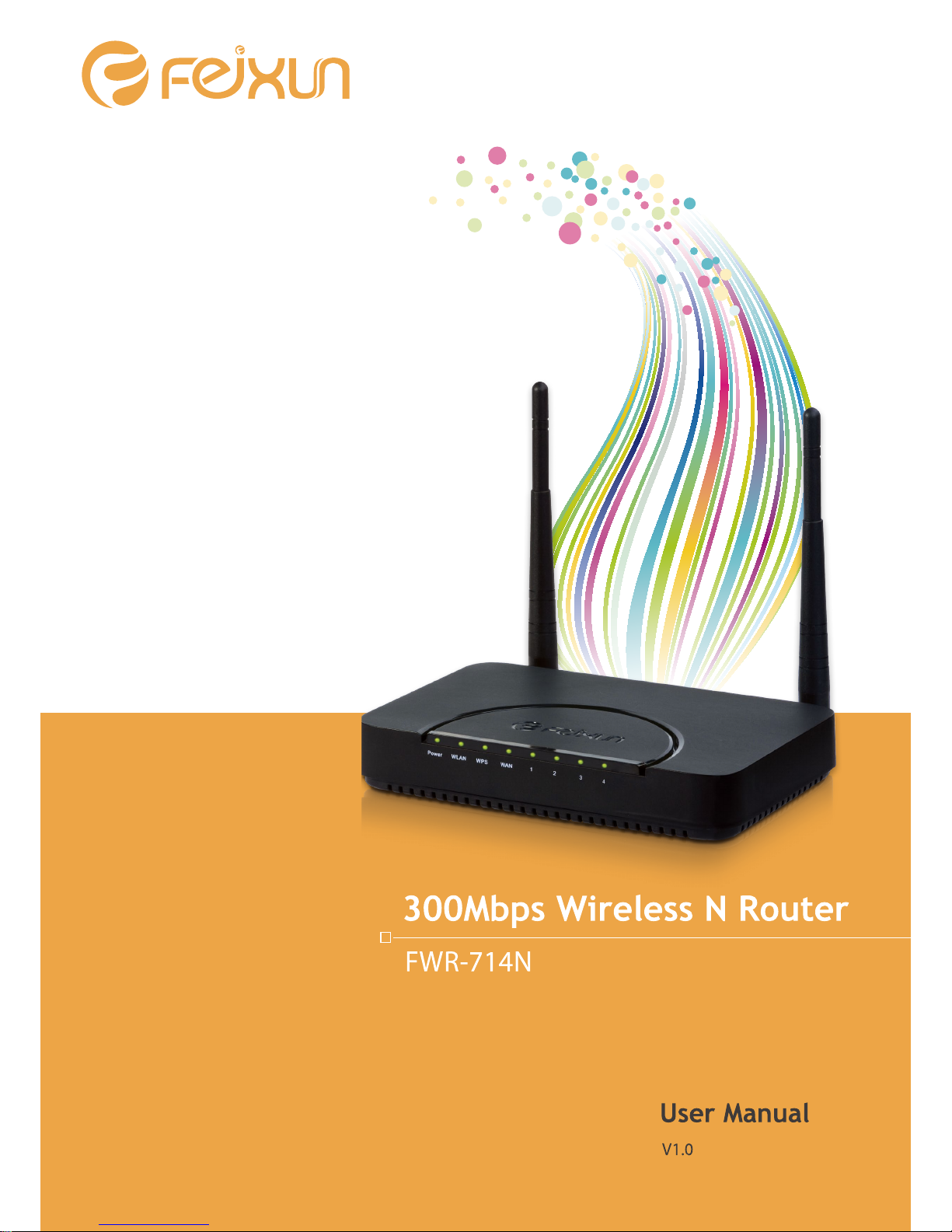
Table of Contents
iii
300Mbps Wireless N Rouer
System Log………………………………………………………………… 38
Traffic Statistics …………………………………………………………… 38
Setup Wizard……………………………………………………… 39
Software Upgrade ……………………………………………… 39
Software Update …………………………………………………………… 39
Logout …………………………………………………………… 39
Specification ………………………………………………………………………………40
Appendix A: Troubleshooting ……………………………………………………41
Appendix B: Certification……………………………………………………………43
FCC Statement …………………………………………………… 43
CE Mark Warning ………………………………………………… 44
Appendix C: Glossary …………………………………………………………………45
Appendix D: Technical Support …………………………………………………47

1
300Mbps Wireless N Rouer
Chapter1: Introduction
Introduction
Product Overview
Thank you for choosing FWR-714N Wireless N Router.
FWR-714N 300Mbps Wireless N Router is an all-in-one router, ideal for home and SOHO users to
share broadband Internet connection over the wired and wireless network. With the speed of
up to 300Mbps, it can provide users with extraordinary smooth internet surfing, internet phone
calling, on-line gaming, and HD video streaming. Moreover, by adopting two external Omni-
directional antennas and MIMO technology, FWR-714N could greatly increases the wireless
range & sensitivity, which enables you to receive wireless signals in the farthest corner of your
home or office. And you can quickly setup the security at a simple push of the “WPS” (Wi-
Fi Protected Setup) button on the fashionable designed router, preventing your device from
potential internet attacks.
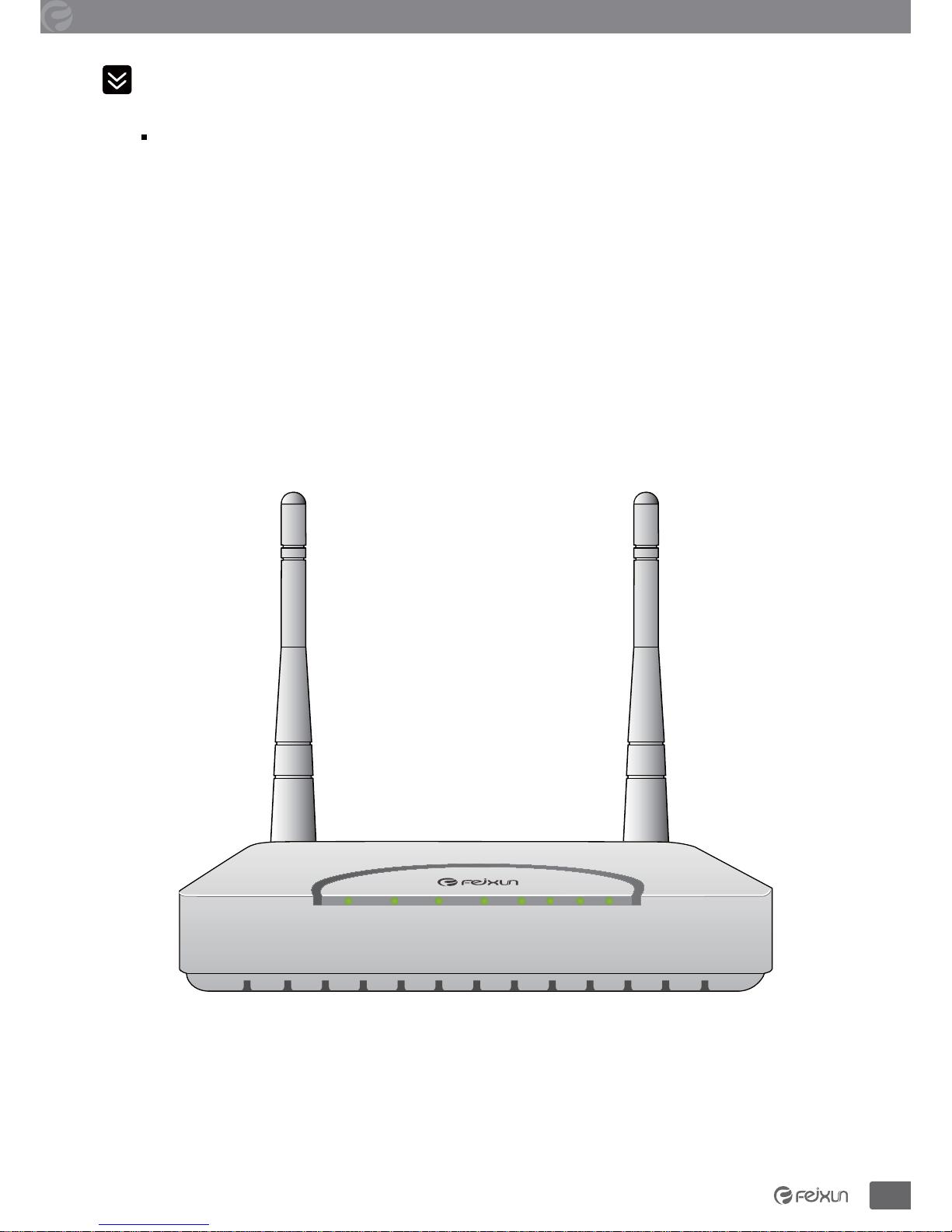
Front Panel
Power WLAN WPS WAN 1 3 42
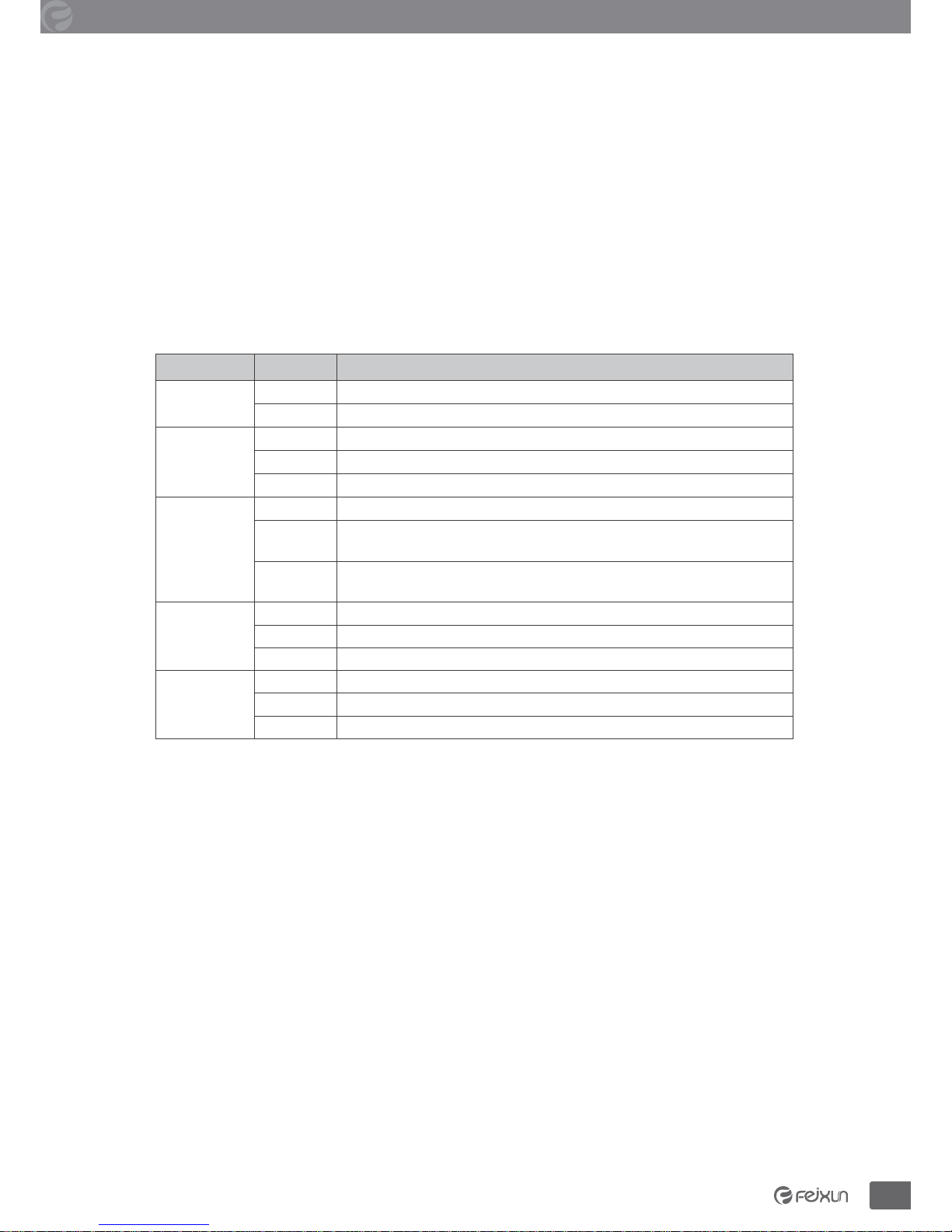
Power LED: The Power LED lights up when the Router is powered on. When the Router goes
through its self-diagnostic mode during every boot-up, the LED flashes. When the diagnostic is
complete, the LED is continuously lit.
WLAN LED: The Wireless LED lights up when the wireless feature is enabled. It flashes when

2
300Mbps Wireless N Rouer
Chapter1: Introduction
the Router sends or receives data over the wireless network.
Wi-Fi Protected Setup (WPS) LED: If you have client devices, such as wireless adapters,
that support Wi-Fi Protected Setup, then you can use the Wi-Fi Protected Setup button to
automatically configure wireless security for your wireless network. To use Wi-Fi Protected
Setup, refer to the section of Wi-Fi Protected Setup.
WAN: The Internet LED lights up when there is a connection made through the Internet port. It
flashes to indicate network activity over the Internet port.
LED (1-4): These LEDs are corresponding with the LAN ports on the rear panel. The LED is
continuously lit when the Router is connected to a device through that port. It flashes to
indicate network activity over that port.
LED Status Description
Power On Power is on
Off Power is off
WLAN On Wireless network is switched on
Off Wireless LAN is disabled
Blink Data is transmitting
WPS
Off WPS function is disabled
Blink A wireless device is connecting to the network by WPS function.This
process will last in the first 2 minutes
On A wireless device has been successfully connected to the network by
WPS function
WAN On Internet is connected
Off Internet is unconnected
Blink Data is transmitting
LAN (Port 1-4) On LAN port is connected
Off LAN port is unconnected
Blink Data is transmitting

3
300Mbps Wireless N Rouer
Chapter1: Introduction
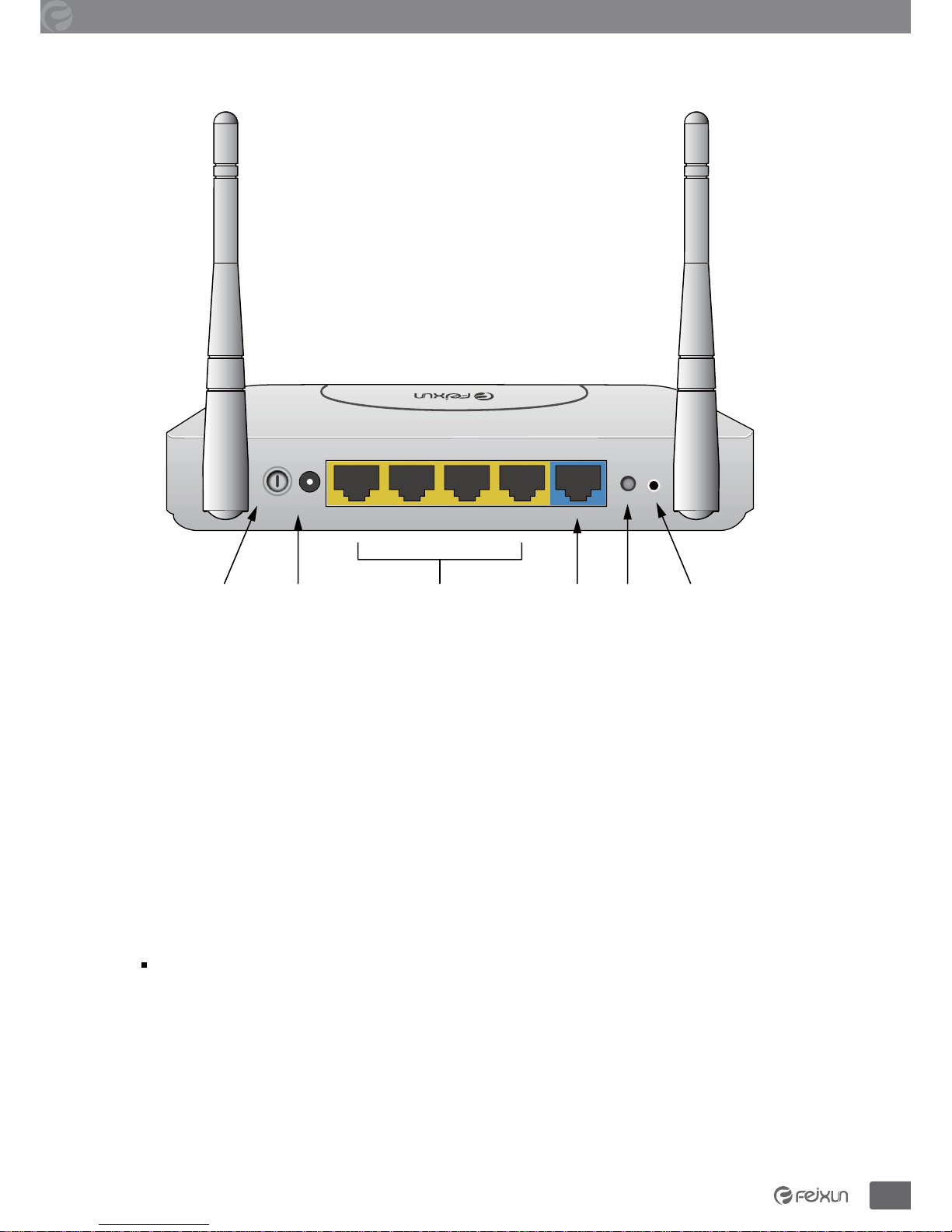
Rear Panel
ResetWANLAN 1~4 WPSPowerON/OFF
Reset: Long press and hold the button for 8 seconds, the Router will reboot to its factory
default settings.
WPS: Press the button and the WPS LED in front panel flashing, WPS function is enabled.
WAN: Using an Ethernet cable (also called a network or Internet cable), the Internet port
connects the Router to your Internet connection, which is typically a cable or Digital Subscriber
Line (DSL) modem.
LAN(1~4): Using Ethernet cables, these Ethernet ports (4, 3, 2, 1) connect the Router to
computers and other Ethernet network devices on your wired network.
Power: The Power port connects to the included power adapter.
ON/OFF: The power on/off button.
Main Features
• 4 LAN ports and 1 WAN port
• Wireless N speed up to 300Mbps, ideal for internet surfing, on-line gaming and HD video
streaming
• MIMO technology greatly increases the wireless range, sensitivity and stability
• Multi-SSID allows users to create multiple networks, and distributes access privilege of each

4
300Mbps Wireless N Rouer
Chapter1: Introduction
network
• QoS controls the reasonable allocation of bandwidth to achieve optimum utilization,
ensuring reliable Internet connection
• Quick wireless security setup by simply pressing the WPS button
• WDS wireless bridge provides seamless bridging to expand your wireless network
• Built-in firewall featured with IP, MAC, URL filtering and ARP attack prevention to protect
your PC
• Backward compatible with 802.11b/g product
• Setup wizard simplifies installation and configuration

5
Chapter2: Installation
300Mbps Wireless N Rouer
Installation
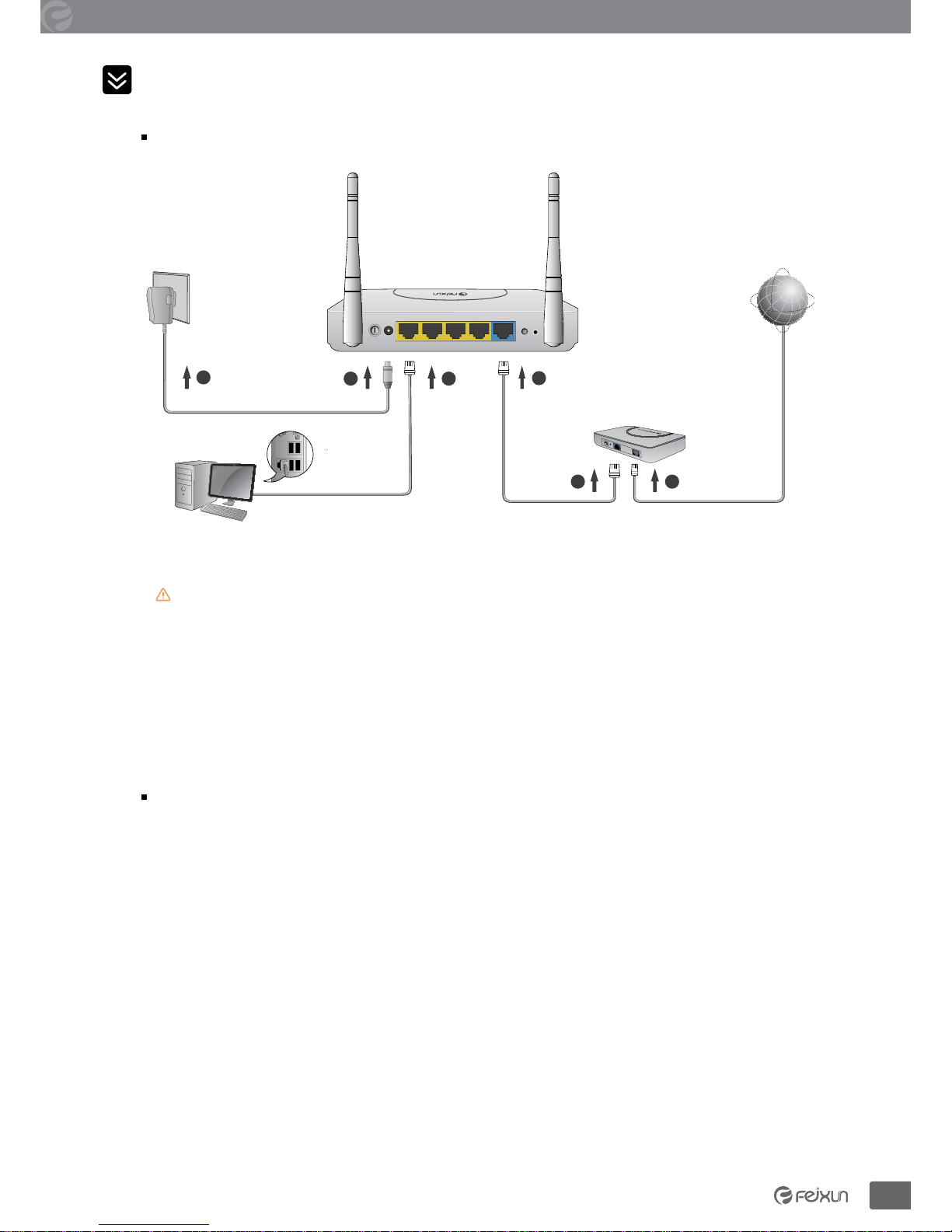
Physical Connection
12
PC
Modem
Internet
Power Socket
654
3
Router
WAN WPS RSTON/OFFPWR LAN4 LAN3 LAN2 LAN1
Note:
• Actual product may be different as the picture, but the installation will be the same.
• Please use the included power adapter. Use of a different power adapter could cause
damage and void the warranty for this product.
• Please ensure the Power, LAN and WAN lights are ON when the installation finished
successfully.
Configure the Computers IP Address
After connecting your PC to the router, you need to configure your PCs IP address.
For Windows XP/2000
1. Click Start>Control Panel.
Indice